Docs / Dashboard
Create a dashboard
A dashboard is your visual canvas for widgets, charts and KPIs. Learn how to create a new dashboard in a project, rename it to keep things organised, and delete dashboards you no longer need.
What is a dashboard
A dashboard in Indicate is a visual canvas where you combine widgets, charts, and KPIs into a single view. Each dashboard belongs to a project and is visible in your workspace.
Create a dashboard
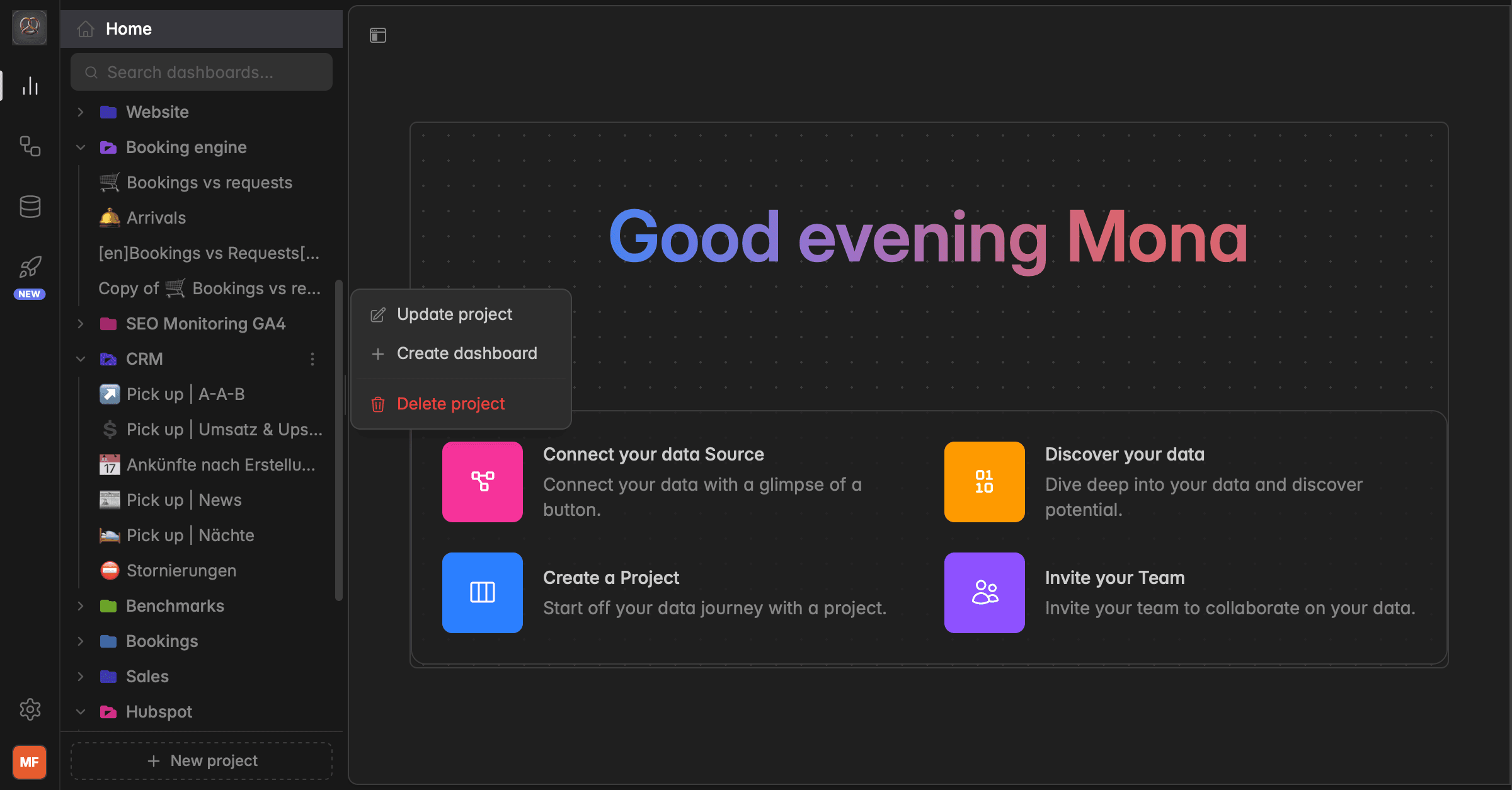
In the left sidebar, hover over the project where you want to add a dashboard
Click the
⋯icon that appears next to the project nameSelect
+ Create dashboardfrom the menuEnter a Display Name for your dashboard, for example "Marketing Overview"
Click
Create. The new dashboard appears in the left sidebar under your project.
Rename a dashboard
You can rename your dashboard at any time to keep your workspace organised. Changes appear instantly for all workspace members.
There are two ways to rename your dashboard: from the sidebar, or from inside an open dashboard.
In the left sidebar, hover over the dashboard name you want to rename
Click the
⋯icon that appears next to the dashboard name or select the⋯in the right corner of the dashboard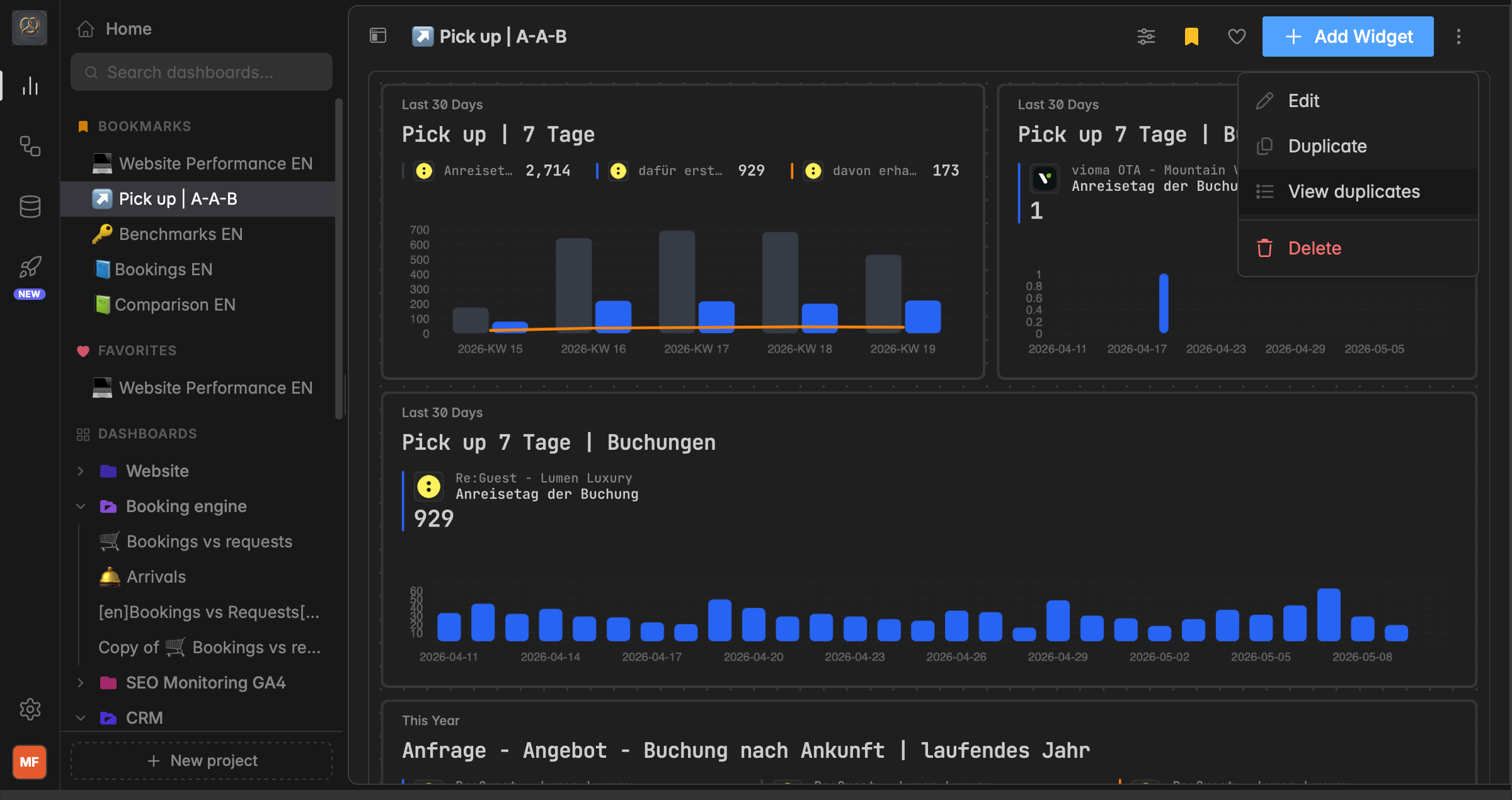
Select
Editfrom the context menuUpdate the Display Name in the dialog that opens
Click
Save. The new name appears instantly in the left sidebar and at the top if the dashobard is open.
Delete a dashboard
There are two ways to delete a dashboard: from the sidebar, or from inside an open dashboard.
Deleted dashboards cannot be restored. Deleting a dashboard also removes its widgets, but does not remove the underlying Data Products.
In the left sidebar, hover over the dashboard you want to delete or open the dashboard you want to delete
Click the
⋯icon that appears next to the dashboard name or click the⋯icon in the top right corner of the dashboardSelect
Deletefrom the dropdown menuConfirm by clicking
Delete permanently
Troubleshooting
I can’t create a dashboard
The Display Name needs at least 3 characters. Enter a longer name and try again.
I can’t create a dashboard
Creating dashboards requires the right role. Users with the Reader role can view dashboards but cannot create them. Ask your workspace admin to update your role.
I deleted a dashboard by accident
Deleted dashboards cannot be restored. You will need to create a new dashboard and rebuild its widgets.
Was this helpful?