
Indicate changelog
Download Dashboards as PDFs, Flying KPI Editor and Connect Invites
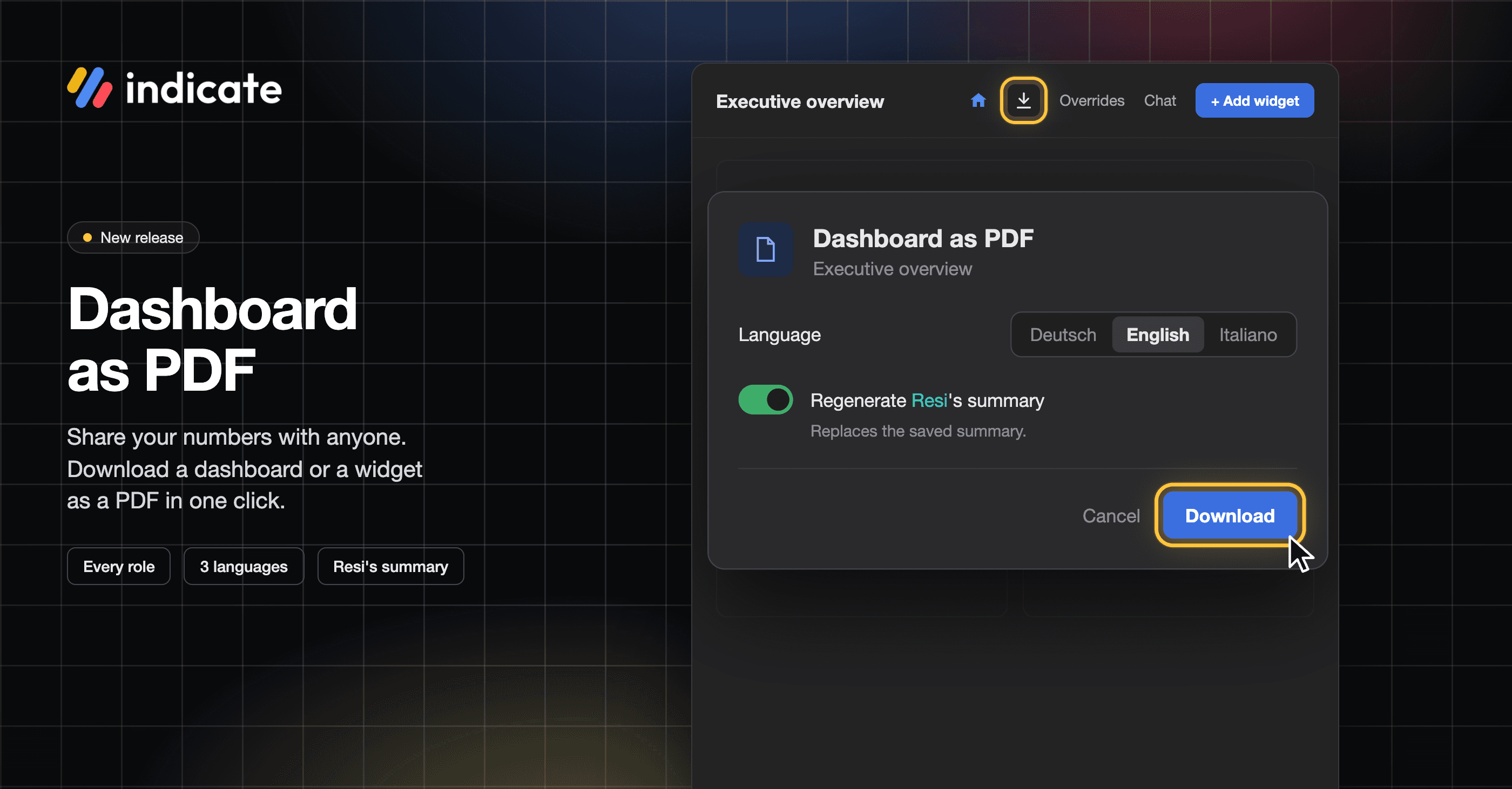
Download Dashboards as PDF: Share Your Numbers With Anyone
Download any dashboard as a PDF and send it to people, for example, the owner of a hotel, your marketing team, or your front desk.
Pick the language: German, English, or Italian. The PDF and Resi's summary are written in that language.
Add Resi's summary on top: generating an AI summary works for members with AI access and uses your AI budget.
Easier to read: tables show the icon and name of each data source, and wide tables are split into parts. Widgets with a ranking show the Top N hint, as in the app.
👉 You can find this in Analytics → your dashboard → Download as PDF, the download icon in the toolbar, or the three-dot menu. Find more information here.
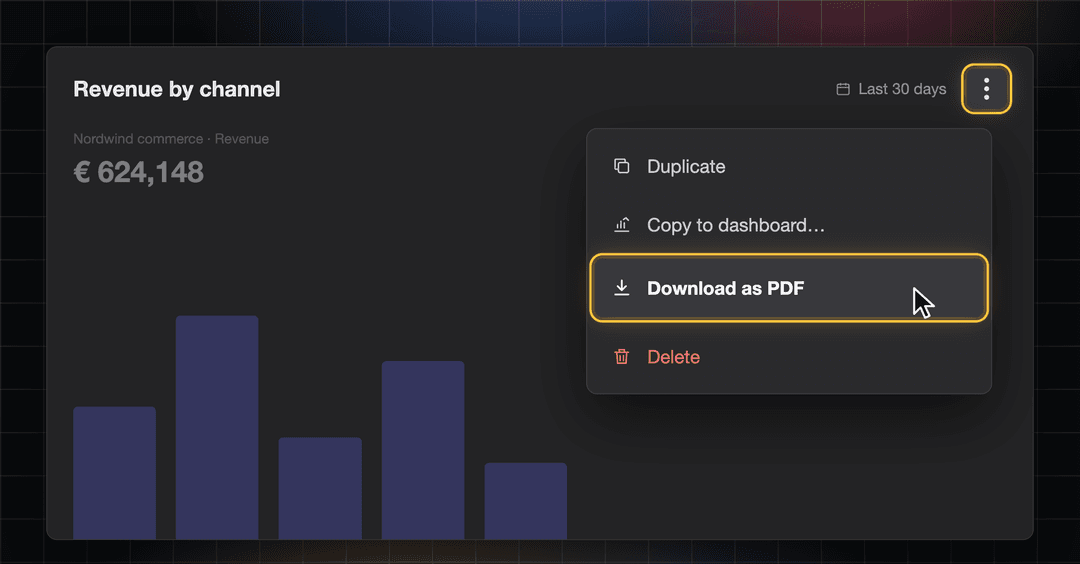
Download Widget PDFs: Just the Chart You Need
Need only one number for a meeting? Download a single widget as a PDF, without a dialog. It comes out with the time range and grain you see on the dashboard.
👉 You can find this in the three-dot menu of a widget → Download as PDF. Find more information here.
Flying KPIs: Set Up and Keep Track of Every Report
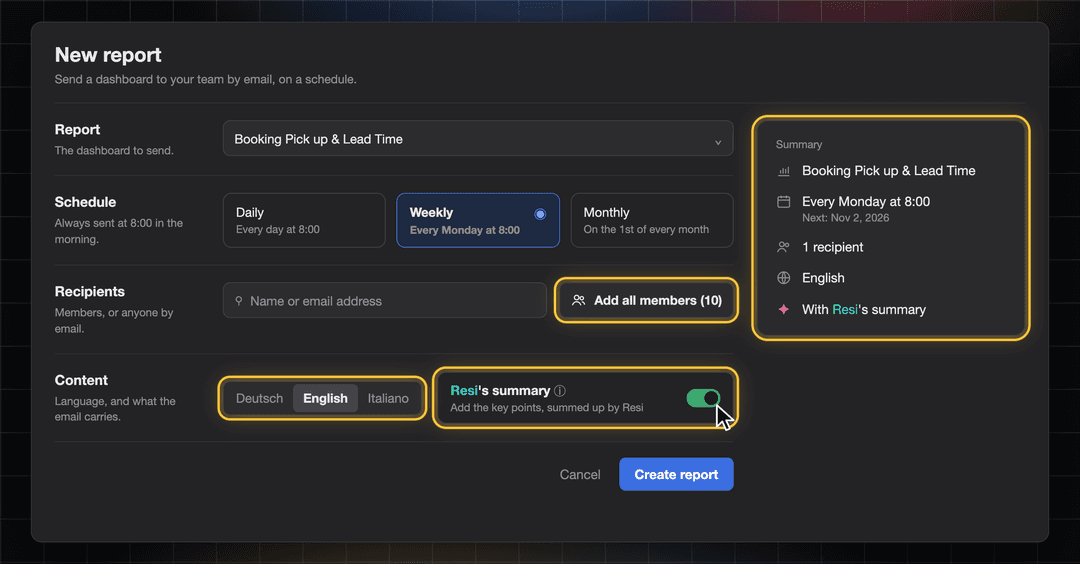
You now create and edit a Flying KPI on its own page instead of a small dialog. Report, schedule, recipients, and content sit in clear sections, with a summary of the report on the right. We added some new features too:
Choose the language of each report: German, English, or Italian.
Add recipients faster: add all members at once, or paste several email addresses in one go.
Find reports quickly: search by report, dashboard or recipient, and filter by Active or Paused.
See when a report last went out in the new Last sent column.
See which reports include Resi's summary. It is now on by default for new reports and uses your AI budget.
Recipients can unsubscribe with one click from every email.
👉 You can find this in Flying KPI, the rocket icon in the left rail. Find more information here.
Connect Invites: The Right Person Connects the Right Account
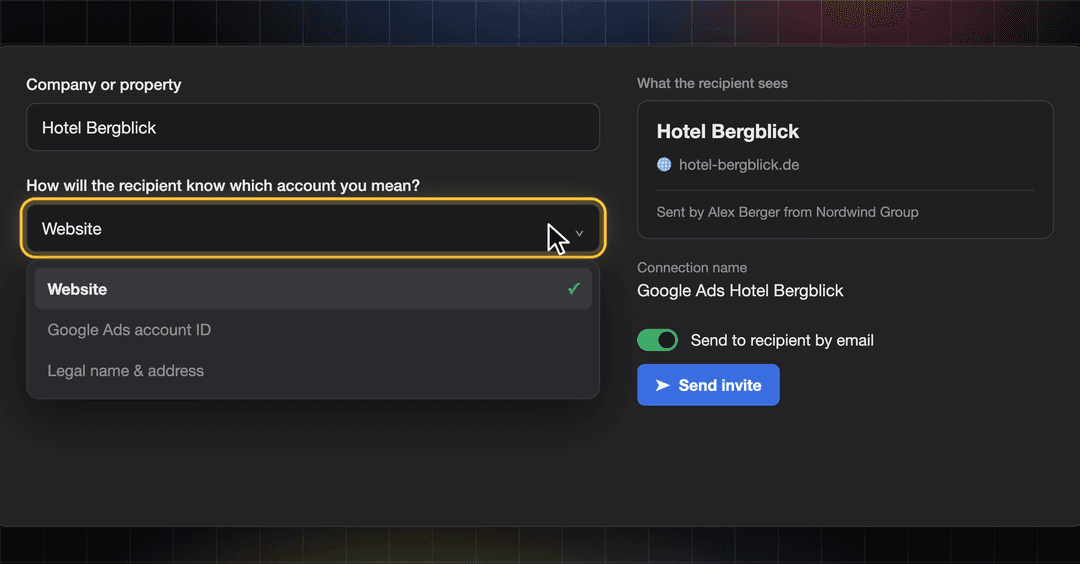
A connect link lets someone outside Indicate connect a data source for you, for example, the agency that runs your Google Ads or a colleague who has the login. Creating an invite link to connect a data source now happens on its own page that also works on your phone.
Say who it is for: enter the company or property, for example, Hotel Bergblick.
Tell their account apart: pick the website, the account ID, or the legal name and address, so the recipient knows which account you mean.
See what the recipient sees: a preview card shows the company, the detail you picked, and who sent the invite.
Send it by email: switch on Send to recipient by email, and we deliver the link. Or copy it and share it yourself.
Resend an invite from the invites list if the first email got lost. Invited before suggests recipients you used earlier.
👉 You can find this in Data sources → Marketplace → select your integration → Generate connect link. Your invites are in Data sources → Connect invites. Only space admins can create connect links. Find more information here.
Stay in the Loop
We're building Indicate with you, and there's always more on the way. Take a look at our changelog anytime and join us on LinkedIn to be the first to hear what's new.
Questions, ideas, or feedback? We'd love to hear from you, so just get in touch.
The Indicate Team