
Download a dashboard as PDF
Download a whole dashboard or a single widget as PDF, with or without Resi's summary.
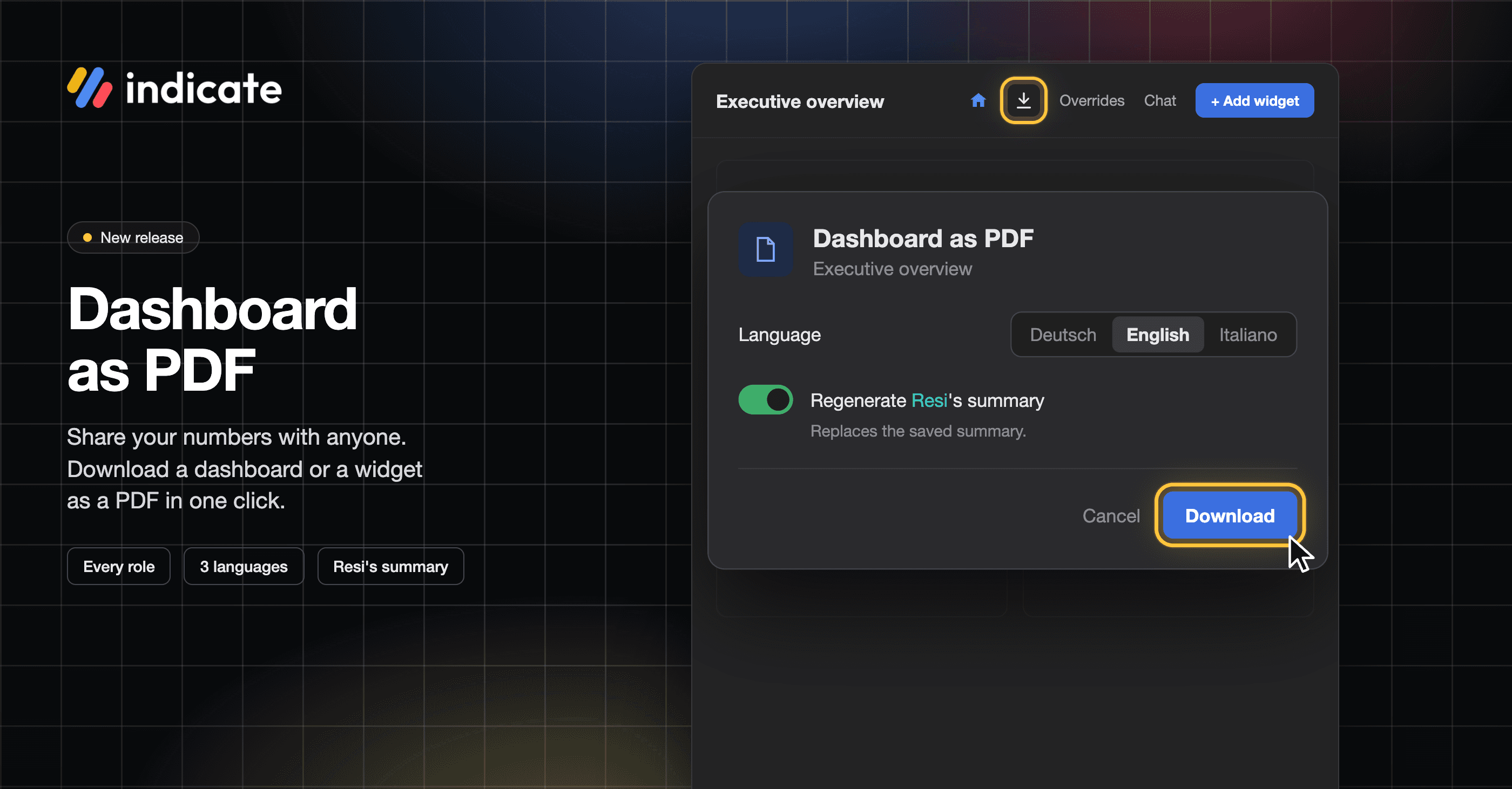
What is the PDF download?
You can download a whole dashboard or a single widget as a PDF file. The PDF shows the widgets exactly as you see them on screen, with the same time range and the same grouping. For example, you can download your "Quarterly report" dashboard on the first day of the month and send it to your management by email.
A dashboard PDF can start with a written summary by Resi, your AI agent. A widget PDF contains only that one widget.
When do you need this?
You want to share figures with people who have no Indicate account.
You want to keep a snapshot of a dashboard for a meeting, a report, or your records.
You only need one chart, for example for a presentation, and not the whole dashboard.
What does the PDF contain?
Dashboard PDF
Header: the Indicate logo and the dashboard name.
Resi's summary (optional): on the first page, above the widgets, with the date it was written. It has the sections
TL;DR,Key findings,Trends and anomalies,RecommendationsandData notes.All widgets of the dashboard, in the layout of the dashboard. Each widget shows its title, its time range, its data source and its chart.
Footer on every page: the dashboard name, the date and time the PDF was created (for example
Generated 23 Oct 2026, 18:50 UTC), and the page number.
A widget that cannot load its data appears in the PDF with the message The data could not be loaded. instead of a chart. Resi also mentions these widgets under Data notes in the summary.
Widget PDF
The widget PDF contains only the one widget you selected, with the same time range it shows on the dashboard. It has no summary.
The file is named after the dashboard and the date, for example Quarterly report-2026-10-23.pdf.
How do I download a dashboard as PDF?
Open the dashboard first. You can start the download in three places, all of them open the same dialog.
Toolbar: click the download icon at the top right of the toolbar, next to Overrides.
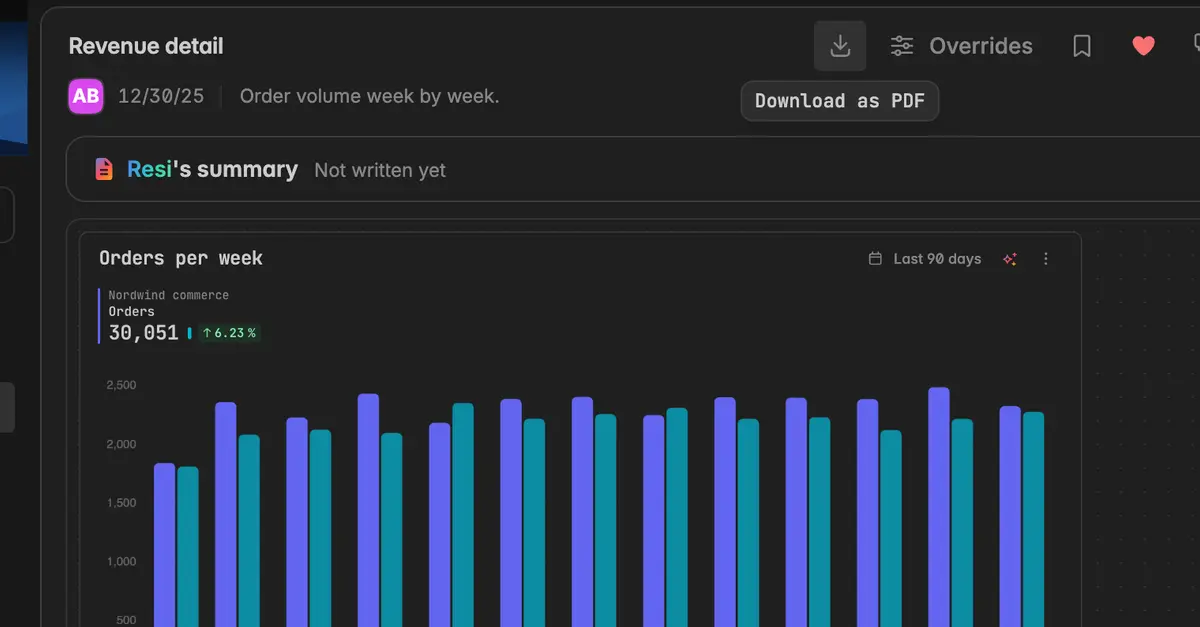
Dashboard menu: click the
⋮icon at the top right of the toolbar, next to Add widget, and select Download as PDF.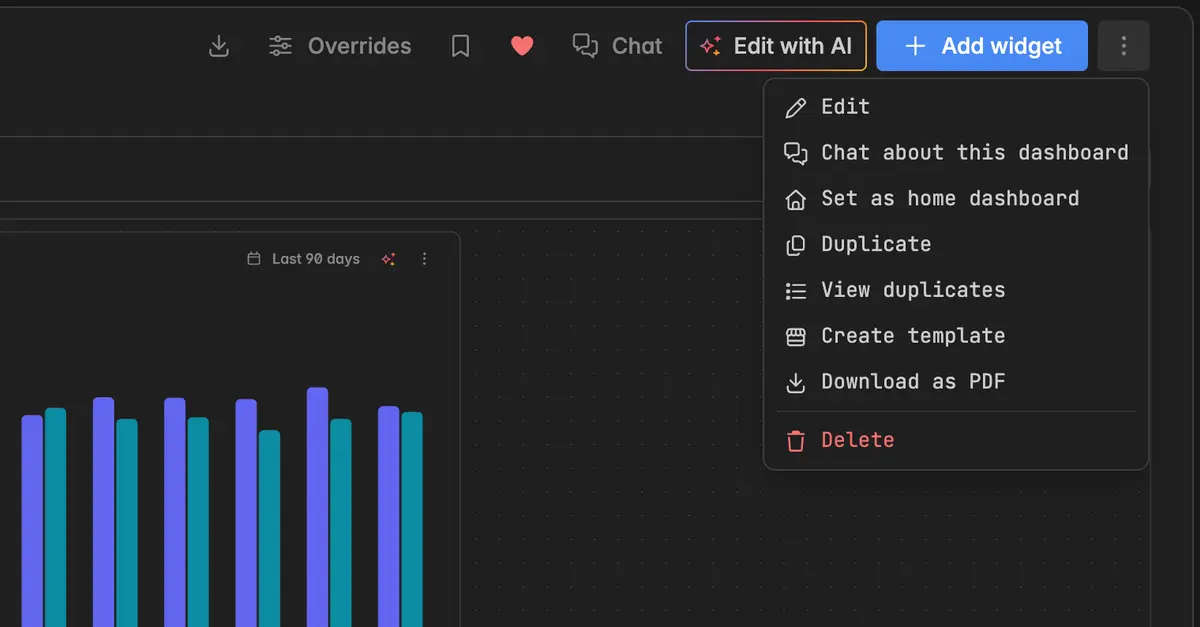
Sidebar: hover over the dashboard in the left sidebar, click the
⋮icon next to its name and select Download as PDF.
The dialog Dashboard as PDF opens.
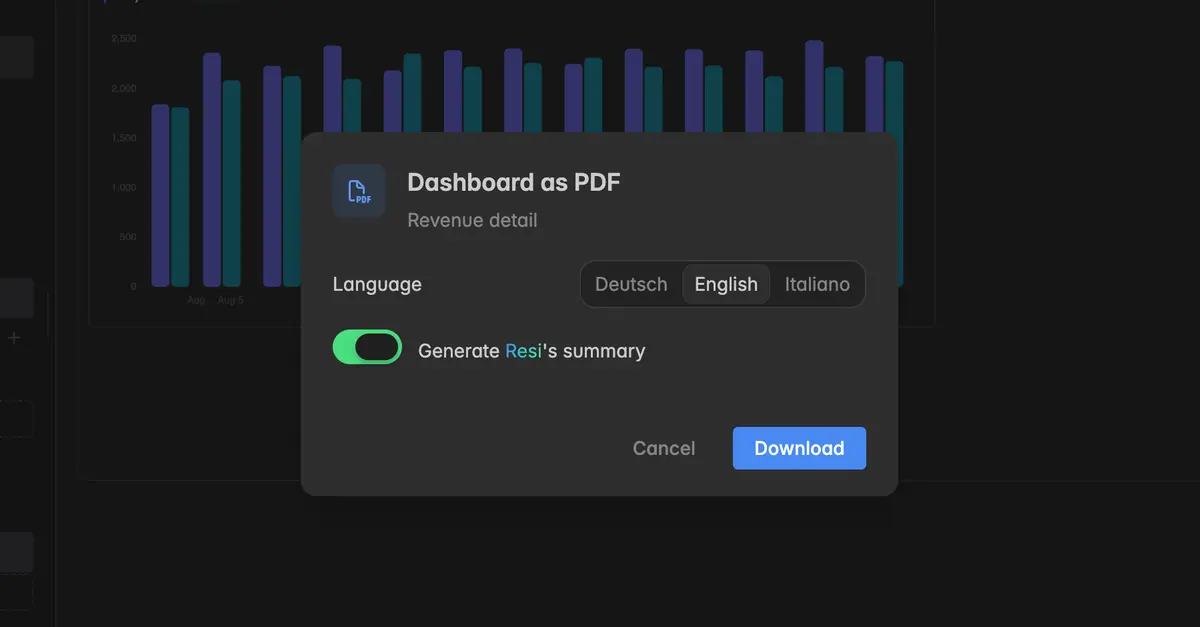
Under Language, pick the language of the PDF: Deutsch, English or Italiano. The language you use Indicate in is preselected.
Decide whether the PDF should start with a summary. The options are explained in the next section.
Click Download. The button shows Writing the summary… or Creating the PDF… while the file is prepared.
The PDF is saved to the download folder of your browser and the dialog closes.
Note: Every member of a space can download a dashboard as PDF, also with the Reader role. Only generating a new summary needs AI access.
How do I add Resi's summary to the PDF?
You choose the summary in the dialog Dashboard as PDF, which you open with Download as PDF on the dashboard.
Generate Resi's summary: Resi writes a new summary from the current data of all widgets. This switch is on by default if you have AI access. If the dashboard already has a saved summary, the switch reads Regenerate Resi's summary.
Use the saved summary from [date]: this option appears when you turn off the switch above and the dashboard already has a summary. The PDF then uses the existing text and no new summary is written.
No summary: turn off both switches. The PDF contains only the widgets.
Generating a summary takes longer than a PDF without one, and it uses your space's AI budget. See AI usage.
Is the new summary saved on the dashboard?
Usually yes. A newly generated summary replaces the saved summary of the dashboard. The hint below the switch tells you when that is not the case:
Made for your adjusted time range and not saved on the dashboard. You changed the time range of the dashboard with Overrides. The summary matches your view, but the dashboard keeps its old summary.
Written in the chosen language and not saved on the dashboard. You picked a different language than the language of the space.
Note: Resi can misread the data. Check the figures in the summary before you act on them or pass the PDF on.
How do I download a single widget as PDF?
You start the download from the widget on the dashboard. There is no dialog, the PDF is created right away.
Open the dashboard and hover over the widget.
Click the
⋮icon at the top right of the widget.Select Download as PDF.
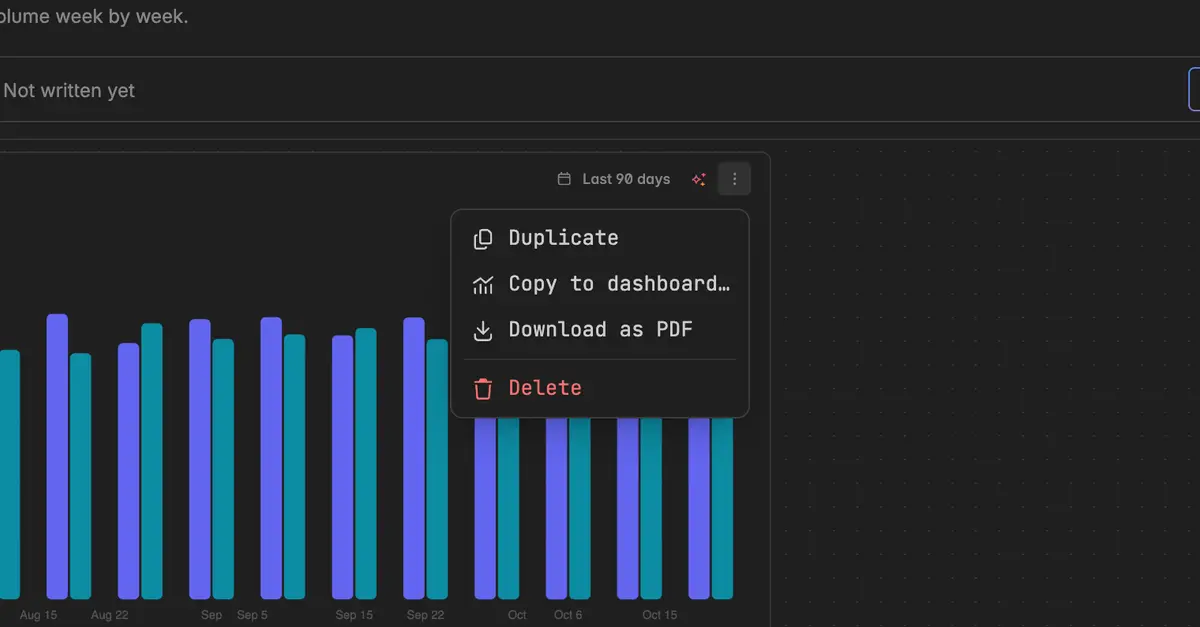
A message Creating the PDF… appears at the bottom right. Once the file is ready, your browser saves it to the download folder.
You find the same entry in the widget editor: open the widget, click the ⋮ icon in the header and select Download as PDF.
The widget PDF uses the time range and grouping the widget currently shows, and the language you use Indicate in.
Troubleshooting
The PDF has no summary
The message
PDF without summary: no AI budget left.means your space has used up its AI budget. The PDF was created without the summary. See AI usage.The message
PDF without summary: the summary could not be written.means Resi could not write the summary this time. Download the PDF again, or turn on Use the saved summary if the dashboard has one.
I cannot turn on Generate Resi's summary
- The switch is greyed out with the hint Only for members with AI access. Your role does not include AI access. Ask an admin of the space, see Roles and permissions. You can still download the PDF with the saved summary or without one.
The message "The dashboard has changed" appears
- Someone edited the dashboard while you had it open, for example deleted a widget. Reload the page and download the PDF again.
The message "The PDF could not be created" appears
- Wait a moment and try again. If the error stays, contact support and name the dashboard.
A widget in the PDF shows "The data could not be loaded."
- The widget could not load its data, so the PDF shows this message instead of the chart. Check the widget on the dashboard. If it is empty there too, check the data source under Add a data source.
The PDF shows a different time range than my colleague's
- The PDF uses your current view. If you changed the time range with Overrides, the PDF shows your adjusted range. Turn off Overrides in the toolbar to download the saved view of the dashboard.