
Indicate changelog
Organizations and Brand Colors
Organizations for Multi-property: Manage All Your Spaces in One Place
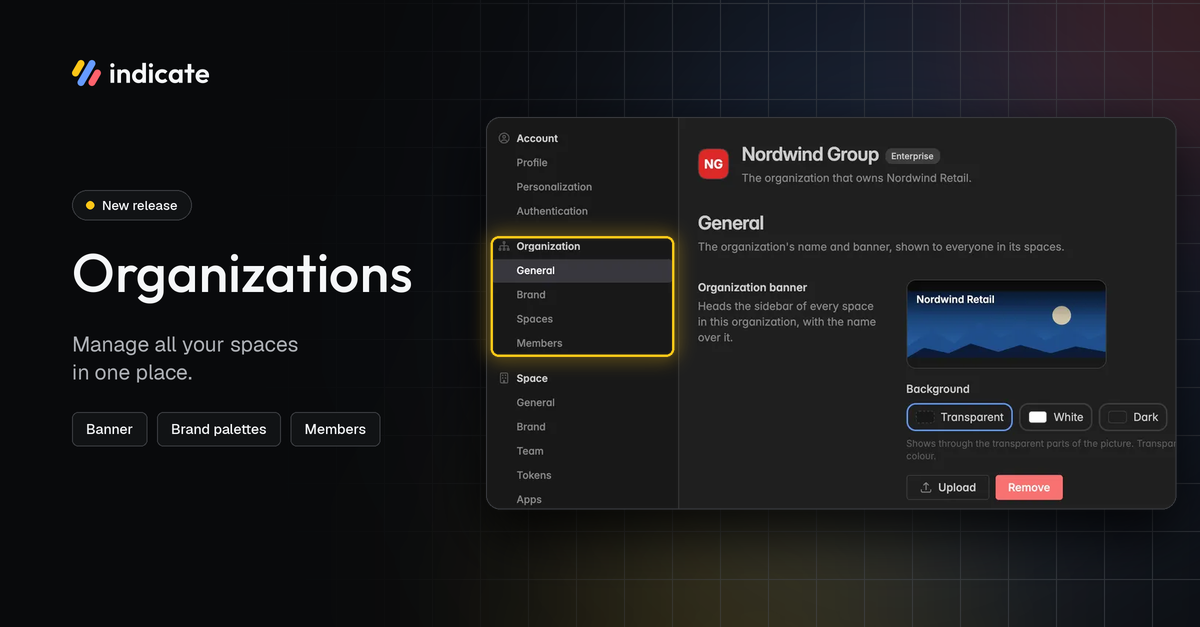
Organizations are a new level above your spaces. Hotel groups, chains, and agencies can manage all their spaces under one roof. Every space can belong to exactly one organization.
Give your organization a name and a banner that appears at the top of the sidebar in every space.
See all your organization's spaces, along with their status and plan.
Manage organization members and their roles.
Find your spaces grouped by organization in the space switcher.
👉 You can find this in Settings → Organization. Only organization members can see these settings, and only organization admins can edit them. Learn more here.
Organization membership and space access are separate. To give someone access to a space, invite them via Space Settings → Team. Learn more here.
Set Your Own Color Palettes as Brand Colors or Organization Colors
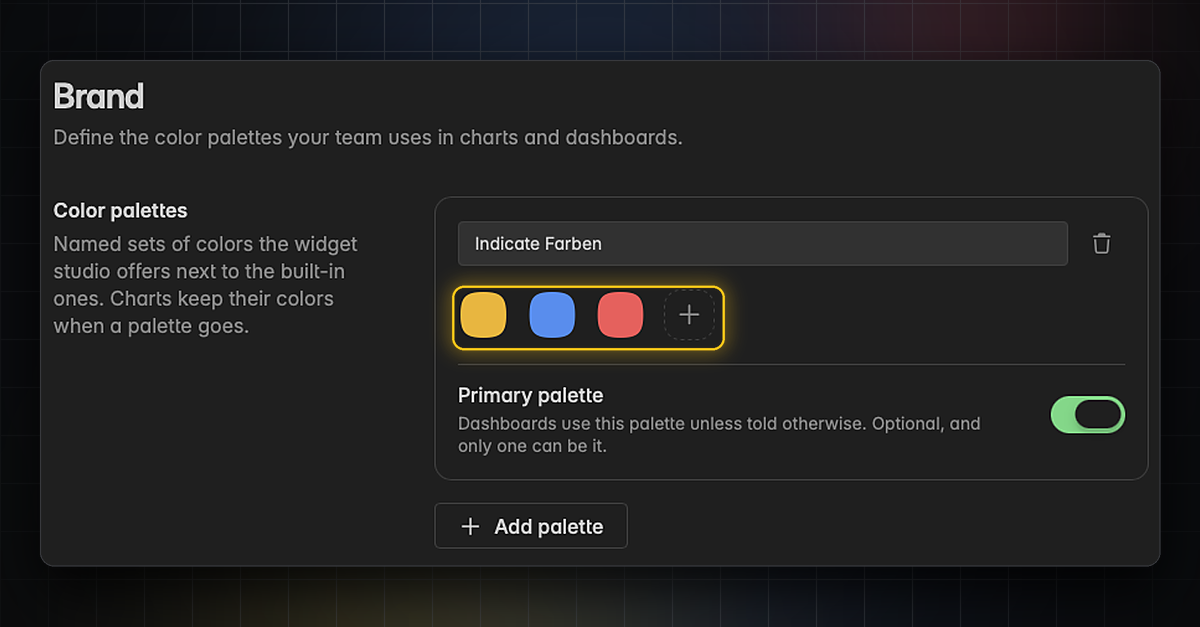
Define the color palettes your team and Resi use in charts and dashboards. Set them up for a single space, for your whole organization, or both. A hotel group can define its corporate colors once, and every property's dashboards can use them.
Create several named palettes and pick them in the widget editor next to the built-in ones.
Organization palettes appear in every space of your organization.
Set one palette as your primary palette. Dashboards and Resi then use it by default.
Delete a palette at any time. Your charts keep their colors.
👉 You can find space color palettes in Settings → Space → Brand. Find more information here.
👉 You can find organization color palettes in Settings → Organization → Brand. Learn more here.
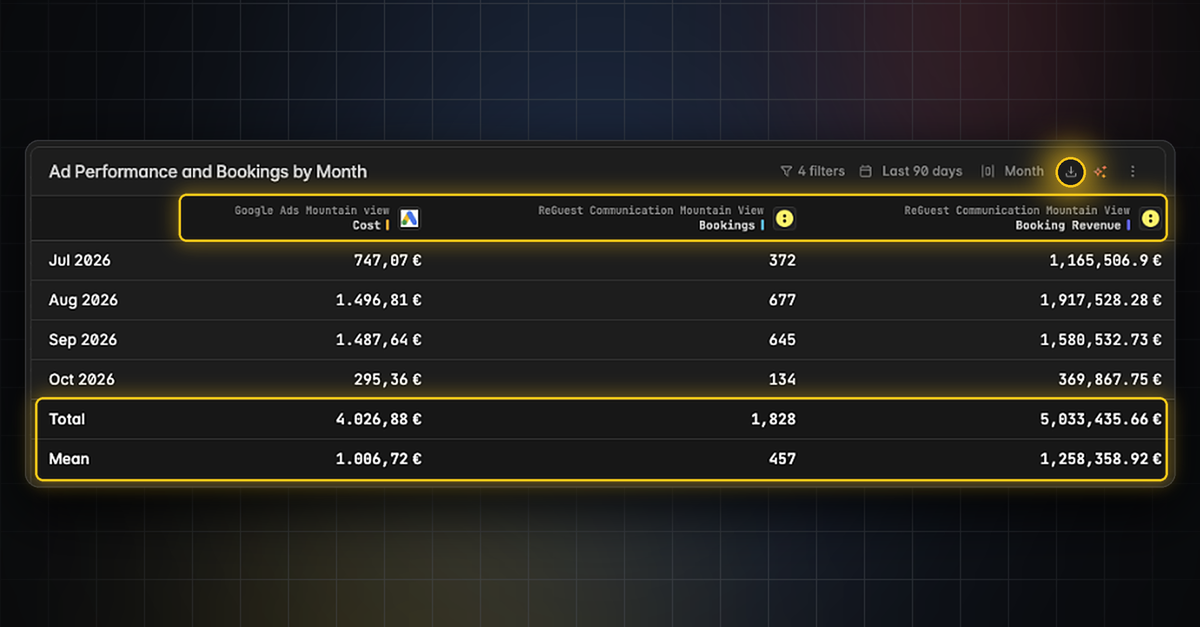
Table Widgets: Sticky Footer, Column Sources and CSV Export
Pin a table's total and mean to a sticky footer.
See the source behind every table column.
Export a table as CSV, including the comparison columns.
👉 Find out more here.
New Widget Features: Duplicate, Copy, Delete and Filter
Working with widgets is quicker, and empty widgets now explain themselves.
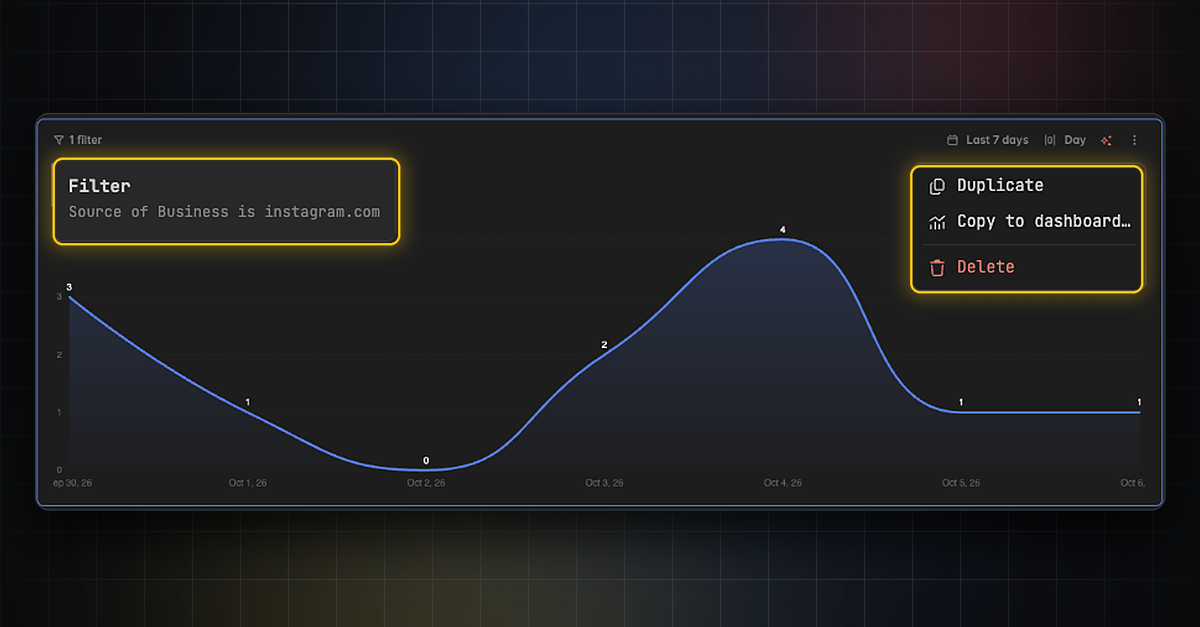
Duplicate a widget, copy it to another dashboard or delete it.
See what a widget is filtered to without opening the widget editor.
See which series returned no data, which sources are retired and the description of every KPI.
👉 To duplicate, copy or delete a widget, click the three dots in its top right corner. To see its filters, hover over the filter label in its top left corner. Find more information here.
AI Background Generation: Keep Working While Dashboards Build
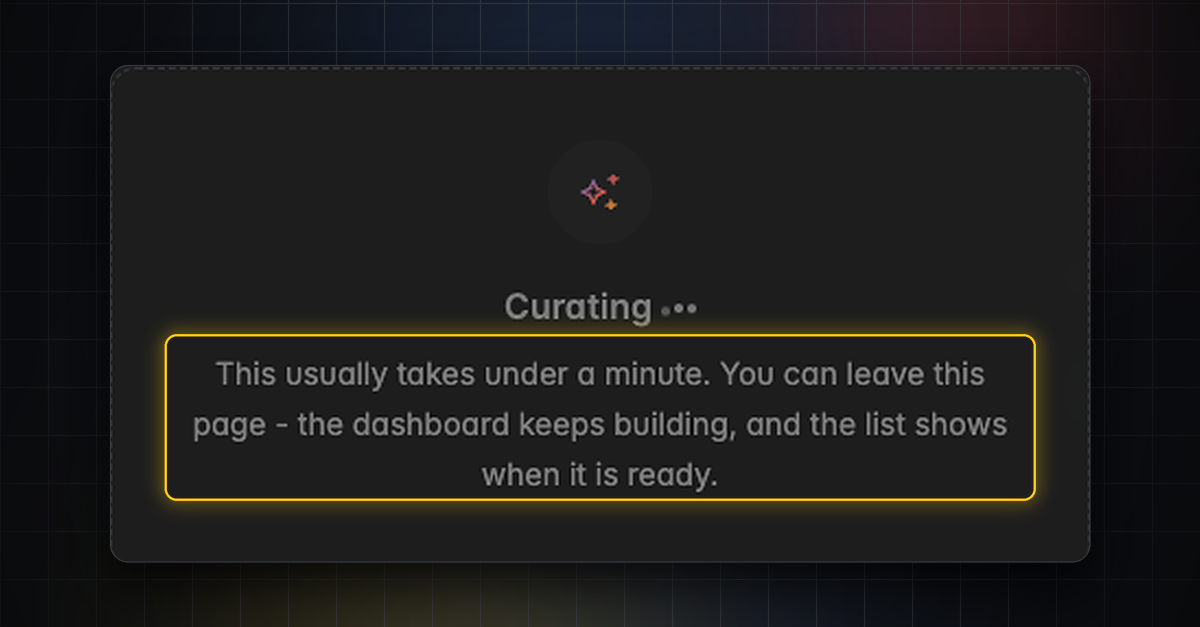
Dashboards and widgets generate in the background. Building a dashboard usually takes under a minute, and you can leave the page while Resi works. The board holds still while a widget is being built.