
Organization
The account above your spaces: what an organization is, its kinds and roles, where its settings are, and where its name, banner, and palettes show up.
What is an organization?
An organization is the account above your spaces. Every space belongs to exactly one organization, the one that is billed for it and administers it. A company with one space has an organization with one space. A hotel group or a retail chain with a space per property, or an agency with a space per client, has one organization that owns them all.
Note: Space admin and organization admin are two different things. A space admin manages one space under
Settings→Team. An organization admin manages the account above the spaces. The Organization group in Settings only appears for members of the organization, and only its admins can change anything there. Being an admin of a space does not make you a member of the organization.
What the organization gives you:
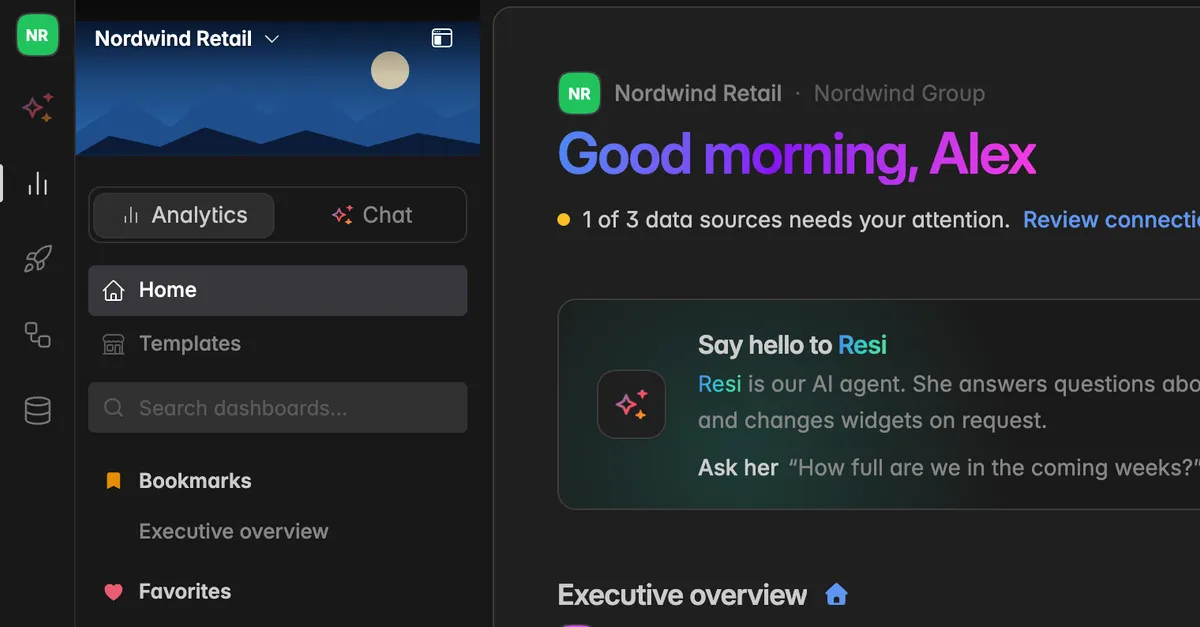
One name and one banner across every space it owns. The banner heads the sidebar of each space, so everyone knows whose account they are in.
One list of spaces, with their status and plan.
Its own members, the people who look after the account. Organization membership is separate from space membership.
Shared brand palettes, offered in the widget editor of every space the organization owns.
Kinds of organizations
The kind decides how many spaces an organization may own and which features it gets. It is set by Indicate, not in the app.
| Kind | Spaces | Banner and organization palettes |
|---|---|---|
| Standard | One | No. The space's own logo and palettes are enough. |
| Enterprise | Several, under one contract | Yes |
| Partner | Several, for clients the partner onboards | Yes |
The kind is shown as a badge next to the organization name in Settings. Standard organizations see the banner and palette sections with a note Banners come with Enterprise and a Contact us link.
Organization members and roles
An organization has its own members with two roles:
Admin: may change the name, the banner, the palettes, and the members.
Member: may read everything on the organization pages.
Membership in the organization grants no access to any space. Who may open a space is decided in that space under Settings → Team. The other way round, being a member of a space does not make you a member of the organization. You can be an admin of a space and not belong to the organization at all.
See Organization members.
Where do I find the organization settings?
Click the gear icon at the bottom of the left rail to open Settings.
The group Organization sits between Account and Space with four pages: General, Brand, Spaces, and Members.
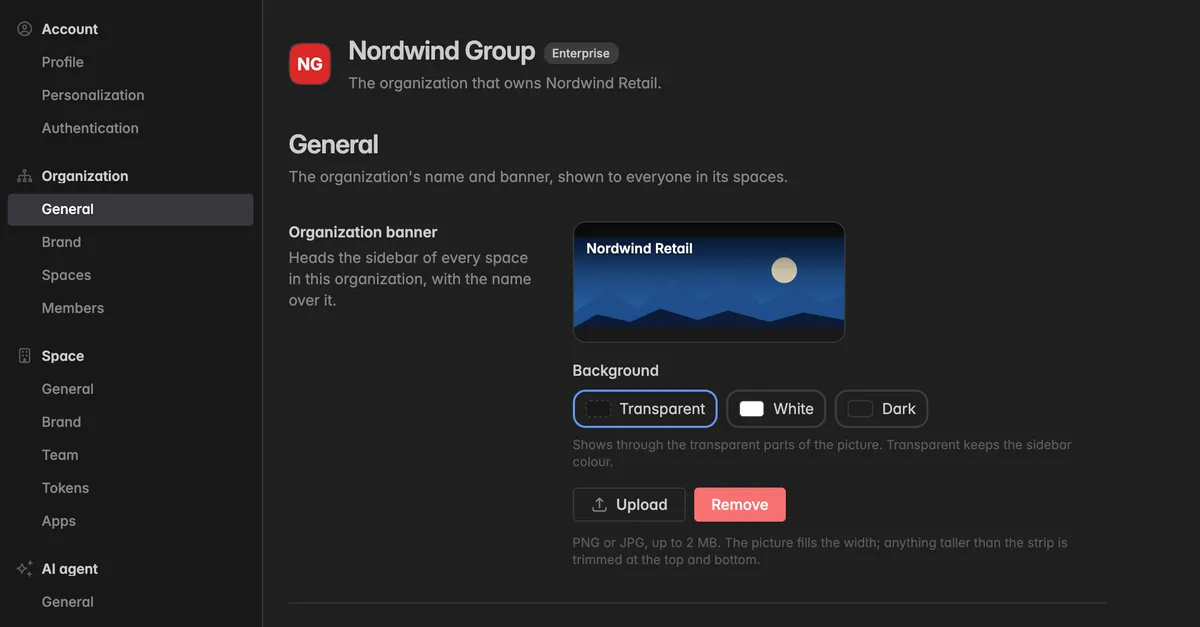
The pages always show the organization that owns the space you are in. The header names it, shows its kind, and reads The organization that owns [space].
Note: The group only appears for members of the organization. Everyone else sees the organization's name and banner through the space and nothing more.
Where else does the organization show up?
Sidebar: with a banner set, it heads the sidebar of every space the organization owns, with the space name over it. Without a banner the sidebar shows the space logo and name as before.
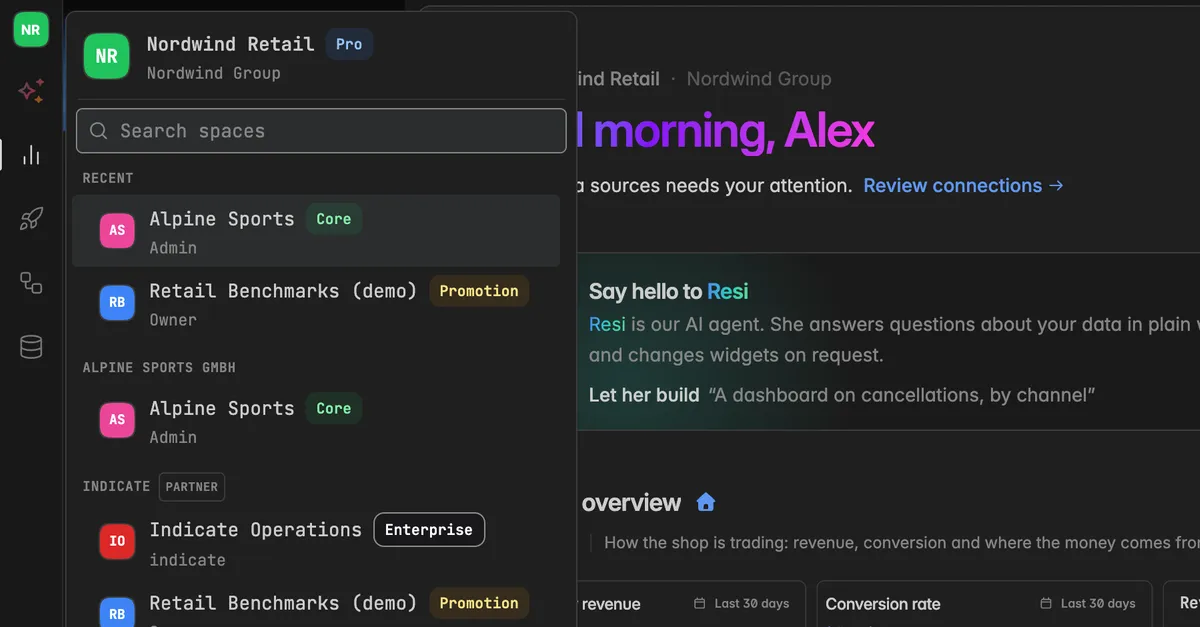
Space switcher: click the space name at the top of the sidebar. The list of all spaces is grouped by organization, each group headed with the organization's name, and the current space shows the organization below its name. A single-organization account sees no groups.
Widget editor: the organization's palettes appear in the color picker next to the space's own palettes.
The four pages
Organization name and banner: the General page with the banner, its background, the name, and the organization ID.
Organization brand palettes: the Brand page with the palettes every space can use, and how to copy a palette from a space.
Organization spaces: the Spaces page with every space the organization owns.
Organization members: the Members page with adding, roles, removing, and leaving.
Troubleshooting
I do not see the Organization group in Settings
- You are not a member of the organization that owns this space. Being a space admin is not enough. Ask an organization admin to add you, see Organization members.
I want to move a space into another organization, or create a second space
- Moving a space between organizations is done by Indicate. Create a request in the help center. A new space is created from the space switcher with Create a space, see Create a new space.
The banner and palette sections say they come with Enterprise
- Your organization is of the kind Standard, which owns one space. Talk to us through Contact us if you run several spaces and want them under one account.
Someone is in the organization but cannot open a space
- That is by design. Organization membership grants no space access. Invite them into the space under
Settings→Team, see Invite a team member.
Organization name and banner
Set the banner that heads the sidebars of every space in the organization, choose its background, and rename the organization.
Organization brand palettes
Colour palettes defined once for the organization and offered in the widget editor of every space it owns, and how to copy a palette from a space.
Organization spaces
Every space the organization owns with its status and plan, and how to open or add one.
Organization members
Add people to the organization, change their role, remove them, or leave the organization yourself.
Was this helpful?