
How do invitations work?
You invite people to your space by email. Each person gets a link, opens it, signs in or creates an account, and lands in your space with the role you chose. Until they accept, the invitation sits on the Invitations tab as Pending, where you can change its role, resend it, or revoke it.
Only Admins and the Owner can invite members and manage invitations.
Before you invite
Pick the right role. Reader, User, or Admin. You can change it later, but it is cleaner to get it right from the start. See Team for what each role can do.
Use the person's work email. The invitation is tied to the address you enter.
Invite several people at once. Click Add another in the dialog to add a row per person.
How do I invite a team member?
Click the gear icon at the bottom of the left rail to open
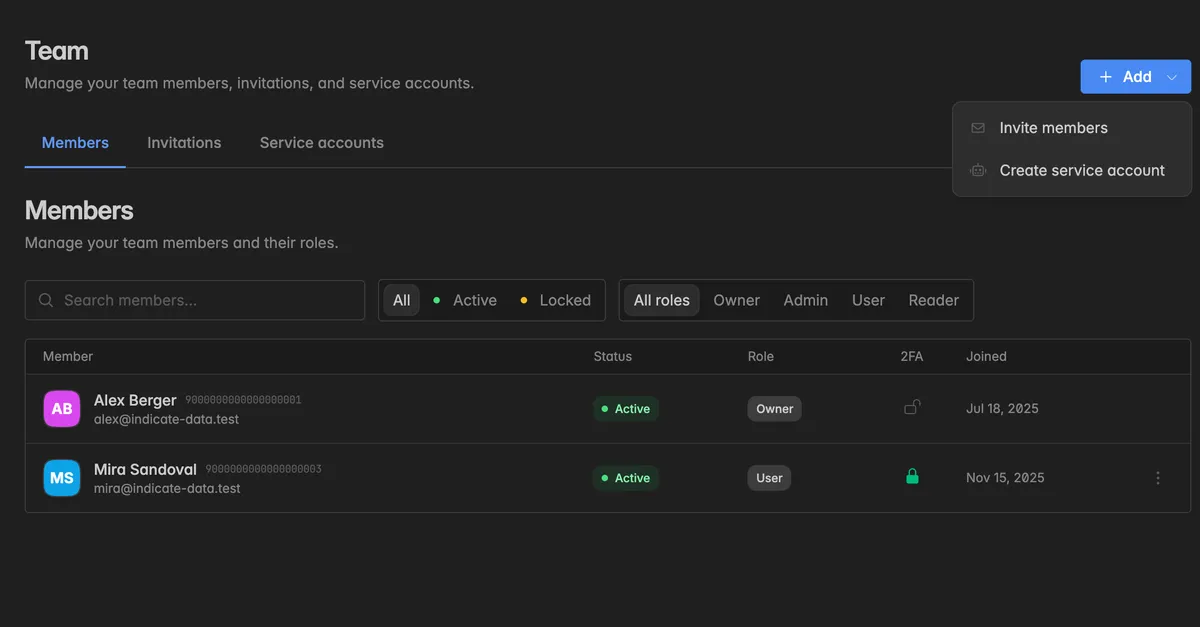
Settings, then clickTeam.Click Add at the top right and select Invite members.
In the dialog Invite team members, enter the Email address and pick the Role. The default is Reader.
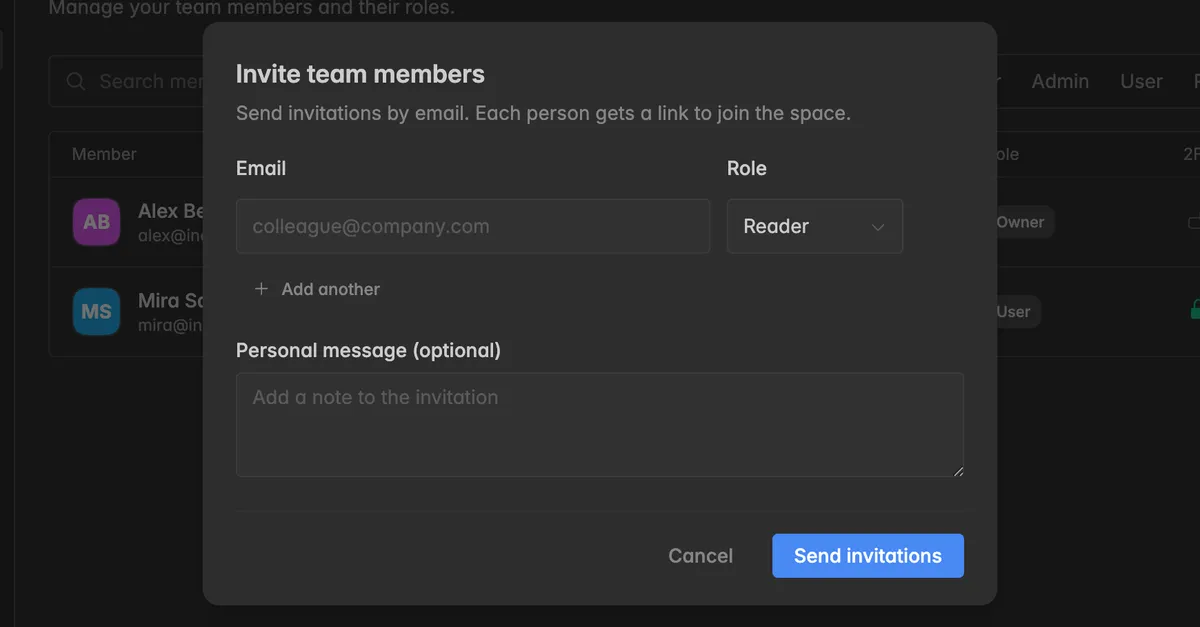
To invite more people, click Add another and fill in the next row.
Optionally write a Personal message. It goes into the invitation email and helps the recipient recognize the invite as genuine.
Click Send invitations.
The dialog Invitation summary tells you which invitations were sent and which were skipped, for example because the address is already a member.
What happens next?
The recipient gets an email with a link to join your space and your message.
The invitation appears under
Settings→Team→ Invitations in the list Pending, with the role, who invited them, and when.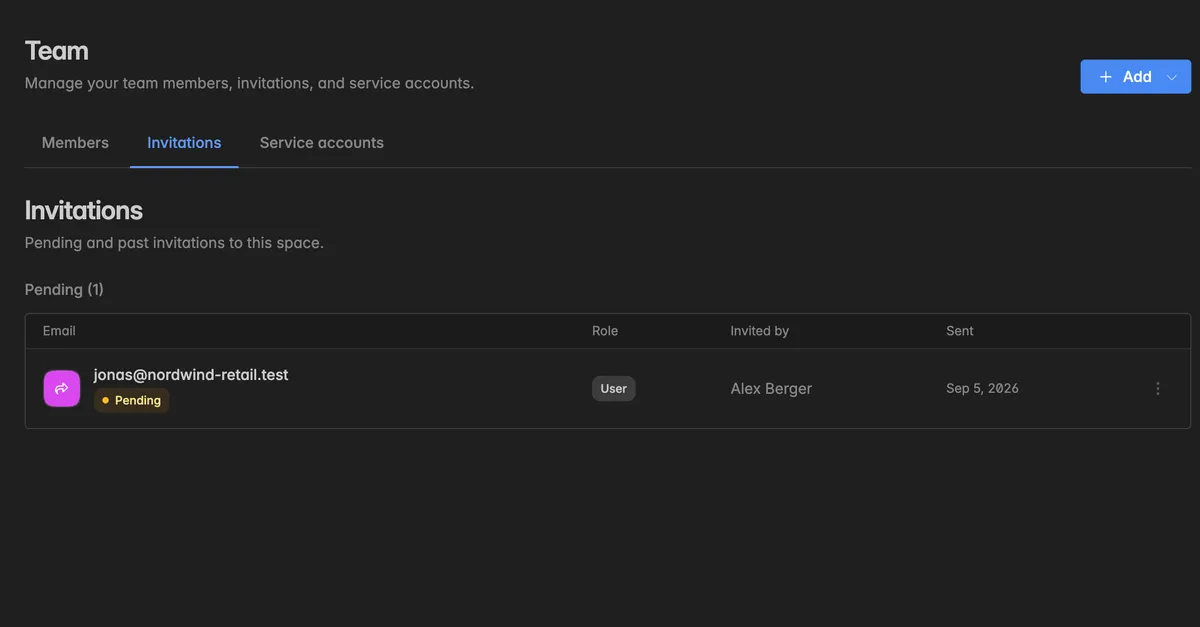
When they accept, they move to the Members tab with the role you chose.
The invitation then moves to Past invitations with the status Accepted. Declined, expired, and revoked invitations end up there too.
The invitation and its acceptance are recorded in the audit log under Users.
Note: An invitation link expires after 7 days. If the person does not accept in time, the invitation shows Expired under Past invitations and you send a new one.
How do I manage a pending invitation?
On the Invitations tab, hover over the invitation and click the ⋮ icon at the right end of the row.
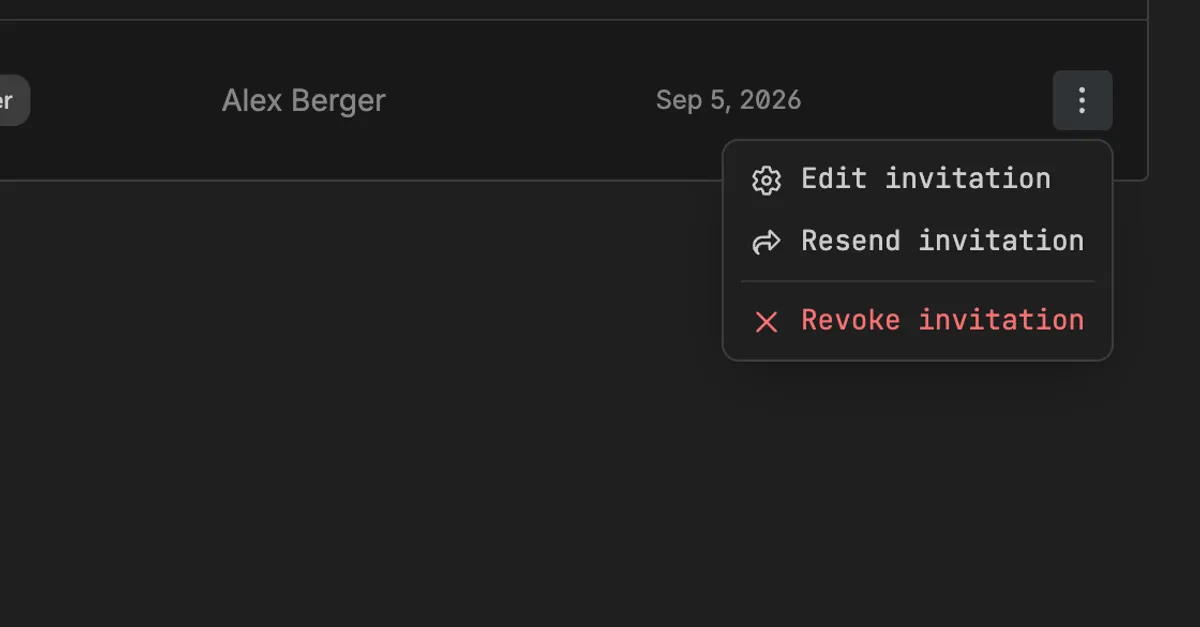
Edit invitation: Change the role before the person accepts.
Resend invitation: Send the email again, for example when it was lost or has expired. The link is renewed for another 7 days.
Revoke invitation: Withdraw it. The link stops working immediately.
Troubleshooting
The recipient did not get the email
Ask them to check their spam folder. Then click
⋮→ Resend invitation.Check the address in the Pending list. If it has a typo, revoke the invitation and send a new one.
The link says the invitation is no longer valid
It expired or was revoked. Send a new invitation from the Add menu.
The person already has an Indicate account
That is fine. They sign in with their existing account and your space is added to it. Their profile, password, and 2FA stay the same.
I invited someone with the wrong role
Before they accept:
⋮→ Edit invitation. After: Open the Members tab and edit the member. See Team.
I do not see Add or the ⋮ icon
Inviting needs the Admin role. Ask a space admin.
This space is read-only
Promotional spaces cannot invite. The banner at the top says so. Create a request in the help center to get a space of your own.