
Indicate changelog
Quick KPI Checks, Roles and Profile Pictures
Insights: A Quick Look at Every KPI
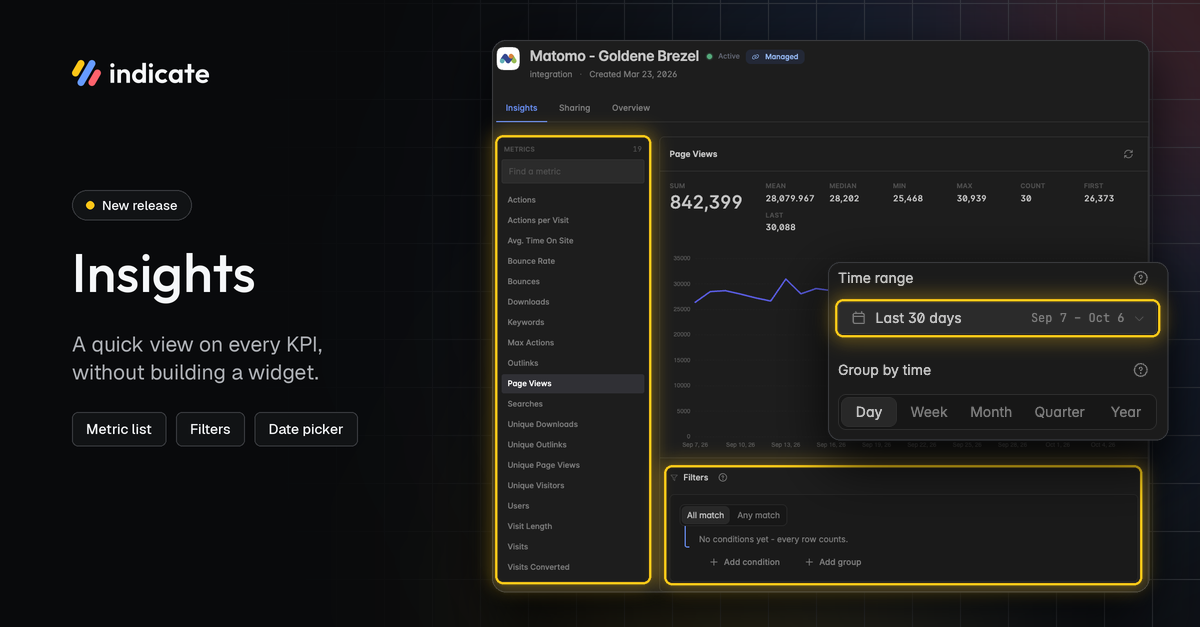
Check what a KPI actually returns without building a dashboard or a widget. Open an insight, pick a KPI from the list and see its numbers right away. We have redesigned Insights and added new features:
Find any KPI in the metric list on the left, with a search to jump straight to it.
See the key figures at a glance: sum, mean, median, min, max, count, first and last value.
Pick a time range, either a named range like Last 30 days or a custom range of your choice, and group by day, week, month, quarter or year.
Filter the result by the insight's own dimensions, for example, one market or one channel. Combine conditions with All match or Any match.
Switch between chart and table, and between line and bars.
The view is meant as a quick check. Nothing you change here is saved. To keep a view, build a widget on a dashboard or chat with Resi.
👉 You can find this in Data Sources → Insights. Find more information here.
Reorder and Find Series Faster
Working with several KPIs (series) in one widget is now quicker in the widget editor.
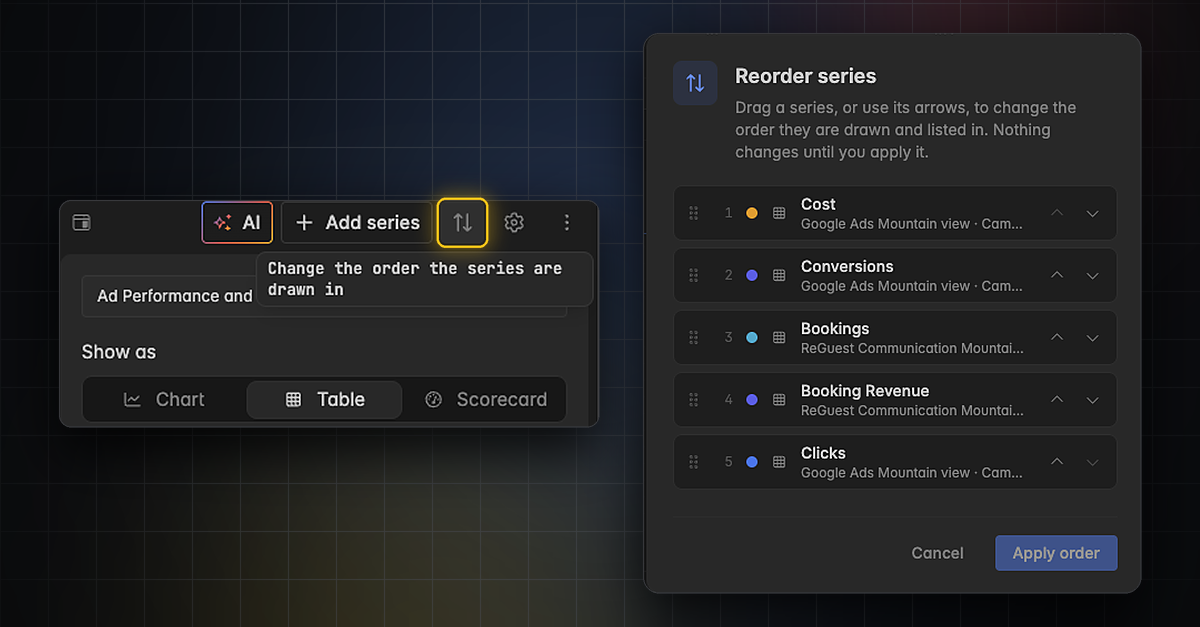
Reorder series in a dedicated dialog. Drag a series to its new position, or move it with its arrows. Nothing changes until you click Apply order.
Jump to a new series right after you add it. The widget editor scrolls to it, so you can start editing straight away.
👉 You can find this in the widget editor. Click the arrow icon next to Add series, or open the three dots menu and choose Reorder series. Find more information here.
Roles and Permissions: See Who Can Do What
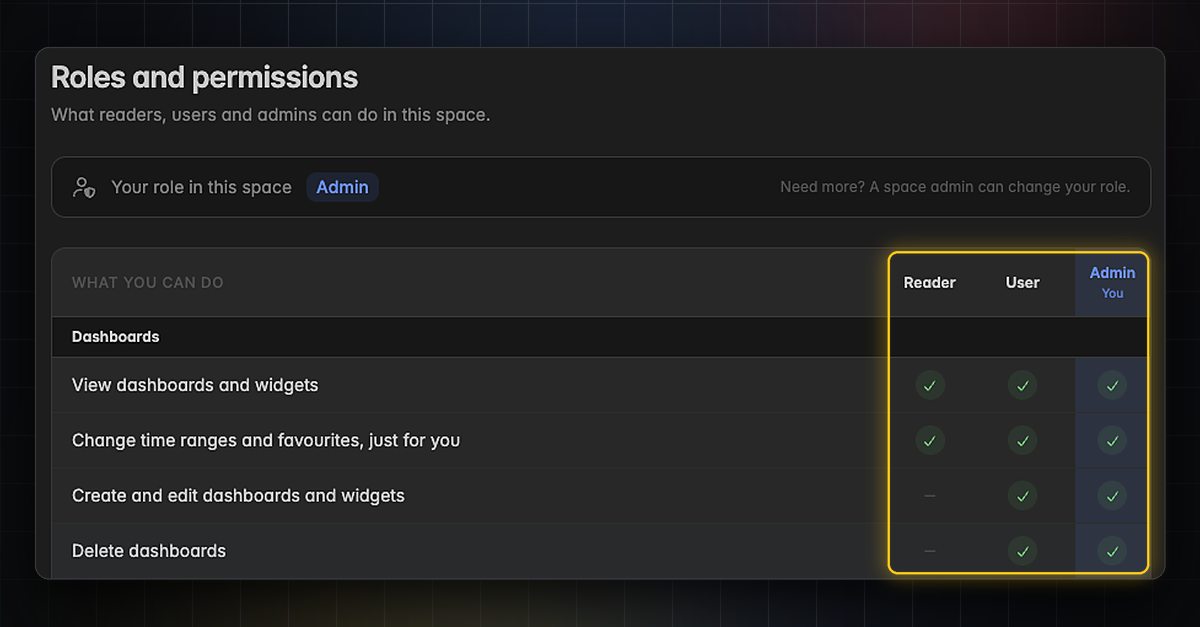
Every space has three clear roles: Reader, User and Admin. A new overview shows exactly what each role can do.
Readers view dashboards and widgets, read AI summaries and change time ranges and favorites just for themselves.
Users can also create, edit and delete dashboards and widgets, create and edit projects, use and publish dashboard templates and chat with Resi.
Admins can do everything, including managing space settings and accessing the audit log and exports.
Actions you can’t use are grayed out, with a note explaining why.
👉 You can find the overview in Settings → Space → Roles and permissions. Your own role is shown at the top. To change a role, ask a space admin. Find more information here.
Profile Pictures: Put a Face to Your Name
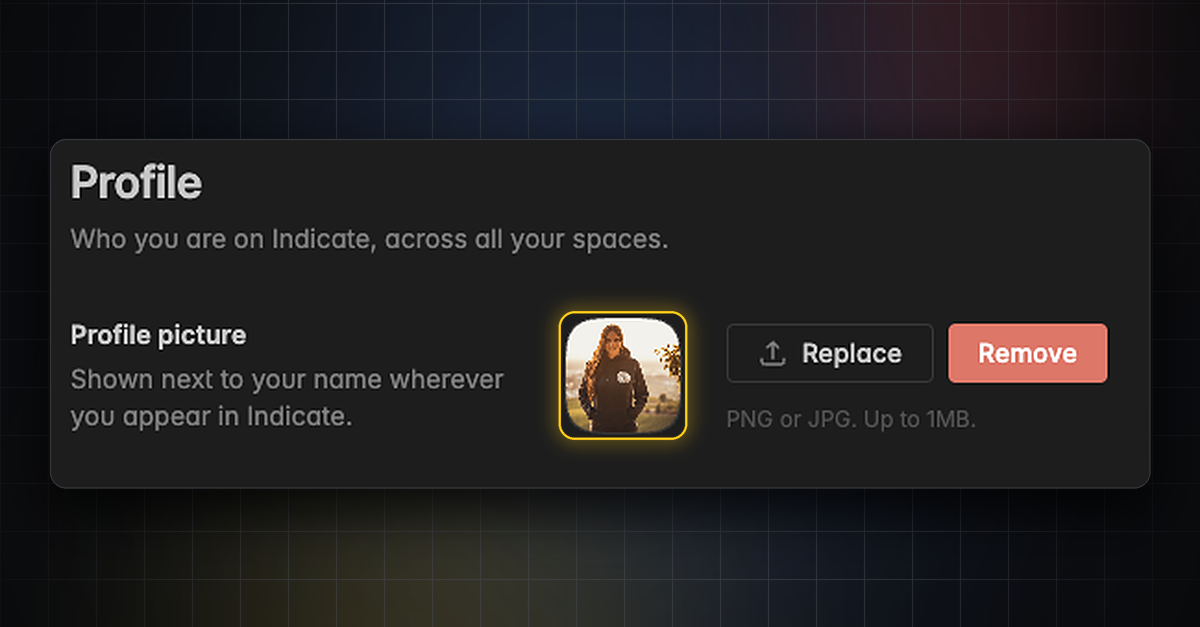
Add a profile picture to your account. It appears next to your name wherever you show up in Indicate, across all your spaces. This makes it easier to see who created a dashboard or who works on it.
Upload a PNG or JPG of up to 1 MB.
Replace or remove your picture at any time.
👉 You can find this in Settings → Account → Profile. Find more information here.
Stay in the Loop
We're building Indicate with you, and there's always more on the way. Take a look at our changelog anytime and join us on LinkedIn to be the first to hear what's new.
Questions, ideas, or feedback? We'd love to hear from you, so just get in touch.
The Indicate Team