
Roles and permissions
What Readers, Users, and Admins can do in a space, section by section, and how to read the Roles and permissions page.
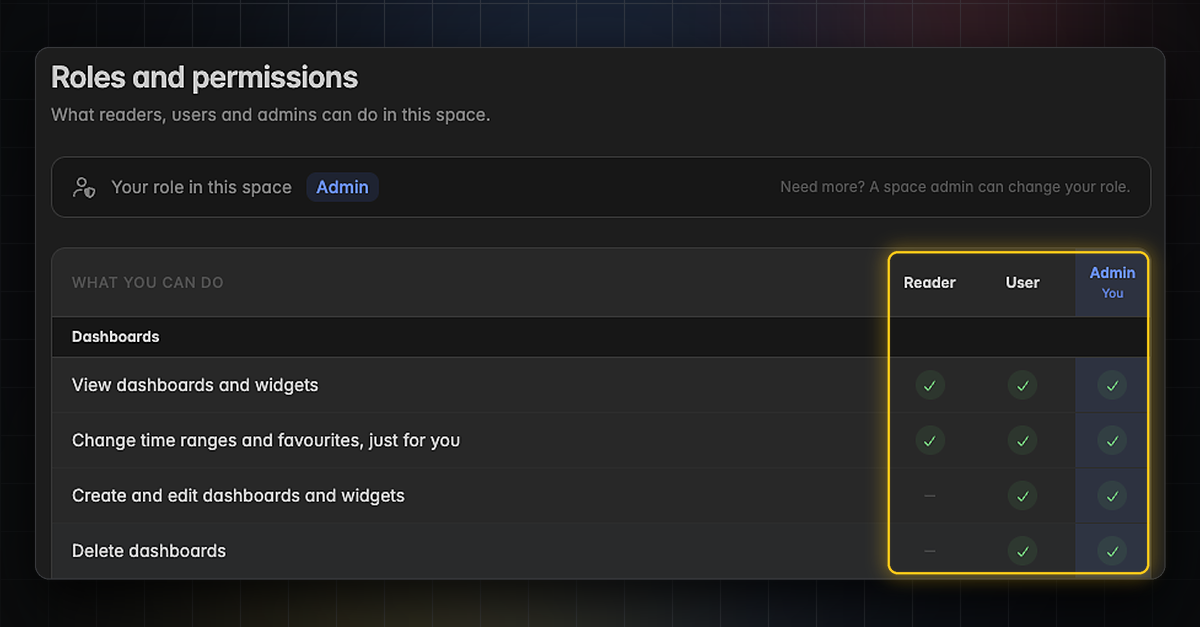
What is the Roles and permissions page?
Every member of a space has one role: Reader, User, or Admin. The page Settings → Space → Roles and permissions shows in one table what each role can do, from viewing dashboards to changing the billing address. Your own role is marked, so you see at a glance what is yours to do and what needs an admin.
The table is computed from the same rules the app enforces. If a row shows a check for your role, the button exists for you. If it shows a dash, the control is greyed out with the reason on hover.
Every member can open the page, including Readers. Nothing on it can be changed, roles are set under
Settings→Team, see Team.
Where do I find it?
Click the gear icon at the bottom of the left rail to open Settings.
Under Space, click Roles and permissions.
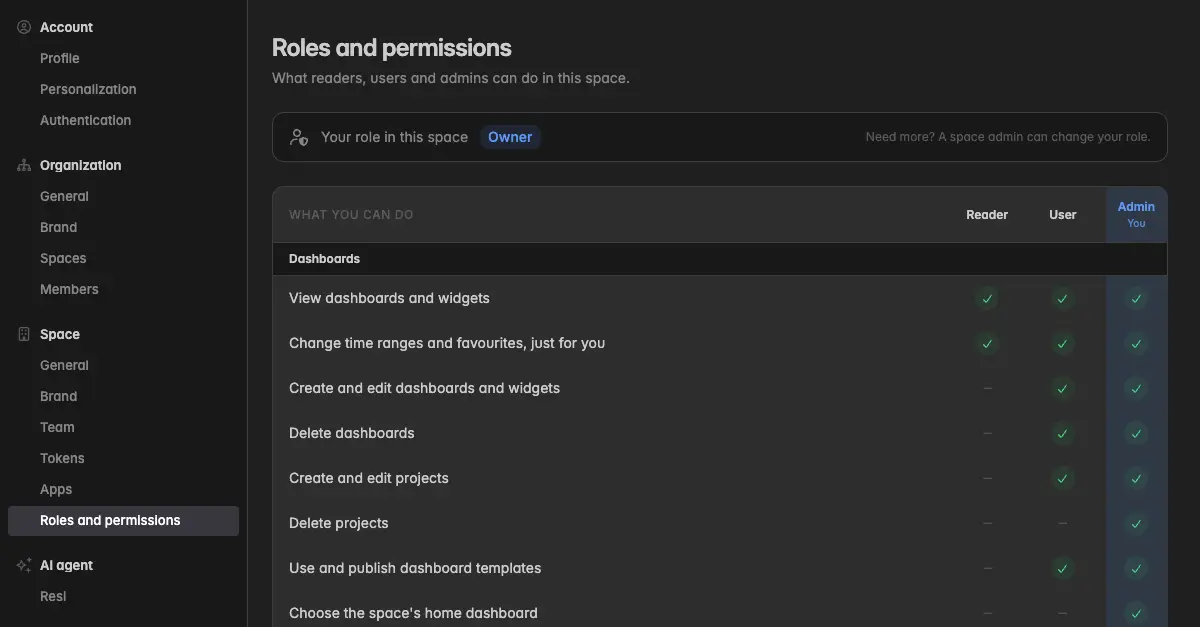
At the top, the box Your role in this space names your role. The matching column in the table is highlighted and marked You.
How do I read the table?
The first column, What you can do, lists the actions. The three columns Reader, User, and Admin show who may do them:
A green check means Allowed.
A dash means Not allowed. The control is still visible in the app, greyed out, with the reason on hover, for example Needs the User role or higher. Ask a space admin.
Own only means allowed on what you created yourself, read-only on everything else.
The rows are grouped into five sections, described below.
What can each role do?
Dashboards
What you can do | Reader | User | Admin |
|---|---|---|---|
View dashboards and widgets | ✓ | ✓ | ✓ |
Change time ranges and favourites, just for you | ✓ | ✓ | ✓ |
Create and edit dashboards and widgets | – | ✓ | ✓ |
Delete dashboards | – | ✓ | ✓ |
Create and edit projects | – | ✓ | ✓ |
Delete projects | – | – | ✓ |
Use and publish dashboard templates | – | ✓ | ✓ |
Choose the space's home dashboard | – | – | ✓ |
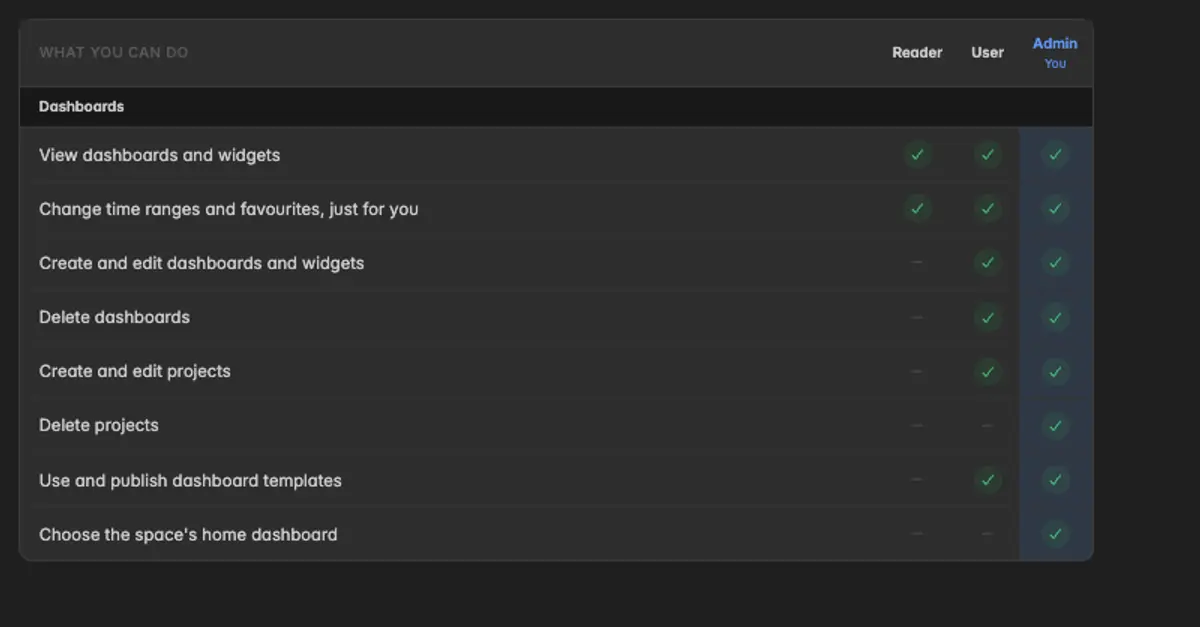
A Reader can look at every dashboard and change the time range or the favourites for themselves. Those changes are personal and do not change the dashboard for anyone else. See Edit widget calendar and Favorite or Bookmark a dashboard.
Resi, the AI agent
What you can do | Reader | User | Admin |
|---|---|---|---|
Read AI summaries | ✓ | ✓ | ✓ |
Chat with Resi | – | ✓ | ✓ |
Build and change dashboards with Resi | – | ✓ | ✓ |
Change Resi's settings | – | – | ✓ |
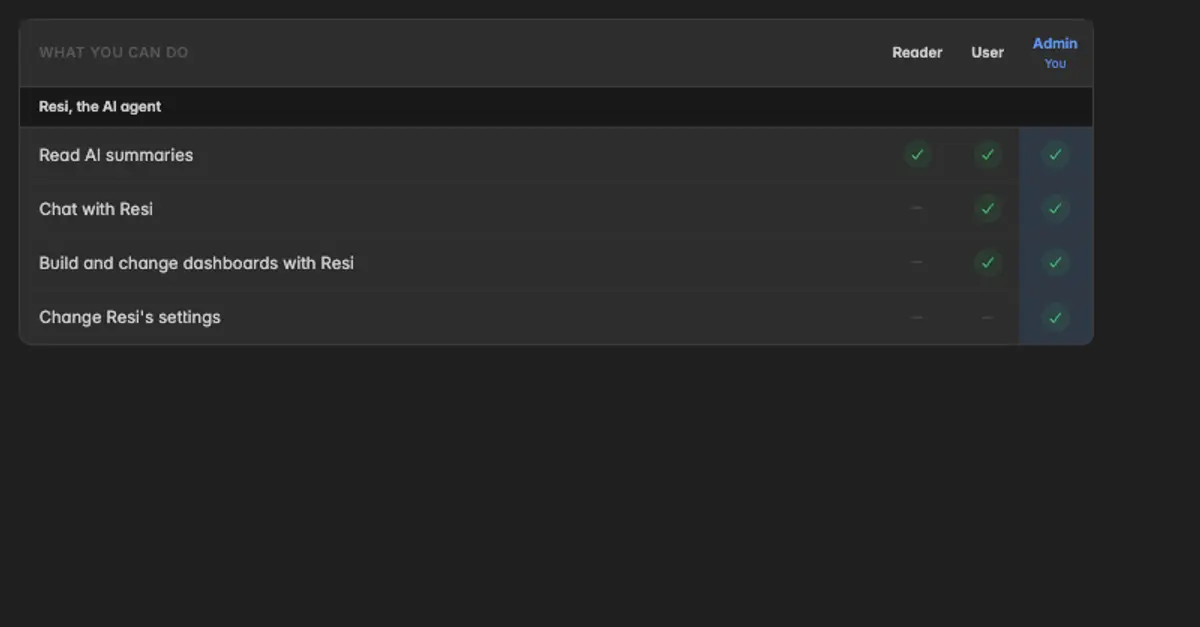
Resi, your AI agent, is available from the User role up. A Reader sees her pages and buttons greyed out with the hint Resi is available from the User role up. Ask a space admin. See Ask Resi and Resi for her settings.
Data
What you can do | Reader | User | Admin |
|---|---|---|---|
View insights and connections | ✓ | ✓ | ✓ |
Open KPI Studio and the KPI collections | – | ✓ | ✓ |
Create and edit metrics in KPI Studio | – | Own only | ✓ |
Create insights | – | ✓ | ✓ |
Start, pause and repair syncs | – | ✓ | ✓ |
Add, reset and delete connections | – | – | ✓ |
Share insights and KPI collections with other spaces | – | – | ✓ |
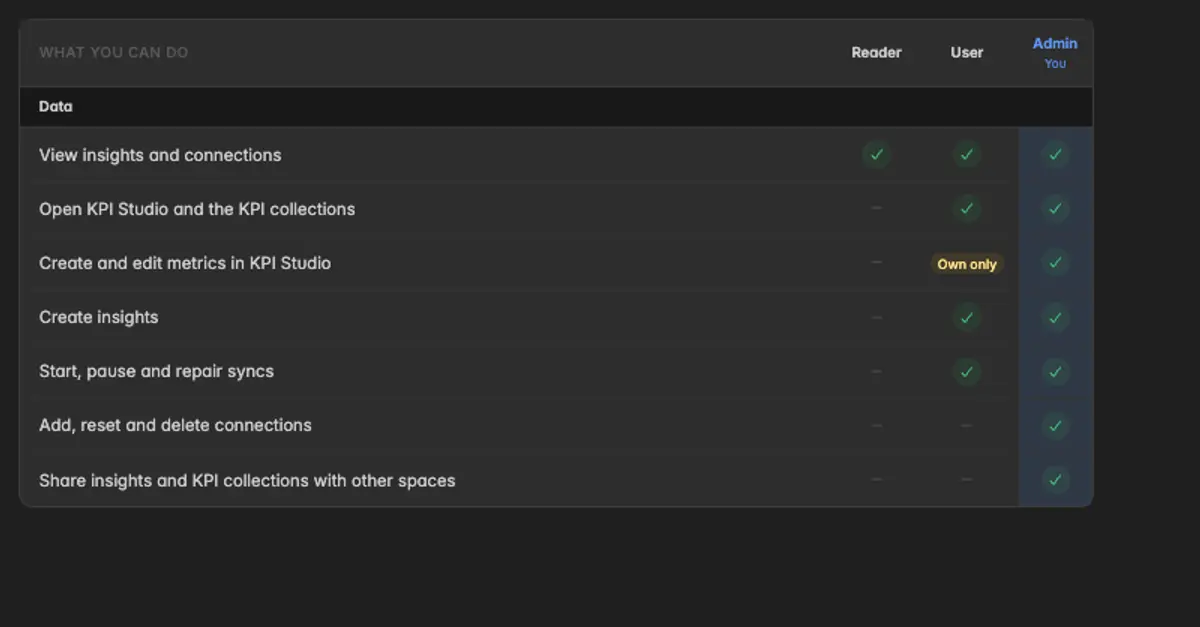
Connecting, resetting, and deleting a data source stays with Admins, because these steps change what data the whole space holds. A User can keep the syncs running. See Add a data source and Build a custom KPI in KPI Studio.
Team and access
What you can do | Reader | User | Admin |
|---|---|---|---|
See the team, tokens and apps | ✓ | ✓ | ✓ |
Invite people | – | – | ✓ |
Change roles and remove members | – | – | ✓ |
Create and revoke tokens and service accounts | – | – | ✓ |
Connect apps like Claude and ChatGPT | – | – | ✓ |
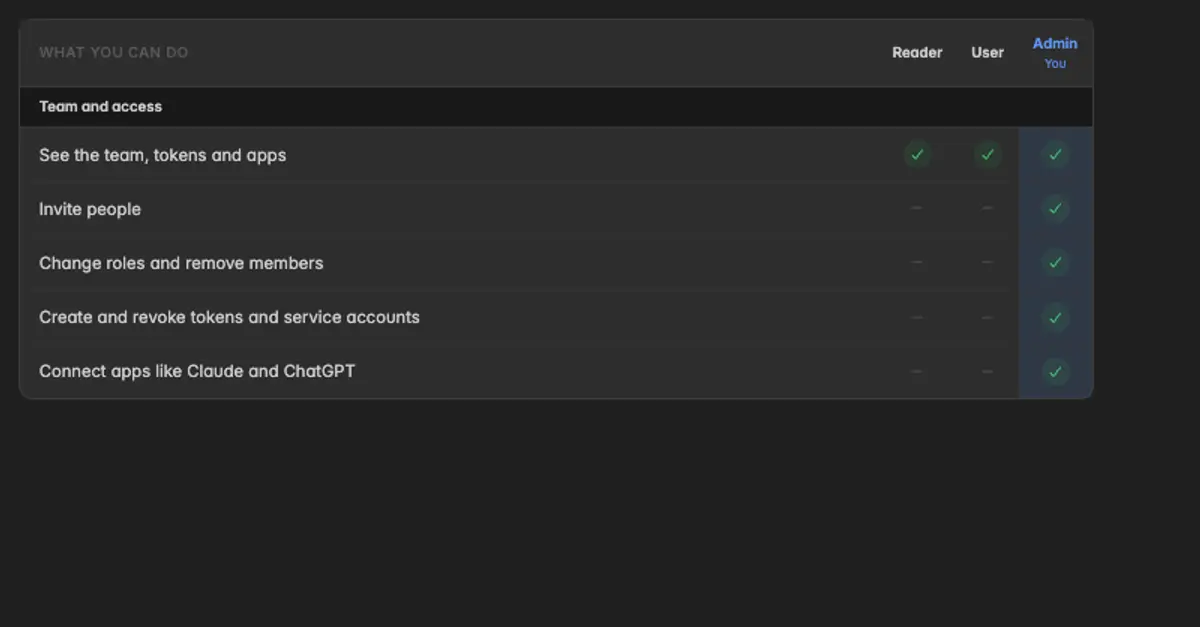
Everything that lets someone or something into the space is for Admins: invitations, roles, tokens, service accounts, and apps. See Invite a team member, Tokens, and Apps.
Space settings
What you can do | Reader | User | Admin |
|---|---|---|---|
Open the space settings | – | ✓ | ✓ |
Change the space's name, logo and brand | – | – | ✓ |
Change the plan and billing address | – | – | ✓ |
Set security policies | – | – | ✓ |
See the audit log and export data | – | – | ✓ |
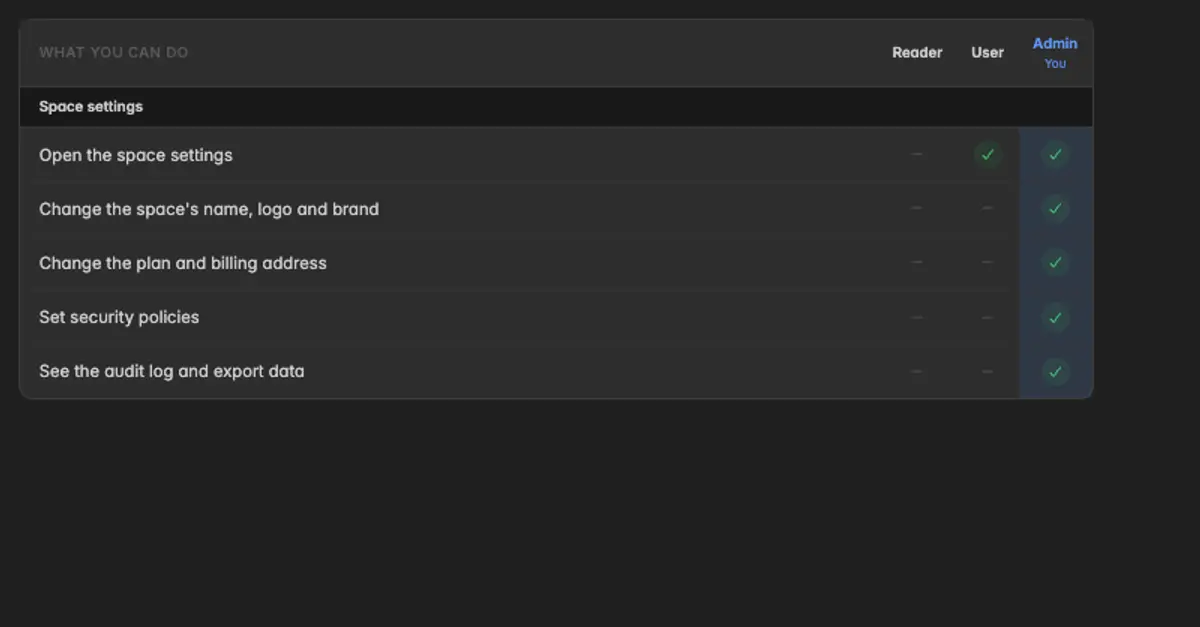
A User can open the space pages and read them. Where only an Admin may change something, the settings menu shows the pill Admins edit next to the page, and the controls on the page are greyed out. For a Reader the space pages are locked with the hint User role or higher.
Note: In a view-only space, for example a promotional space, everyone can look and nobody can change anything, whatever the table says for their role. The page says so below the table.
Troubleshooting
The table shows a check, but the button is greyed out for me
The space is view-only. The hint on the button reads This space is view-only. See Billing.
The feature is not part of the space's plan. The button then carries a plan badge instead of a role hint. Open
Settings→Billing→Plan.
My role is not in the table
Owner: you can do everything in the Admin column, and the space is yours. The box at the top names your role as Owner and highlights the Admin column.
Guest: you have the same permissions as a Reader.
Indicate: a member of the Indicate team supporting in your space, see Support.
I need more than my role allows
Only a space admin can change your role, under
Settings→Team→⋮→ Edit member. The page says so at the top: Need more? A space admin can change your role. See Team.
Was this helpful?