
What is your profile?
Your profile is who you are on Indicate: Your profile picture, your name, and the email address you sign in with. It belongs to your account, not to a space, so a change here shows up in every space you are a member of.
Your password and two-factor authentication have their own page, see Authentication. Language and theme live under Personalization.
Where do I find my profile?
Click the gear icon at the bottom of the left rail to open
Settings. Or click your avatar at the very bottom and select Preferences.Under Account, click
Profile.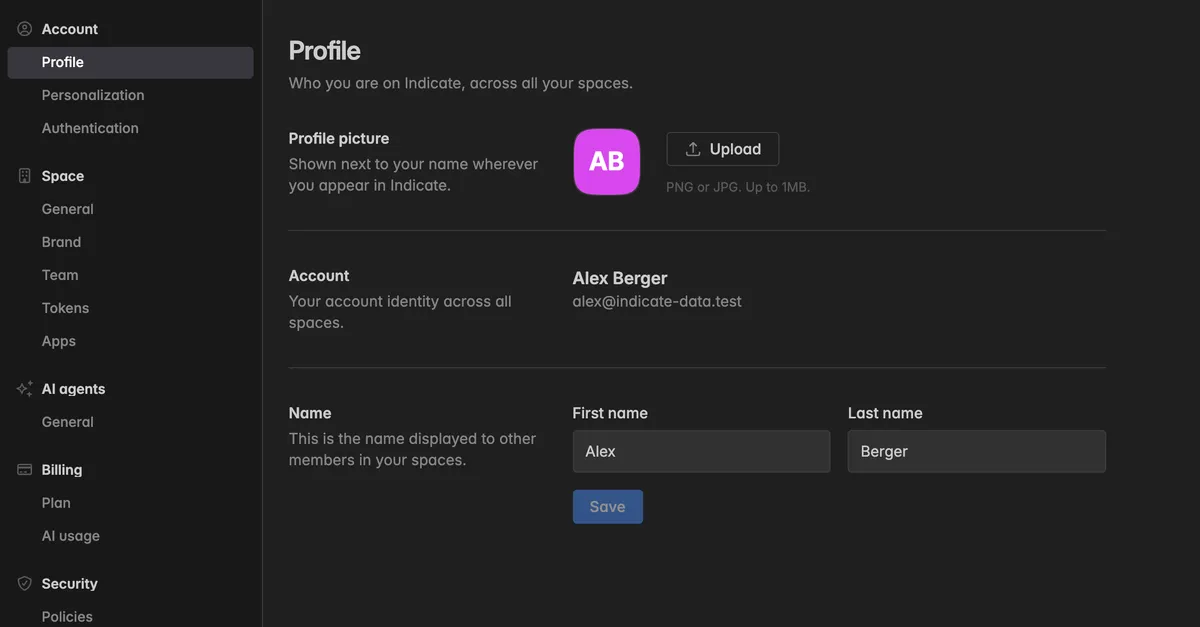
The page has three sections: Profile picture, Account, and Name.
How do I change my profile picture?
The picture is shown next to your name wherever you appear in Indicate, for example in the member list, in the audit log, and on comments.
Next to Profile picture, click Upload. If you already have one, the button reads Replace.
Pick a PNG or JPG file of up to 1 MB. Square images work best.
The picture is saved the moment you pick the file, there is no Save button. Click Remove to go back to your initials.
How do I change my name?
Under Name, edit First name and Last name. The first name is required, each field takes up to 64 characters.
Click Save. The page confirms with Name updated successfully.
The name is what other members see in their spaces. It does not change your email address.
Can I change my email address?
The Account section shows your name and email address as they are known across all your spaces. The email address is read-only in the app. To change it, contact support.
Troubleshooting
The picture upload fails
The file is larger than 1 MB, or it is not a PNG or JPG. The page tells you which: That picture is larger than 1MB. Pick a smaller one. or That file is not an image Indicate can use.
Save stays greyed out
Nothing has changed yet, or First name is empty. Type a first name and Save becomes active.
My name changed in one space but not in another
The profile is shared by all your spaces, so a saved name applies everywhere. Reload the other space to see it.
I want to change my password or set up 2FA
Both moved to their own page. See Authentication.