

What is sign-in without a password?
Indicate no longer uses passwords. To sign in (or log in), you enter your email address, and Indicate emails you a sign-in link and an 8-digit sign-in code. You use one of the two, and you are in.
Every link and every code works once, for 10 minutes.
Each new email replaces the previous one. Only the link and the code from the newest email work.
Your old password no longer works, even if you had one before. You do not need to set anything up.
If your account has two-factor authentication, Indicate also asks for a code from your authenticator app after the link or the code.
Before you start
You need an Indicate account. You have one if someone invited you to a space or if you created a space yourself.
Use the email address you were invited with. The sign-in email goes to that address.
Have your inbox open. The email arrives within a few seconds.
How do I sign in to Indicate?
Open app.indicate-data.com. If you are not signed in, the page Welcome back opens.
Enter your email address in the field Email.
Click Email me a sign-in link.
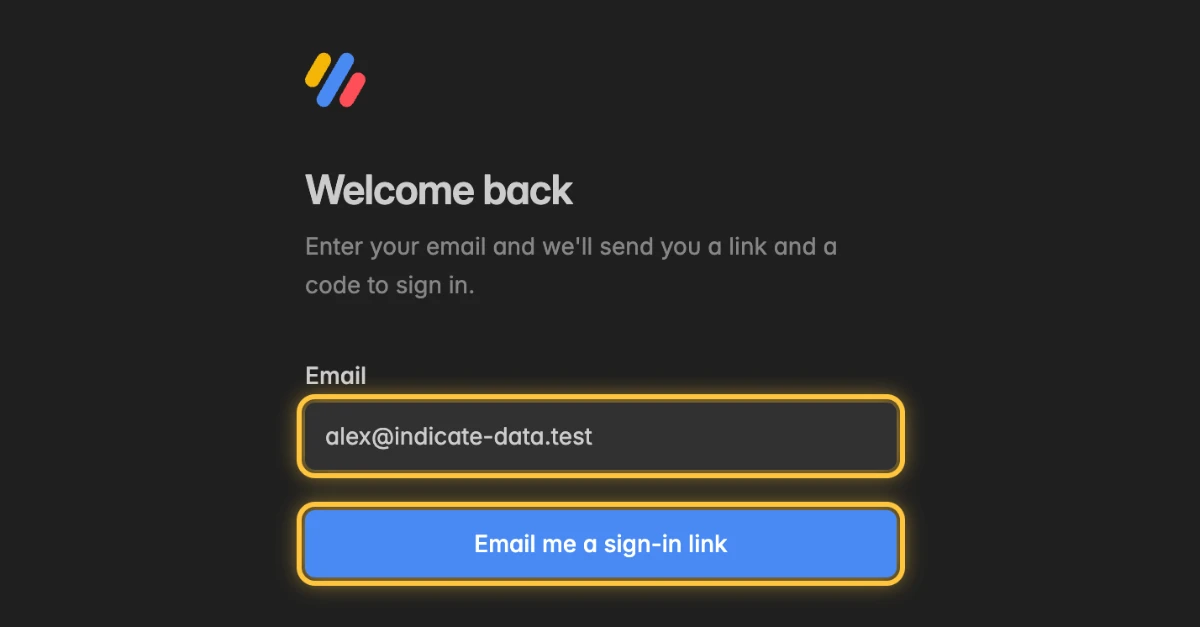
The page Check your inbox opens. Open the email from Indicate and use the link or the code.
Option 1: With the link in the email
In the email, click the sign-in link.
If you opened the link in the same browser in which you asked for the email, Indicate signs you in right away.
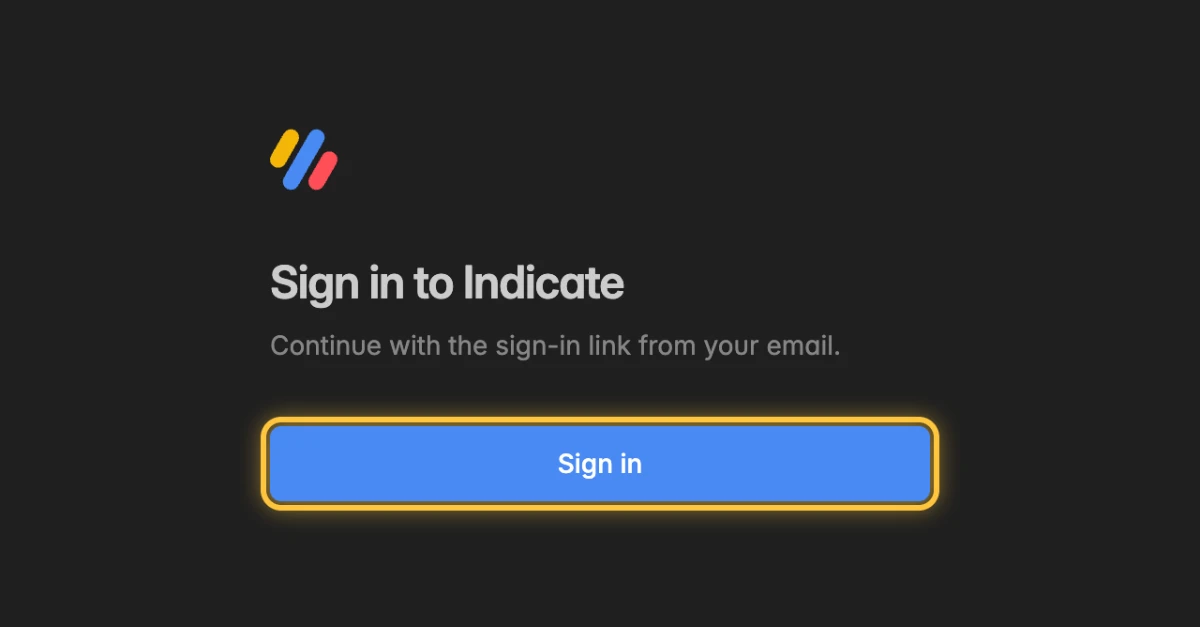
If you opened it in another browser or on another device, the page Sign in to Indicate opens. Click Sign in.
Indicate opens the page you wanted to go to, or your space.
Option 2: With the code from the email
Use the code when the email is on another device, for example on your phone while you sign in on your computer.
On the page Check your inbox, enter the 8-digit code from the email in the field Sign-in code. Spaces are ignored.
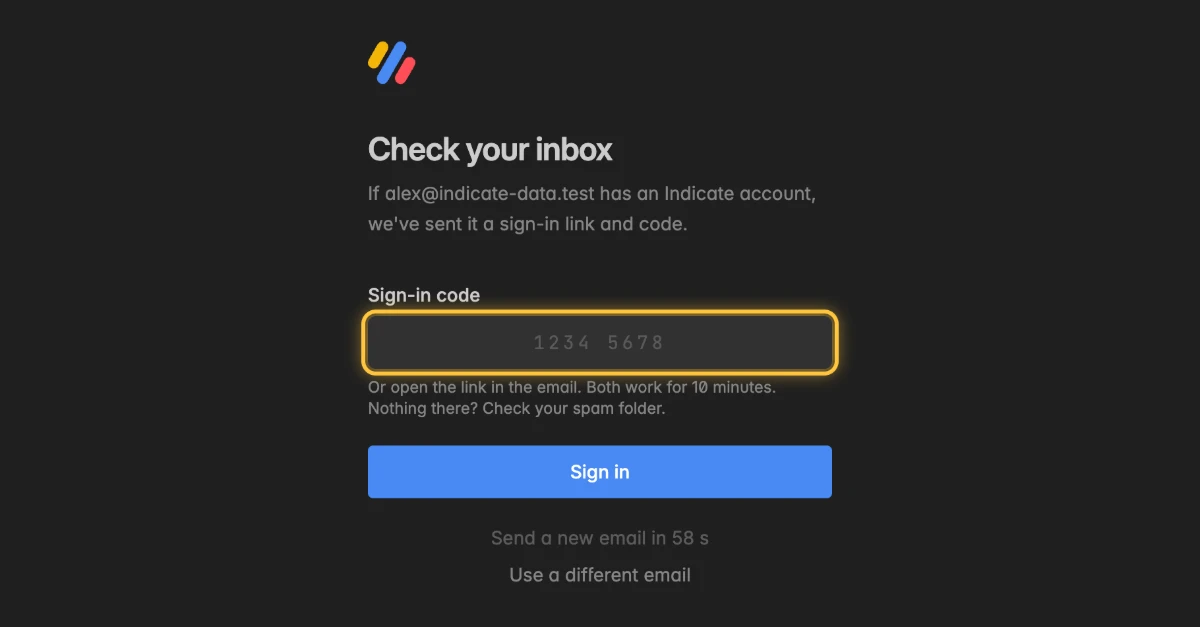
As soon as you have entered all 8 digits, Indicate checks the code. You can also click Sign in.
Indicate opens the page you wanted to go to, or your space.
How do I sign in with two-factor authentication?
If your account has two-factor authentication, the page Two-factor authentication opens after the link or the code.
Open your authenticator app and enter the 6-digit code for Indicate.
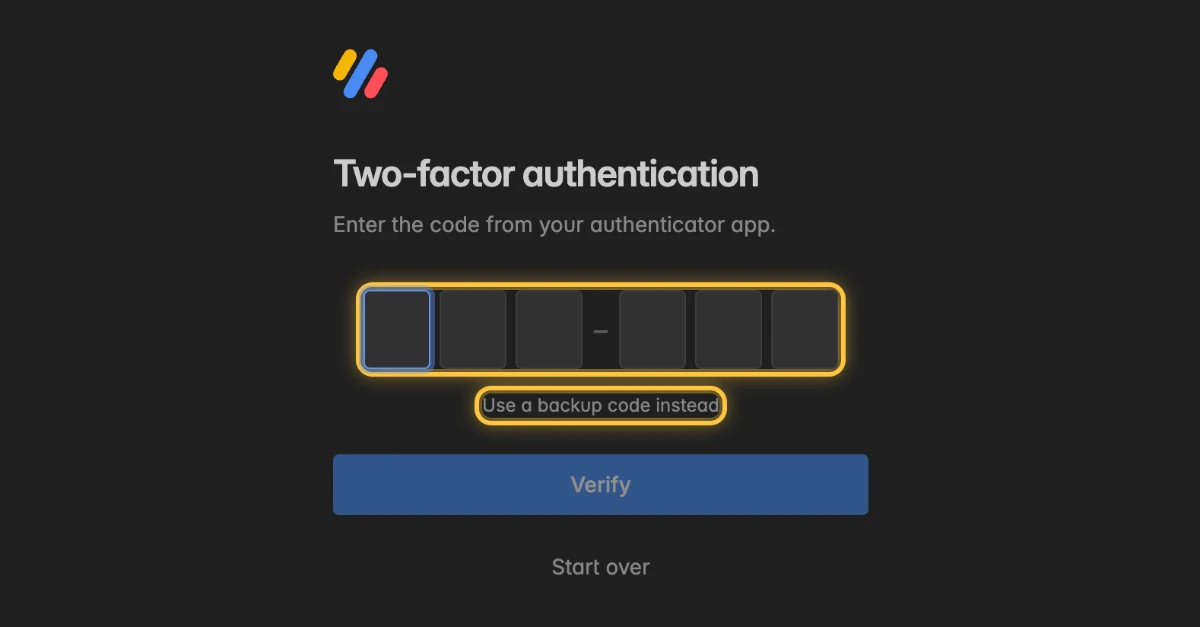
As soon as you have entered all 6 digits, Indicate checks the code. You can also click Verify.
If you do not have your authenticator app at hand, click Use a backup code instead and enter one of your backup codes.
To go back to the start, click Start over.
How do I sign out on other devices?
Use this when you are still signed in on a computer you no longer use, or on one you do not recognise.
Click the gear icon at the bottom of the left rail and open
Settings→Account→Authentication.Under Other devices, click Sign out other devices.
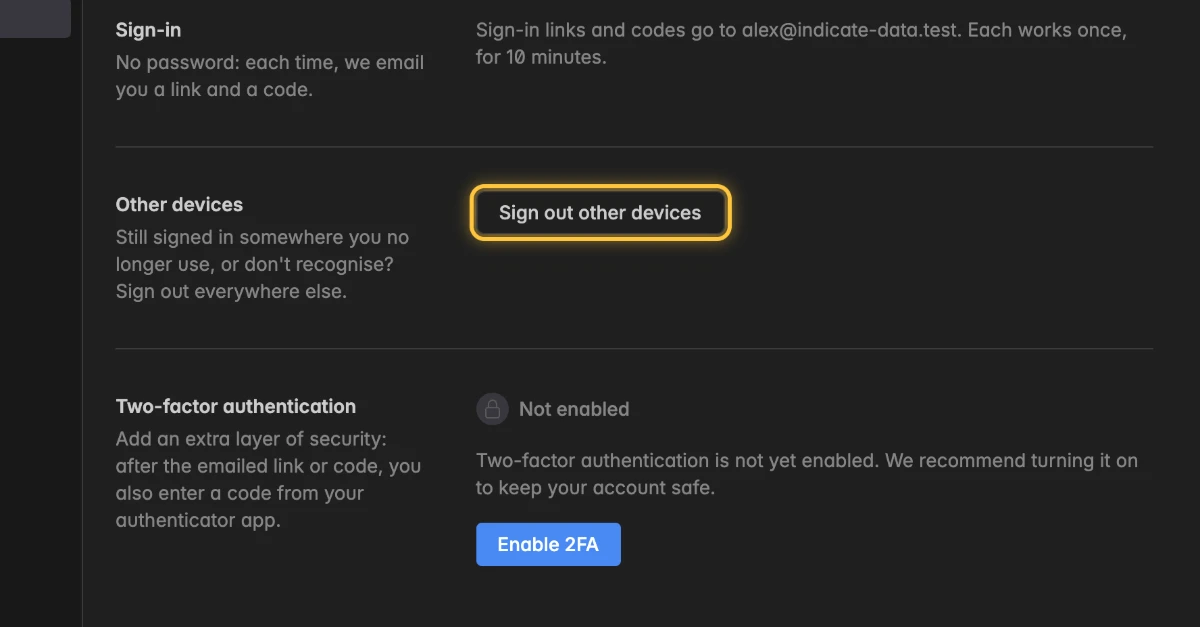
The page shows Every other device is signed out. This one stays signed in.
Troubleshooting
Where do I enter my password?
- Indicate no longer has passwords. Enter your email address and click Email me a sign-in link. Then use the link or the code from the email.
Why didn't I get an email?
Check your spam folder. The email comes from Indicate.
Check the address on the page Check your inbox. If it is wrong, click Use a different email and enter it again.
The email only goes to an address that has an Indicate account. Use the address you were invited with.
After 60 seconds, click Send a new email. The button shows how many seconds are left until then.
Why is my code not accepted?
The page shows That code is invalid or has expired. Use the one from the newest email, or send a new one.
A code works for 10 minutes and only once. If you asked for several emails, only the code from the newest email works.
Click Send a new email and enter the new code.
Why does the link say it is invalid or has expired?
The page shows This sign-in link is invalid or has expired. The link is older than 10 minutes, was already used, or a newer email replaced it.
Click Get a new link and enter your email address again.
Why do I have to click Sign in after I opened the link?
You asked for the email in one browser and opened the link in another browser or on another device. Click Sign in to finish.
This protects your account: Some email filters open links automatically to check them, and the click makes sure that only you sign in.
Why does the page say the link is incomplete?
The page shows This link is incomplete. Open it again from your email, or get a new one. Some mail programs cut long links.
Click the link in the email again. Or enter the code from the same email on the page Check your inbox. That page is still open in the window where you asked for the email.
Why does the page say there were too many attempts?
- The page shows Too many attempts. Wait a few minutes and try again. Wait a few minutes, then ask for a new email.
What do I do if my authenticator app is lost?
On the page Two-factor authentication, click Use a backup code instead and enter one of your backup codes.
If you have no backup codes either, contact support to reset two-factor authentication on your account.