
What is duplicating a dashboard?
Duplicating creates a full copy of a dashboard, including all its widgets, layout, and settings. You choose where the copy goes and which Insights it reads from. For example, you can copy your Revenue detail dashboard and point the copy at a second hotel, so both properties get the same report without building it twice.
The original dashboard stays connected to its copies. It can push its current state into every copy at any time, see Keep track of your duplicates below.
Duplicate or template?
There are two ways to reuse a dashboard in Indicate. Pick the one that fits how much control the receiving side should have.
Duplicate: The source dashboard stays in control. Whoever owns it can resync every copy at any time, and that overwrites all changes made in the copies without asking. Use it when you maintain the same dashboard for several hotels or spaces yourself and want them all to stay identical.
Template: The receiving space stays in control. A template has revisions, and every space that installed it decides on its own whether to update to a newer revision, because an update also overwrites local changes. Use it when other teams should start from your dashboard and then own their version. See Templates Marketplace.
When do you need this?
You want the same dashboard for a second customer, hotel, or property.
You want to copy a dashboard into another space your team works in.
You want a variant of an existing dashboard without changing the original or rebuilding the whole dashboard.
How do I duplicate a dashboard?
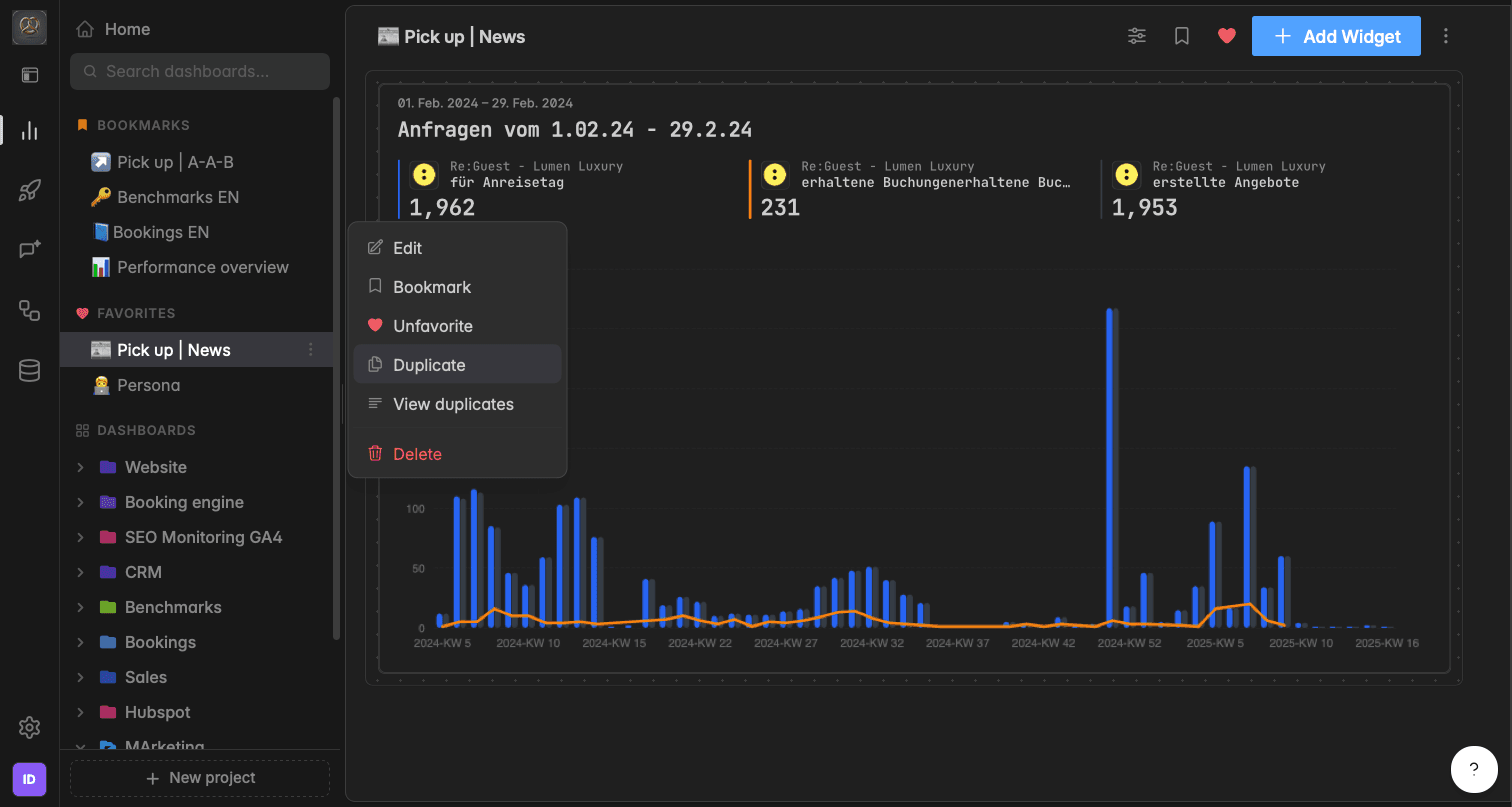
You have two ways to start. Both open the same Duplicate dashboard dialog, so pick whichever is closer to hand.
Option 1: From the sidebar
In the left sidebar, hover over the dashboard you want to copy and click the
⋮icon that appears next to its name.Select Duplicate from the menu.
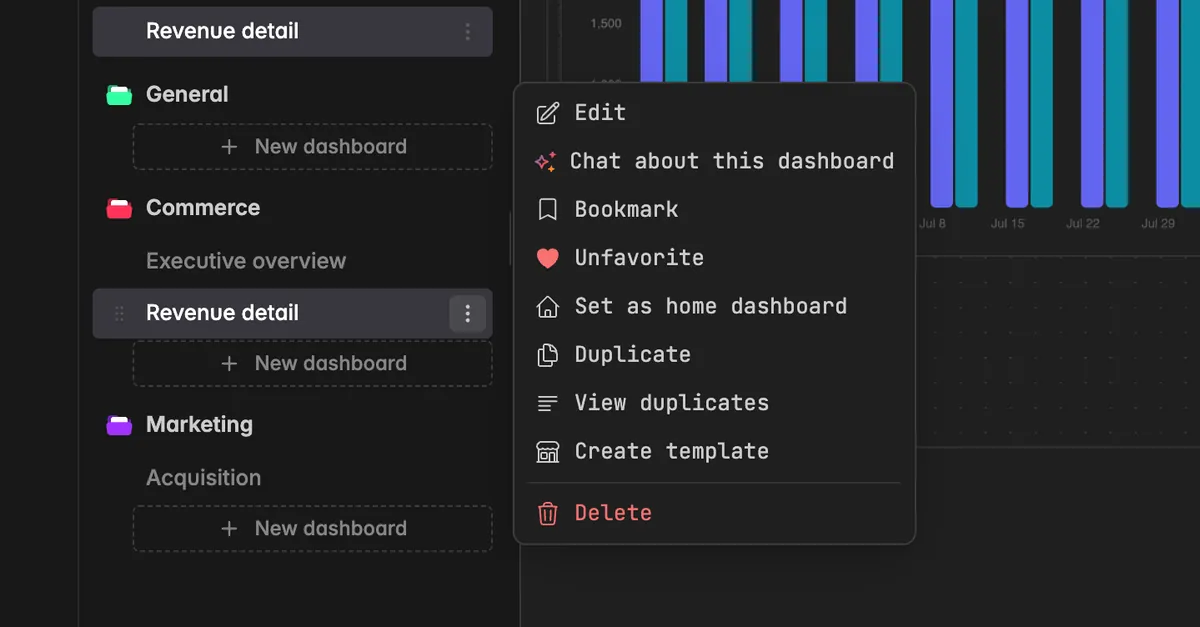
Option 2: From the open dashboard
Open the dashboard you want to copy.
Click the
⋮icon at the top right of the toolbar, next to Add widget.Select Duplicate from the menu.
How do I fill in the Duplicate dashboard dialog?
The dialog has two parts. The upper part decides where the copy lands, the Data section decides which Insights it reads.
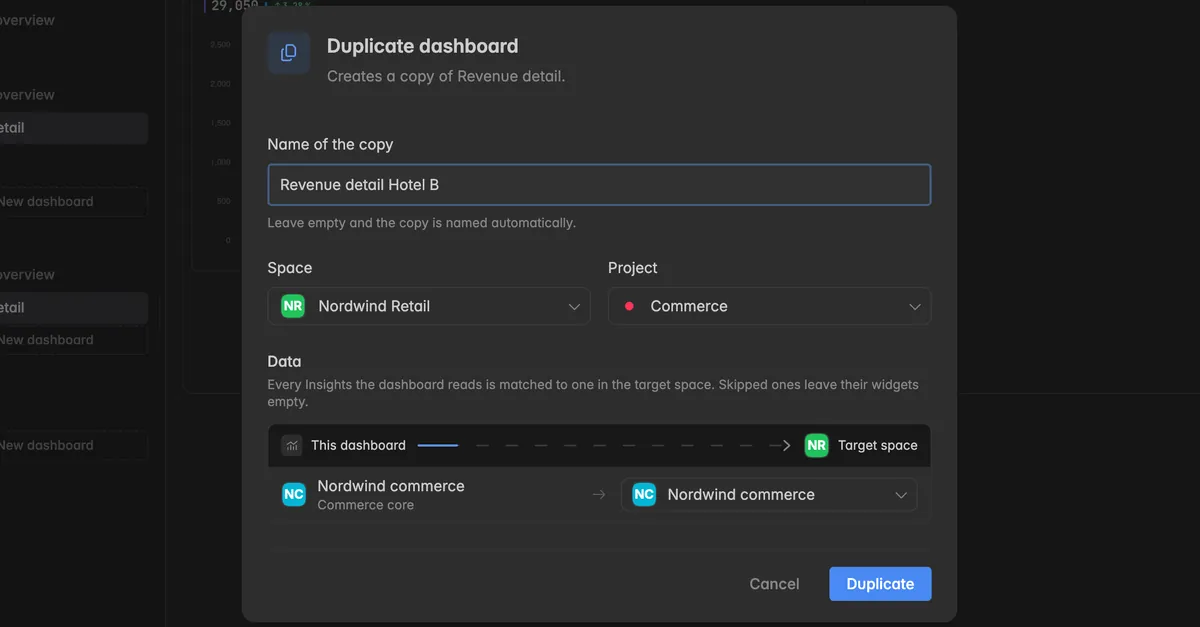
Name of the copy (optional). Leave it empty and the copy is named Copy of [dashboard name]. Or type your own name, for example the name of the hotel the copy is for.
Space. Pick the space the copy should live in. The list only shows spaces you are a member of. Leave it on the current space to copy inside the space you are already in.
Project. Pick the project inside the target space that should hold the copy. General is preselected.
Data. For every Insight the dashboard reads, pick the Insight in the target space the copy should use instead. See the next section for details.
Click Duplicate.
The dialog Dashboard duplicated shows how many widgets and series were kept, and how many were dropped because their Insight was skipped. Click Done.
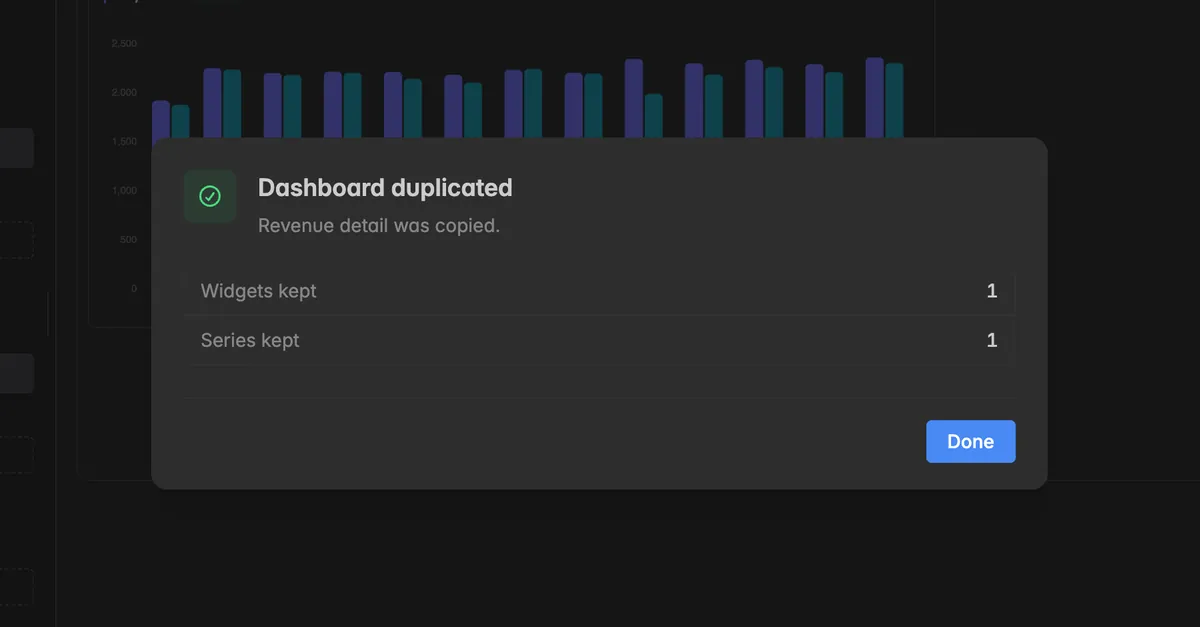
The copy appears in the sidebar of the target space and opens like any other dashboard.
How do I reuse a dashboard for a different data source?
This is the part that saves the most time. You can copy a dashboard into the same space and simply point it at another Insight, for example a second hotel.
Start the duplicate as described above.
Leave Space on your current space.
Under Data, open the dropdown on the right next to the source Insight.
Select the Insight of the other hotel or customer.
Click Duplicate.
The copy keeps every widget, metric, and layout from the original, but reads the data of the Insight you selected.
Note: The dropdown only lists Insights built on the same KPI collection as the source. A dashboard built on a Re:Guest Insight can only be mapped to another Re:Guest Insight. This keeps the widgets working, because the metrics and dimensions have to match. An Insight you skip leaves its widgets empty in the copy.
Keep track of your duplicates
Every dashboard knows about the copies made from it. Use the Duplicates page to see where the copies live and to push the current state of the source into them.
Open the source dashboard.
Click the
⋮icon at the top right of the toolbar, or next to the dashboard name in the sidebar.Select View duplicates.
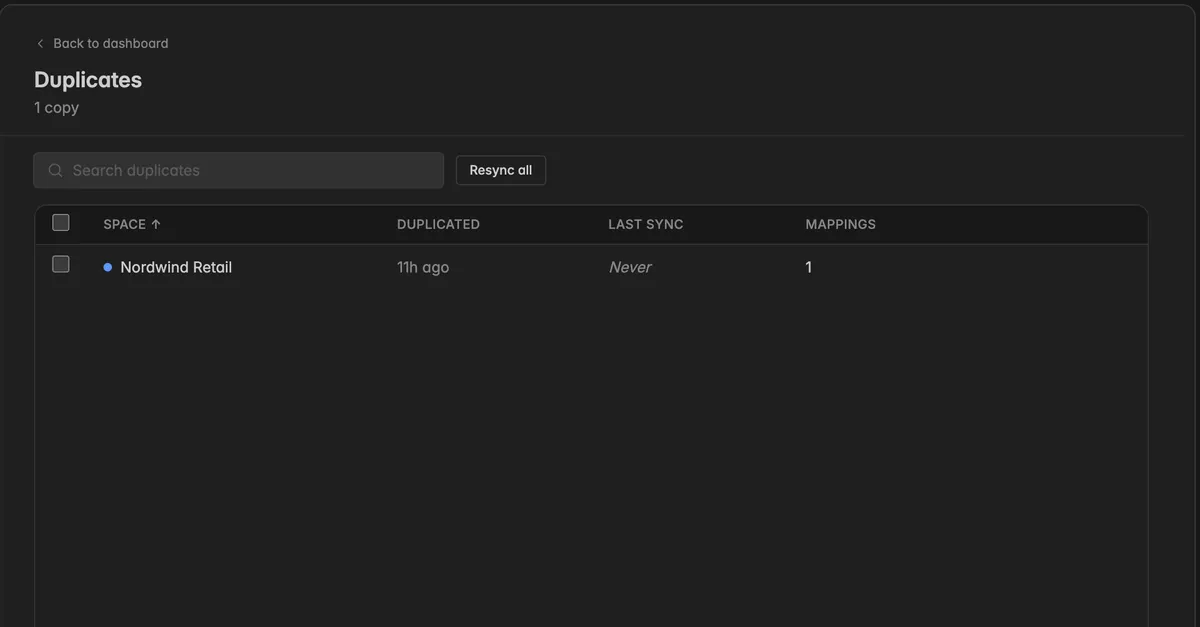
The Duplicates page lists every copy with these columns:
Space: The space the copy lives in. A space you are not a member of shows Access restricted.
Duplicated: When the copy was created.
Last sync: When the copy was last overwritten with the source. Shows Never until you resync it for the first time.
Mappings: How many Insights are mapped for that copy.
Hover over a row to see its actions, Remap and Resync. Use the search field to find a copy by space name.
Resync a duplicate
Resyncing pushes the current state of the source dashboard into a copy. Widgets you changed or added in the copy are lost.
One copy: Hover over the row and click Resync. Confirm with Resync in the dialog Resync this copy?.
Several copies: Tick the checkboxes of the copies, then click Resync N duplicates.
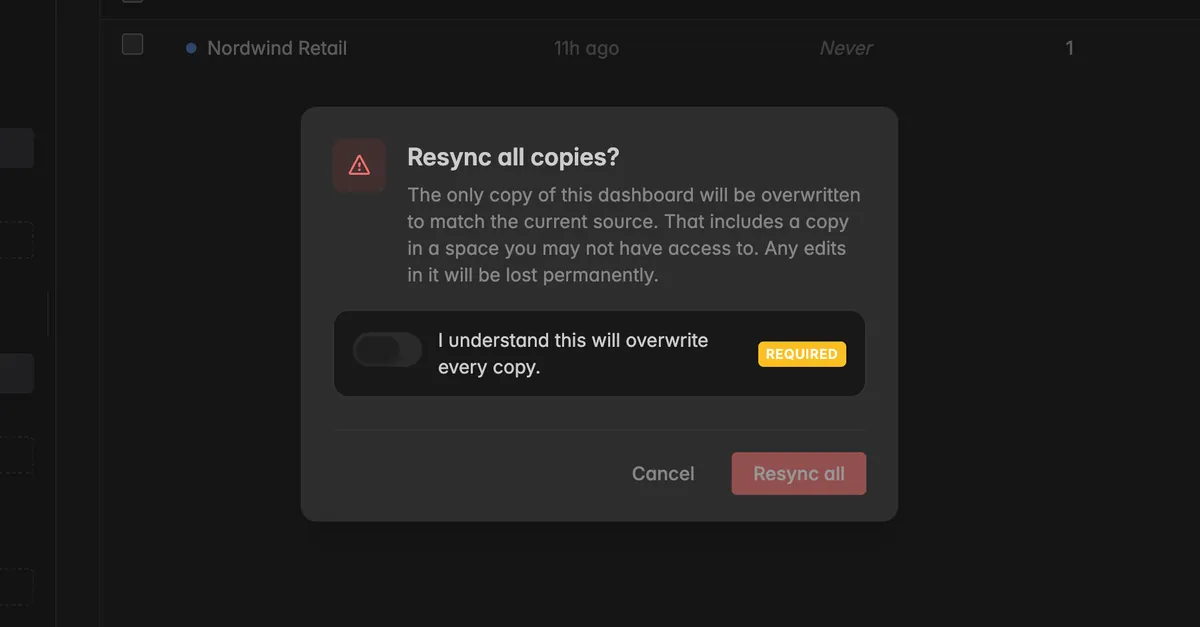
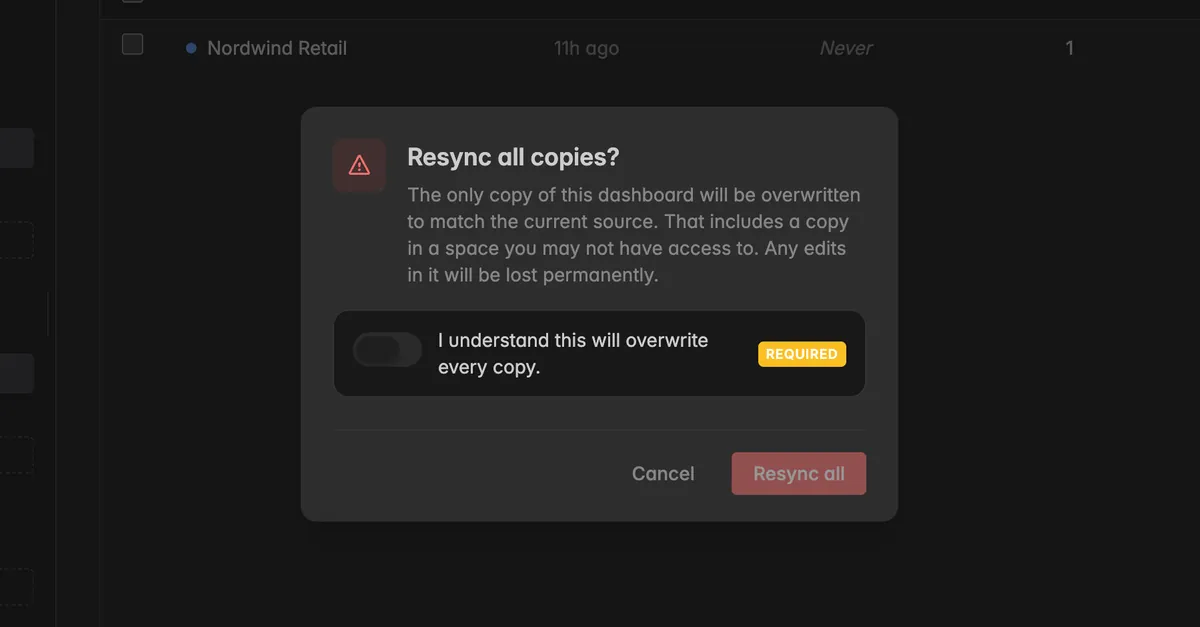
All copies: Click Resync all above the table. The dialog Resync all copies? warns you that this also overwrites copies in spaces you cannot see. Turn on I understand this will overwrite every copy and click Resync all.
While a resync runs, the row shows Queued, then Synced just now. If a copy could not be synced, click View errors in the summary bar above the table.
Remap a duplicate
Remapping re-targets the Insights a copy reads from. Use it when new Insights were added since you made the copy, or when a copy points at the wrong one.
Hover over the row and click Remap.
In the dialog Remap insights, pick the Target Insight for each Source. Choose Skip to leave a source unmapped. Widgets that need a skipped source are dropped on the next resync, the row shows Will drop.
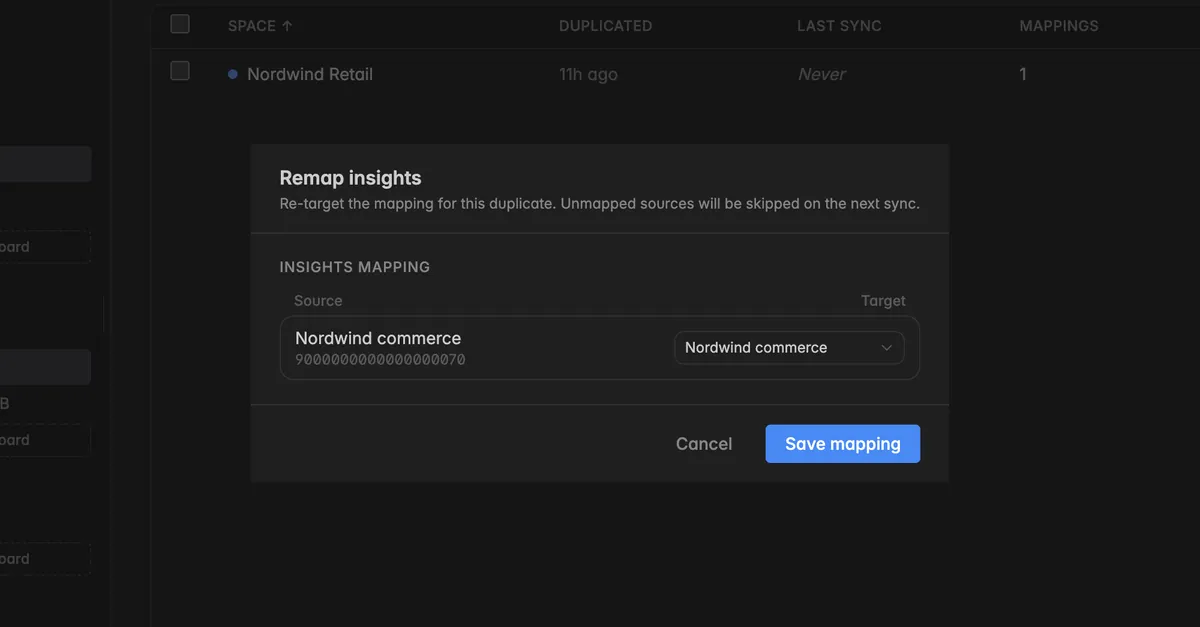
Click Save mapping. The new mapping is used the next time you resync the copy.
Note: Resyncing overwrites the copy to match the current source dashboard. Any changes made to the copy since it was duplicated are lost. If you have customised a copy, do not resync it. If the receiving team should decide themselves when to take changes, publish a template instead, see Templates Marketplace.
Troubleshooting
The space I want is not in the Space dropdown
The list only contains spaces you are a member of. Ask an admin of that space to invite you, then duplicate again.
I cannot select the Insight I want as target
Only Insights built on the same KPI collection as the source can be mapped. If the other hotel runs on a different system, connect that integration first and rebuild the widget instead.
Widgets in my copy are empty
The Insight behind them was skipped or is unmapped. Open View duplicates on the source dashboard, click Remap on the copy, pick a target and save. Then resync the copy.
My changes to a copy disappeared
The copy was resynced with the source dashboard. Resyncing overwrites the copy, so treat customised copies as independent and do not resync them.
I cannot find the copy
Check the Space and Project you selected in the dialog. The copy appears in the sidebar of that space, not necessarily the one you are in.
A copy shows Access restricted
The copy lives in a space you are not a member of. You can still resync it with Resync all, but you cannot open or remap it.