
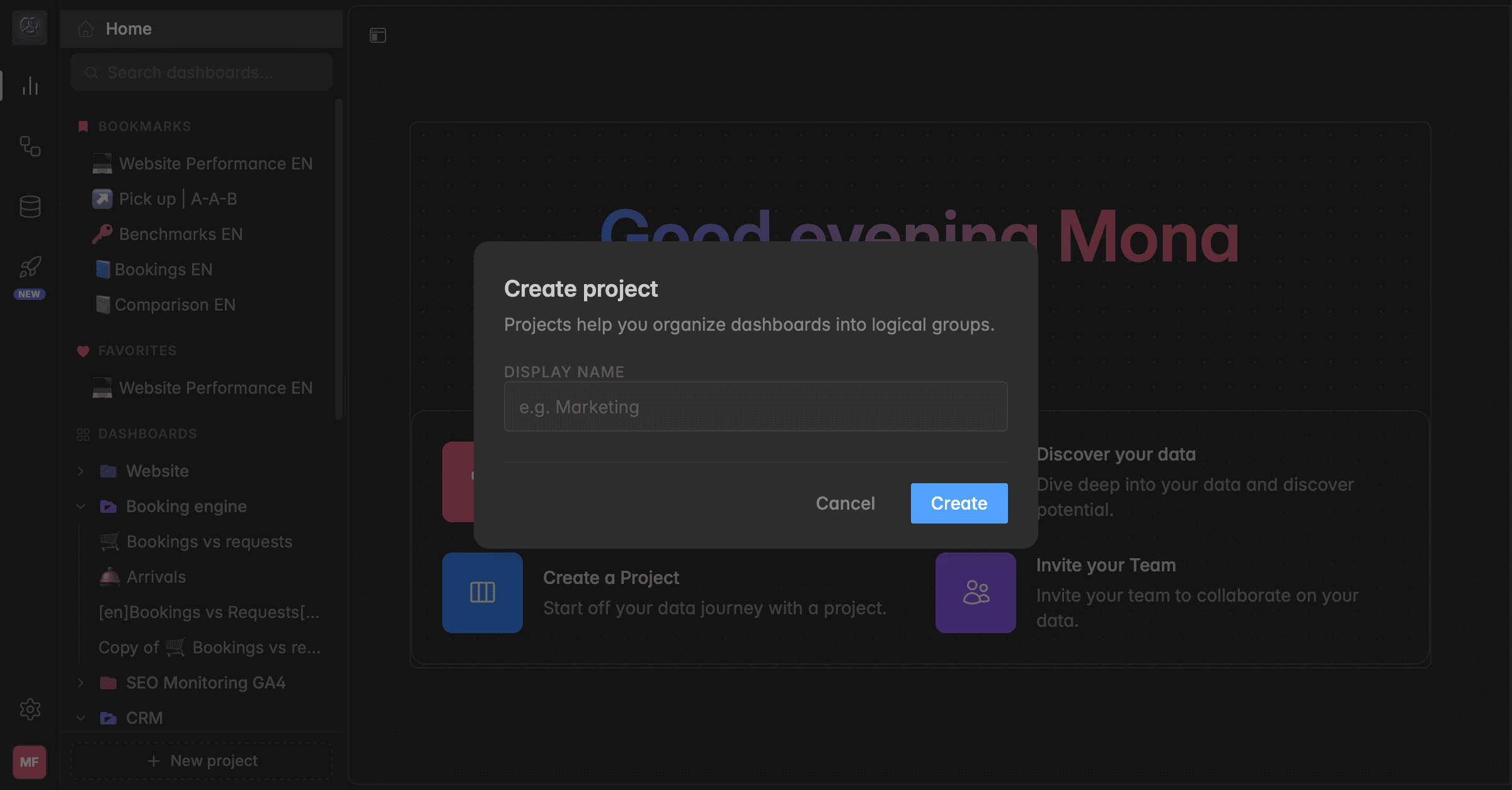
What is a project?
In Indicate, dashboards live inside projects. A project is like a folder that groups all the dashboards for one topic, department or goal. You can have as many projects as you need. Each one appears in the left sidebar under Analytics.
Every space starts with a project called General. It is the default project and cannot be deleted.
Keep things tidy: Group dashboards by topic, for example Marketing, Sales or Bookings.
Keep the overview: Click a project name to collapse the project, so only its name is visible. Click it again to show the dashboards.
Navigate quickly: Every project and its dashboards are always in the left sidebar.
Stay flexible: You can create, rename or delete projects at any time without changing your data.
Projects and dashboards are shared across your space, so everyone in the same space sees the same list. To create, rename and delete projects, you need at least the User role.
How do I create a project?
There are two ways to create a project: From the sidebar, or while you create a dashboard.
Option 1: From the sidebar
Open
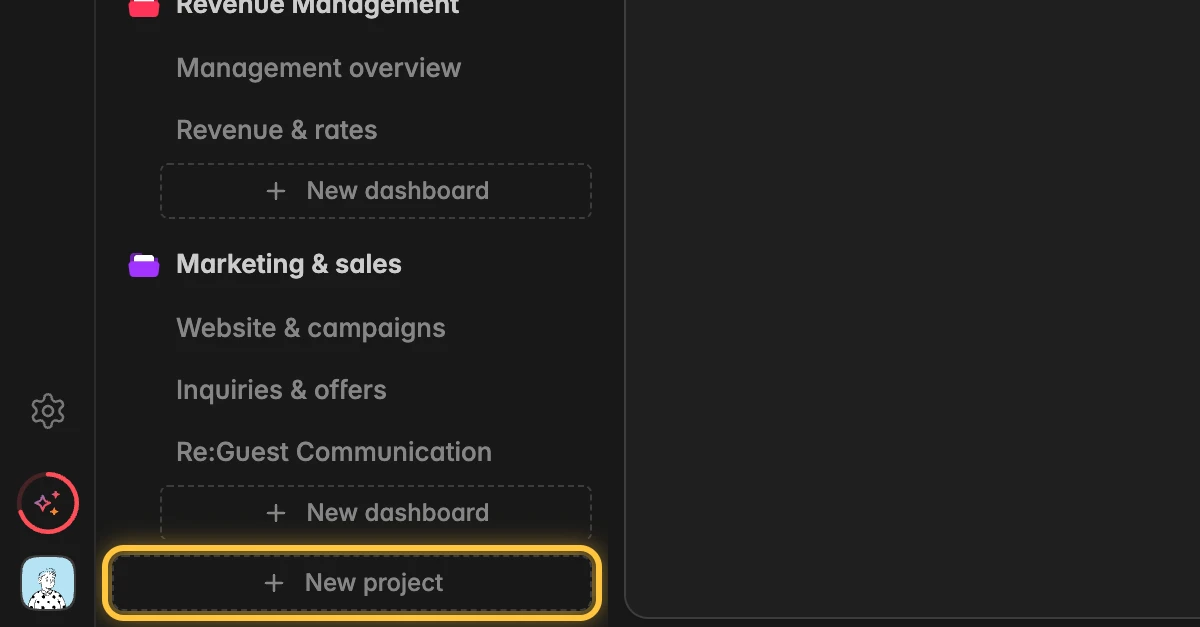
Analytics.At the very bottom of the left sidebar, click New project.
In the dialog Create project, enter a name in the field Project name, for example Sales. The name needs 3 to 128 characters.
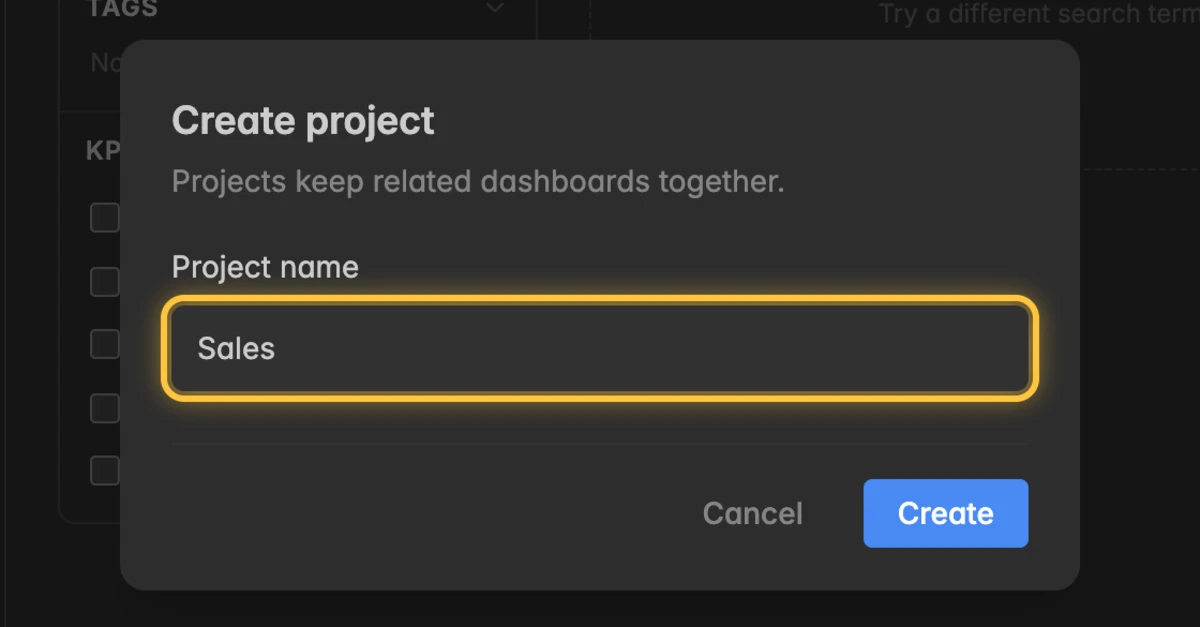
Click Create. The new project appears in the left sidebar, ready for your dashboards.
Option 2: While you create a dashboard
Open the page for creating a dashboard, for example with New dashboard in the sidebar. See Create a dashboard.
Below the heading Tell Resi what to show, click the project name next to in.
At the bottom of the list, click New project….
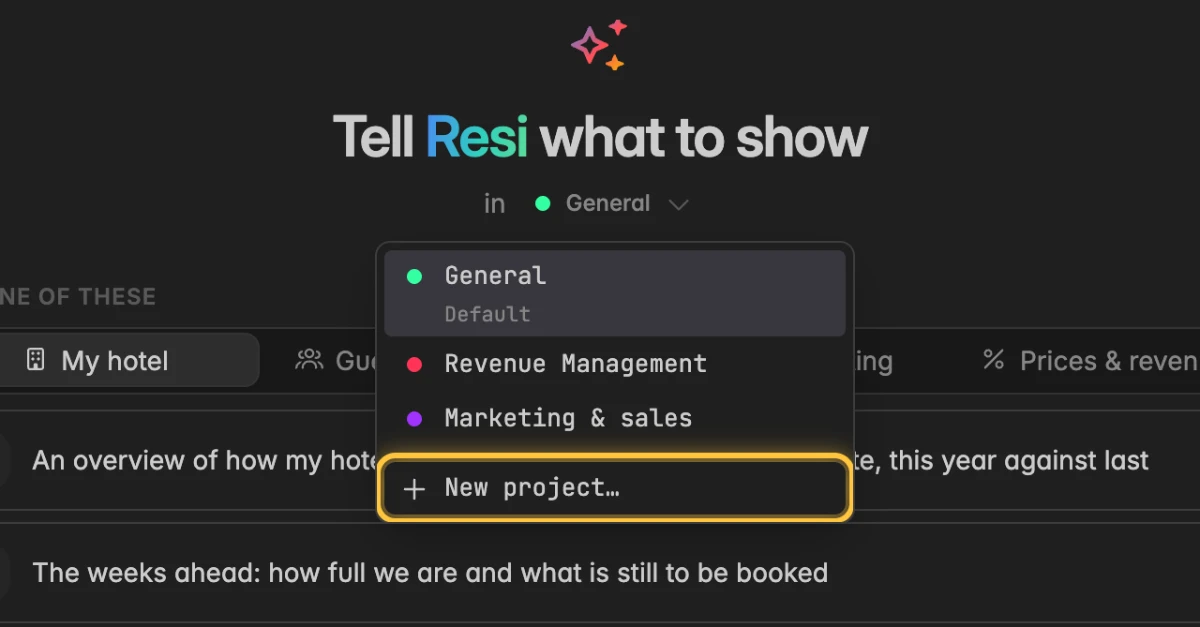
Enter a name in the field Project name and click Create. The new project is selected right away, so the dashboard you create next lands in it.
How do I rename a project?
In the left sidebar, hover over the project name and click the three-dot menu
⋮that appears next to it.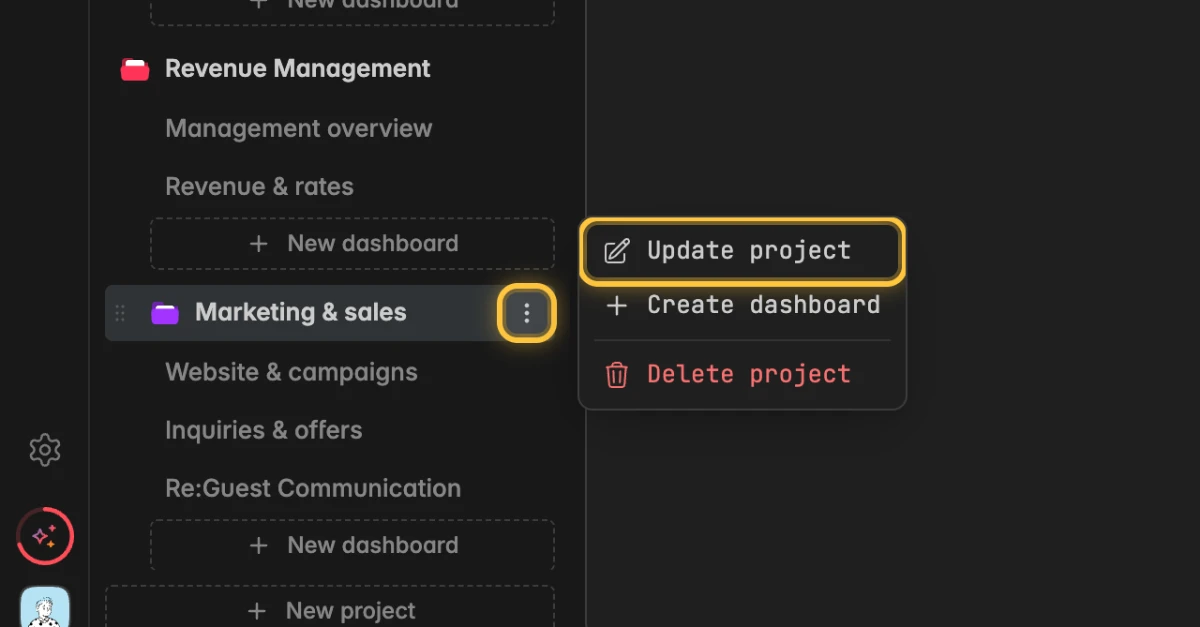
Click Update project.
In the dialog Edit project, change the name in the field Project name.
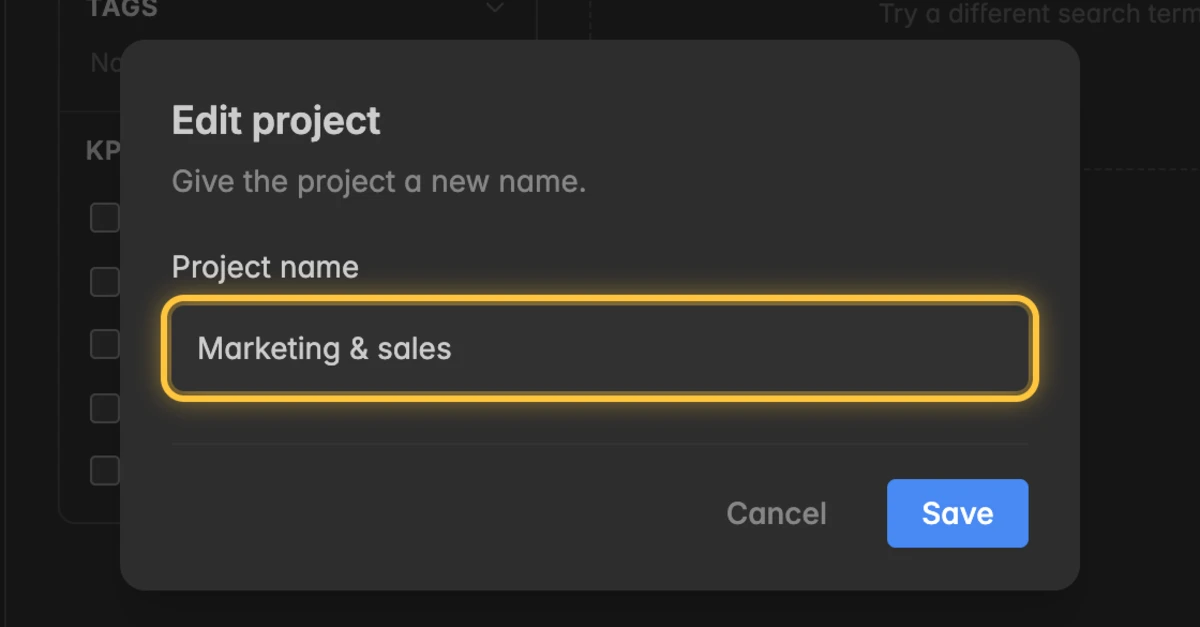
Click Save. The new name appears right away for everyone in the space.
How do I move a dashboard to another project?
You can drag a dashboard from one project to another directly in the sidebar.
In the left sidebar, hover over the dashboard you want to move. A grip icon appears at the left edge of the row.
Drag the dashboard onto the name of the target project, or to a position in its list of dashboards.
Release the mouse button. The dashboard now belongs to the target project.
The same drag also changes the order of the dashboards inside a project. You can also open the project menu and click Create dashboard to add a new dashboard straight to that project.
Moving a dashboard does not change its widgets or data. Only its place in the sidebar changes.
How do I delete a project?
The project General cannot be deleted. For every other project, Indicate first asks what should happen to the dashboards inside.
With Delete the dashboards too turned on, every dashboard and every widget in it is deleted for good. This cannot be undone. The Insights and data behind them are not affected.
In the left sidebar, hover over the project name and click the three-dot menu
⋮that appears next to it.Click Delete project. The dialog Delete project opens.
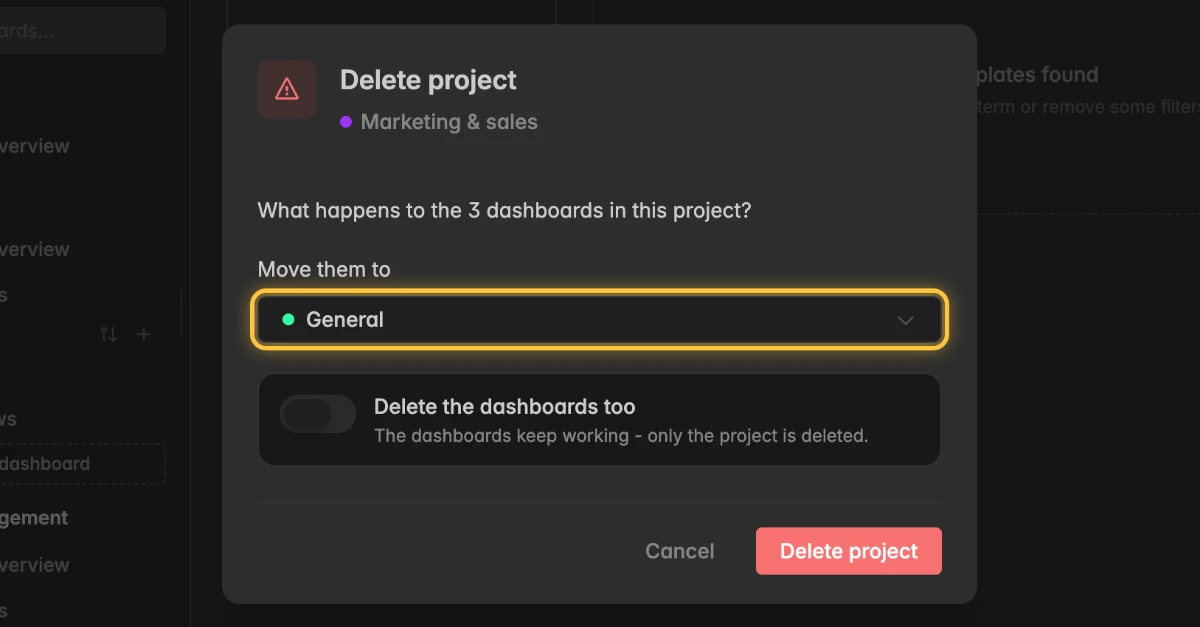
Under Move them to, click the project the dashboards should move to. General is preselected. The dashboards keep working. Only the project is deleted.
If you want to delete the dashboards as well, turn on Delete the dashboards too. Then type the project name into the confirmation field.
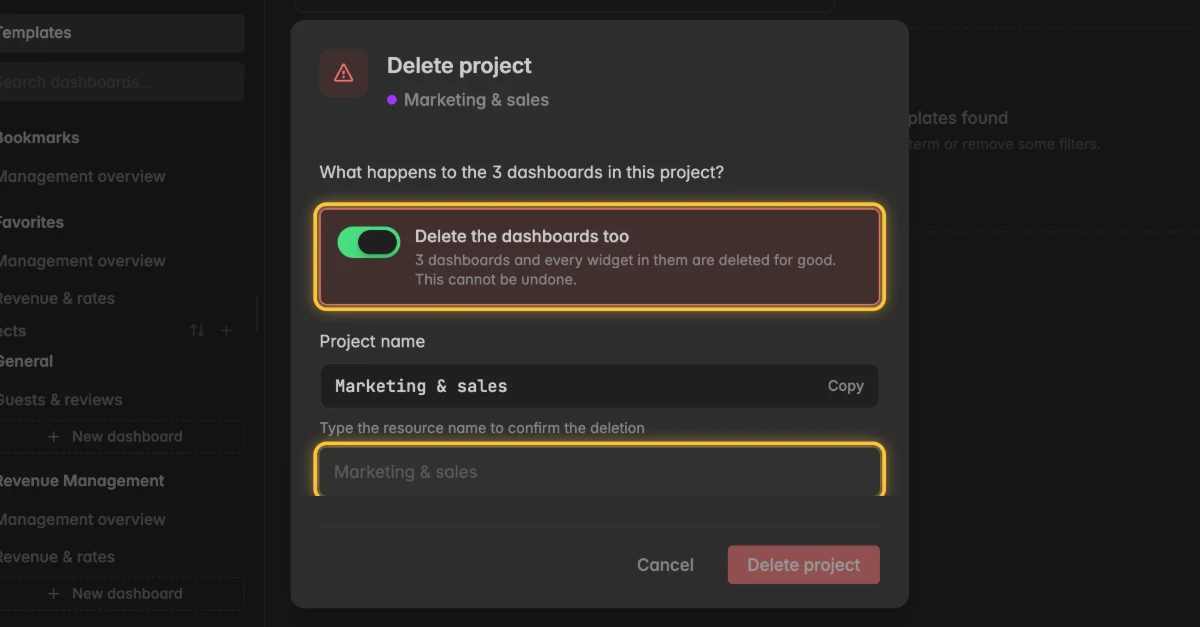
Click Delete project.
If the project has no dashboards, the dialog only says This project has no dashboards. Deleting it changes nothing else. You can then delete it right away.
Troubleshooting
Why don't I see New project?
The button sits at the very bottom of the left sidebar, below all projects. Scroll down in the sidebar if your window is small.
To create projects, you need at least the User role. Members with the Reader role do not see the button. Ask your space admin to change your role.
Why can't I delete the project General?
- General is the default project of every space and always stays. You can move your dashboards to other projects or rename it, but you cannot delete it.
Why is the button Delete project greyed out?
With Delete the dashboards too turned on, you first have to type the exact project name into the confirmation field.
If there is no other project to move the dashboards to, the dialog says There is no other project to move them to. Create another project first, or delete the dashboards too.
How do I get back a dashboard I moved to the wrong project?
- Drag it back in the sidebar. Nothing else changes: The widgets and data stay as they are.
Why is the project name not accepted?
- A project name needs at least 3 and at most 128 characters. Adjust the name and try again.