
Favorite or Bookmark a dashboard
Pin a dashboard to the top of the sidebar: bookmark it for the whole space, or favorite it just for yourself.
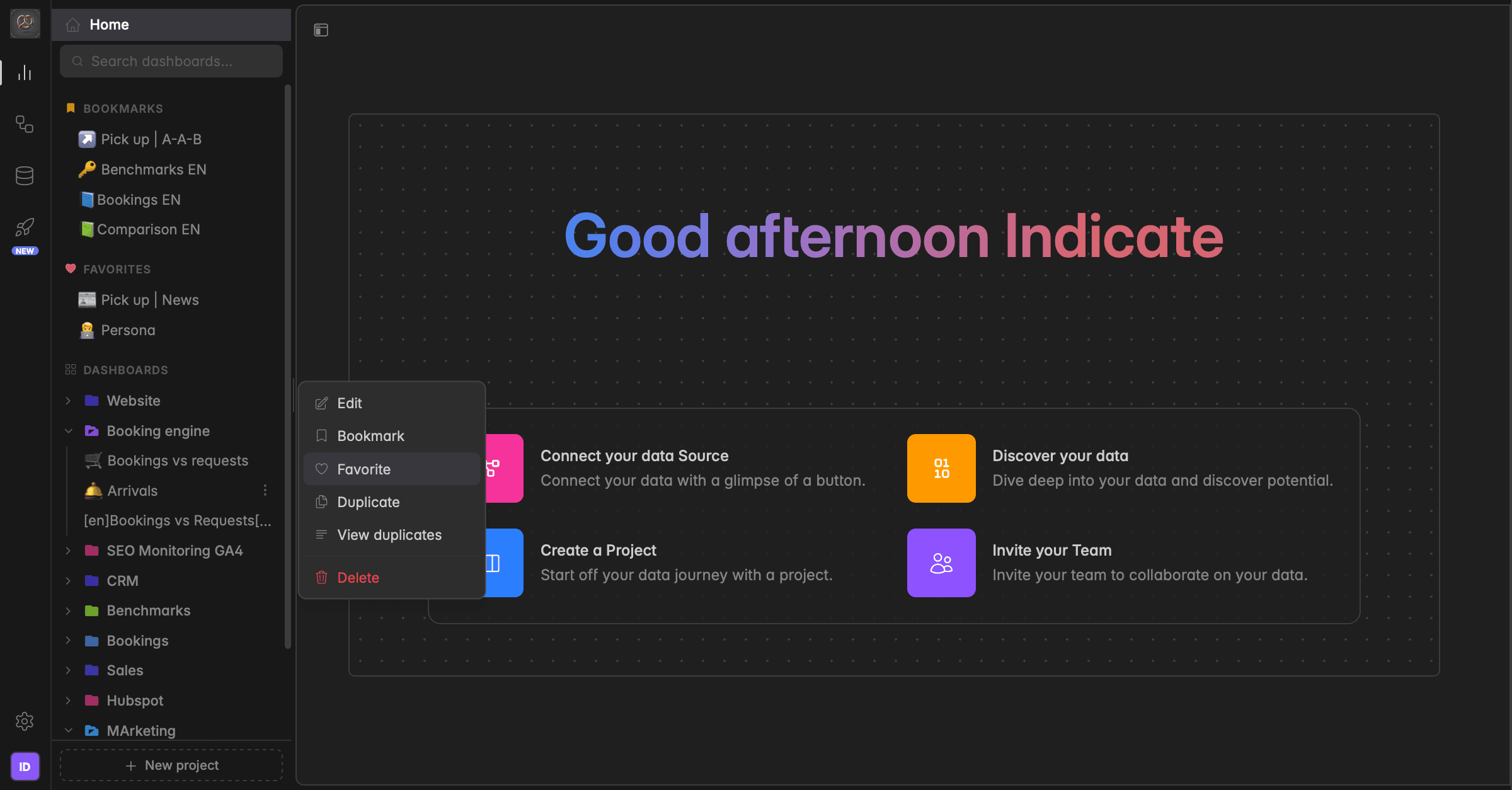
What is the difference between a bookmark and a favorite?
Both bookmarks and favorites pin a dashboard to the top of your left sidebar so you can reach it in one click. The difference is who sees it.
A bookmark is shared. The dashboard appears under Bookmarks at the top of the sidebar for everyone in your space. Use bookmarks for the dashboards your whole team relies on.
A favorite is personal. The dashboard appears under Favorites only in your own sidebar, marked with a heart. Use favorites for the dashboards you open often, without changing anyone else's sidebar.
A dashboard can be both at the same time. It then shows up in both sections. The dashboard itself stays in its project, bookmarks and favorites only add a shortcut.
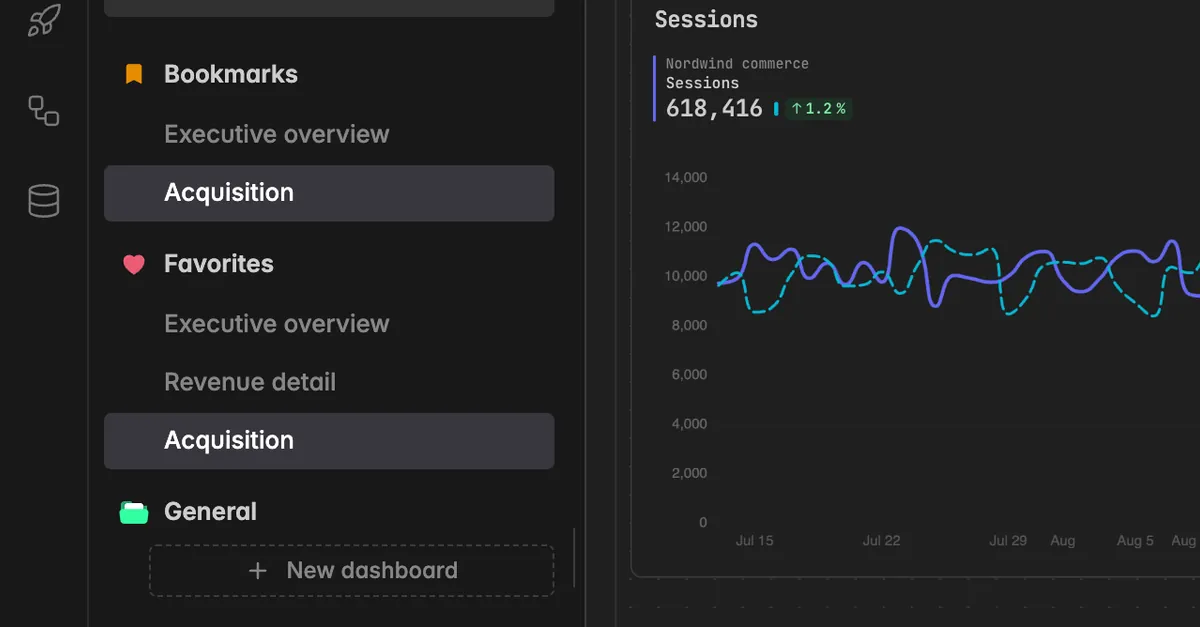
Note: In the dashboard toolbar the bookmark is called Pin. The tooltip reads Pin to the top of this space for everyone. In the sidebar menu the same action is called Bookmark.
How do I favorite a dashboard?
There are two ways to favorite a dashboard: from the sidebar menu, or with the heart in the dashboard toolbar.
Option 1: from the sidebar
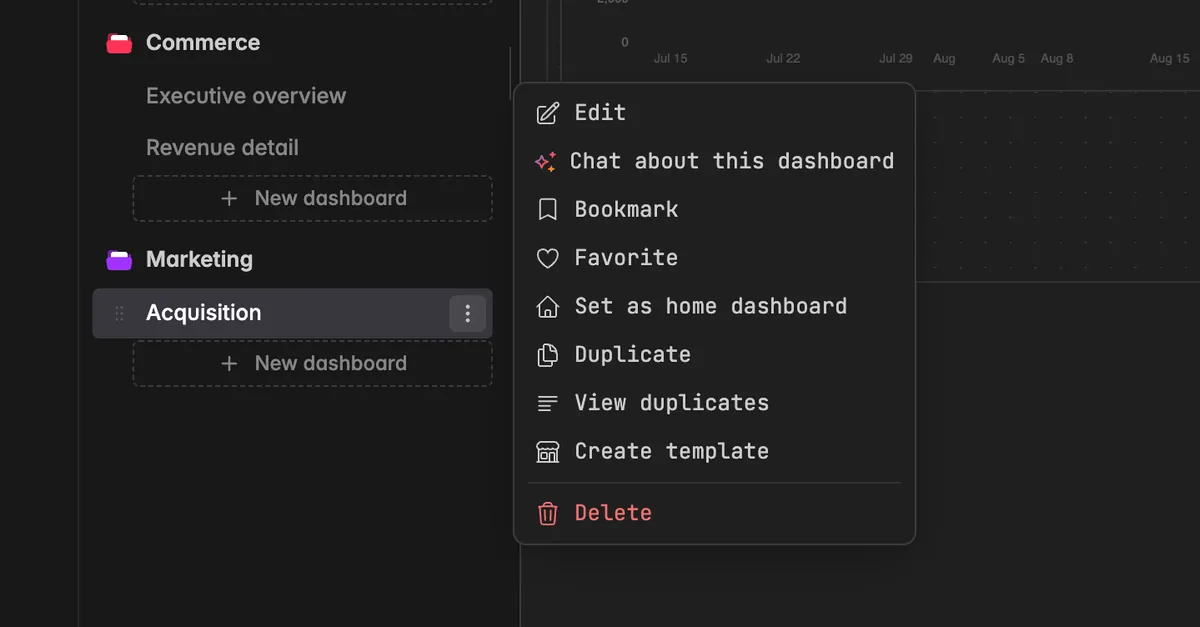
In the left sidebar, hover over the dashboard you want to favorite and click the
⋮icon that appears next to its name.Select Favorite from the menu. The dashboard now appears under Favorites at the top of your sidebar.
Option 2: from the dashboard toolbar
Open the dashboard.
Click the heart icon at the top right, between the bookmark icon and Chat. The tooltip reads Add to your favourites.
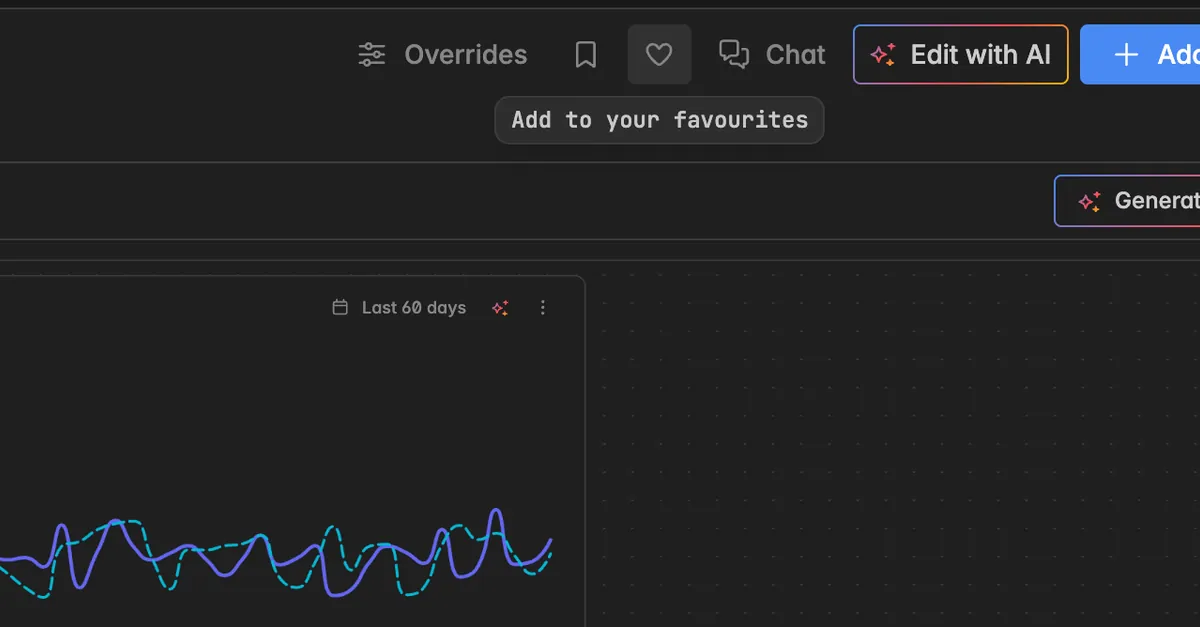
The heart turns red when the dashboard is in your favorites.
How do I unfavorite a dashboard?
Unfavoriting works the same way as favoriting.
Option 1: from the sidebar
In the left sidebar, hover over the dashboard and click the
⋮icon. You can do this in the Favorites section or in the project the dashboard belongs to.Select Unfavorite from the menu.
Option 2: from the dashboard toolbar
Open the dashboard.
Click the red heart icon at the top right again. The tooltip reads In your favourites. Click to remove it.
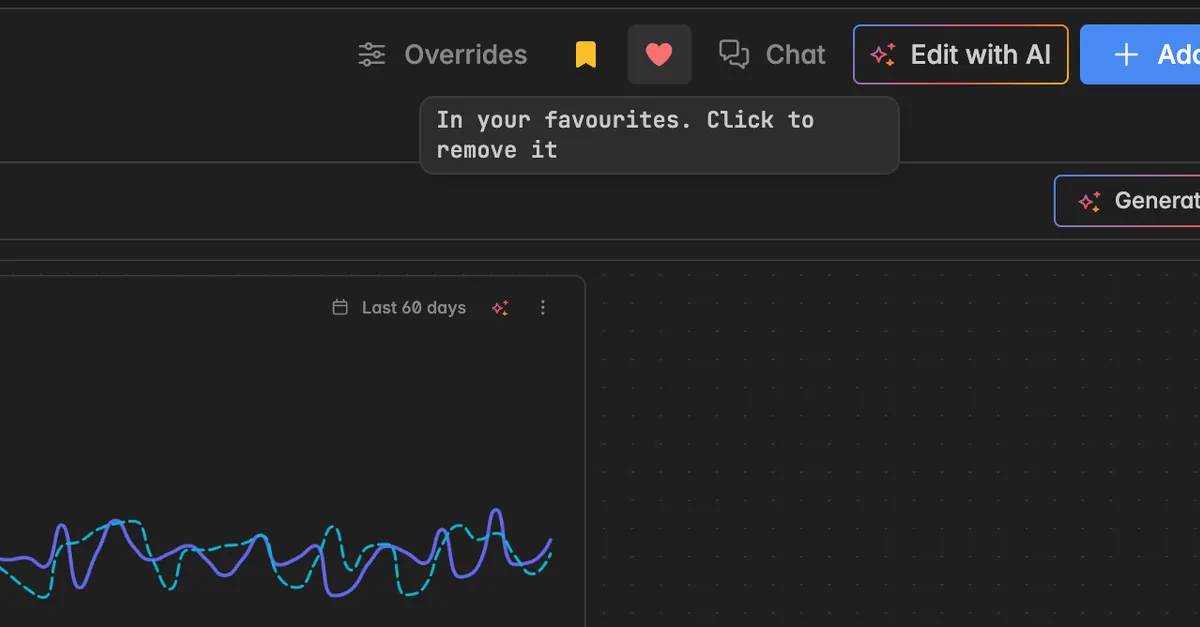
The dashboard disappears from Favorites and stays in its project.
How do I bookmark a dashboard?
There are two ways to bookmark a dashboard for the whole space: from the sidebar menu, or with the pin in the dashboard toolbar.
Option 1: from the sidebar
In the left sidebar, hover over the dashboard you want to bookmark and click the
⋮icon that appears next to its name.Select Bookmark from the menu. The dashboard now appears under Bookmarks at the top of the sidebar, for everyone in the space.
Option 2: from the dashboard toolbar
Open the dashboard.
Click the bookmark icon at the top right, next to Overrides. The tooltip reads Pin to the top of this space for everyone.
The bookmark icon turns yellow when the dashboard is bookmarked.
Note: Bookmarks change the sidebar for every member of the space. Agree with your team which dashboards belong there, so the section stays short and useful.
How do I unbookmark a dashboard?
Unbookmarking works the same way as bookmarking.
Option 1: from the sidebar
In the left sidebar, hover over the dashboard and click the
⋮icon.Select Unbookmark from the menu.
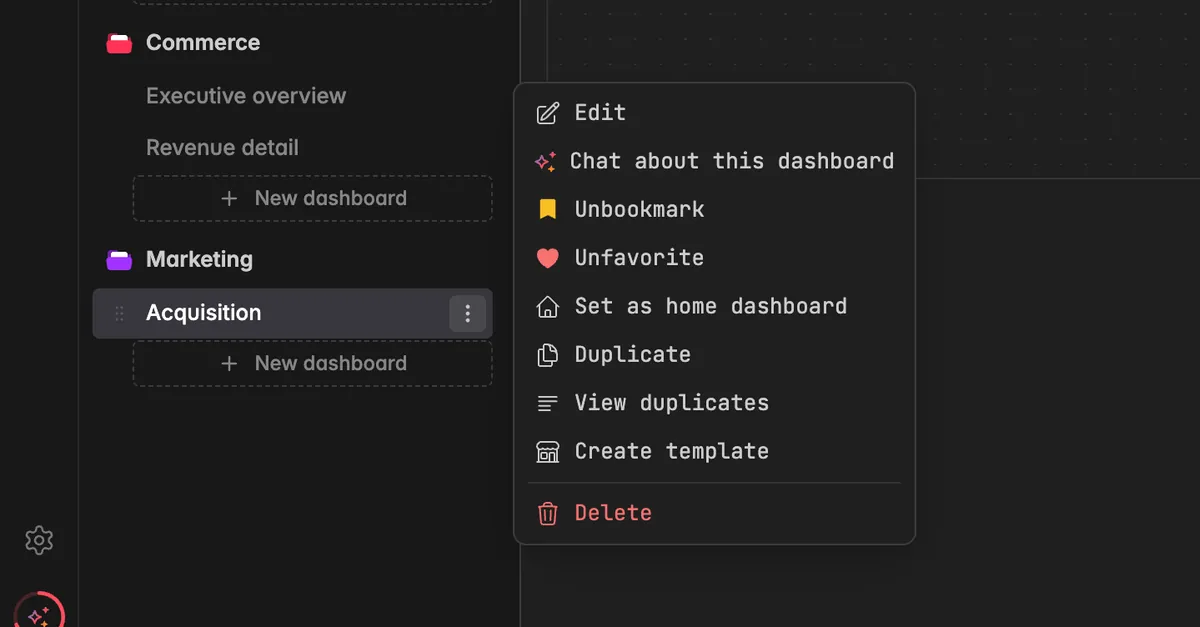
Option 2: from the dashboard toolbar
Open the dashboard.
Click the yellow bookmark icon at the top right again. The tooltip reads Pinned for everyone in this space. Click to unpin.
The dashboard disappears from Bookmarks for everyone and stays in its project.
Troubleshooting
I don't see the menu icon in the sidebar
- The
⋮menu in the sidebar requires at least the User role. Members with the Reader role can favorite a dashboard with the heart in the toolbar instead. Ask your space admin to update your role if you need the menu.
The bookmark icon is missing in the toolbar
- Bookmarks are a setting of the space. If your space is currently read-only because of its plan, the bookmark icon is hidden. Favorites still work, because they only change your own sidebar.
My colleague does not see my favorite
- That is expected. Favorites are personal. Use a bookmark if the whole team should see the dashboard at the top of the sidebar.
The Bookmarks or Favorites section disappeared
- The sections only appear while at least one dashboard is bookmarked or favorited. Add one again and the section returns.
I want a dashboard on the Home page instead
- Bookmarks and favorites only affect the sidebar. To show a dashboard on the Home page of the space, open the sidebar menu and select Set as home dashboard.
Was this helpful?