
Docs / Widgets
Edit widget calendar
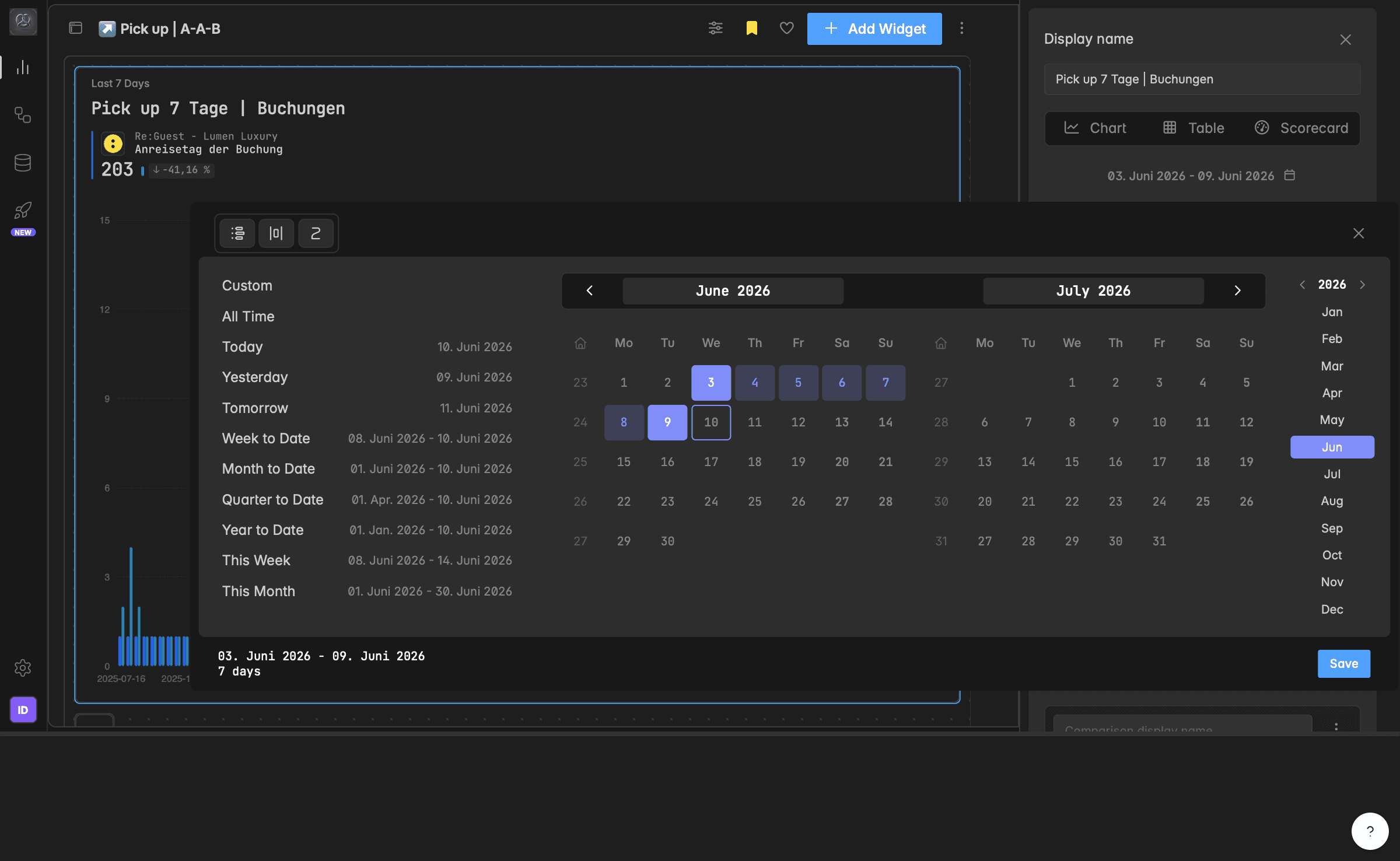
The calendar defines the time range for your widgets using presets or custom dates. Adjust ranges to refresh insights instantly and align comparisons.
What does the calendar control?
The calendar in Indicate lets you define the time range used in your widgets.
You can choose from predefined date presets such as today, this week, or year to date, or manually select a custom range to explore your data in detail.
The calendar controls which data is displayed in your visualizations.
Selected time ranges automatically apply as rolling windows if not custom set.
It supports both daily and aggregated time views (week, month, quarter, year).
You can combine the calendar with comparison features (e.g., year-over-year or quarter-to-date).
How do I set a date range?
Click the date range or calendar icon in your widget builder.
Choose Custom from the list of presets or select any date or date range in the calendar right under the chart, table, and scorecard select.
In the calendar view, click to select a start date and an end date.
Navigate the calendar with the arrows (◀ ▶) to move between months, the year navigation in the top right to jump between years, the month list on the right to jump to a specific month, or the house icon to return to today in one click. To select an entire month at once, click the month name in the calendar.
Review your selection at the bottom of the window, the exact date range and duration (in days) will be displayed.
Click Save to apply the selection.
Expand the calendar for a broader view: it shows two months side by side.
To learn more about the default date options, open the collapse sidebar to view detailed descriptions of each time range, for example which days Last 7 days or Last 14 days selects.
What date presets are available?
Indicate includes a set of smart, predefined time ranges designed for quick access:
Preset | What it does |
|---|---|
Custom | Select any date range manually using the calendar. |
All Time | Shows your full available date range at once. When All Time is selected, the calendar shows a dash with a calendar icon instead of a date range. |
Today | Shows data for the current day. |
Yesterday | Displays data from the previous day. |
Tomorrow | For forecast or scheduling use cases. |
Week to date (WTD) | Includes all data from the start of the current week up to today. |
Month to date (MTD) | From the first day of the current month up to today. |
Quarter to date (QTD) | From the first day of the current quarter up to today. |
Year to date (YTD) | From January 1st up to today. |
This week | Shows the full current week. |
This month | Shows the full current month. |
This quarter | Shows the full current quarter. |
Past ranges
Preset | What it does |
|---|---|
Last 7 days | Previous 7 days, ending today. |
Last 14 days | Previous 14 days, ending today. |
Last 28 days | Previous 28 days, ending today. |
Last 30 days | Previous 30 days, ending today. |
Last 60 days | Previous 60 days, ending today. |
Last 90 days | Previous 90 days, ending today. |
Last 365 days | Previous 365 days, ending today. |
Last week | Previous full week (Monday to Sunday). |
Last month | Previous full month. |
Last quarter | Previous full quarter. |
Last year | Previous full calendar year. |
Future ranges
Preset | What it does |
|---|---|
Next 7 days | Next 7 days, starting today. |
Next 14 days | Next 14 days, starting today. |
Next 28 days | Next 28 days, starting today. |
Next 30 days | Next 30 days, starting today. |
Next 60 days | Next 60 days, starting today. |
Next 90 days | Next 90 days, starting today. |
Next 365 days | Next 365 days, starting today. |
Next week | Upcoming full week. |
Next month | Upcoming full month. |
Next quarter | Upcoming full quarter. |
Next year | Upcoming full calendar year. |
How do I change the time range for the whole dashboard?
Besides each widget's own calendar, a dashboard has a dashboard time range control placed on top of the dashboard itself, not in the widget builder. Use it to change the timeframe for all widgets on the dashboard at once.
When a dashboard time range is active, it overwrites each widget’s individual time range. In the widget builder, the calendar shows Dashboard time range: with a Disable option. Click Disable on a widget if you want it to keep its own range and ignore the dashboard time range.
People with the User role cannot edit widgets or dashboards. The dashboard time range sits on the dashboard, so they can change the timeframe for a widget.
You can update all widgets at the same time, which makes it faster than changing each widget individually.
Troubleshooting
My widget shows no data for the range I picked.
The selected range may fall outside the data that exists for this widget. Switch to All Time or a wider preset to check whether data is there.
My widget is empty for the default Last 7 days range.
New widgets default to the Last 7 days, but not every data source has data in that window:
Some sources only hold future data, for example forecasts or occupancy. Try selecting a future date range.
A newly connected source starts collecting data from the moment it was connected, so it has no historical data yet and may show data for the first time only the next day.
Not every source supports historical or future data.
If there is no data in the original source system for the selected range, no data will be shown in Indicate.
If in doubt, set the range to All Time to see whatever data exists.
Did we forget something? No worries! Just send us an email at [email protected]
Was this helpful?