
Filter data
Keep only the rows that match: add conditions per series, combine them with All match or Any match, browse dimension values, and see where a filter is active.
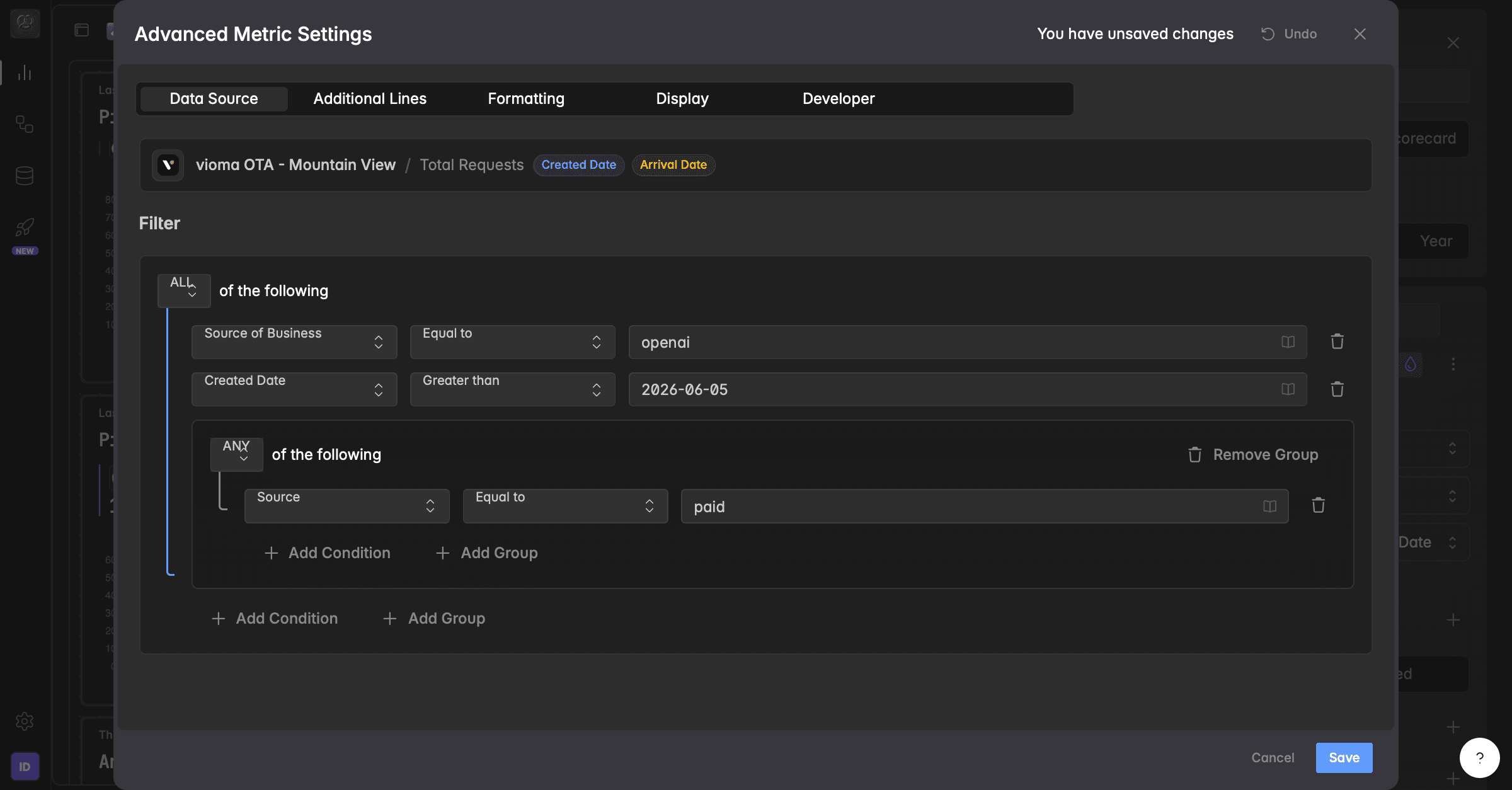
What is a filter?
A filter keeps only the rows of a series that match a condition, for example only the channel Paid search, only bookings from Germany, or only sessions with more than 100 page views. Everything else is left out before the widget is drawn.
Filters are set per series. On a widget with two series, each one can have its own filter, so you can show paid and organic traffic as two lines from the same metric. Filters are saved with the widget and apply to everyone who opens the dashboard.
A filter can have one condition or several, combined with All match or Any match.
Conditions can be nested in groups for cases like "channel is Paid search and country is Germany or Austria".
A filter stays on the series when you change the metric or the data source.
How do I add a filter?
Editing needs at least the User role.
Open the dashboard and click the name of the widget. The widget editor opens on the right.
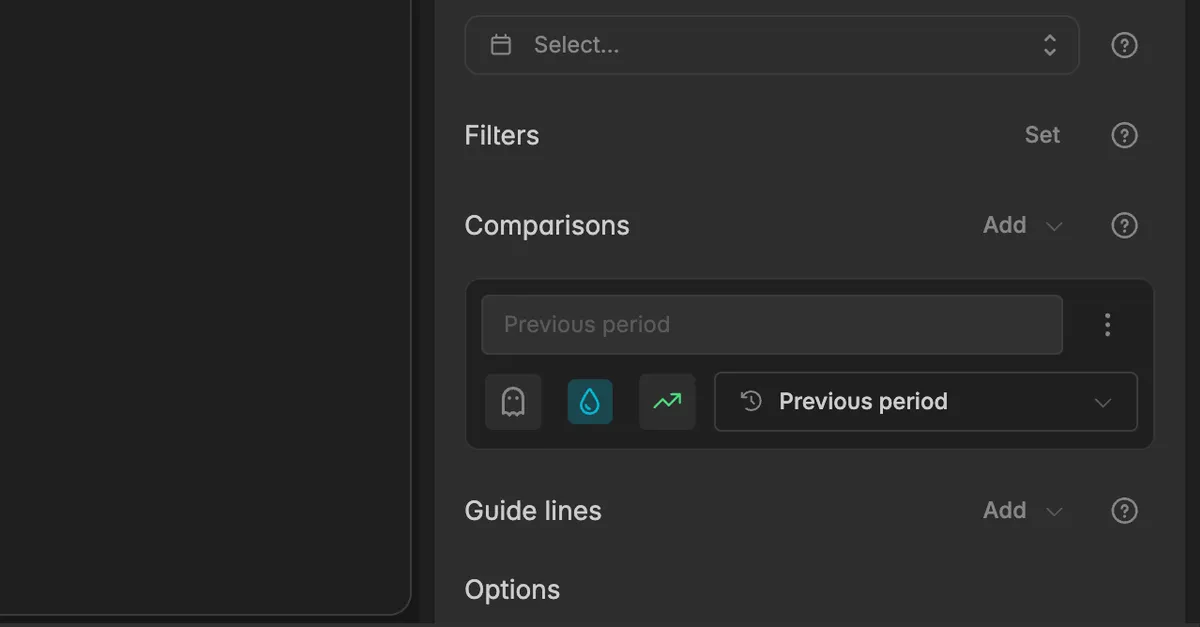
Scroll to the series and click Set next to Filters.
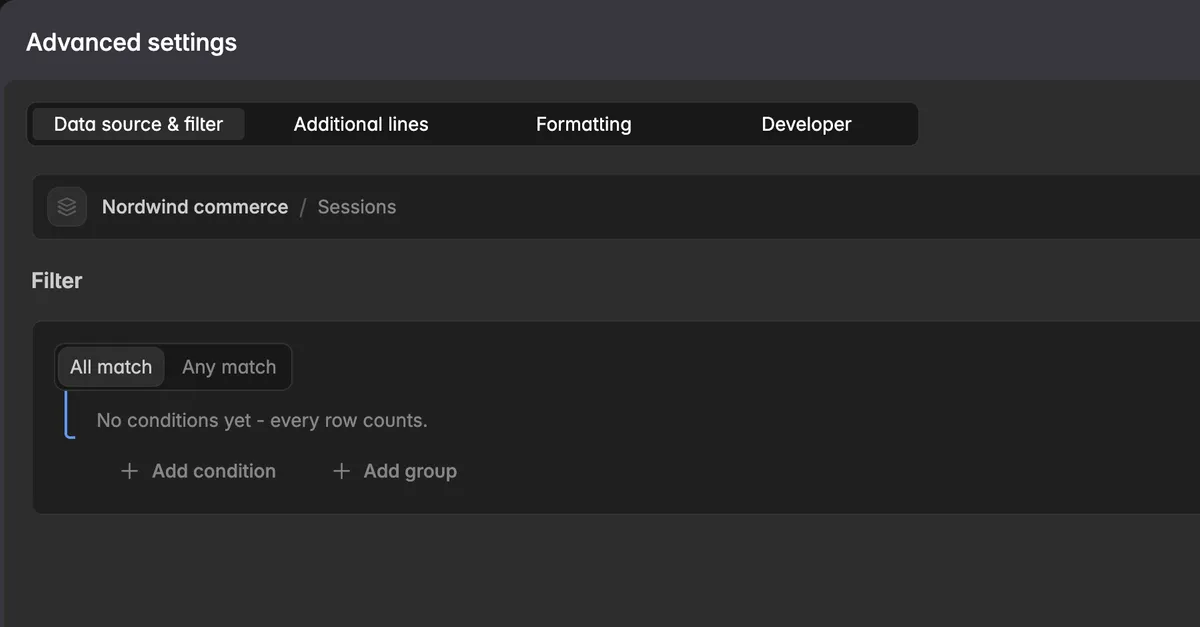
The dialog Advanced settings opens on the Data source & filter tab. Under Filter, click Add condition.
A condition row appears with three fields: the dimension, the comparison, and the value.
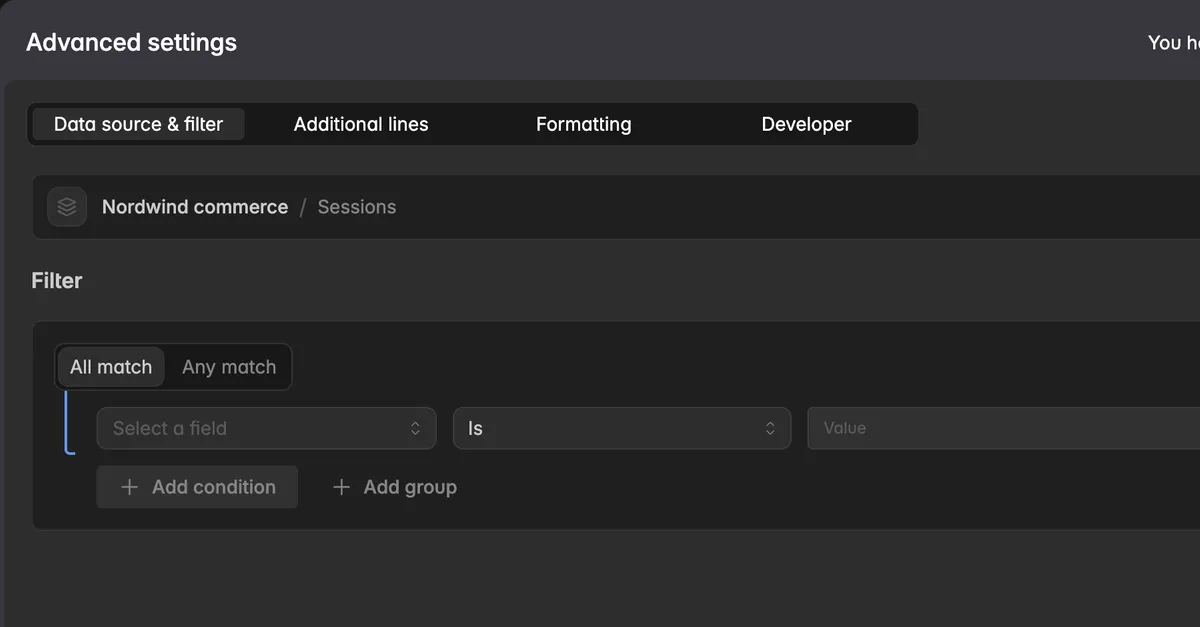
Click Select a field and pick the dimension, for example
Channel. Only dimensions of this series' data source are offered.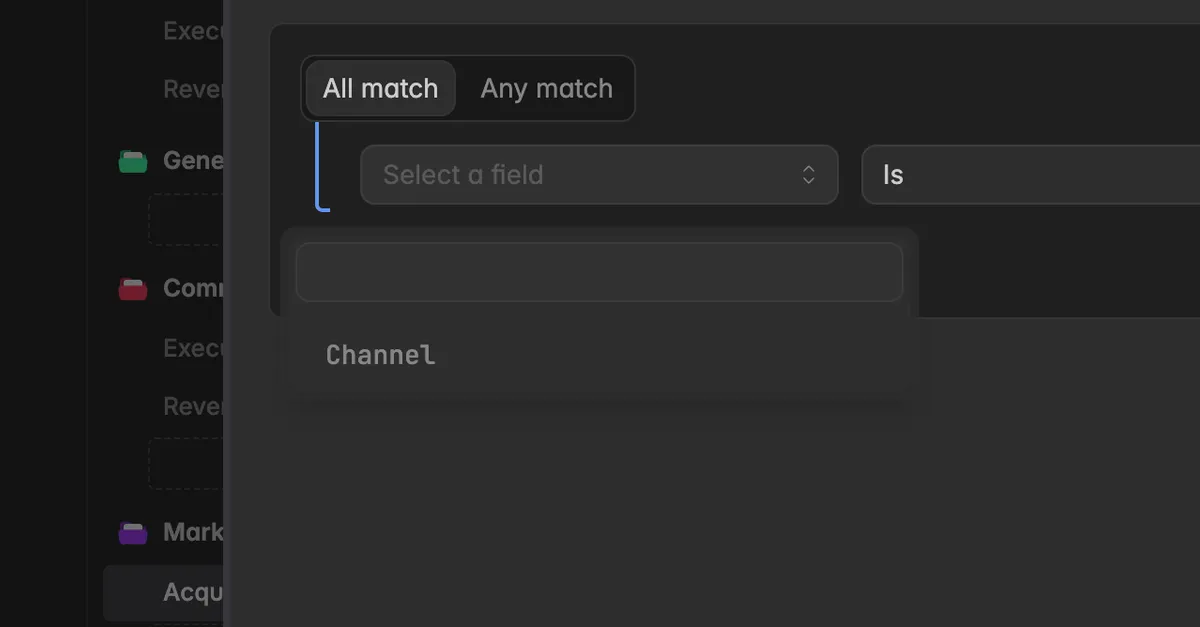
Click the comparison, Is by default, and pick how the value is matched. See the list below.
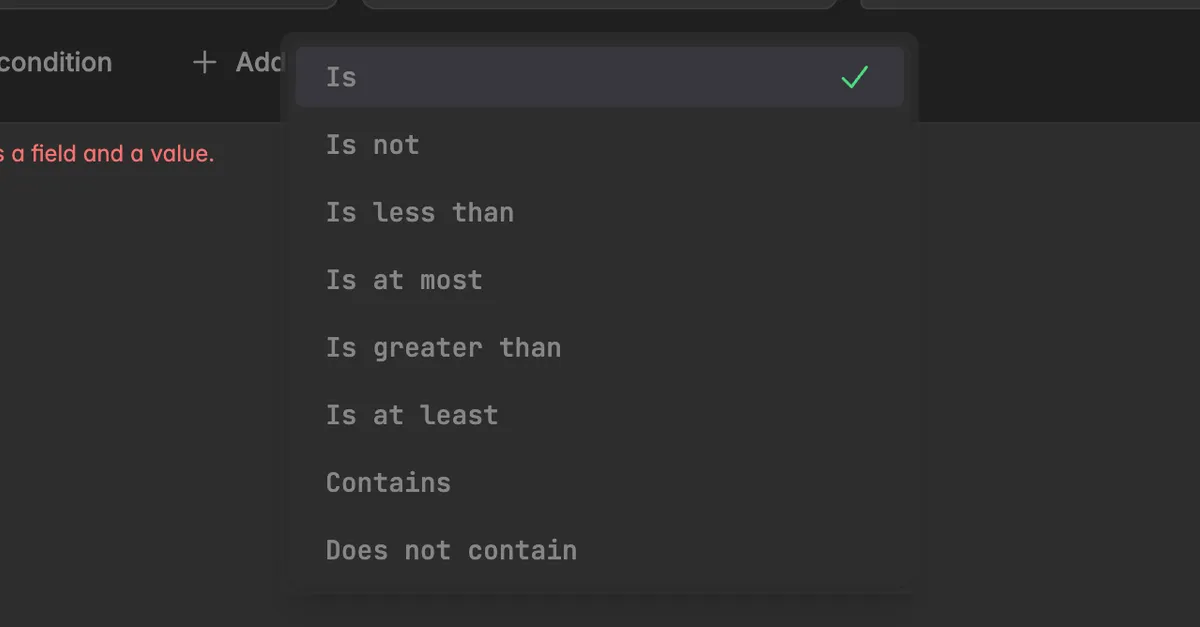
Type the value, or click the book icon at the end of the row to browse the values the dimension actually holds. The list Dimension values has a search field.
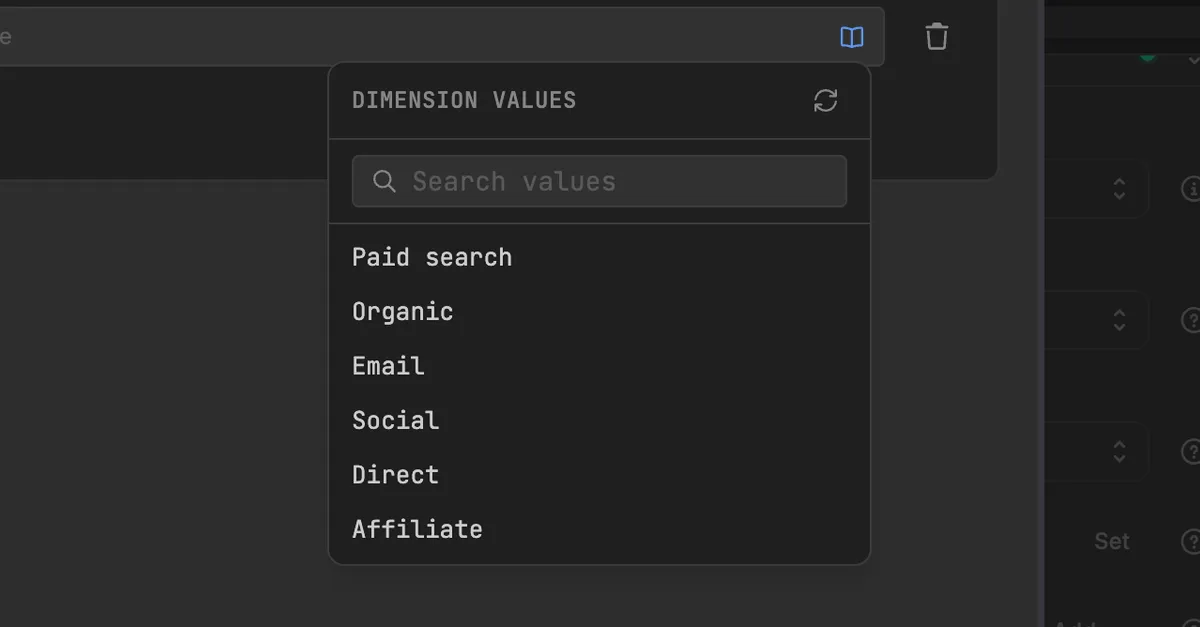
Add more conditions with Add condition if needed, then click Save.
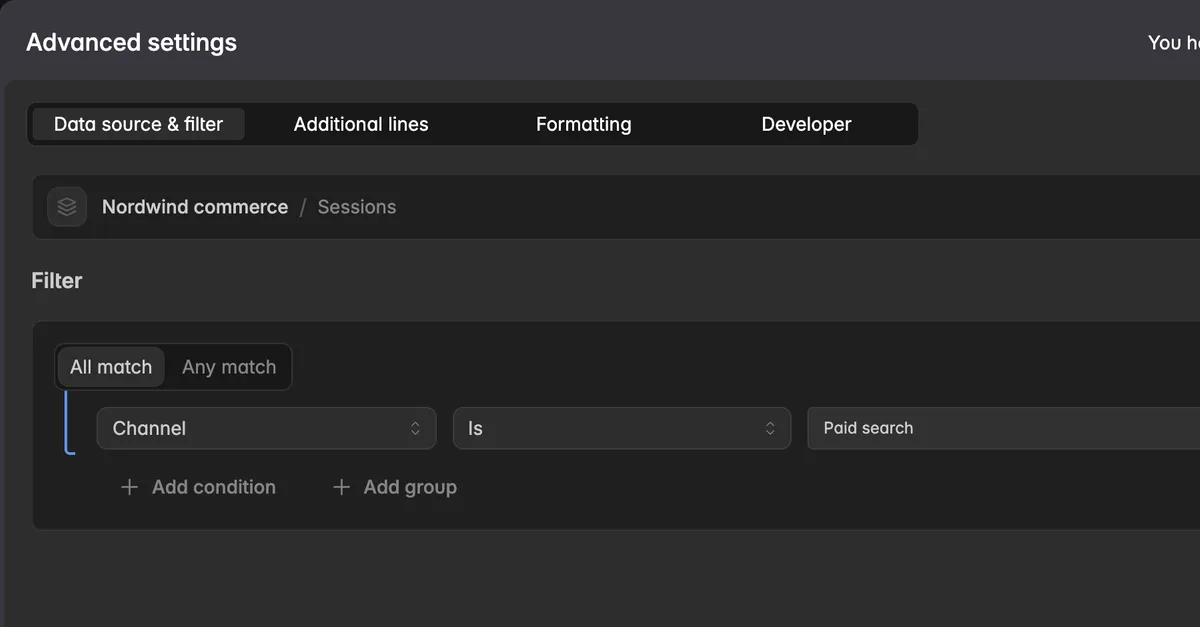
The widget reloads and shows only the matching rows.
What do the comparisons mean?
| Comparison | Keeps rows where the dimension … |
|---|---|
| Is | is exactly the value, for example Country is Germany. |
| Is not | is anything but the value. |
| Contains | includes the text somewhere, for example Page path contains blog. |
| Does not contain | does not include the text. |
| Is greater than | is above the number or date. |
| Is at least | is above or equal to it. |
| Is less than | is below the number or date. |
| Is at most | is below or equal to it. |
Use Is and Contains for text, the greater and less than comparisons for numbers and dates. Dates are typed as YYYY-MM-DD.
How do I combine several conditions?
At the top of the filter you choose how the conditions combine:
All match: a row is kept only if every condition is true. Use it to narrow down, for example channel is Paid search and country is Germany.
Any match: a row is kept if at least one condition is true. Use it to collect, for example country is Germany or country is Austria.
For mixed logic, click Add group. A group is a block with its own All match or Any match switch and its own conditions, nested inside the filter. Remove a group with Remove group.
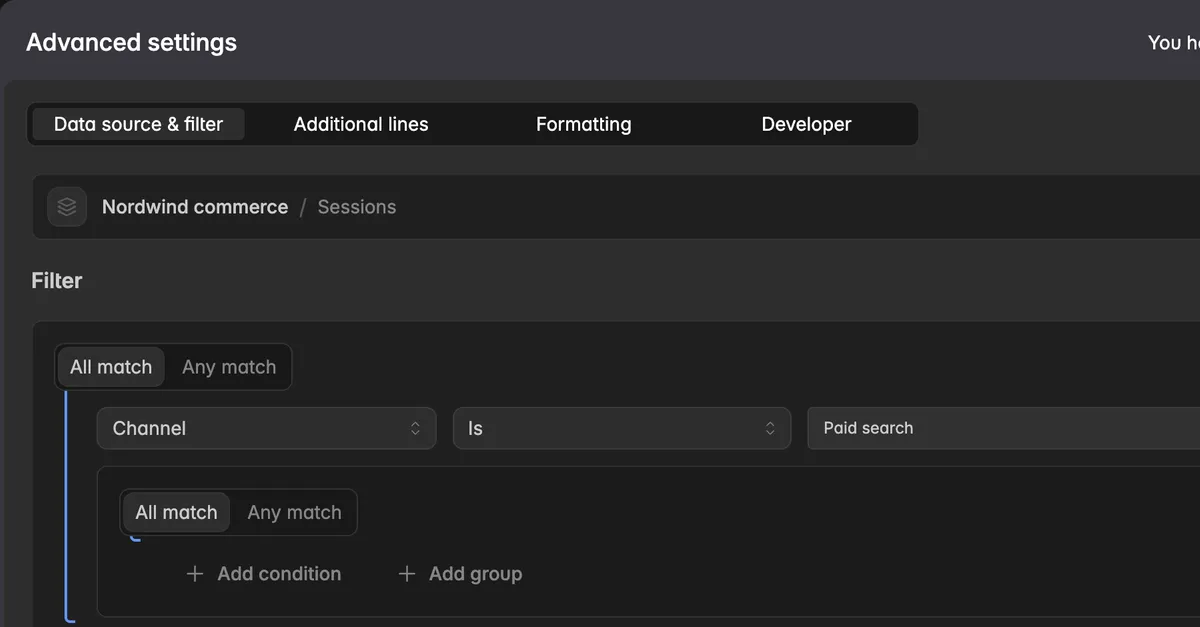
Note: Every condition needs a field and a value. The dialog shows Every condition needs a field and a value and does not save until they are filled in.
How do I see whether a widget is filtered?
You do not have to open the dialog to check.
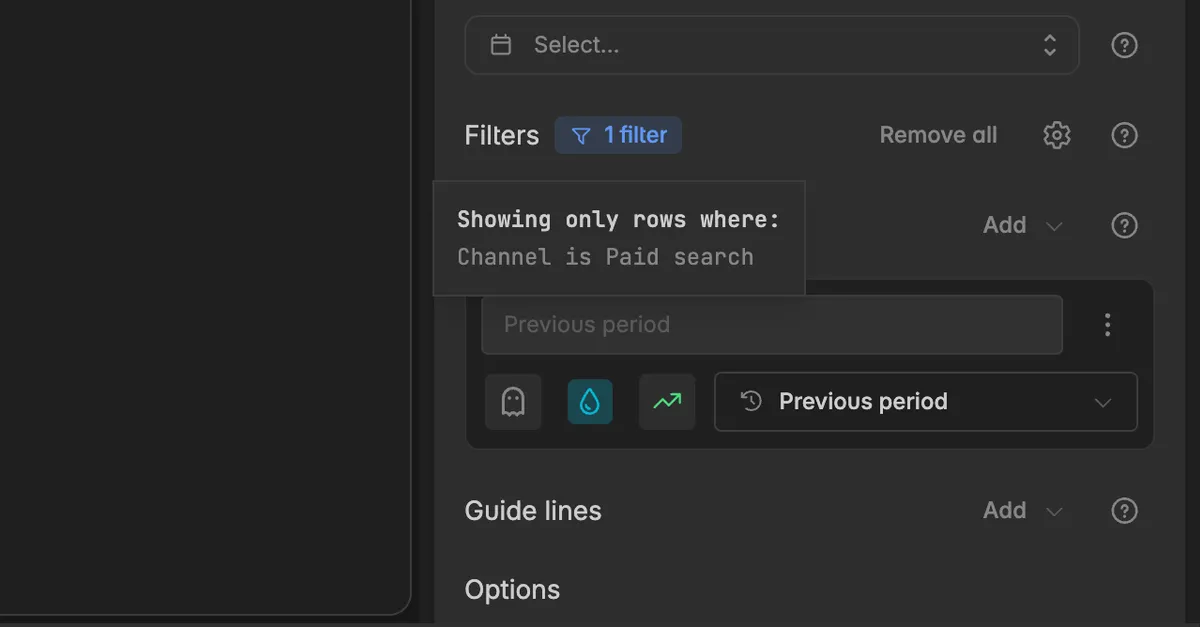
In the widget editor, the Filters row shows a chip such as 1 filter or 3 filters instead of Set. Hover over the chip to read the conditions: Showing only rows where: Channel is Paid search.
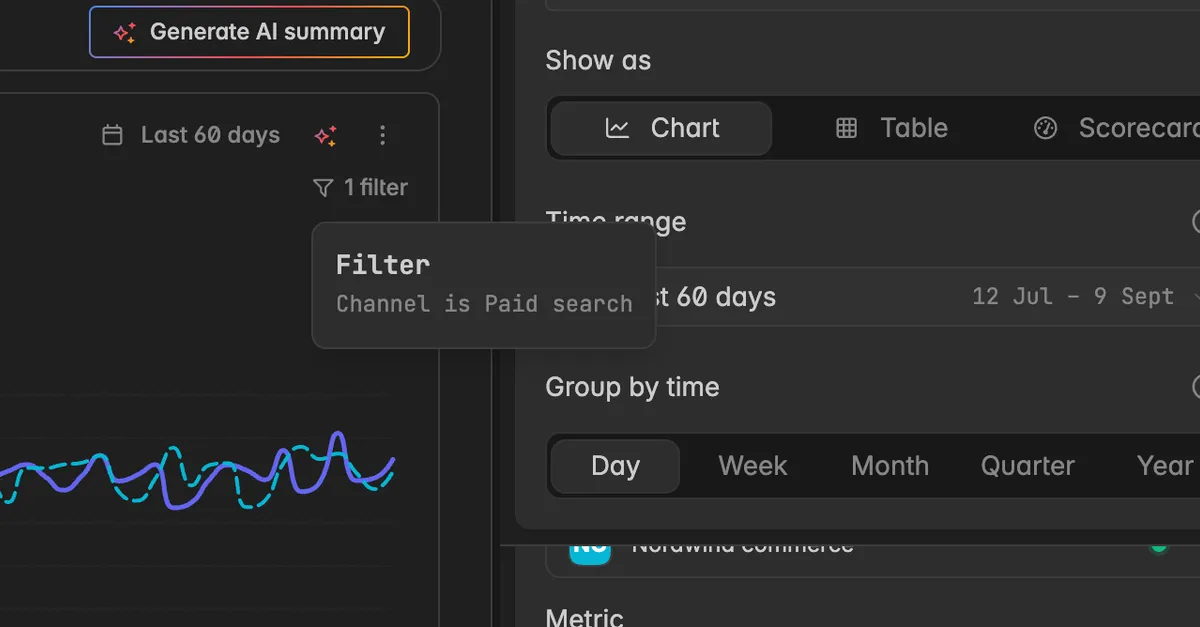
On the dashboard, the widget card shows the same chip below its time range. Hover over it to see the conditions.
How do I change or remove a filter?
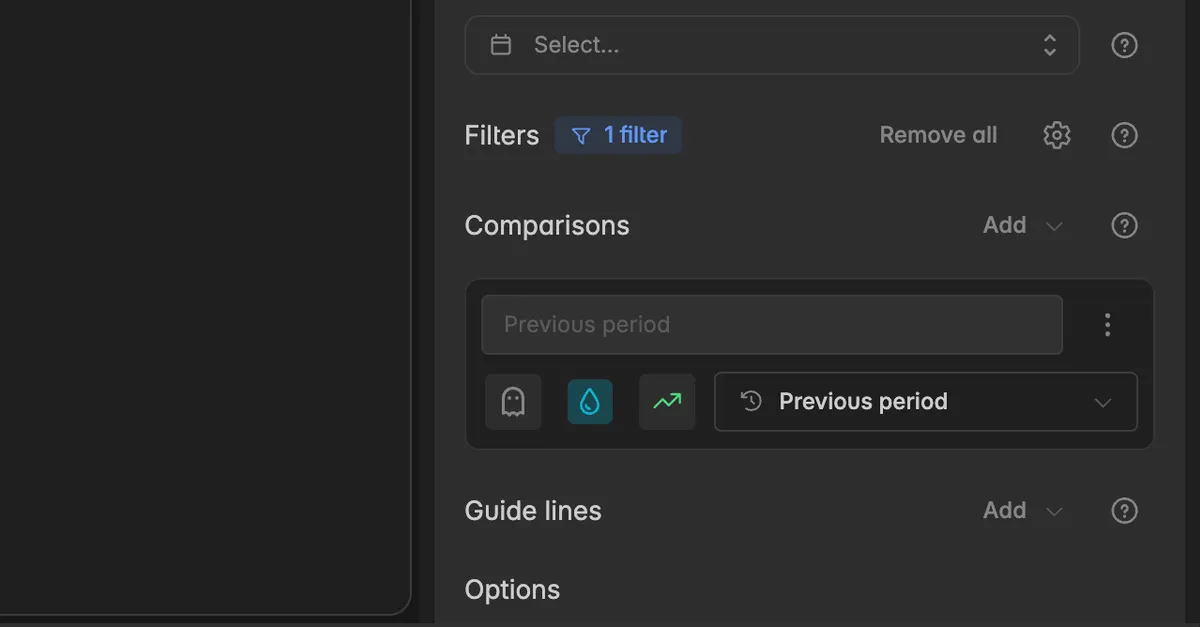
In the widget editor, go to the Filters row of the series.
Click the chip, or the gear icon next to Remove all, to open the dialog and edit the conditions. Click the trash icon at the end of a condition row to remove that condition, then Save.
Click Remove all to drop every filter from the series at once. The chip changes back to Set.
Troubleshooting
The filter returns no data
The value has to match exactly, including upper and lower case.
deandDEare different values. Use the book icon to pick from the values that exist instead of typing.With All match, one condition that nothing fulfils empties the whole result. Switch to Any match or remove the condition.
The dimension I want is not offered
- Only dimensions of the series' data source are listed. If a dimension is missing, the Insight does not carry it. Check the Insight under
Data sourcesor use another data source.
The widget went empty after I changed the metric or source
- The filter is still on and uses a dimension or value the new metric does not have. Open the chip, adjust the condition, or click Remove all and set the filter again.
A filter applies to one series but not the other
- Filters are per series. Open the second series and set the filter there too. Use Duplicate this series to copy a series together with its filter.
Was this helpful?