
Share a data product
You can share data product with other spaces in Indicate. The recipient gets read-only access and can use it in their own dashboards and widgets.
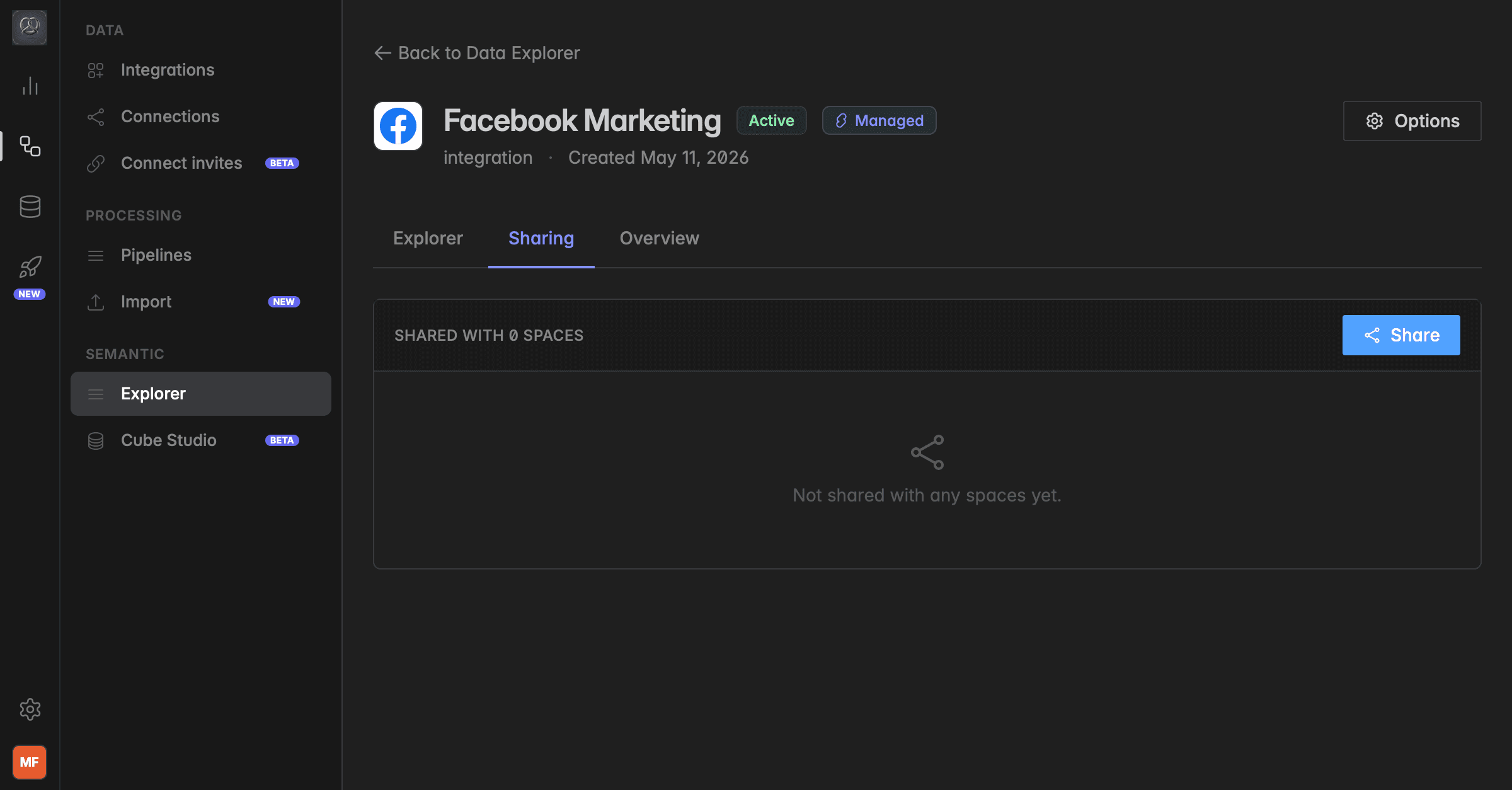
How to share a data product
Go to
Engineering→Semantic→Explorer→Data Products.Click on the data product you want to share.
Go to
Sharing.Click
Shareto open a pop-up window.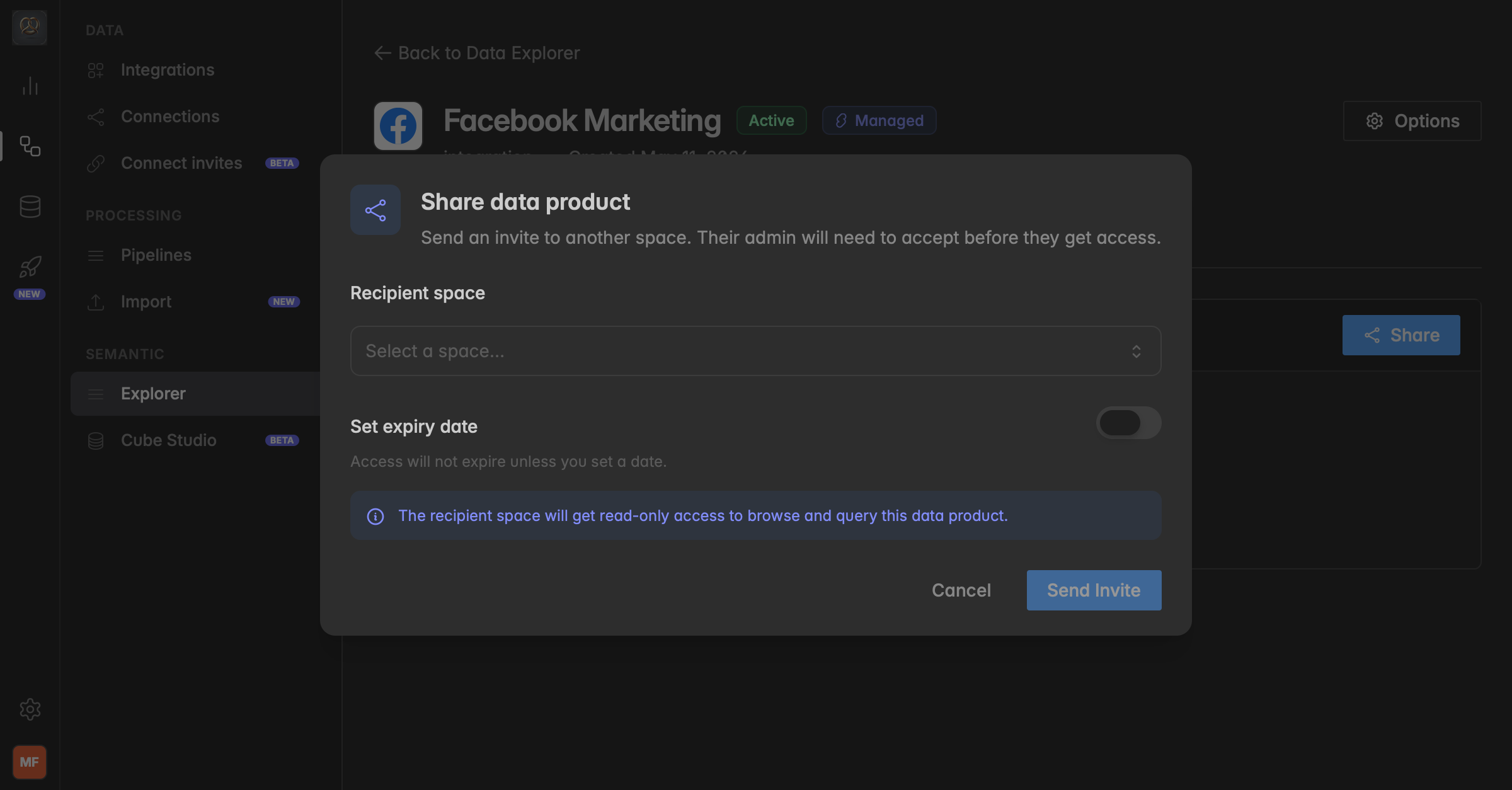
Select the Recipient space from the dropdown.
You can only see and share data products with spaces that you are a member of.
(Optional) Enable Set expiry date and choose the expiry date.
Click
Send Invite.The recipient’s admin will need to accept the invitation before they get access.
The recipient space gets read-only access. They can browse and query the data product, but cannot edit or delete it.
Managing invitations
In the Data Explorer, you can track all outgoing and incoming sharing invitations.
Go to
Semantic→Explorerand use theInvitationsandOutgoing Invitestabs.Outgoing invites show the status (Pending or Accepted) of shares you have sent. Incoming invitations can be accepted or declined by your workspace admin.
Troubleshooting
Why can’t I see a space I want to share the data product with?
You can only share data products with spaces that you are a member of. If you are not a member of the space, you will not see it in the dropdown.
What if I want to share the same data product with several spaces?
That is possible. Share the data product again and select another recipient space.
What if the recipient space says they can’t see the data product?
Most likely they have not accepted the invitation yet. In that case, the share will still appear in their Invitations list and not in their Data Products overview.
Why can’t I see the pipeline?
If a data product has been shared with you, you can see the data product and its metrics, but you cannot access the pipeline or raw data in Data Studio.
Was this helpful?