
What is a connection?
A connection is the authenticated link between Indicate and one external system, for example Re:Guest Communication or Google Ads. It holds the credentials, the sync that fetches data on a schedule, and the tables that sync has filled in your warehouse. The Insight built on it is what your dashboards read.
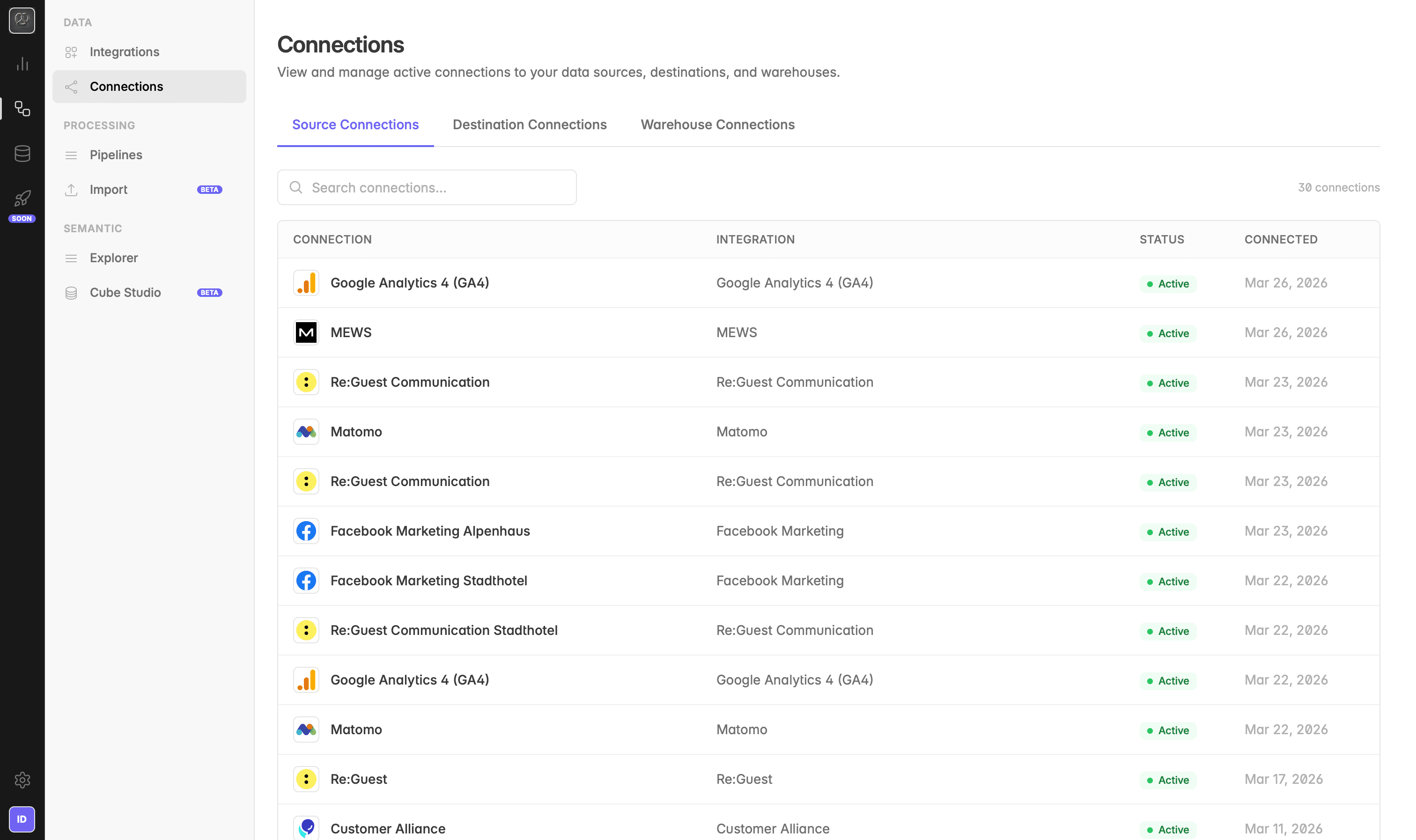
The Connections page lists every connection in your space and tells you at a glance whether data is flowing.
Where do I find my connections?
Click the database icon in the left rail to open Data sources, then click Connections.
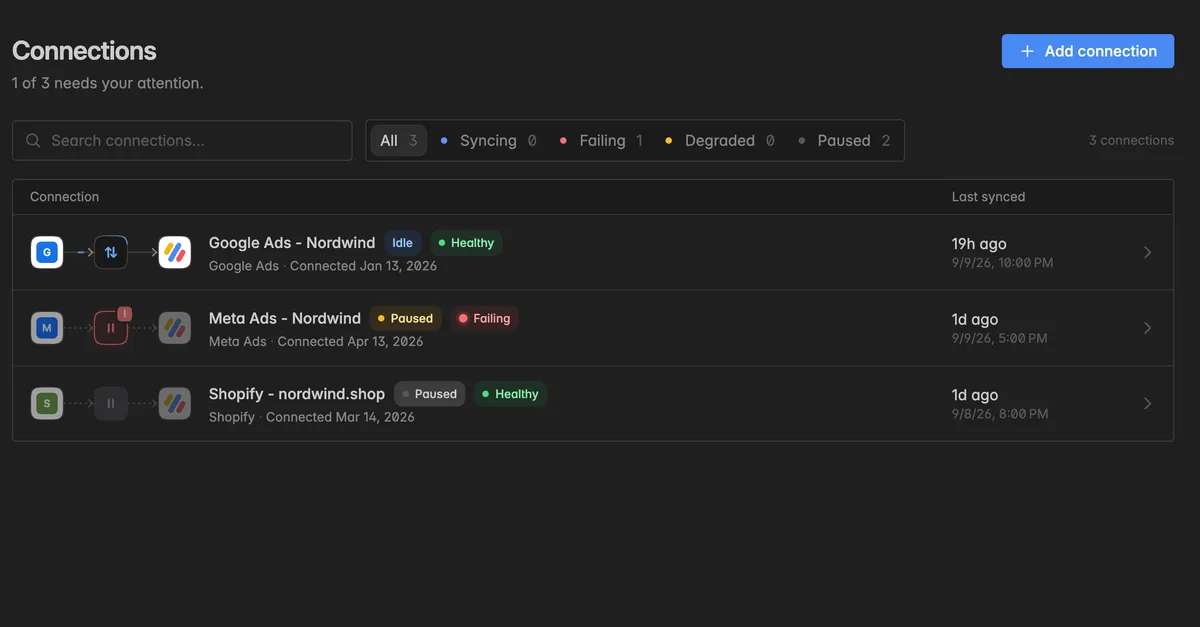
The line under the title sums it up, for example 1 of 3 needs your attention. Each row shows:
The flow from the source to Indicate, with the sync in the middle.
The Connection name, the integration, and when it was connected.
Two badges: What the sync is doing right now, and whether its recent runs worked. See the next section.
Last synced: When data last came in, and Next sync: When the next run is due.
Type into Search connections… to find one by name. The filters All, Needs attention, Syncing, Failing, Degraded, and Paused narrow the list down. Click a row to open the connection, or Add connection to go to the Marketplace.
What do the badges mean?
Every connection carries two badges, because a connection can be paused and healthy, or running and failing.
Activity: What the sync is doing
Connected: Set up and waiting for its next scheduled run.
Syncing: A run is in progress right now.
Idle: No run at the moment.
Paused: Scheduled runs are switched off. Data stays, nothing new comes in.
Not syncing: The credentials are saved but the sync was never set up. Open the connection and click Start syncing.
Disconnected or Needs attention: The sign-in no longer works. Open the connection and check its details.
Stopped: The sync was ended by hand.
Health: Whether recent runs worked
Healthy: The latest runs went through.
Degraded: Some runs had problems, data may be incomplete.
Failing: The latest runs hit an error. Open the Activity tab to see why.
Not run yet: No run has finished so far.
A third badge, External, marks a connection that someone outside your space authorized through a connect link. Its credentials live with that person, see Add a data source.
What do I see when I open a connection?
The header shows the name, the activity badge, the integration, when it was connected, when it last synced, and when the next sync is due. Live updates keeps the page refreshing while a sync runs. Options holds the actions, see below. Three tabs sit underneath.
Overview
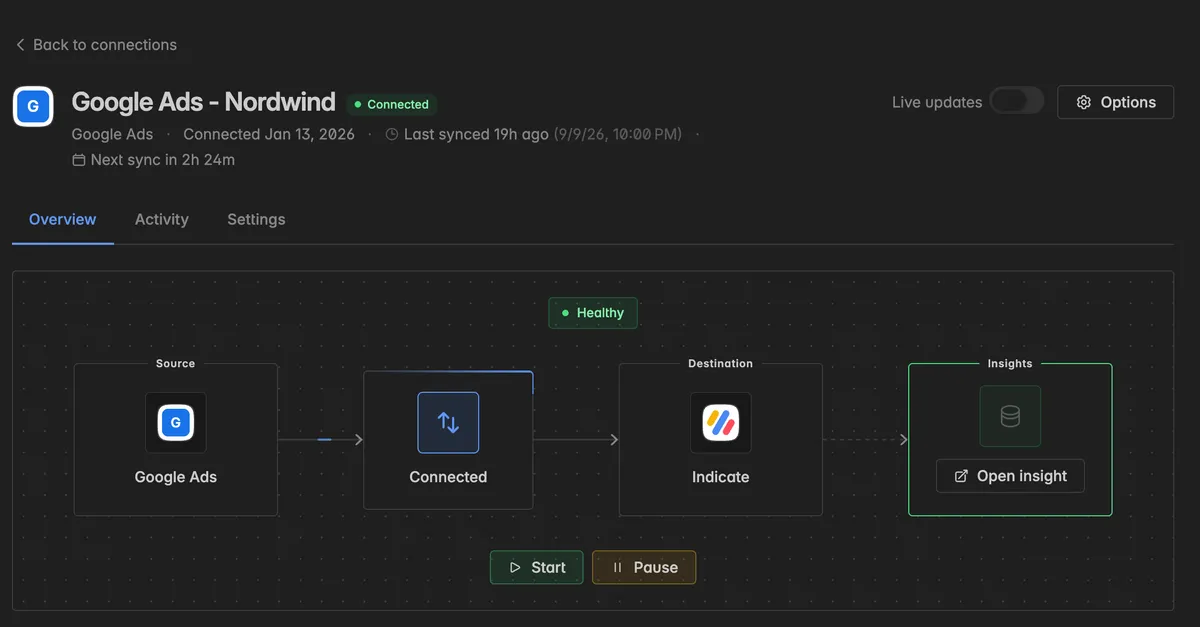
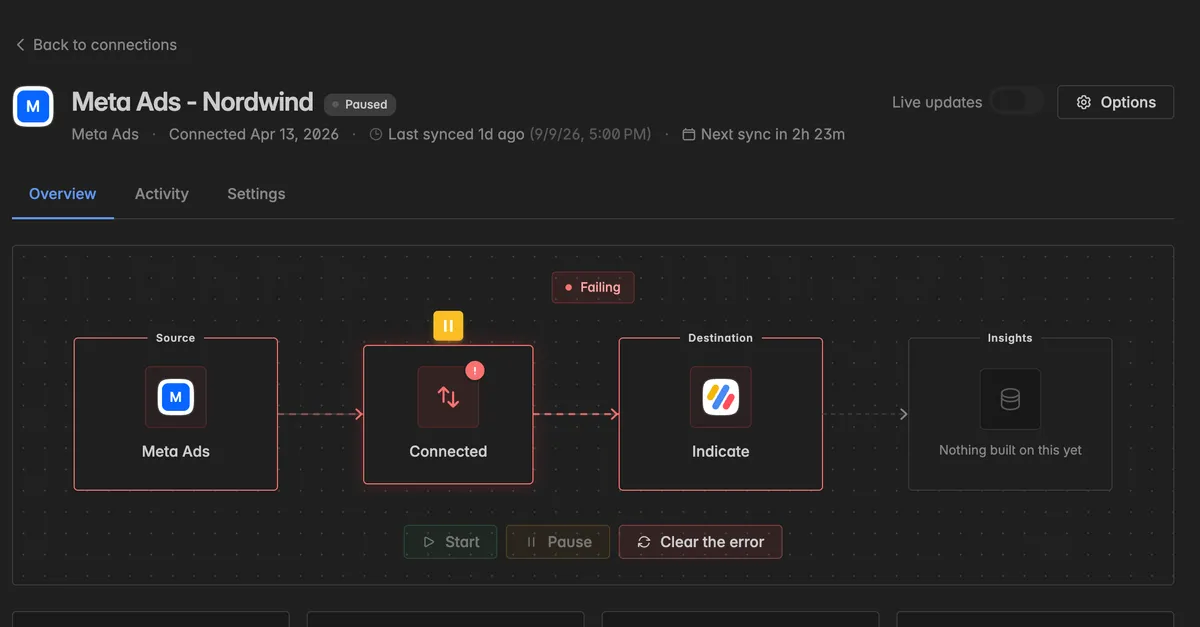
The diagram shows the path Source → sync → Destination → Insights, with the health badge on the sync and Open insight on the Insight it feeds. Under the diagram, Start, Pause, and Resume control the sync, and Clear the error appears on a failing connection.
Four figures for the last 7 or 30 days: Runs, Success rate, Records brought in, and Volume transferred.
Schedule: How often the sync runs, for example Every 6 hours, its Operating hours, Around the clock or Between 6:00 and 22:00 only, and the Next sync.
Synced data: The tables this connection keeps in sync, how fresh each one is, and Fetch everything again to reload one from the beginning.
All of this is explained in Sync and activity.
Activity
Every run of the sync, one row per table, with its outcome, when it started, how long it took, and how many rows and how much volume it brought in. See Sync and activity.
Settings
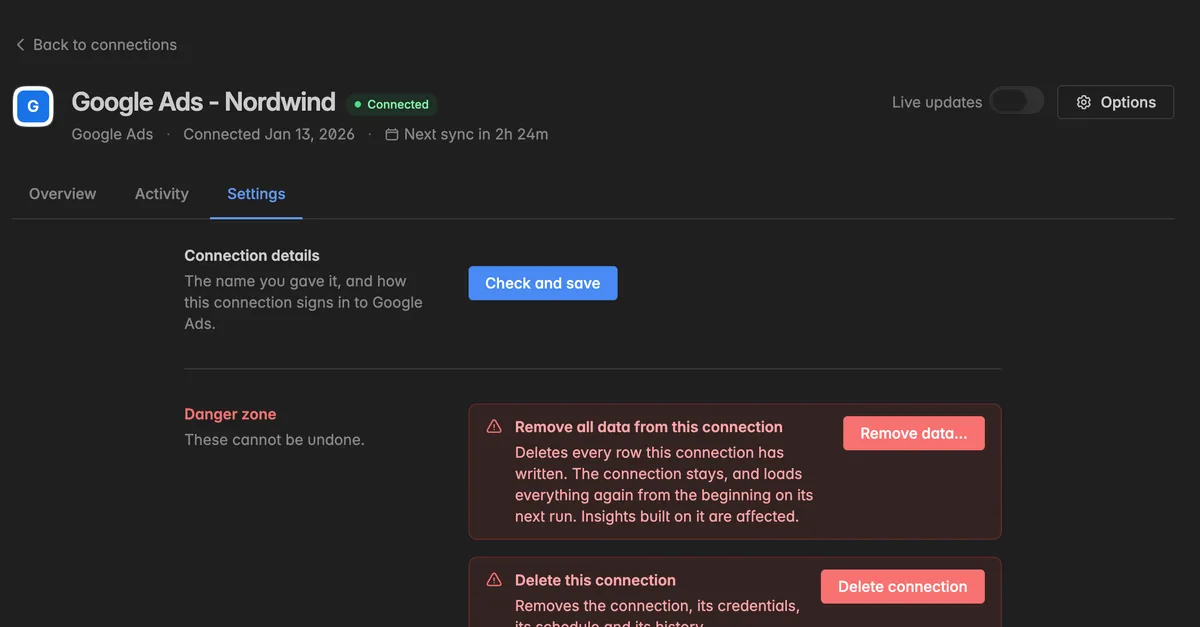
Connection details: The name you gave the connection and how it signs in to the source. Change the name or the credentials and click Check and save. Indicate tests the credentials before saving. On an External connection you can only rename, the credentials belong to whoever set it up.
Danger zone: Remove data… deletes every row the connection has written and lets it start from scratch, Delete connection removes the connection for good. Both need the Admin role. See Remove data from a connection and Delete a Source Connection.
What is in the Options menu?
Click Options at the top right of a connection.
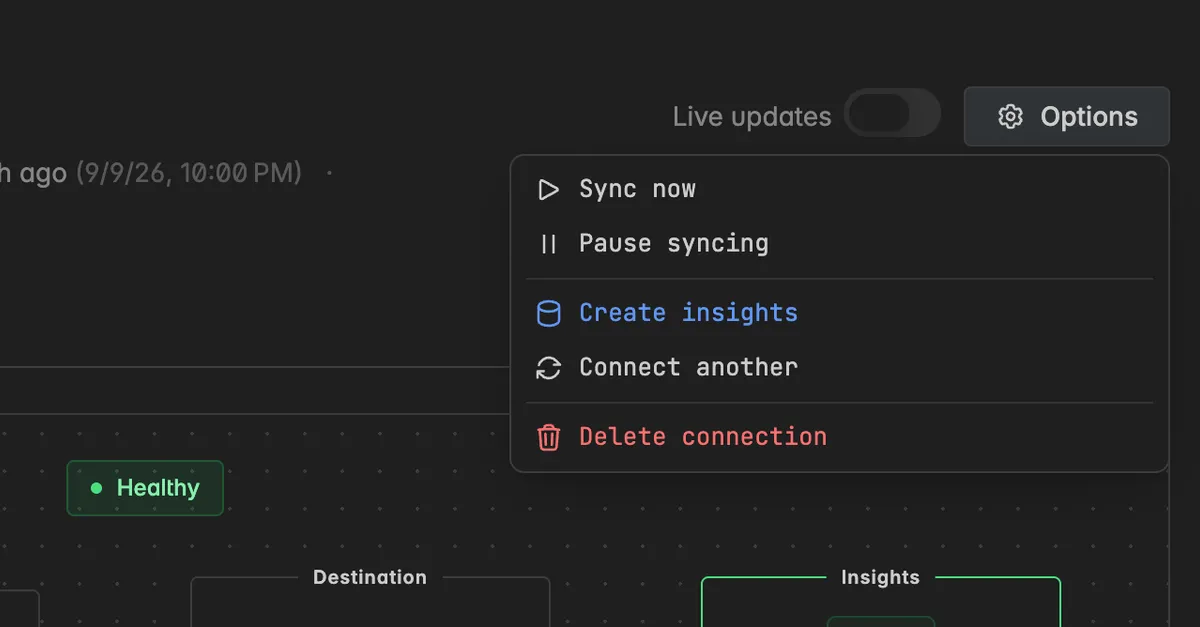
Sync now: Starts a run immediately instead of waiting for the schedule. Pro plan.
Pause syncing or Resume syncing: Switches scheduled runs off or on. On a failing connection the entry reads Clear the error and resume.
Stop the sync: Appears while a run is in progress and ends it mid-way. Use it only if a run hangs, see Sync and activity.
Create insights: Builds a new Insight from this connection, for example after you deleted the original one. See Delete & Add Insights.
Connect another: Opens the Marketplace page of the same integration to add a second connection.
Generate reconnect link: On an External connection, creates a single-use link so the person who authorized it can sign in again.
Delete connection: Same as in the Danger zone.
How do I rename a connection?
Open the connection and click the Settings tab.
Under Connection details, change the name.
Click Check and save.
Give each connection a name that says which property, shop, or account it is, for example Re:Guest Communication - Hotel Nordwind. The name shows up in the list and on every Insight the connection feeds.
How do I fix a connection that needs attention?
Open the connection. The diagram on the Overview tab shows where the problem sits, and the Activity tab lists the failed runs with their error.
If the sign-in expired, open Settings, enter the new credentials or sign in again, and click Check and save. On an External connection, click Options → Generate reconnect link and send it to the person who authorized it.
Back on the Overview tab, click Clear the error. The next scheduled run goes ahead, or click Options → Sync now on the Pro plan.
Connections that need a hand are also listed on the Home page under Needs your attention, with Reconnect and Review buttons. See Home page.
Troubleshooting
A connection shows Failing
Open its Activity tab, filter by Failed, and read the error of the latest run. Fix the cause, usually expired credentials or missing rights in the source system, then click Clear the error on the Overview.
A connection is Paused and I did not pause it
Indicate pauses a connection whose sign-in stopped working, so the runs do not keep failing. Check Settings, save working credentials, and click Resume on the Overview.
Sync now is greyed out
Manual syncs are part of the Pro plan. On other plans the connection still runs on its schedule.
I cannot find a connection
Use Search connections…. If you have several connections of the same integration, look at the name and the connected date, or rename them in Settings so they are easier to tell apart.
The Insight card in the diagram says Nothing built on this yet
No Insight has been created from this connection. Click Options → Create insights.
I want to remove a connection
See Delete a Source Connection. To keep the connection and only reload its data, see Remove data from a connection.