
Delete a Source Connection
Delete a connection from its Settings tab, what always goes, and the two switches that also remove its Insights and its data.
What does deleting a connection do?
A connection is the authenticated link between Indicate and one external system, for example Google Ads - Nordwind or Meta Ads - Nordwind. You find your connections under Data sources → Connections.
Deleting a connection stops the sync, removes the credentials, the schedule, and the settings, and takes the connection off the list for good. By default the Insights built on it and the data already in your warehouse stay, so your dashboards keep showing the history. Two switches in the dialog let you remove those too.
When do I need this?
You stopped using a system and want it disconnected from Indicate for good.
You are replacing a connection with a new one, for example after changing software provider.
An integration is being retired and the connection will stop syncing on a fixed date.
Note: To keep the connection and only reload its data, use Remove data… instead. See Remove data from a connection. To stop the sync for a while, click Pause on the connection's Overview.
What always gets deleted
The dialog lists it under Before you continue:
The connection stops bringing in data immediately.
Its schedule and settings are deleted.
Its credentials are removed.
Its activity history goes with it. Insights and warehouse data are kept unless you switch them on below.
The two switches, both off by default
Also delete the insights built on this connection: switch it on and every Insight created from this connection is permanently deleted. The dialog then warns you: dashboard widgets using them stop working, people in other spaces immediately lose access, and shared access to them is permanently revoked. Leave it off to keep your Insights, for example when the history should stay on your dashboards after you switched provider.
Also delete the data this connection brought in: switch it on and everything the connection has written is removed from the warehouse. Leave it off to keep the history for analysis.
How do I delete a connection?
Before you start
You need the Admin role.
The deletion cannot be undone.
Read the two switches before you confirm. They are off by default, and switching them on deletes far more.
Tell your team before you delete a connection whose Insights are shared. No notification is sent.
Click the database icon in the left rail to open Data sources, then click Connections.
Open the connection and click the Settings tab. Scroll to the Danger zone.
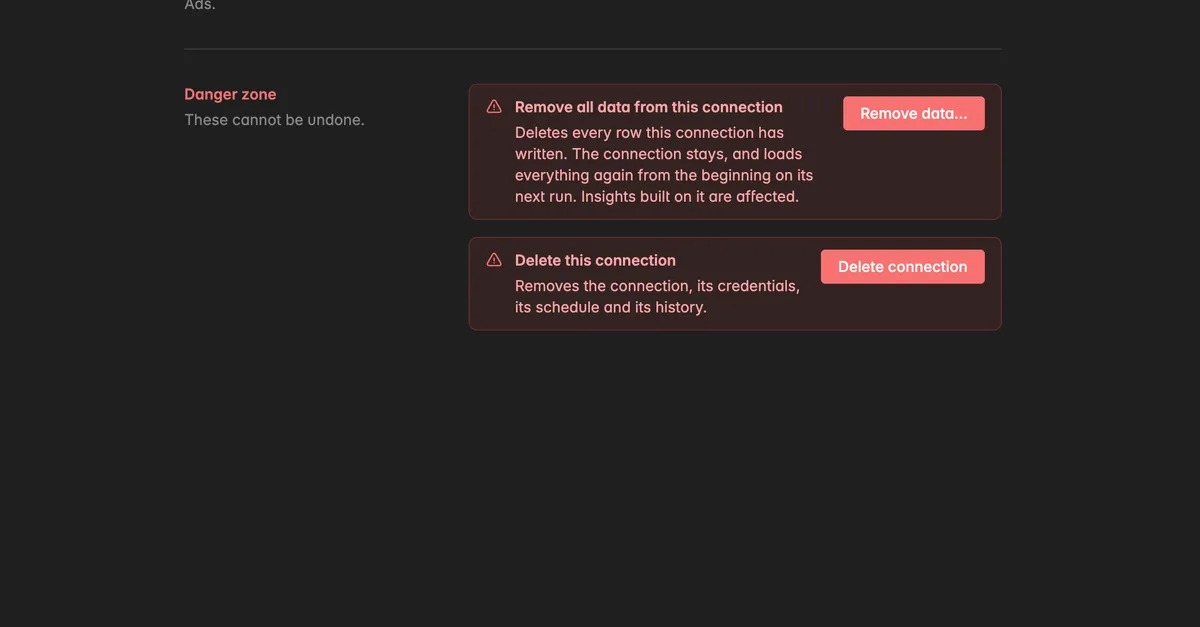
Click Delete connection. You can also click Options at the top right and select Delete connection.
The dialog Delete connection opens and lists what happens. Read it.
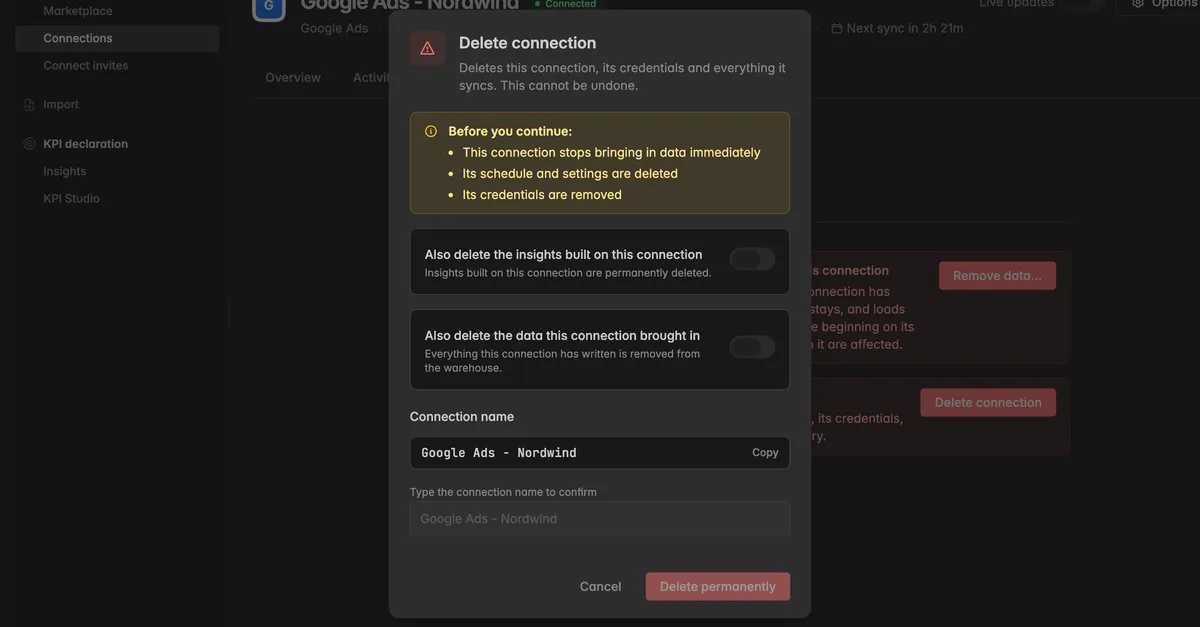
Leave both switches off to keep your Insights and your data. Switch one on only if that data should go too.
Next to Connection name, click Copy, then paste the name into Type the connection name to confirm.
Click Delete permanently.
The connection disappears from the list. If you kept the Insights, they stay under Insights and keep serving the data that was synced until the deletion.
Troubleshooting
Delete connection is locked
- The buttons in the Danger zone need the Admin role. Hover over the button: Delete connection - admin only. Ask a space admin.
Delete permanently stays greyed out
- The name in the field does not match. Click Copy next to Connection name and paste it, the name has to match exactly.
I want to remove the connection but keep the history
- That is the default. Leave both switches off. The Insights and the warehouse data stay, the dashboards keep showing the numbers synced until then.
My widgets show an error after the deletion
- The switch Also delete the insights built on this connection was on. Connect the system again, create the Insight from the new connection with Options → Create insights, and point the widgets at it. See Delete & Add Insights.
Can I undo it?
- No. Once you click Delete permanently, the connection and whatever you switched on are gone. What you kept, Insights and data, stays and can be used as before.
The connection was authorized through a connect link
- You can delete it like any other. The person who authorized it is not notified. Their link is consumed already, so nothing else changes on their side.
The connection shows a retirement date
- The integration is being phased out. The connection keeps syncing until that date and then stops. Connect the replacement integration before then, then delete the old connection.
Was this helpful?