
Share Insights
Give another space read-only access to an Insight, set an expiry, track invitations, and remove a share again.
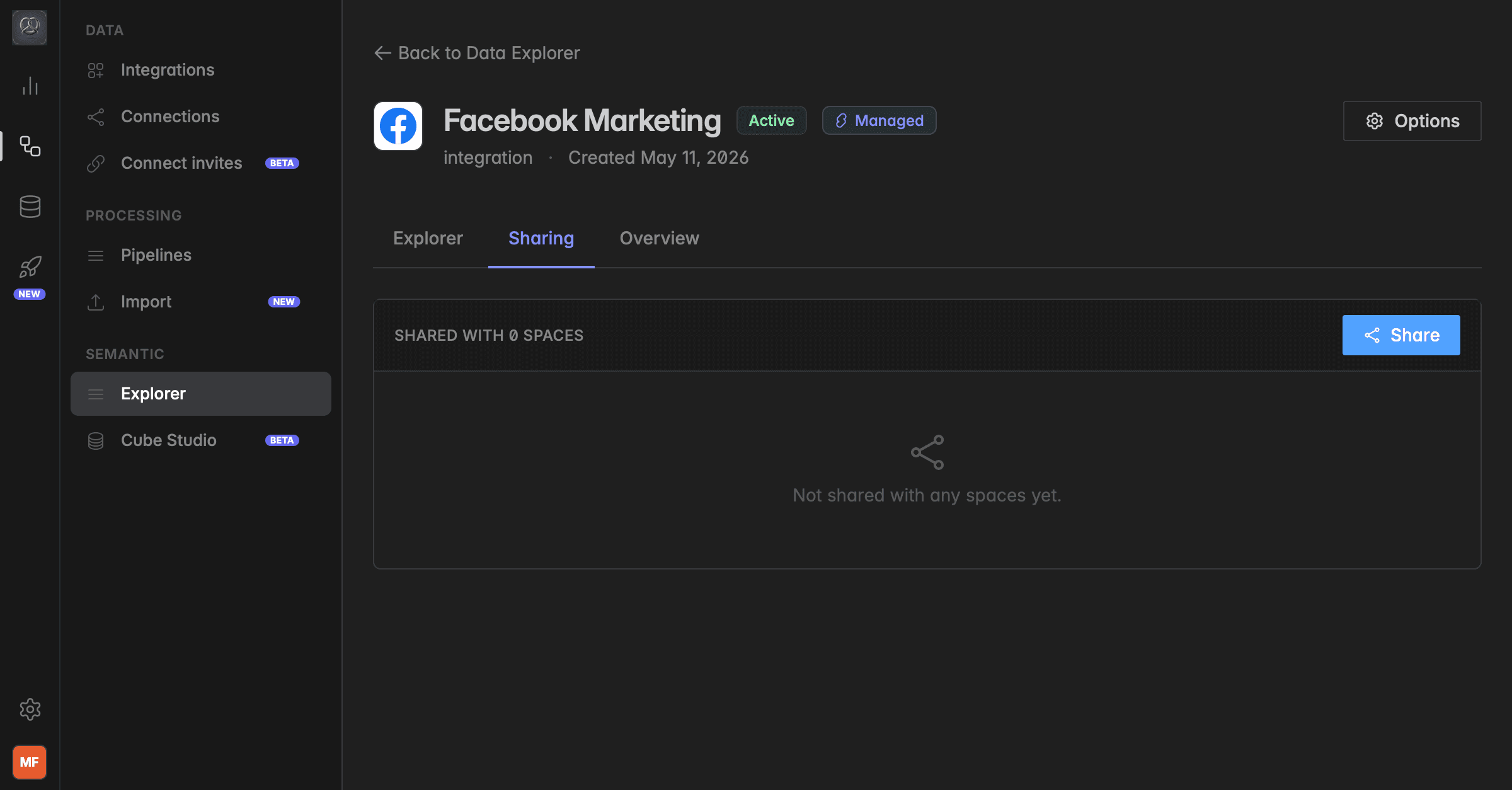
What is sharing an Insight?
Sharing gives another space read-only access to one of your Insights. The other team can explore its metrics, build widgets on it, ask Resi about it, and connect AI assistants to it, all with the numbers your space delivers. They cannot change the Insight, share it on, or see the connection and the raw data behind it.
Use it when several spaces need the same numbers, for example a hotel group with one space per property and a head office, or an agency space that reads the Insights of its clients.
You can share an Insight with several spaces, one invitation each.
You can only share with spaces you are a member of.
An Admin of the receiving space has to accept the invitation before anyone there sees the Insight.
You can set an expiry date, edit it later, and remove the share at any time.
Note: Sharing is part of the Pro plan. On other plans the Sharing tab shows Insights sharing with an upgrade note.
How do I share an Insight?
Click the database icon in the left rail to open
Data sources, then clickInsights.Open the Insight and click the Sharing tab. Or click Options at the top right and select Share.
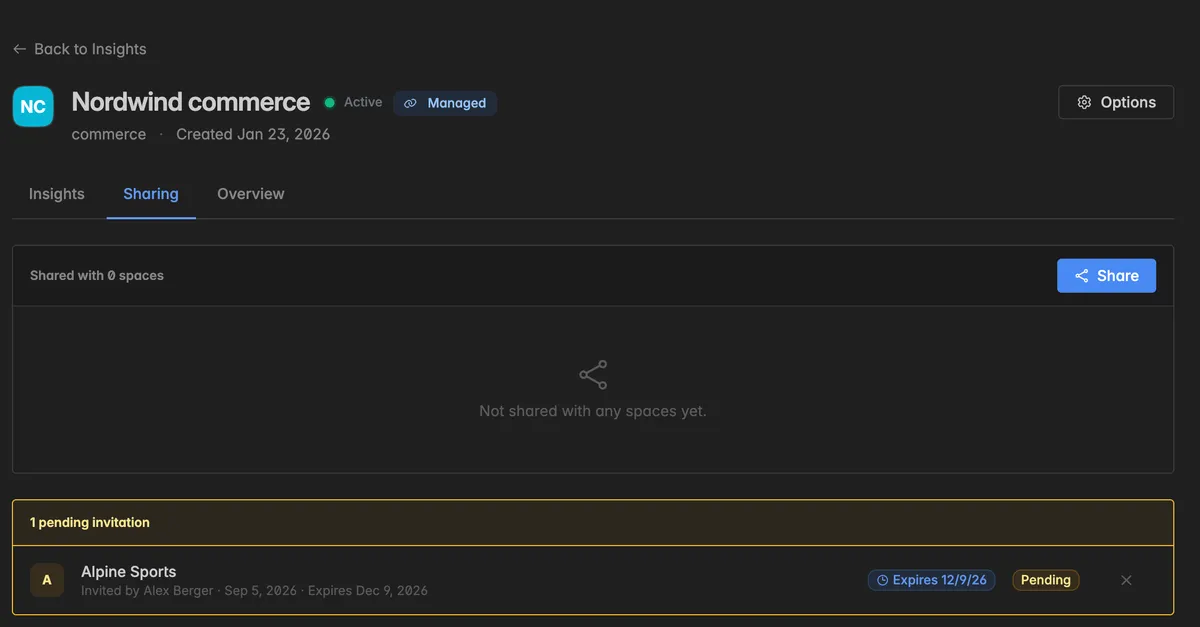
Click Share. The dialog Share insights opens.
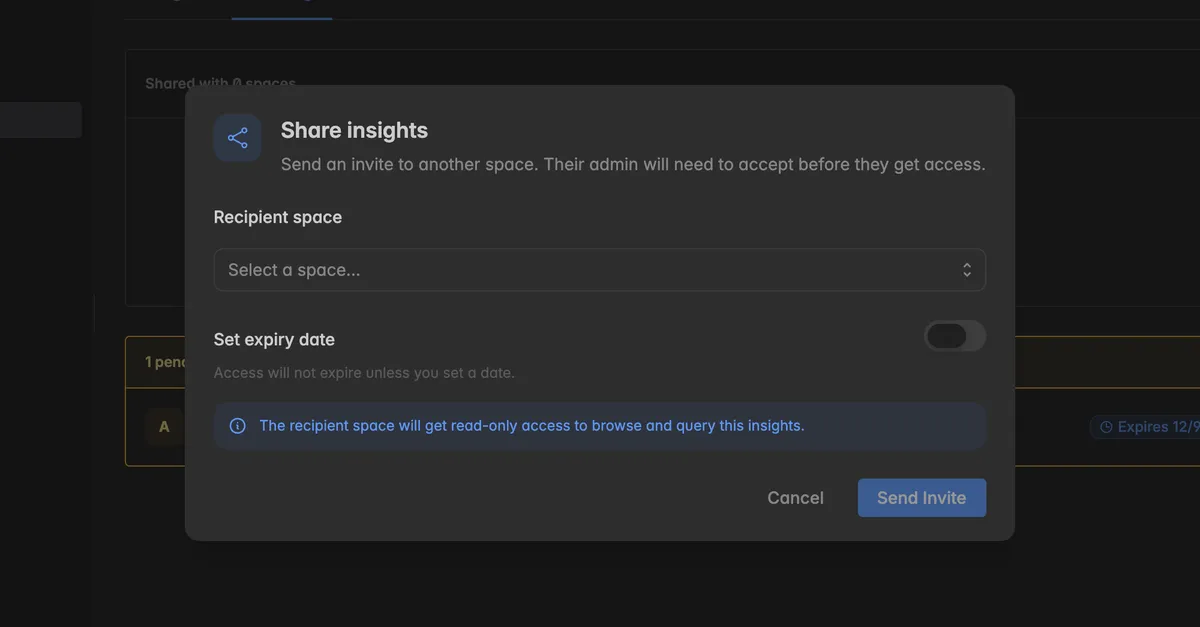
Under Recipient space, pick the space. Only spaces you are a member of are listed.
Optionally turn on Set expiry date and pick the date on which access ends. Without a date, access does not expire.
Click Send Invite.
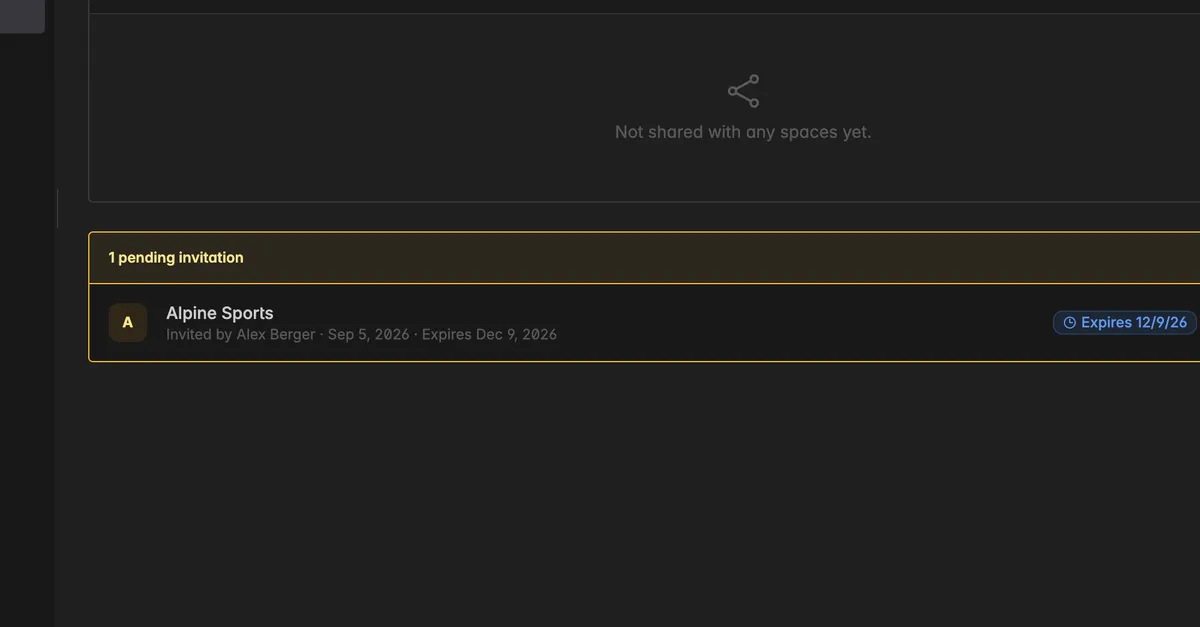
The invitation appears on the Sharing tab under pending invitation with the recipient, who sent it, the date, and the expiry. It stays there until an admin of the other space accepts or declines it.
How does the other space accept?
An admin of the receiving space has three places to do it:
On their Home page under Awaiting you, marked Insights · from [your space], with a check mark to accept and an
xto decline. See Home page.Under
Data sources→Insightson the Invitations tab.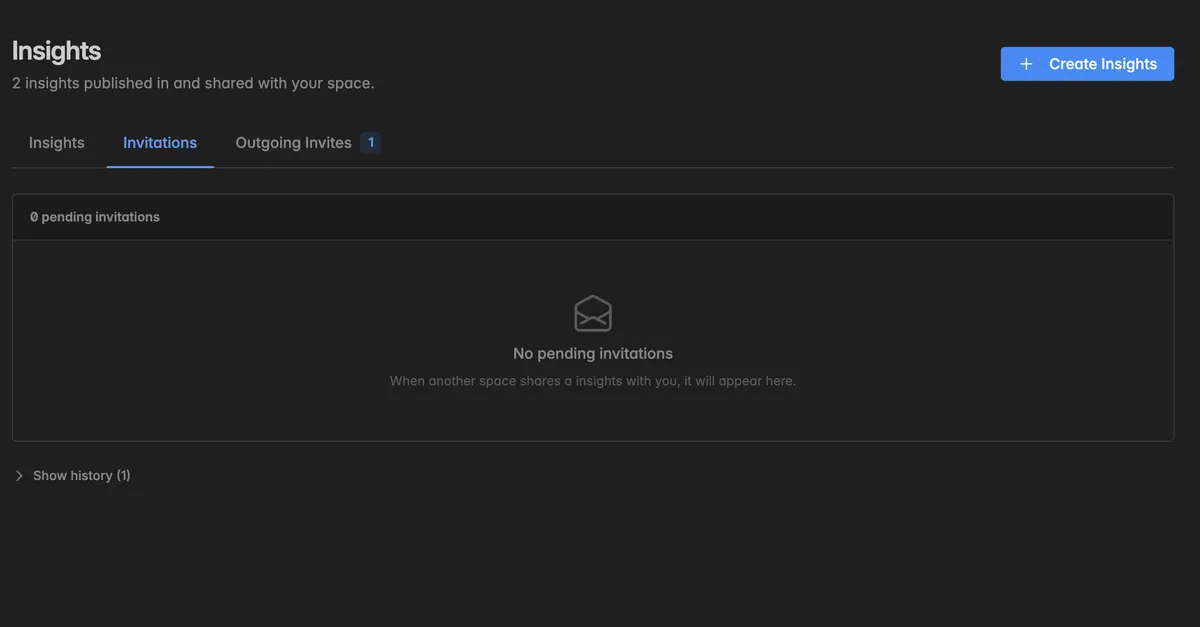
Once accepted, the Insight appears in their list with the badges Shared with you and Read-only, and opens with the banner Shared with your space by [your space]. See Insights for what they can and cannot do with it.
How do I keep track of my shares?
The Sharing tab of an Insight lists the spaces it is shared with, each with the expiry or No expiry, and the pending invitations below.
Data sources→Insights→ Outgoing Invites lists every invitation you sent across all Insights, with the recipient, the status Pending or Accepted, and the date.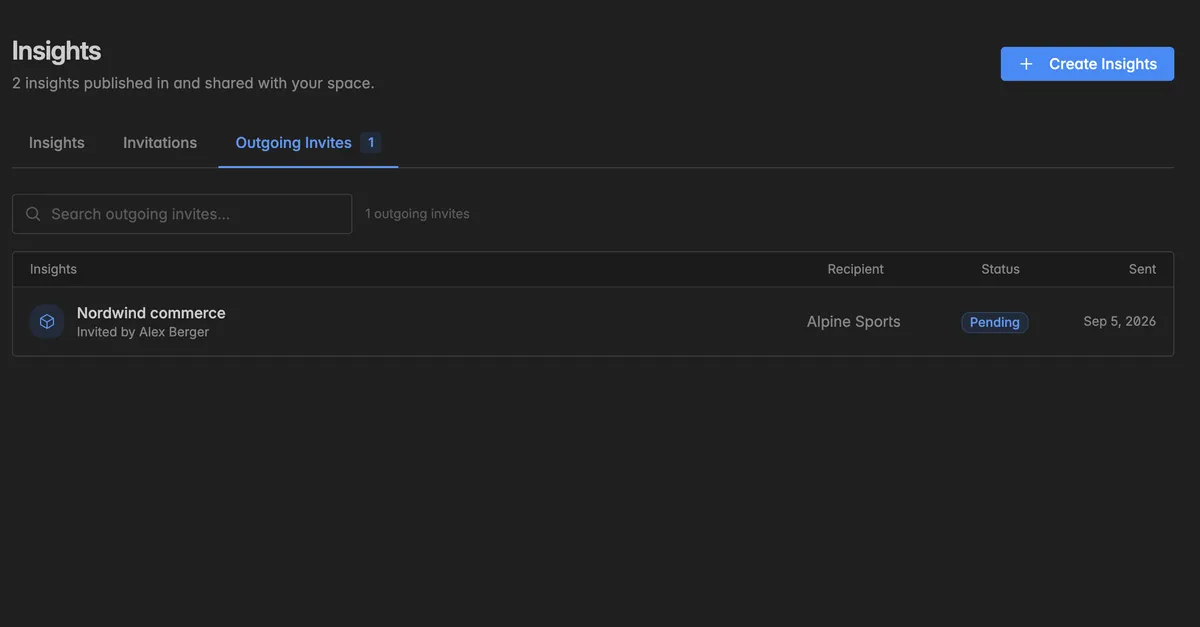
How do I change the expiry or stop sharing?
On the Sharing tab, hover over a row:
Edit expiry opens the dialog Edit share expiry, where you set or clear the date on which access ends.
Remove share takes the Insight away from that space immediately. Every widget they built on it stops working.
Revoke invitation withdraws a pending invitation before it is accepted.
The receiving space can also end it on their side: Options → Stop receiving on the Insight removes it from their space.
Note: Deleting the Insight ends every share at once. See Delete & Add Insights.
Troubleshooting
The space I want is not in the Recipient space list
- You can only share with spaces you are a member of. Ask an admin of that space to invite you, or ask them to share in the other direction.
The other space says they cannot see the Insight
- Their admin has not accepted the invitation yet. It is on their Invitations tab and on their Home page under Awaiting you. Your Outgoing Invites tab shows Pending until they do.
The Sharing tab is missing
On an Insight another space shared with you there is no Sharing tab. A shared Insight cannot be shared on.
On other plans than Pro the tab shows an upgrade note instead of the share list.
They can see the Insight but not the connection
- That is by design. A shared Insight gives access to the metrics only. The connection, its activity, and the raw tables stay in your space.
Access ended earlier than expected
- Check the expiry on the Sharing tab. Click Edit expiry to extend it, the other space keeps its widgets.