
Delete & Add Insights
What deleting an Insight removes, how to delete one, and how to build it again from its connection with Create insights.
What does deleting an Insight do?
An Insight is the set of metrics your widgets, Resi, and AI assistants read, for example Nordwind commerce with revenue, orders, and sessions. Deleting it removes that set permanently, with every metric in it.
Only the Insight goes. The connection keeps syncing, and the data already in the warehouse stays. You can build a new Insight from the connection afterwards, but it is a new Insight: widgets and shares do not come back on their own.
When do I need this?
You replaced an integration and want the old Insight out of the list.
You want to take access away from everyone at once, including other spaces and AI assistants.
Note: To take access away from one space only, do not delete. Open the Sharing tab and click Remove share on that space. See Share Insights. To stop the data from coming in, delete the connection instead, see Delete a Source Connection.
What gets deleted?
The dialog lists it before you confirm:
Everyone you shared the Insight with loses access for good.
Every dashboard widget built on it stops working. The widgets stay on the dashboards and show an error until you point them at another Insight.
Anyone using it in another space loses access immediately.
AI assistants connected with an agent token can no longer read it. The token itself keeps working for your other Insights. See Tokens.
The sync behind the Insight and the data already in the warehouse stay untouched.
How do I delete an Insight?
Before you start
You need the Admin role.
The deletion cannot be undone. A new Insight from the same connection has a new id, so widgets and shares are not reconnected.
Tell your team before you delete a shared Insight. No notification is sent.
Click the database icon in the left rail to open
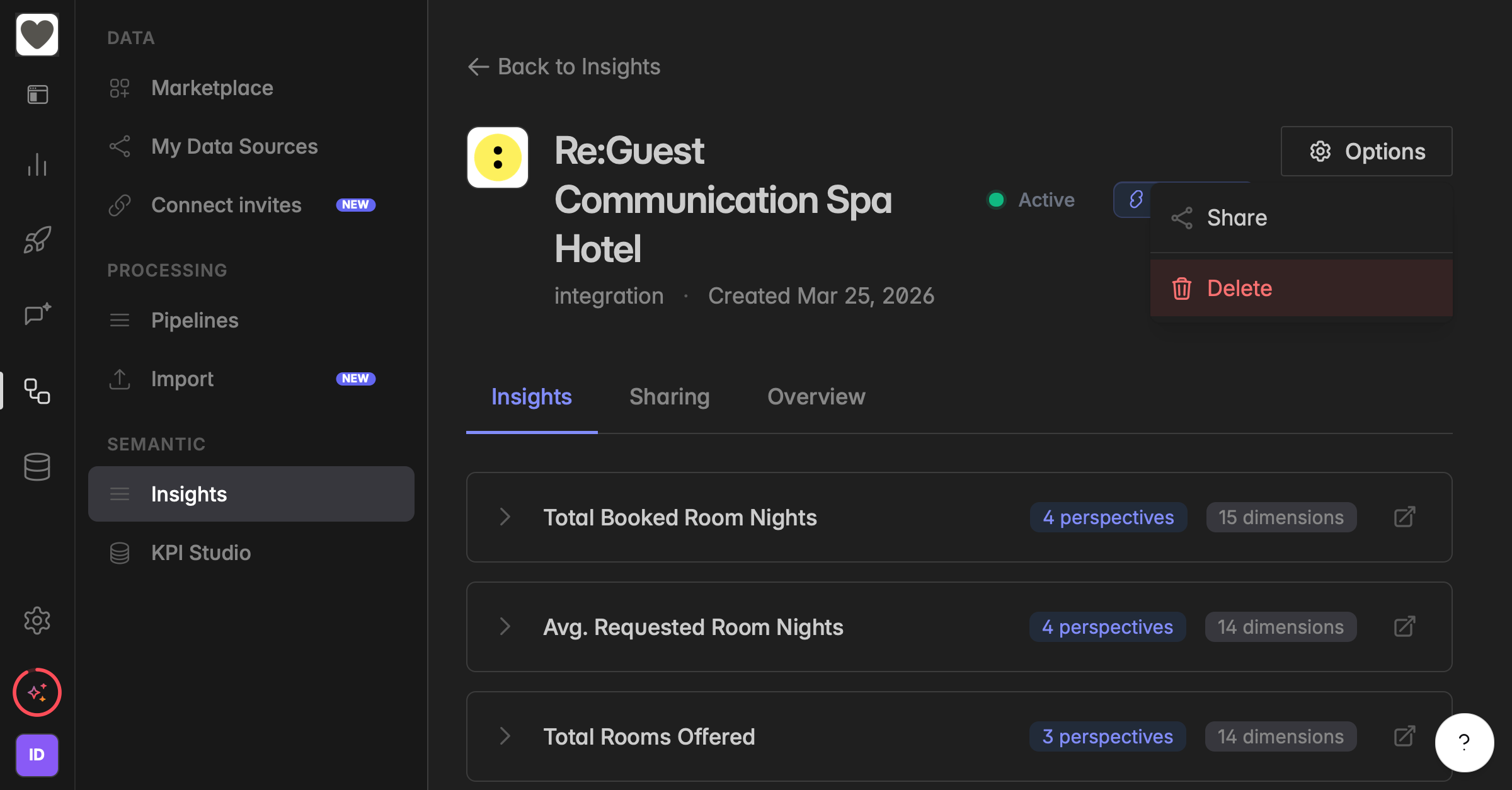
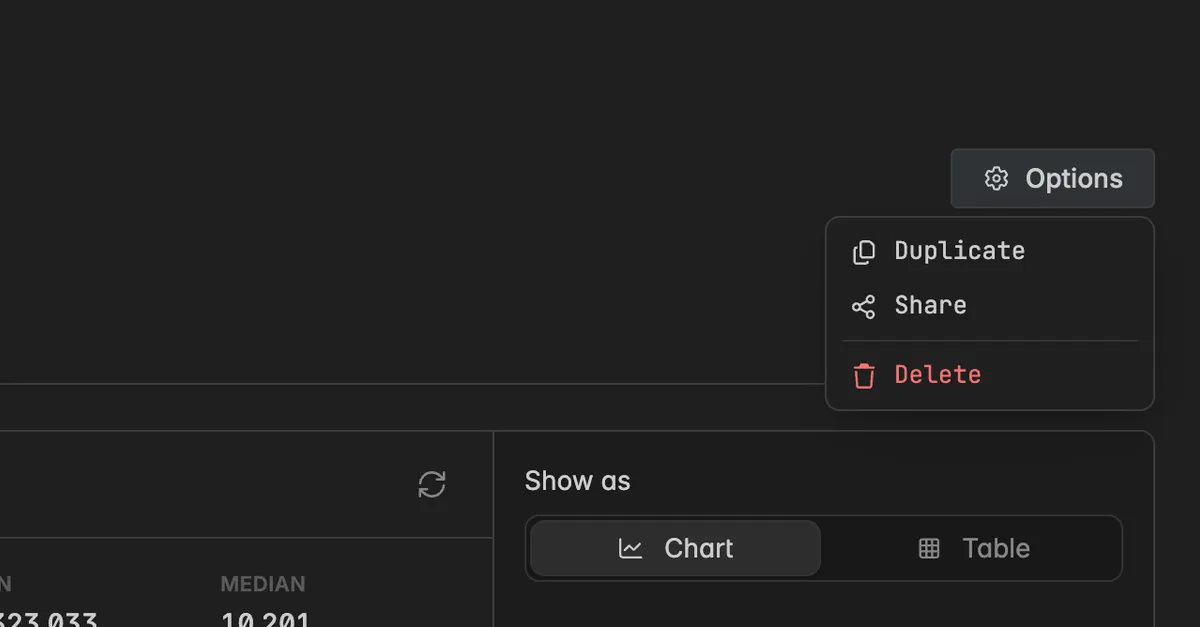
Data sources, then clickInsights.Open the Insight, click Options at the top right, and select Delete.
The dialog Delete Insights opens and lists what happens. Read it.
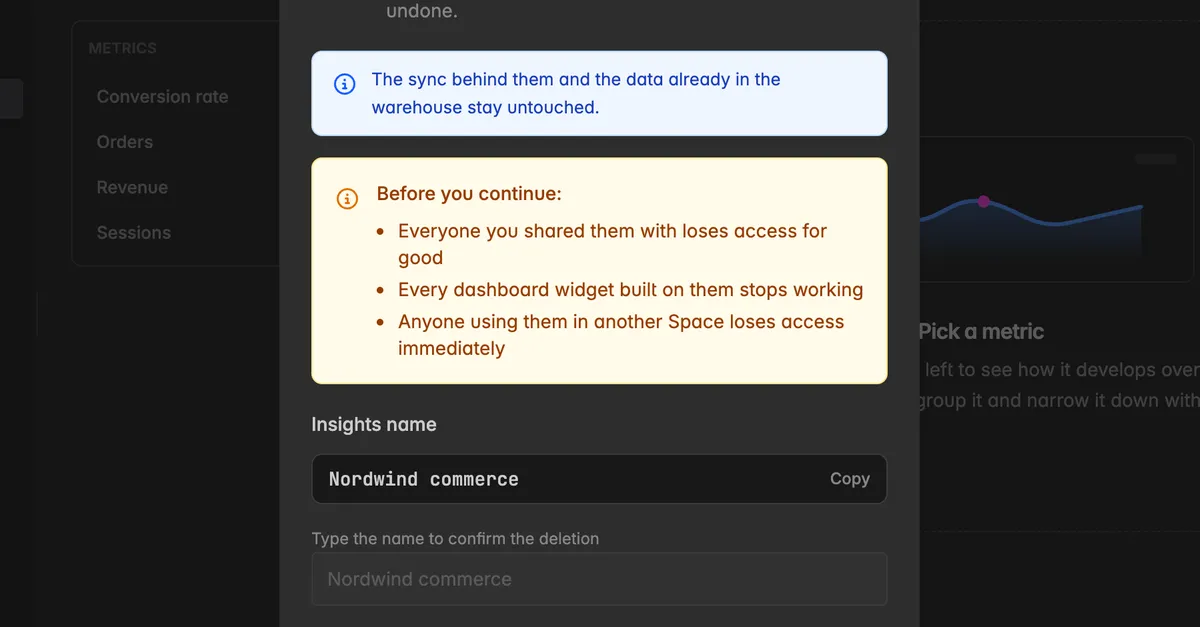
Next to Insights name, click Copy, then paste the name into Type the name to confirm the deletion.
Click Delete permanently.
A toast confirms Insights deleted and you are back on the list.
How do I get a deleted Insight back?
Build it again from the connection. This works as long as the connection still exists.
Click the database icon in the left rail to open
Data sources, then clickConnections.Open the connection the Insight was built on.
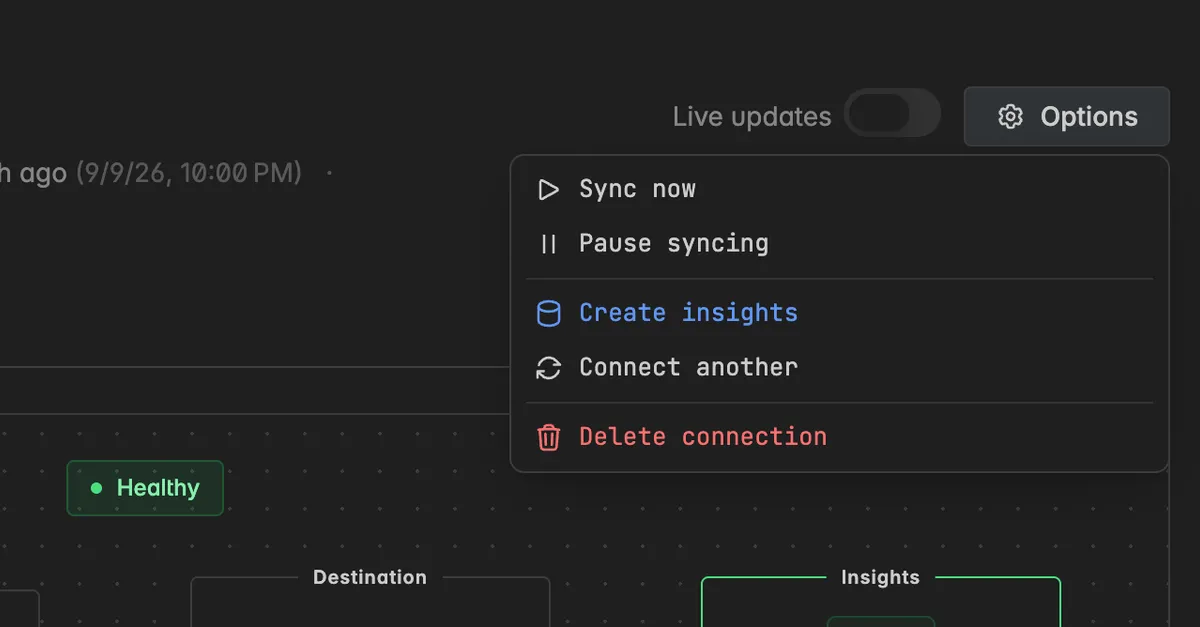
Click Options at the top right and select Create insights.
The new Insight appears under Insights and reads the same tables as the old one. The Insights card on the connection's Overview then shows it, and Open insight takes you there.
Two things do not return on their own:
Widgets are not reconnected. Open each affected widget and pick the new Insight under Data source. See Manage widget data sources & Metrics.
Shares are not restored. Invite the other spaces again on the Sharing tab. See Share Insights.
For a Custom Insight, create it again with Create Insights on the Insights page and pick the same KPI collection and connection. See Publish a KPI collection as an Insight.
Troubleshooting
There is no Delete in the Options menu
- Deleting needs the Admin role. On an Insight another space shared with you the menu offers Stop receiving instead, which removes it from your space only.
Delete permanently stays greyed out
- The name in the field does not match. Click Copy next to Insights name and paste it, the name has to match exactly.
My widgets show an error after the deletion
- That is expected. The Insight they read from is gone. Open each widget and pick another Insight, or build the Insight again and pick that one.
I deleted an Insight by accident
- Nothing in the warehouse is lost. Open the connection, click Options → Create insights, and point your widgets at the new Insight.
I wanted the connection and the data gone too
- Deleting an Insight leaves both in place. Delete the connection instead, its dialog has switches to remove the Insights and the data in one go. See Delete a Source Connection.
What is the difference between deleting an Insight and deleting a connection?
- Deleting an Insight removes the metrics layer only. The connection keeps syncing and the data stays. Deleting a connection stops the sync and removes the credentials, and can take the Insights and the data with it. See Deleting data, where to start.