

How do I add a description to a dashboard?
Every dashboard can have a description. It is shown next to the creator and date below the dashboard name, so colleagues understand what the board is for without opening every widget. A description can be up to 500 characters long.
Option 1: While you create the dashboard
Create an empty dashboard as described in Create a dashboard, Option 1.
Below the Display name, enter a Description. The field is optional, so you can leave it empty and fill it in later.
Click Create dashboard.
Option 2: Directly in the dashboard
Open the dashboard.
Below the dashboard name, click Add description. If a description already exists, click the description text instead.
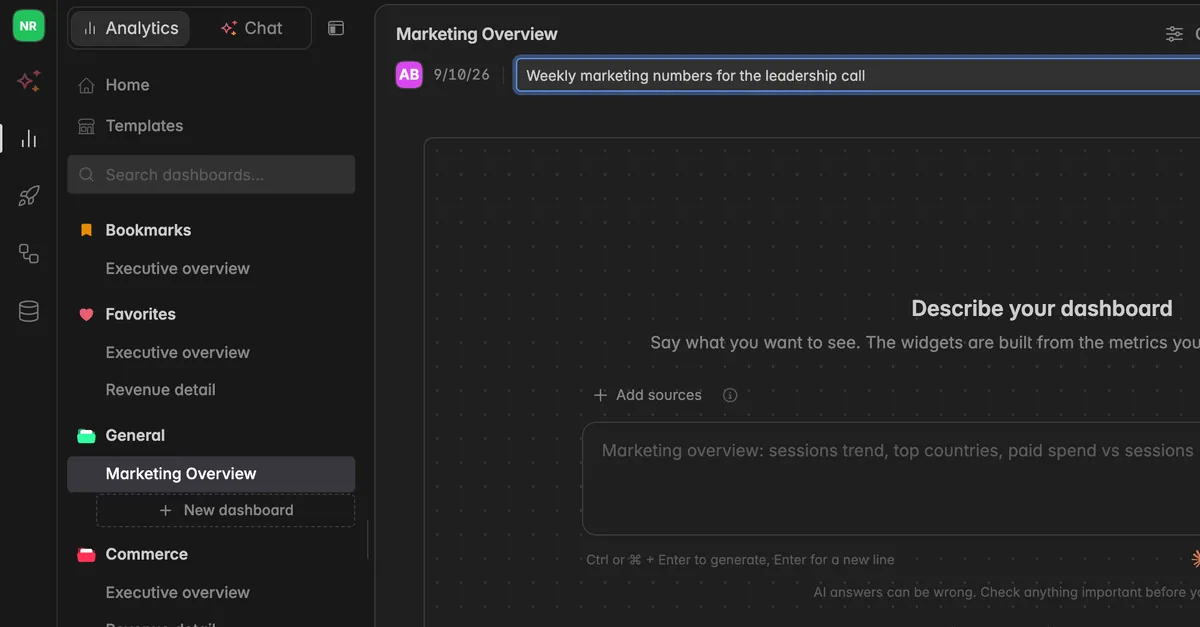
Type your text.
Press
Enteror click the check mark to save. PressEscto cancel.
Option 3: From the Edit dialog
In the left sidebar, hover over the dashboard name and click the
⋮icon. Or open the dashboard and click the⋮icon at the top right of the toolbar.Select Edit from the menu.
Enter your text in the Description field.
Click Save.
Option 4: Let the AI write it
If you created the dashboard with a prompt, Indicate writes the title and a short description automatically, both based on your prompt. See Create a dashboard, Option 2. You can overwrite that text at any time with Option 2 or 3 above.
Note: A description is not the same as an AI prompt. It only describes the dashboard, it does not build any widgets.
Troubleshooting
I can't save the description
A description can hold at most 500 characters. Shorten it and try again.
I don't see Add description or the Edit entry
Changing a dashboard requires at least the User role. Members with the Reader role can read the description but not change it. Ask your space admin to update your role.
The description disappeared after I renamed the dashboard
Renaming keeps the description. If it is missing, open
⋮→ Edit and check the Description field. Enter it again and click Save.