
AI agents
Space settings for the AI agents: model, writing language, and warehouse access.
What are the AI agent settings?
The AI agents in Indicate write dashboard summaries, generate and edit dashboards and widgets, explain widgets, and answer in the chat. The page Settings → AI agents → General sets how they work across the space: which model they run on, which language they write in, and whether they may look past the metric catalogue and query the warehouse.
None of these settings change the interface. Your own interface language and theme are under Personalization.
Only Admins and the Owner can change these settings. Others see the page read-only.
Where do I find it?
Click the gear icon at the bottom of the left rail to open Settings.
Under AI agents, click General.
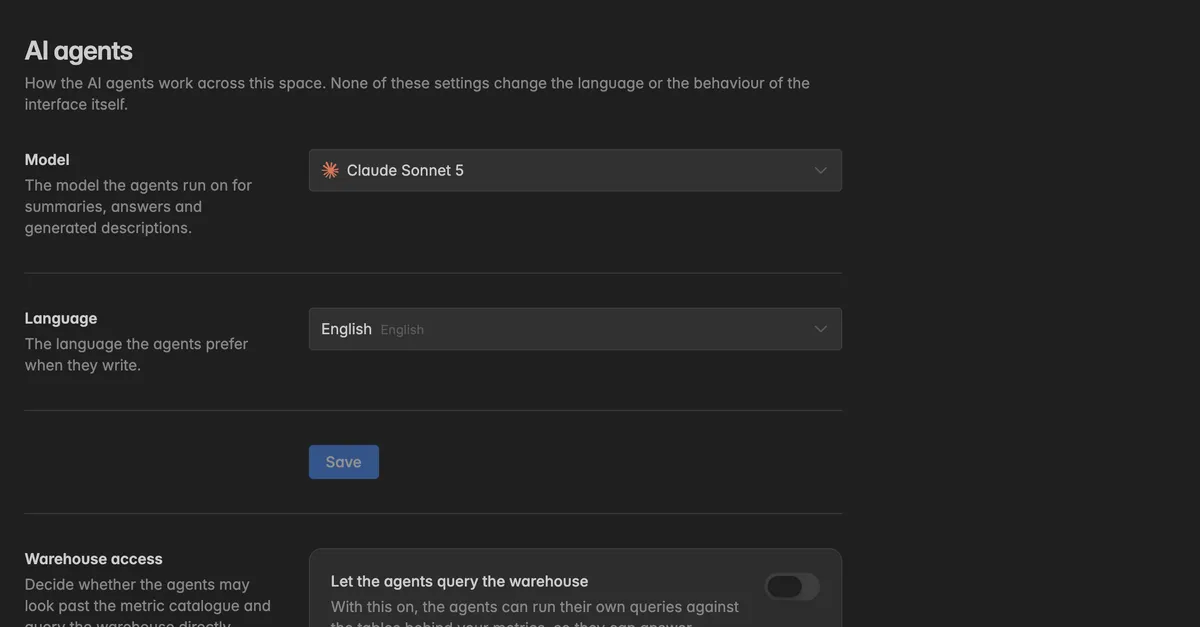
How do I pick the model?
Under Model, pick the model the agents use for summaries, answers, and generated descriptions. The list shows the available models with their provider. Models that are not available in your space are greyed out. Click Save.
Every AI call costs a share of the space's AI budget, and the cost per call depends on the model. The usage log under Settings → AI usage shows the model and the cost of every call. See AI usage.
How do I set the language the agents write in?
Under Language, pick the language the agents should prefer when they write, for example for summaries and generated descriptions. Search the list by name. Click Save.
This is a space setting. Everyone in the space gets summaries in this language, whatever their own interface language.
What is warehouse access?
By default the agents answer from the metric catalogue, the Insights of the space. With Let the agents query the warehouse switched on, they can also run their own queries against the tables behind your metrics, so they can answer questions the catalogue alone does not cover.
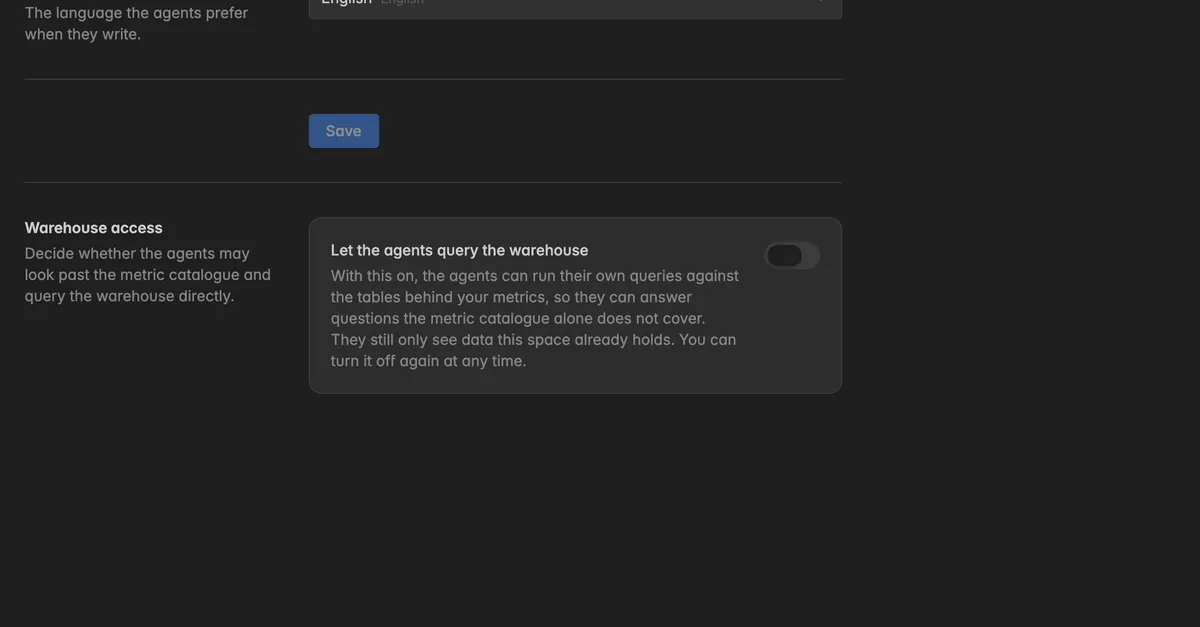
The agents still only see data this space already holds.
You can switch it off again at any time.
Warehouse access is part of the Pro plan. On other plans the switch shows an upgrade link.
Switch it on under Warehouse access. The change is saved immediately, there is no Save button for the switch.
Troubleshooting
Save is greyed out
- Nothing has changed, or you are not an admin. The page reads Only admins can change these settings.
The summaries are still in the old language
- Existing summaries are not rewritten. Regenerate the summary on the dashboard, new ones use the new language.
The switch for warehouse access is locked
- Warehouse access needs the Pro plan. See Billing.
A model is greyed out
- It is not available in your space. Pick one of the available models. Contact support if you need a specific one.
The AI features do not work at all
- Check the AI budget of the space under
Settings→AI usage. When it is spent, every call is refused until the period resets. See AI usage.
Was this helpful?