
Authentication
Change your password, enable or disable two-factor authentication, and manage backup codes.
What is the Authentication page?
The Authentication page is where you manage how you sign in to Indicate: your password and two-factor authentication (2FA). Both belong to your account and apply to every space you are a member of.
Two-factor authentication adds a second step to your sign-in. After your password, Indicate asks for a six-digit code from an authenticator app such as Google Authenticator, Authy, 1Password, or Microsoft Authenticator. We recommend turning it on. A space admin can also require it for everyone in a space, see Security policies.
Where do I find it?
Click the gear icon at the bottom of the left rail to open Settings.
Under Account, click Authentication.
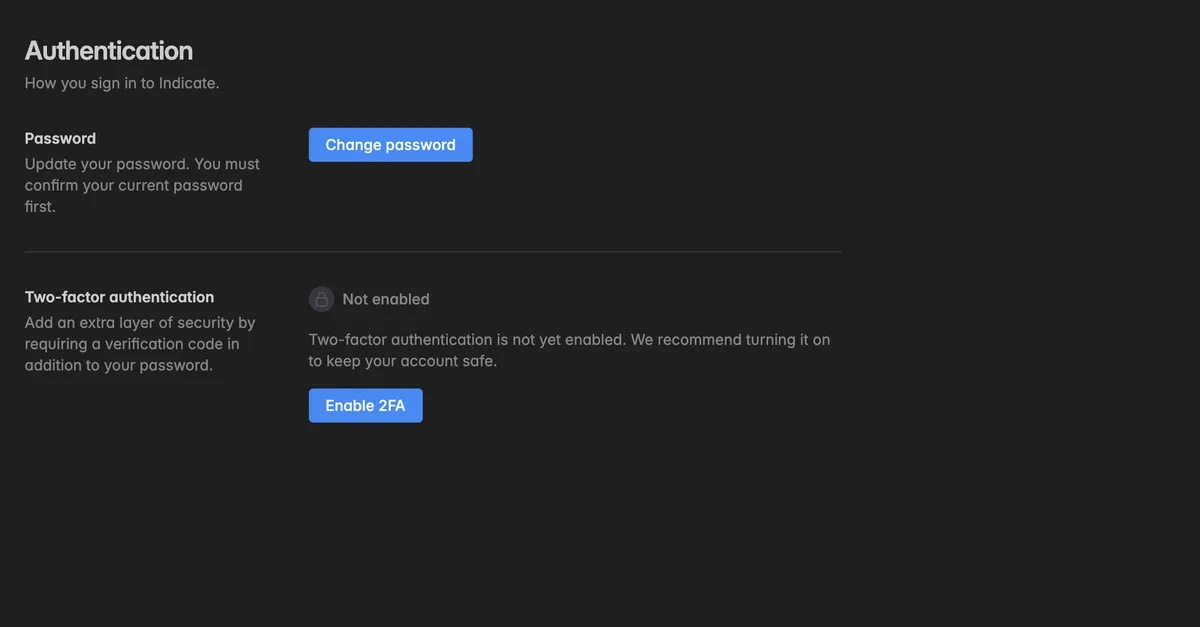
The Two-factor authentication section shows Enabled or Not enabled for your account.
How do I change my password?
On the Authentication page, click Change password.
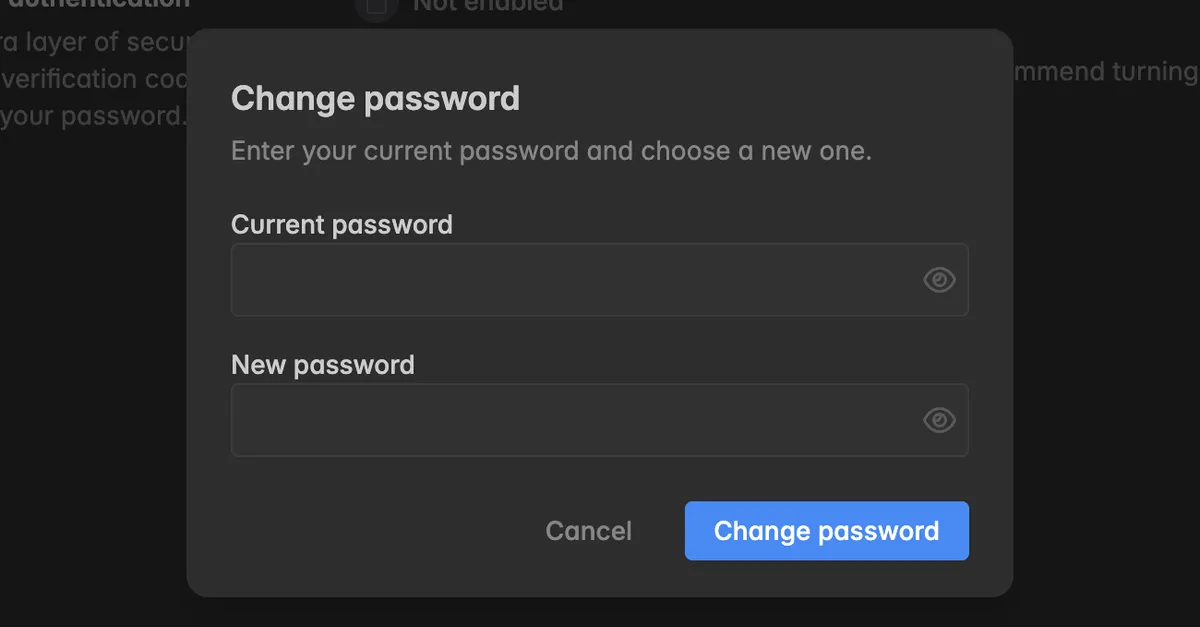
Enter your Current password and a New password of at least 8 characters.
Click Change password. If 2FA is enabled, enter the code from your authenticator app and click Verify and change.
The dialog confirms Password change requested. Open the confirmation link we sent to your email address to finish the change.
Until you open the link, your old password stays valid.
How do I enable two-factor authentication?
Before you start
Install an authenticator app on your phone, for example Google Authenticator, Authy, 1Password, or Microsoft Authenticator.
On the Authentication page, click Enable 2FA. The dialog Set up two-factor authentication opens with three steps: Scan QR, Verify, Backup codes.
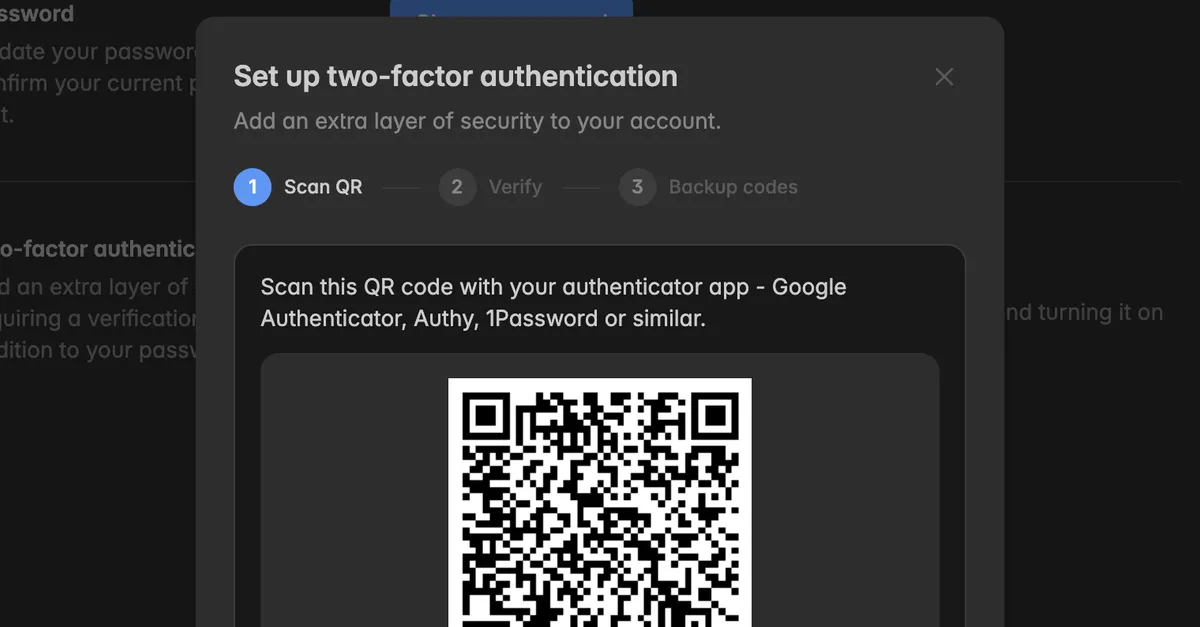
Scan the QR code with your authenticator app. If you cannot scan it, click Copy next to Can't scan? Enter this key manually and paste the key into your app.
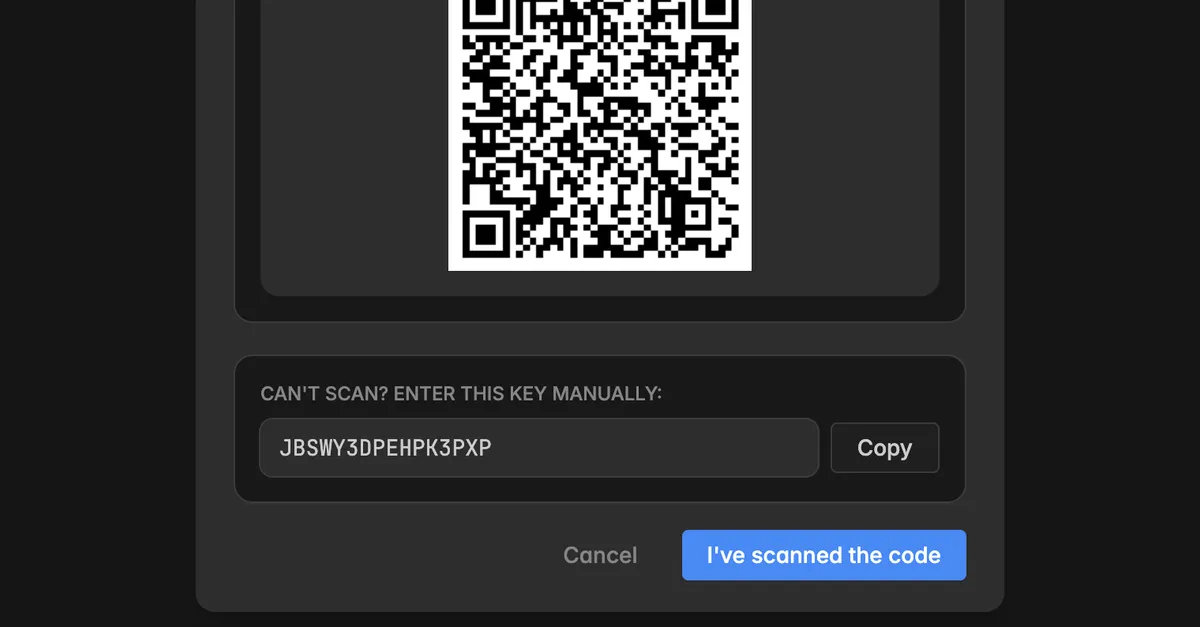
Click I've scanned the code.
Enter the six-digit code from your app and click Verify and activate.
Save your backup codes with Copy codes or Download .txt. Store them in a password manager. Each code works once and replaces the code from your app if you ever lose your phone.
Click I've saved my codes.
The page now shows Enabled, and the member list of every space you belong to shows a lock icon next to your name.
Note: Do not skip the backup codes. They are your only way back into your account without contacting support if your authenticator app is lost or wiped.
How do I regenerate backup codes?
Generate a fresh set when you have used several codes, lost them, or think they are no longer safe.
On the Authentication page, click Regenerate backup codes.
Enter your password and click Regenerate codes.
Save the new codes with Copy codes or Download .txt, then click I've saved my codes.
The previous codes stop working as soon as the new ones are generated.
How do I disable two-factor authentication?
On the Authentication page, click Disable 2FA.
Enter your password and click Disable 2FA. Then enter the code from your authenticator app and click Verify and disable.
From then on your password alone is enough to sign in. If your space requires 2FA, you are sent to the setup page the next time you open it.
Troubleshooting
The code from my app is rejected
Codes are generated from the current time. Turn on automatic date and time on your phone: iOS
Settings→General→Date & Time→ Set Automatically, AndroidSettings→System→Date & time→ Set automatically.You may have a stale or duplicate Indicate entry in the app. Sign in with a backup code, click Disable 2FA, delete every Indicate entry in your authenticator app, then click Enable 2FA and scan the new QR code.
Use the newest code. A code expires after 30 seconds.
I lost my phone
Sign in with one of your backup codes. Then disable and re-enable 2FA with your new phone, and save a new set of codes.
No backup codes either? Contact support to reset 2FA on your account.
A space sends me to "Two-factor authentication required"
- That space requires 2FA for every member. Click Set up two-factor authentication on that page, finish the setup, and you go straight back to the space.
The confirmation email for my new password did not arrive
- Check your spam folder. The link goes to the email address shown under Account on your Profile. Your old password keeps working until you open it.
Disable 2FA is missing
- 2FA is not enabled on your account, so there is nothing to disable. The section shows Not enabled and Enable 2FA.
Was this helpful?