
Apps
Connect AI assistants and OAuth2 clients over MCP with preset or custom apps, billed per connecting user.
What is an app?
An app is an OAuth2 client that connects an AI assistant, or any other OAuth2-capable software, to your space over MCP. Unlike an agent token, which is one credential you paste into a tool, an app lets every user sign in with their own Indicate account. Each person authorizes once, then asks questions about your metrics and data in plain language.
Use an app when:
several people want to use Claude AI or ChatGPT with your data, each under their own account,
your connector signs in with OAuth instead of a pasted token,
you build your own client and need a Client ID and secret.
Every user who connects through an app counts as an additional seat. You are billed per connecting user, not per app. The seat price depends on the space access of the app and is listed on the pricing page.
Note: Apps are visible to everyone with the User role or higher. Only Admins and the Owner can add, change, rotate, or delete them.
Where do I find apps?
Click the gear icon at the bottom of the left rail to open Settings.
Under Space, click Apps.
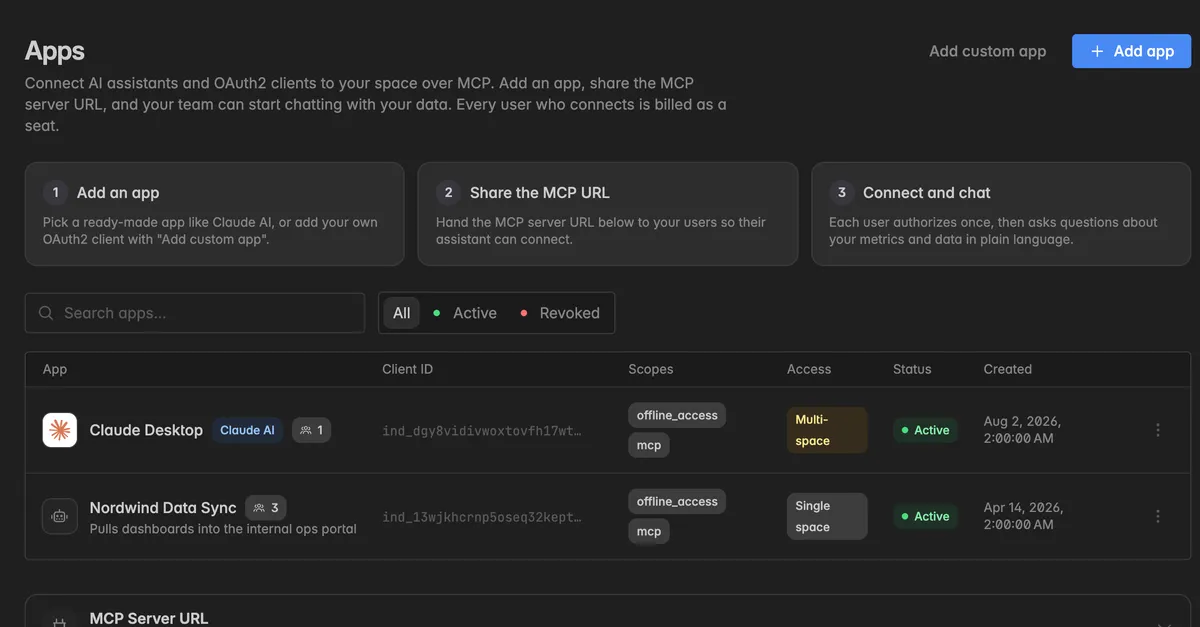
The page walks through the three steps: add an app, share the MCP URL, connect and chat. The list shows every app with its Client ID, Scopes, Access, Status, and Created date. The badge with the people icon next to the name shows how many users are connected.
How do I add a preset app?
Presets set up the connection for you. Today there are two: Claude AI and ChatGPT.
On the Apps page, click Add app. The dialog Add a preset agent opens.
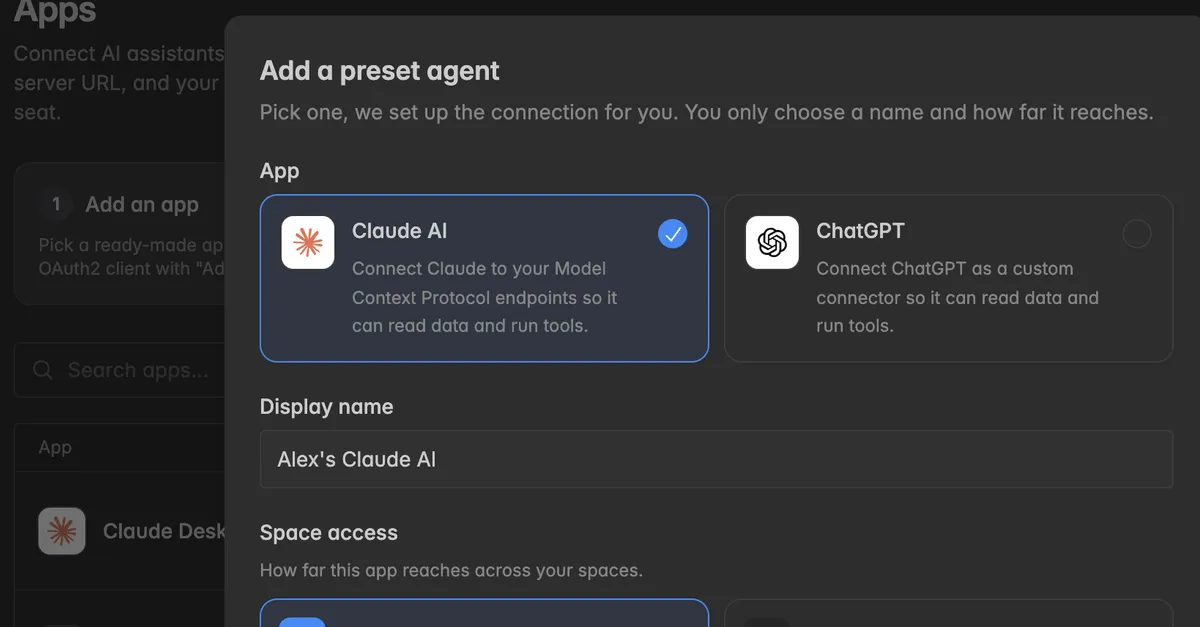
Pick the app, Claude AI or ChatGPT.
Enter a Display name, for example
Marketing Claude. People see it on the consent screen when they authorize.Under Space access, pick Single space for this space only, or Multi-space for every space the connecting user belongs to.
Read Per-user billing applies and switch on I acknowledge that each connecting user is billed.
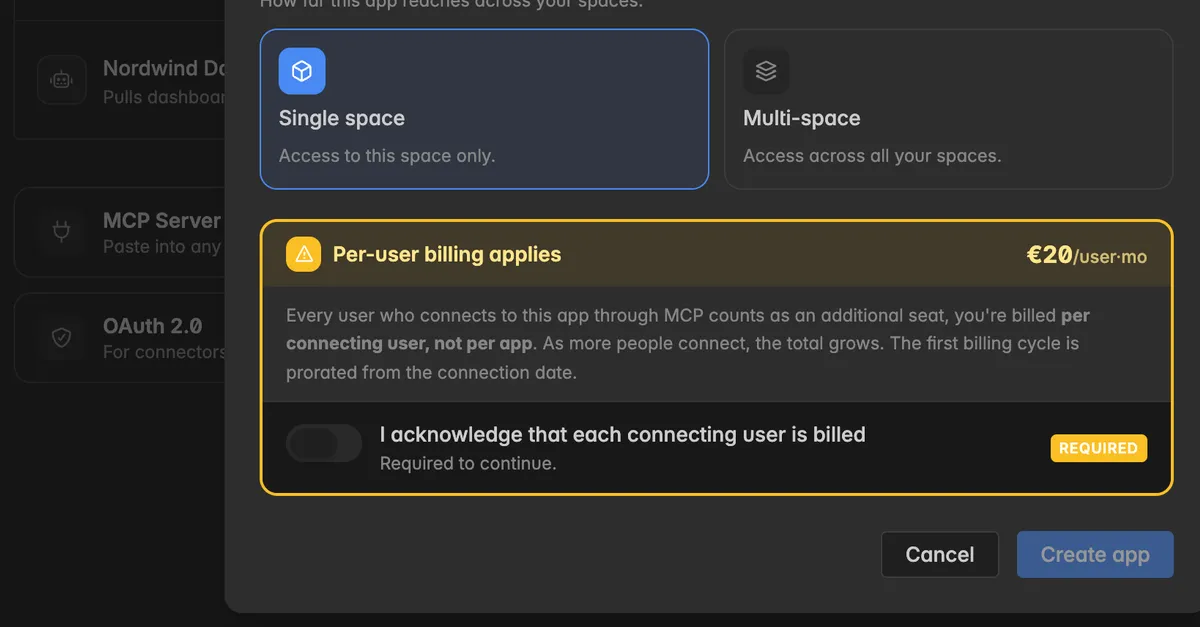
Click Create app.
The dialog App created shows the Client ID, the Client secret, and the connection details. Click Copy secret and store it in a password manager. The secret is not shown again.
Click Done.
How do I add a custom app?
For your own OAuth2 client, or a connector that is not a preset.
On the Apps page, click Add custom app. The page Create app opens.
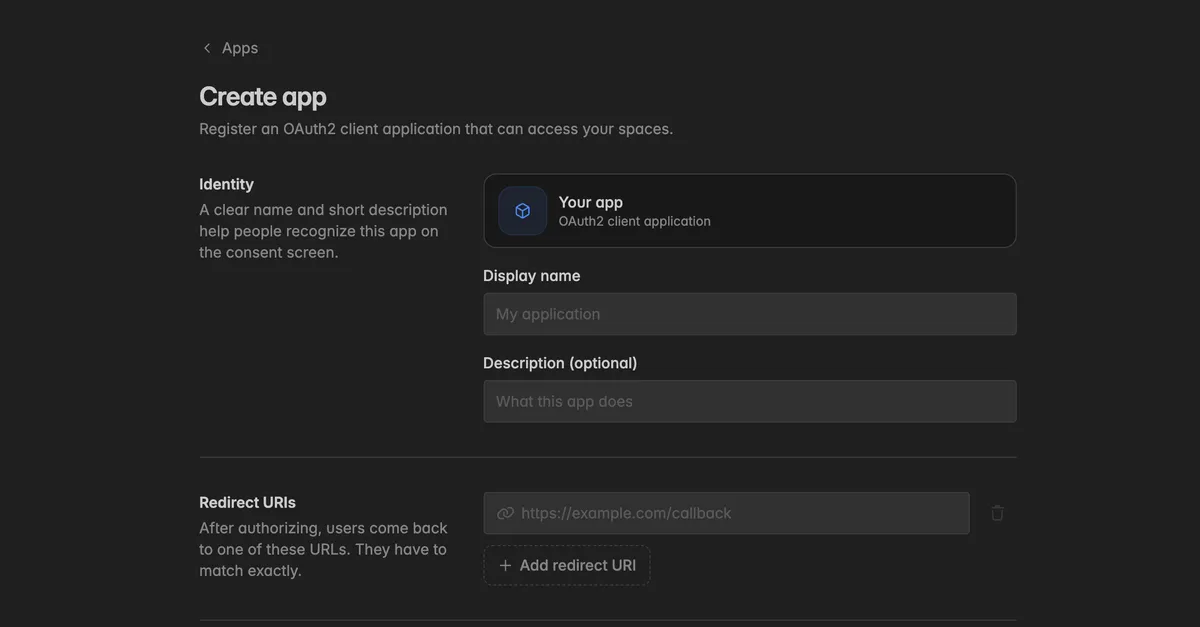
Under Identity, enter a Display name and optionally a Description. Both appear on the consent screen.
Under Redirect URIs, enter the URL your client returns to after authorization, for example
https://example.com/callback. It has to match exactly. Click Add redirect URI for more.Under Permissions, pick the scopes. Offline access is always on, it lets the app stay connected with refresh tokens. Switch on MCP so the app can call your Model Context Protocol endpoints.
With MCP on, pick the Space access and switch on the billing acknowledgement.
Click Create app and store the Client secret from the dialog App created.
How do my users connect?
Give your users the MCP Server URL. It is at the bottom of the Apps page, click the section to expand it and Copy the URL. Or click
⋮→ Copy MCP URL on any app.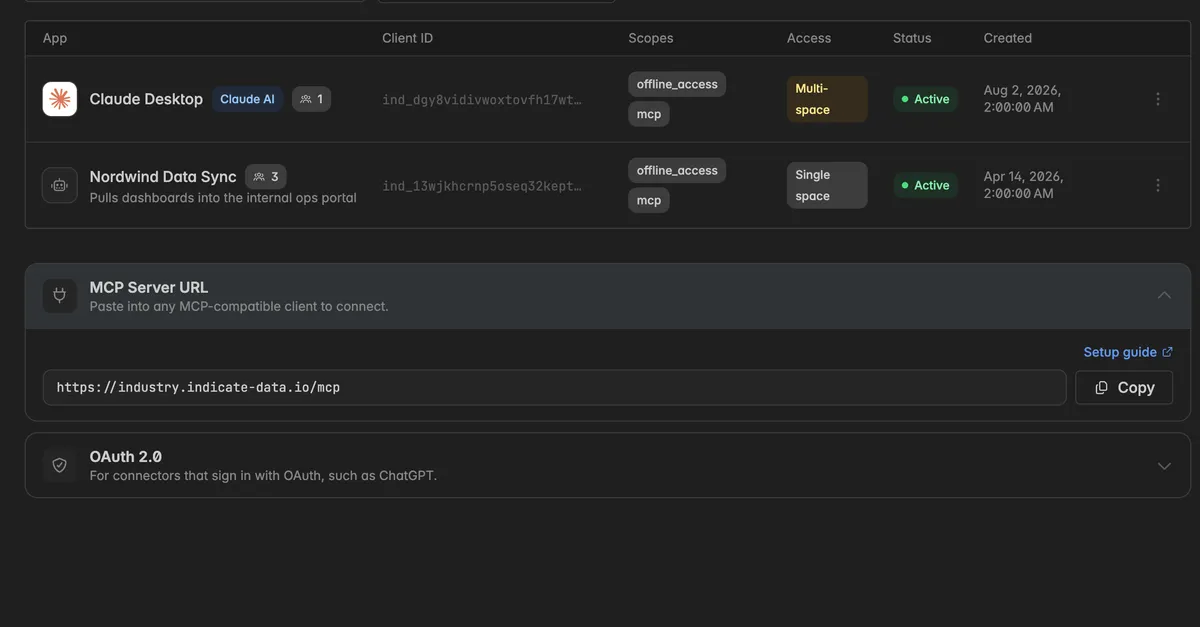
For connectors that sign in with OAuth, such as ChatGPT, expand OAuth 2.0 below it. It lists the Authorization endpoint, the Token endpoint, and the Scope, each with a copy button. Together with the app's Client ID and secret, that is everything a connector asks for.
Each user adds the server in their client and signs in with their Indicate account when asked. From then on they can chat with the data of the space.
The connected-users badge on the app counts up with every person who authorizes.
How do I manage an app?
Hover over an app and click the ⋮ icon at the right end of the row.
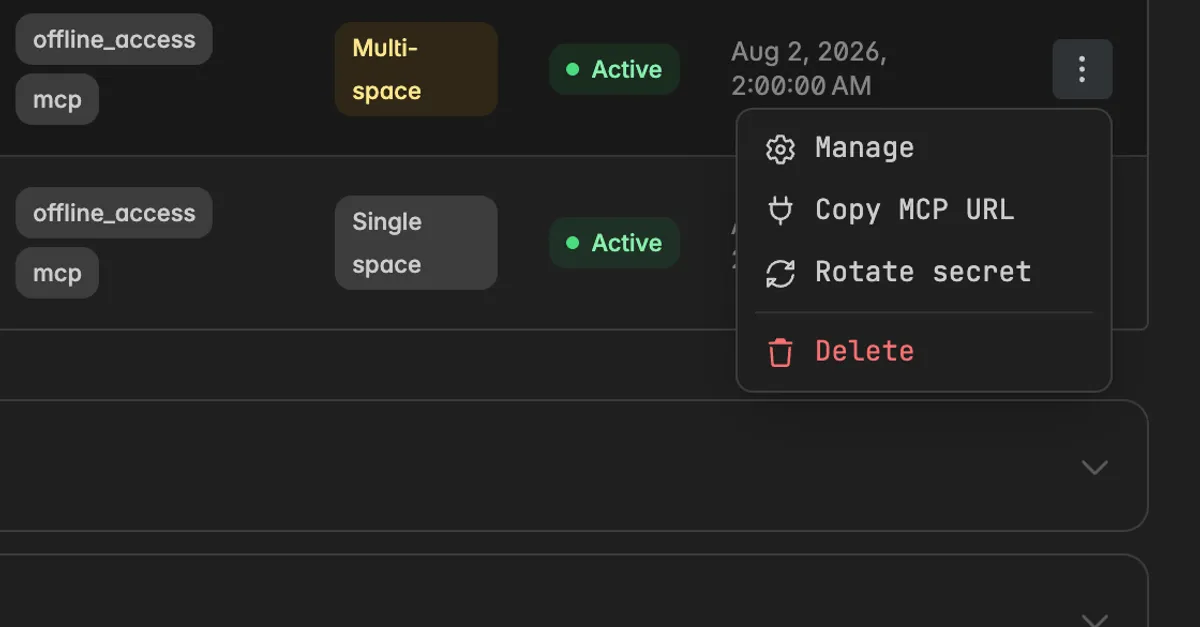
Manage opens the detail page. Users without admin rights see View details instead.
Copy MCP URL copies the server URL.
Rotate secret invalidates the current client secret and shows a new one once. Everything that uses the old secret stops working until you update it.
Delete removes the app and revokes every token it issued. Users who connected through it lose access. The dialog asks you to paste the app name.
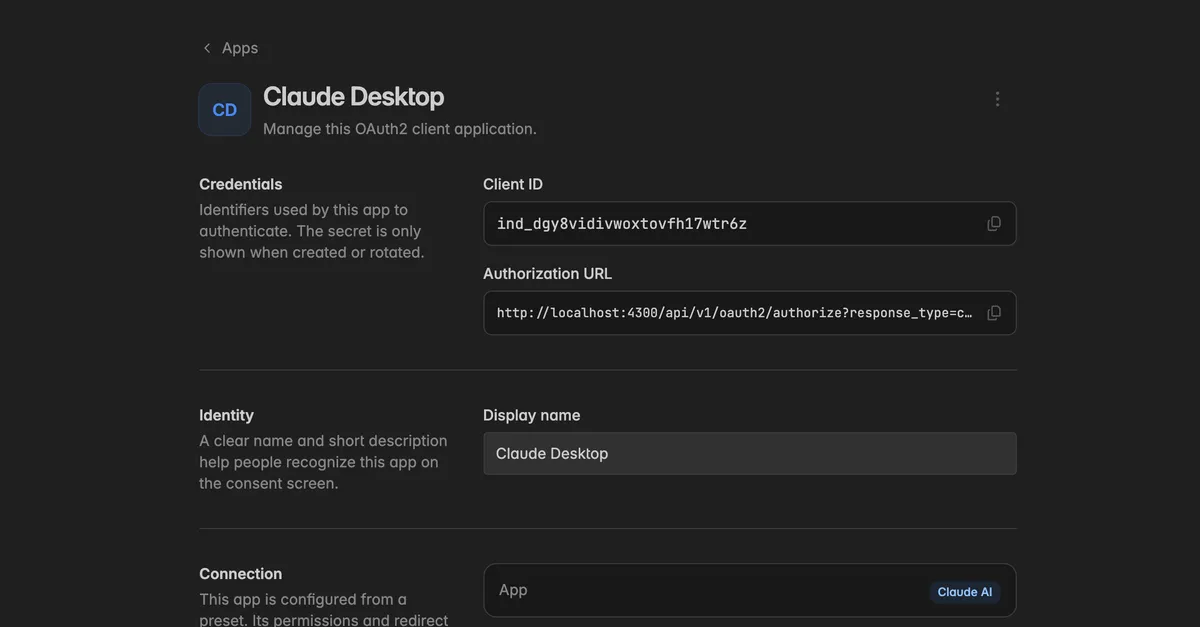
On the detail page you find the Credentials with the Client ID and the Authorization URL, the Identity, and for custom apps the Redirect URIs and Permissions. Preset apps show a Connection section instead, their permissions and redirect URIs are managed automatically. Click Save changes after editing.
Apps or agent tokens?
| Apps | Agent tokens | |
|---|---|---|
| Who authenticates | Each user with their own account | The one account the token is assigned to |
| Credential | Client ID and secret, plus OAuth sign-in | One token pasted into the client |
| Billing | Per connecting user | Per token |
| Good for | Teams on Claude AI or ChatGPT, OAuth connectors, own clients | One assistant, VS Code, Claude Code, n8n, scripts |
See Tokens.
Troubleshooting
The connector cannot complete the sign-in
The redirect URI in the connector does not match one of the app's Redirect URIs exactly. Open Manage and compare, including the trailing slash.
The client secret is wrong or was rotated. Rotate it again and update the connector.
A user sees the app but gets no data
They authorize with their Indicate account and see what that account may see. A Guest sees dashboards only. Give them Reader or higher under
Settings→Team.The app is Single space and the user is chatting from another space. Create a Multi-space app or one app per space.
I lost the client secret
- Click
⋮→ Rotate secret, copy the new one, and update the connector.
Add app is missing
- Adding apps needs the Admin role. Users can view the list and copy the MCP URL.
Why is my bill higher than expected?
- Every user who connects through an app is a seat. The people badge on each app shows how many. Remove access by deleting the app, or ask users to disconnect.
Was this helpful?