
Plan/Billing
Your plan, billing period, usage breakdown, and billing address.
What is Billing?
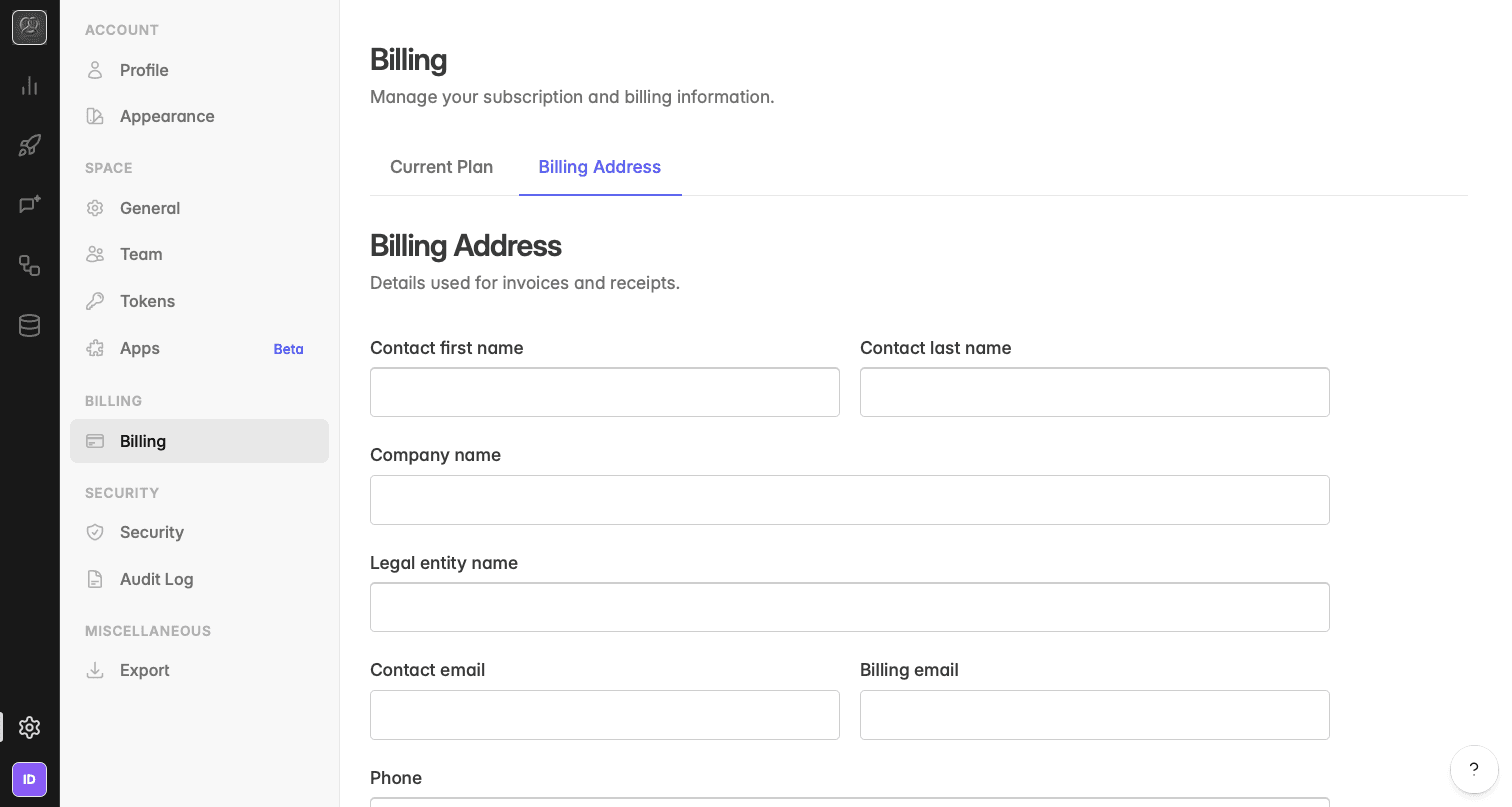
Billing covers what you pay for in Indicate: the plan of your space, the token usage of the current billing period, and the billing address that appears on your invoices. You find it under Settings → Billing → Plan.
Billing is per space. Each space has its own plan, its own billing period, and its own invoice. What the AI features cost is on a separate page, see AI usage.
Where do I find it?
Click the gear icon at the bottom of the left rail to open Settings.
Under Billing, click Plan. The page has two tabs, Current plan and Billing address.
What does Current plan show?
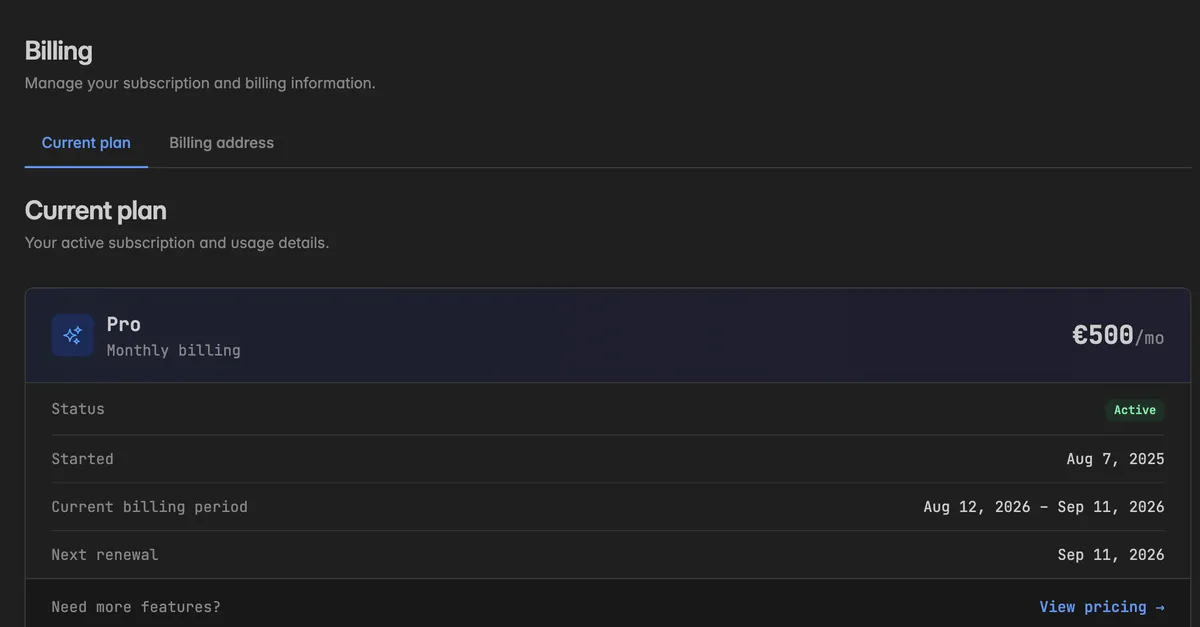
The card at the top shows the name of your plan, whether it is Monthly billing or Yearly billing, and the price. Below it:
Status: Active for a running subscription.
Started: the day the subscription began.
Current billing period: the period you are in. Usage and seats are counted per period.
Next renewal: the day the next period starts.
Need more features? View pricing opens the pricing page on our website, the only place where plans and prices are listed. To change your plan, create a request in the help center.
Note: A promotional space shows This promotional space is read-only instead. Everything in it can be explored, nothing can be changed or upgraded. Contact us in the help center for a space of your own.
What is the Usage breakdown?
Below the plan card, Usage breakdown lists the token consumption of the current billing period. Tokens here are the billing unit for resources such as syncs and access tokens, not the AI budget.
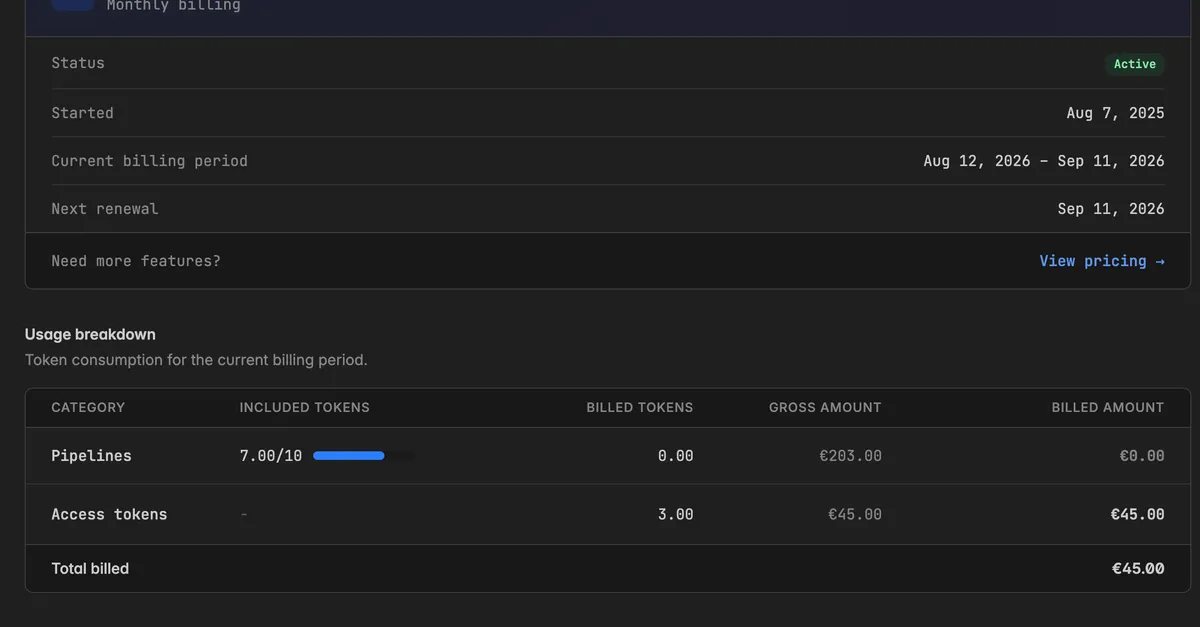
For each Category, for example Pipelines or Access tokens:
| Column | What it shows |
|---|---|
| Included tokens | How many tokens your plan includes, with a bar for how many you have used |
| Billed tokens | Usage above the included amount |
| Gross amount | The value of the whole consumption |
| Billed amount | What you pay on top of the plan, gross minus included |
Total billed at the bottom is the sum for the period. As long as you stay within the included tokens, nothing is billed on top of the plan price.
Agent tokens and app seats are billed per seat, see Tokens and Apps. The seat prices are on the pricing page.
How do I update the billing address?
The billing address is used for invoices and receipts.
Open the Billing address tab.
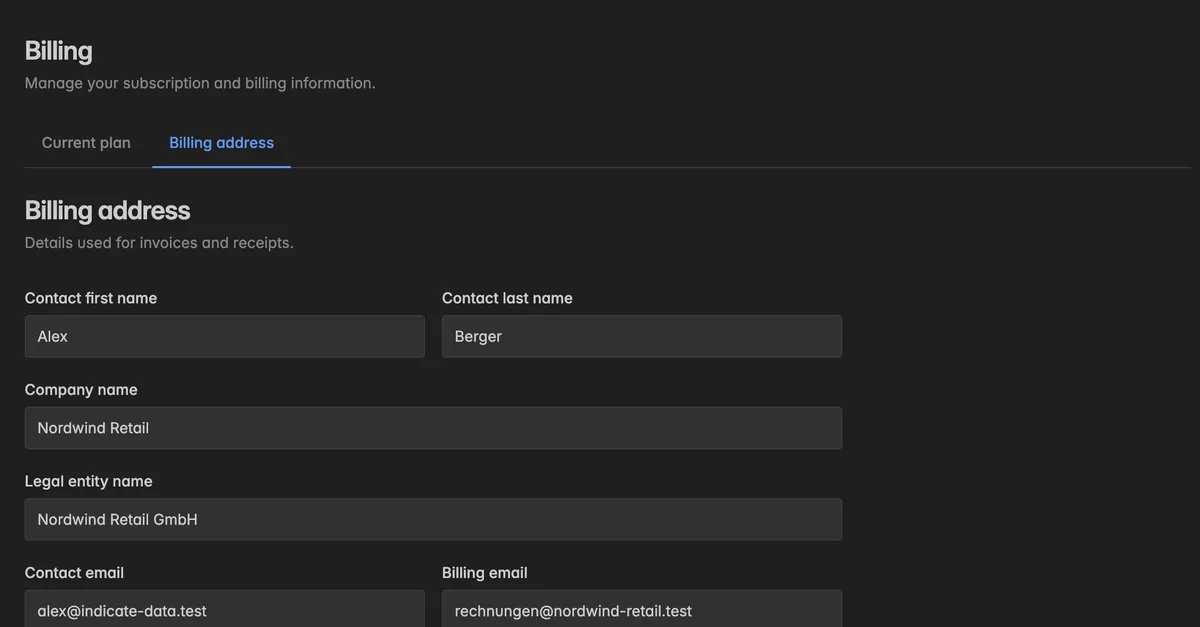
Fill in the fields: Contact first name and Contact last name, Company name and Legal entity name, Contact email and Billing email, Phone, Address line 1 and 2, Postal code, City, State, Country, VAT ID, and Tax ID.
Click Save billing information.
The change applies to the next invoice.
Troubleshooting
My invoice shows the wrong company name
- Update Legal entity name on the Billing address tab. It applies to future invoices. For an invoice already issued, contact support.
Invoices go to the wrong person
- Set Billing email to the address that should receive them. It can differ from Contact email and from the address you sign in with.
My VAT ID is not accepted
- Enter it in full international format with the country prefix and without spaces, and make sure it matches the legal entity name.
I was billed more than the plan price
- Look at Billed tokens in the usage breakdown to see which category went over the included amount, and at the seats for agent tokens and apps.
The page says the space is read-only
- Promotional spaces have no billing. Create a request in the help center to get a space of your own.
I want to upgrade
- Click View pricing to compare plans on the website, then create a request in the help center. The upgrade prompts in the app, for example on the Audit log or Service accounts pages, lead to the same place.
Was this helpful?