
Brand palettes
Define your company colors once under Settings → Brand and pick them in every widget, with an optional primary palette for dashboards.
What is a brand palette?
A brand palette is a named set of colors your team defines once, so every chart in the space can use them. In the widget editor the color picker offers the palette next to the built-in Standard colors, and dashboards fall back to the primary palette when nothing else is set. That keeps revenue in your corporate blue and marketing in your corporate green across every dashboard, without picking HEX codes widget by widget.
Brand palettes come with the Pro plan. On other plans the page shows Brand palettes are a Pro feature with an upgrade link.
Only Admins can change the palettes. Other roles see the page read-only.
Removing a palette never recolors existing charts. They keep their colors.
Where do I find the brand settings?
Click the gear icon at the bottom left to open Settings.
Under Space, click Brand. The page Brand opens with the section Color palettes.
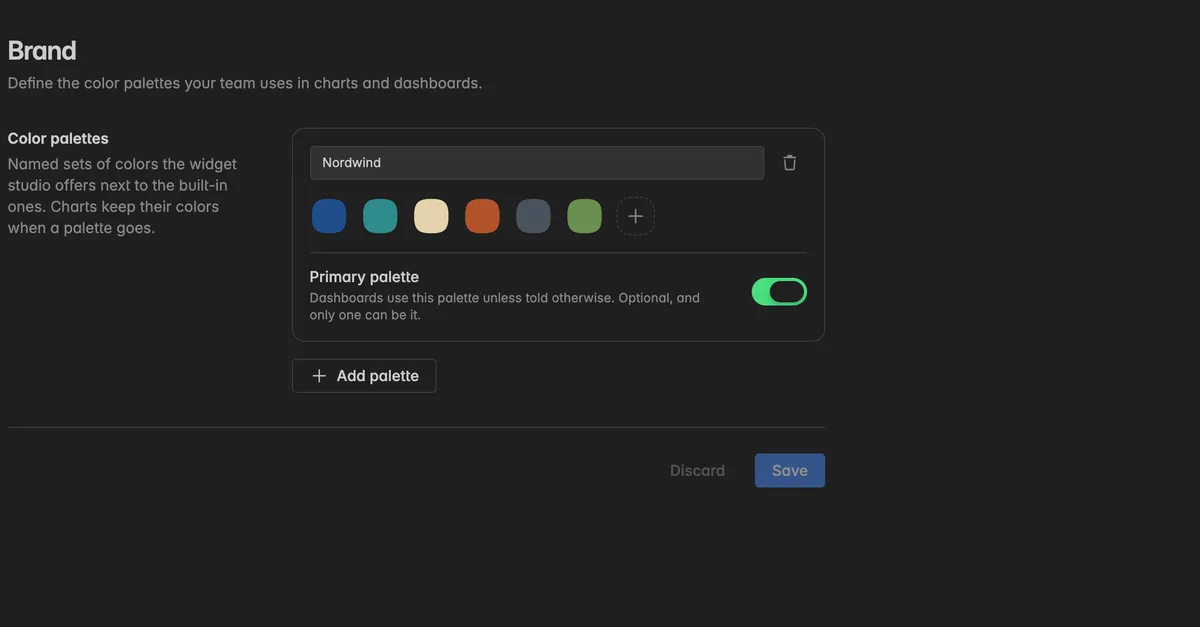
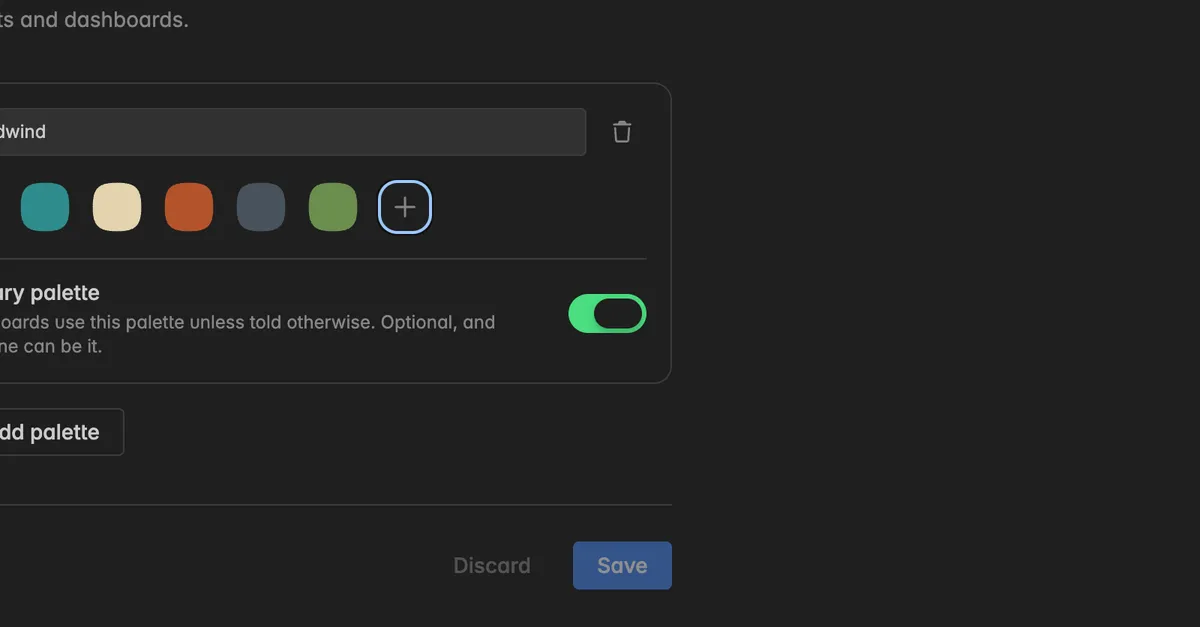
Each palette is a card with a name field, its color swatches, and the switch Primary palette. Changes are only stored when you click Save at the bottom. Discard throws them away.
How do I create a palette?
On the Brand page, click Add palette. A new card Palette 2 appears below the existing ones.
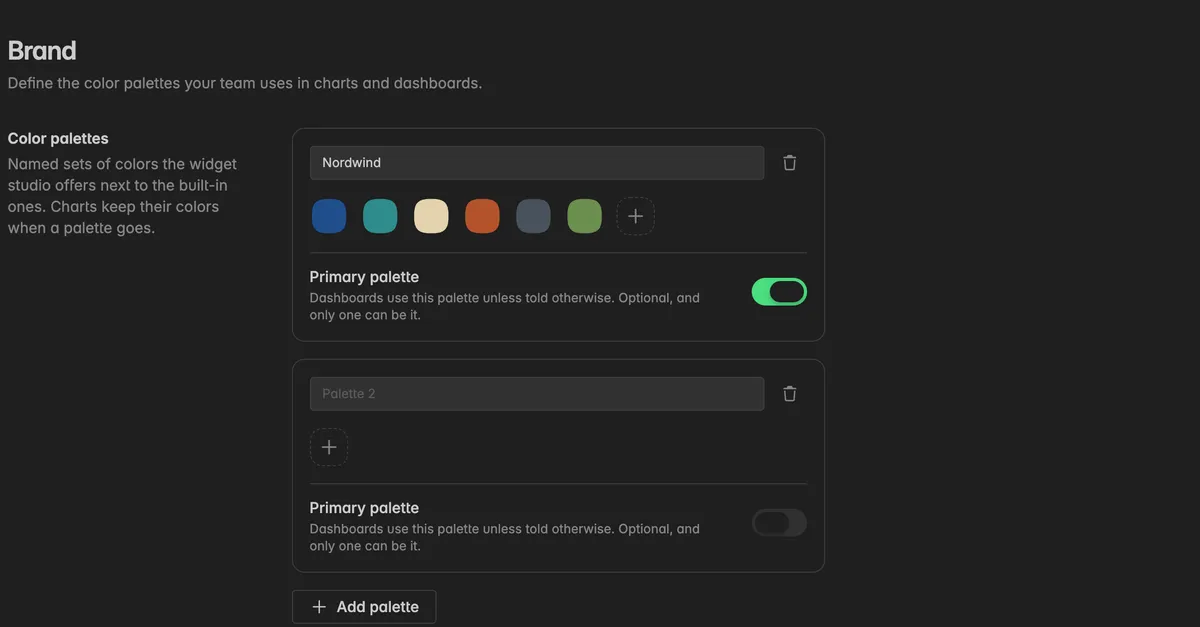
Type a name into the name field, for example
Nordwind. Every palette needs a name, and two palettes cannot share one.Click the
+swatch Add color. A popover opens with a preview, a Color name field, and the HEX code.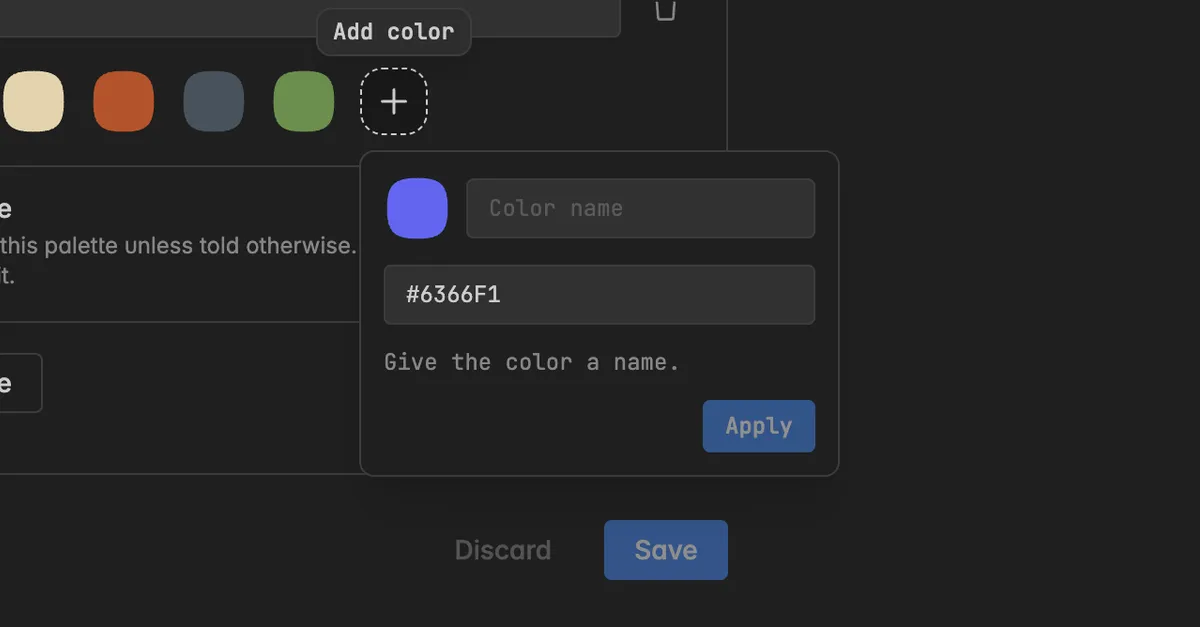
Type a name, for example
Nordwind Blue, and the HEX code, for example#1F4E8C, then click Apply. A palette needs at least one color, and every color needs a name.Repeat for the other colors. Six to eight colors are enough for most charts.
Click Save.
The palette now appears in the color picker of every widget under its name, above the Standard colors. See Style a widget.
How do I change or remove a color?
On the palette card, click the swatch. Its tooltip shows the name and HEX code.
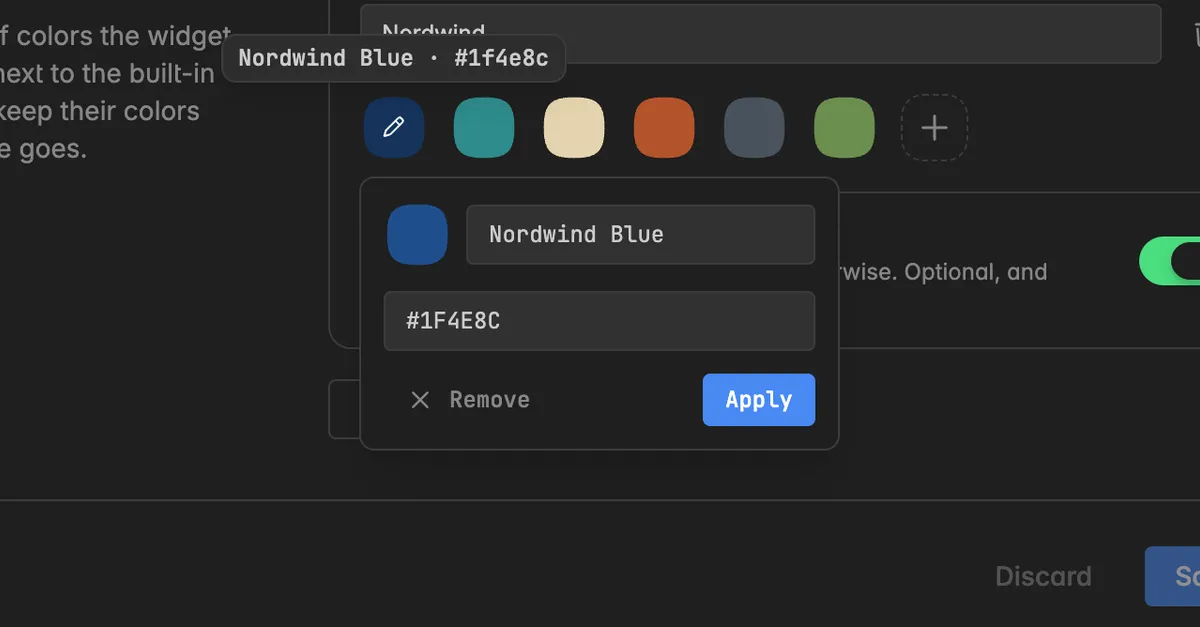
Change the Color name or the HEX code and click Apply. Click Remove to take the color out of the palette.
Click Save at the bottom of the page.
What does the primary palette do?
Dashboards use the primary palette unless a widget was given another color. Turn on the switch Primary palette on the card that should be the default. Only one palette can be primary, and none has to be.
How do I remove a palette?
On the palette card, click the trash icon at the top right.
Confirm in the dialog Remove palette. Charts that use the palette keep their colors.
Click Save. The change takes effect when you save.
Troubleshooting
Save is disabled or the page shows a problem
- Every palette needs a name, every color needs a name, and a palette needs at least one color. The page lists what is missing, for example Name every color. Open a swatch to do it. or Another palette already has this name.
The palette does not show up in the widget editor
- Click Save on the Brand page. Unsaved palettes are not offered. If you leave the page with unsaved changes, a dialog Unsaved changes asks whether to Stay or Leave.
I cannot edit the palettes
- The page reads Only admins can change these palettes. Ask a space admin, or check under
Settings→Teamwhich role you have.
The Brand page asks me to upgrade
- Brand palettes are part of the Pro plan. The Standard colors and Custom HEX colors in the widget editor work on every plan. See Billing.
The chart colors did not change after I edited the palette
- Colors are copied into the widget when you pick them. Open the widget editor, click the color drop of the series, and pick the swatch again.
Was this helpful?