
Policies
Require two-factor authentication for every member of the space and how enforcement works.
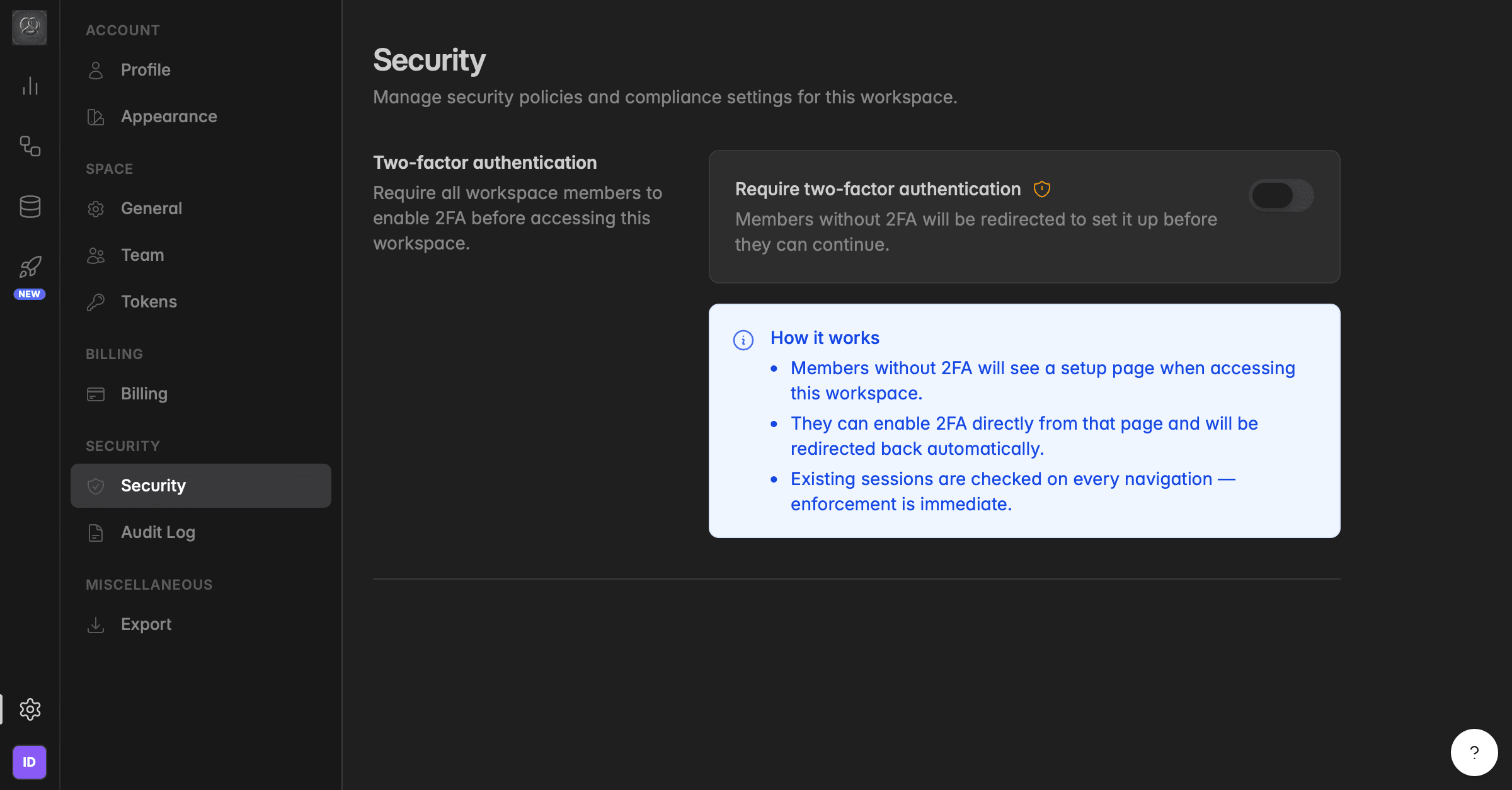
What are security policies?
Security policies are rules that apply to everyone in a space. Today there is one: Require two-factor authentication. When it is on, every member needs a second factor before they can open the space. Members who already use 2FA notice nothing. Members who do not are sent to a setup page and come straight back once they are done.
Only Admins and the Owner can open the Policies page. For other roles the entry is greyed out in the sidebar with the note Admin only. Enforcing 2FA is part of the Pro plan.
For how a member sets up 2FA on their own account, see Authentication.
Where do I find it?
Click the gear icon at the bottom of the left rail to open Settings.
Under Security, click Policies. The page is titled Security policies.
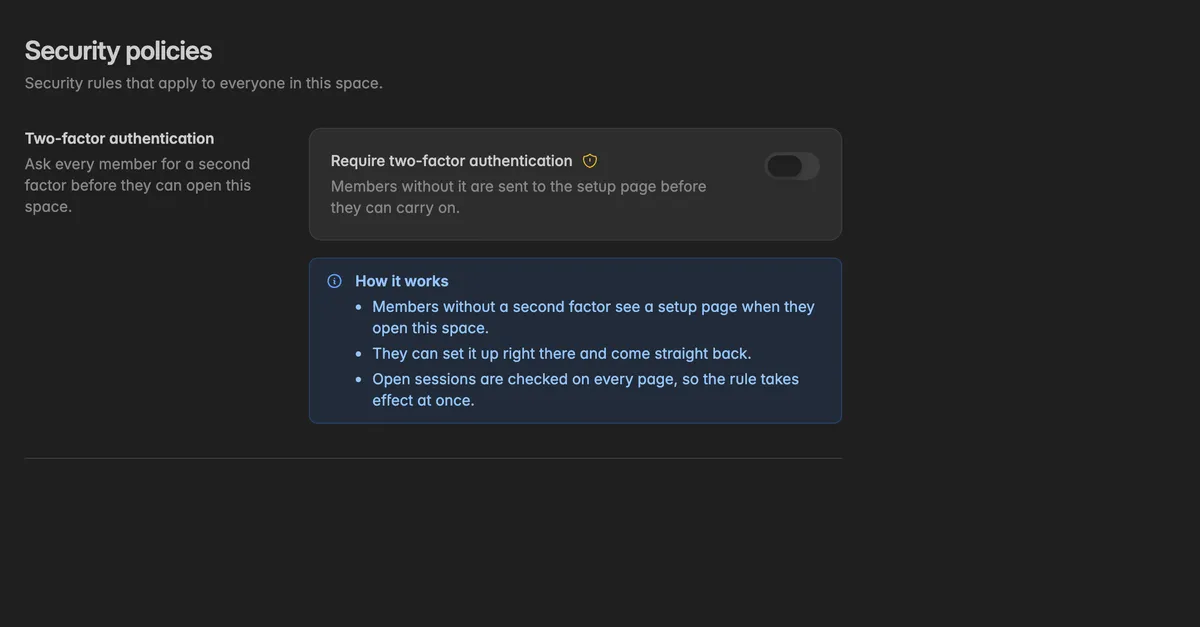
How do I require two-factor authentication?
- On the Policies page, switch on Require two-factor authentication.
The rule takes effect at once and the switch shows Enforced - every member needs two-factor authentication. The change is recorded in the audit log.
Tell your team before you switch it on. Everyone without 2FA is interrupted with the setup page the next time they open the space.
How does enforcement work?
Members without a second factor see the page Two-factor authentication required when they open the space, with the note that the space asks every member for a second factor.
They click Set up two-factor authentication, scan the QR code, verify, and save their backup codes. Then they go straight back to the space.
Open sessions are checked on every page, so the rule applies right away, not only at the next sign-in.
The Profile and Authentication pages stay reachable without 2FA, so a member can always complete the setup.
You can see who has 2FA in the 2FA column of the member list under Settings → Team.
Troubleshooting
A member is locked out after I switched it on
- They are not locked out. They see the setup page and can finish it themselves in a minute. Point them to Authentication.
Policies is greyed out in the sidebar
- The page needs the Admin role. Hover over the entry: Admin only.
The switch shows an upgrade note
- Enforcing 2FA is part of the Pro plan. Until then, ask members to enable it themselves.
A member disabled 2FA again
- The rule catches it. The next page they open in the space sends them back to the setup page.
Service accounts and tokens
- The rule applies to people signing in. Service accounts have no login and are not affected. Tokens keep working.
Was this helpful?