
Who is Resi?
Resi is your AI analyst in Indicate. She answers questions about your data in plain words, with the numbers and charts behind the answer, built from your connected Insights. She also builds dashboards from a description and changes widgets on request. See Create a dashboard and Edit a widget with AI.
Resi is available from the User role up. Members with the Reader or Guest role cannot chat with her. See Team for the roles.
Resi reads the Insights of your space, the same metrics your widgets use. She does not read the raw tables in the warehouse.
An admin sets her default model and the language she writes in. See Resi.
Every question uses part of your space's AI budget. See AI usage.
Resi can be wrong. Check anything important before you act on it.
How do I ask Resi a question?
You start from the sparkles icon at the top of the left rail, above the Analytics icon. On the Home page, Ask Resi takes you to the same place.
Click the sparkles icon. The page Ask Resi opens with suggested questions under Try asking.
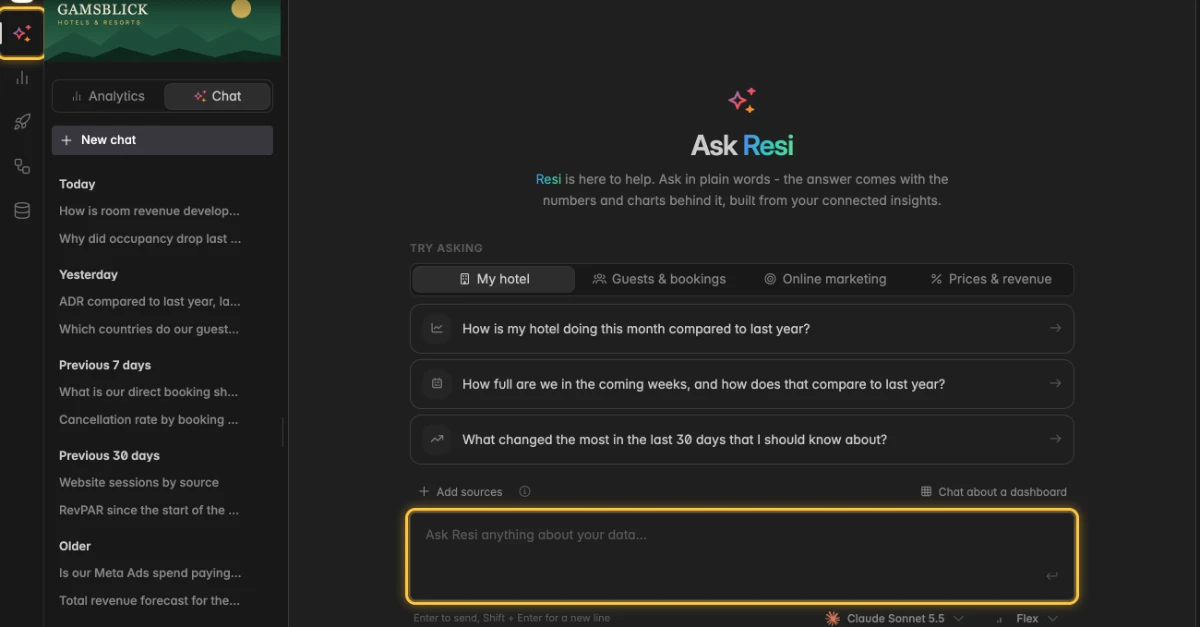
Click a suggested question to put it in the question field, or type your own. The tabs My hotel, Guests & bookings, Online marketing and Prices & revenue show more suggestions.
Press
Enteror click the arrow at the end of the field. For a new line, pressShift+Enter.
Resi answers with a short text, the figures she used and a chart where it helps. Below the answer you see the model and the effort she worked with.
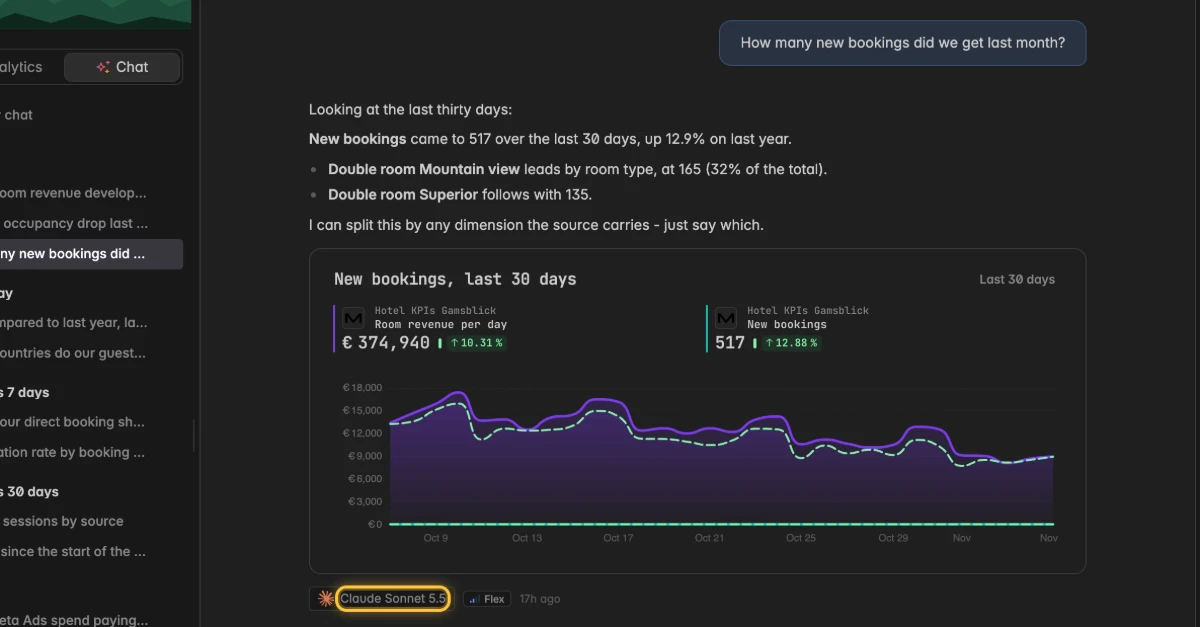
The sidebar lists your chats under Today, Yesterday, Previous 7 days, Previous 30 days and Older. Click New chat to start another one. The switch Analytics and Chat at the top of the sidebar takes you back to your dashboards.
The more specific the question, the better the answer. Name the period, such as last week or July, and the number you care about, such as occupancy, ADR or revenue by channel.
How do I tell Resi which data to use?
By default, Resi picks the Insights that fit your question. Both ways below narrow her down, and you find both directly above the question field.
Option 1: Add sources
Click Add sources. The dialog Sources opens.
Tick the Insights the chat is about. Picked sources stay picked for the whole chat.
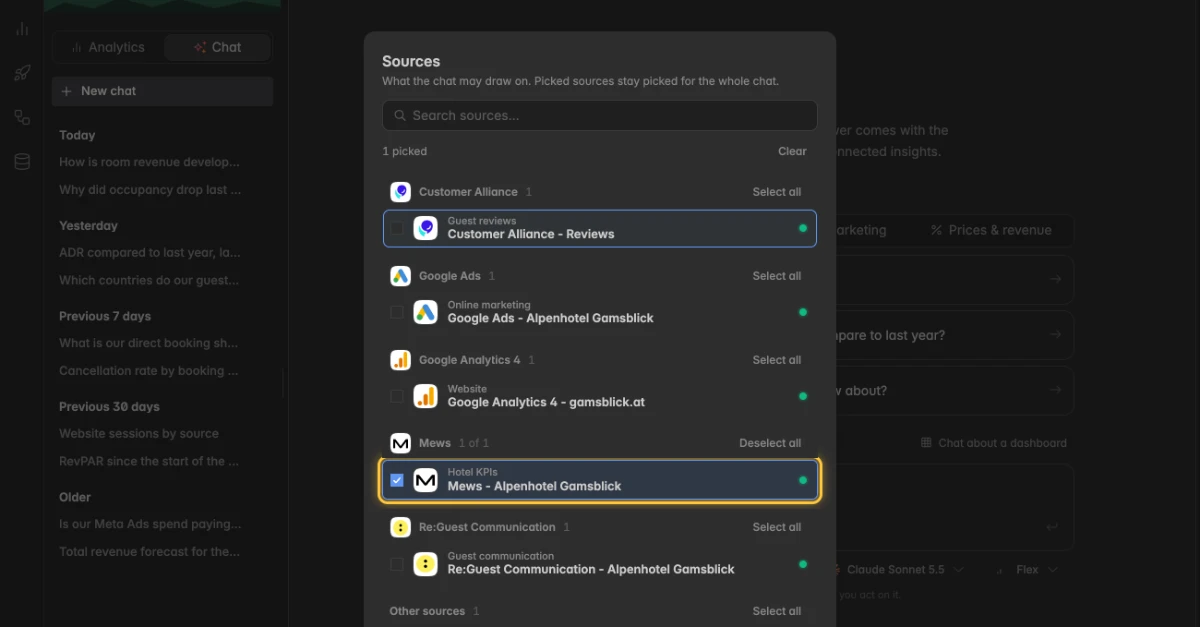
Click Apply.
In a space with a lot of sources, you have to pick before you ask. The page then shows Pick sources before you ask.
Option 2: Chat about a dashboard
Click Chat about a dashboard.
Click the dashboard. The answers then draw on the widgets of that dashboard.
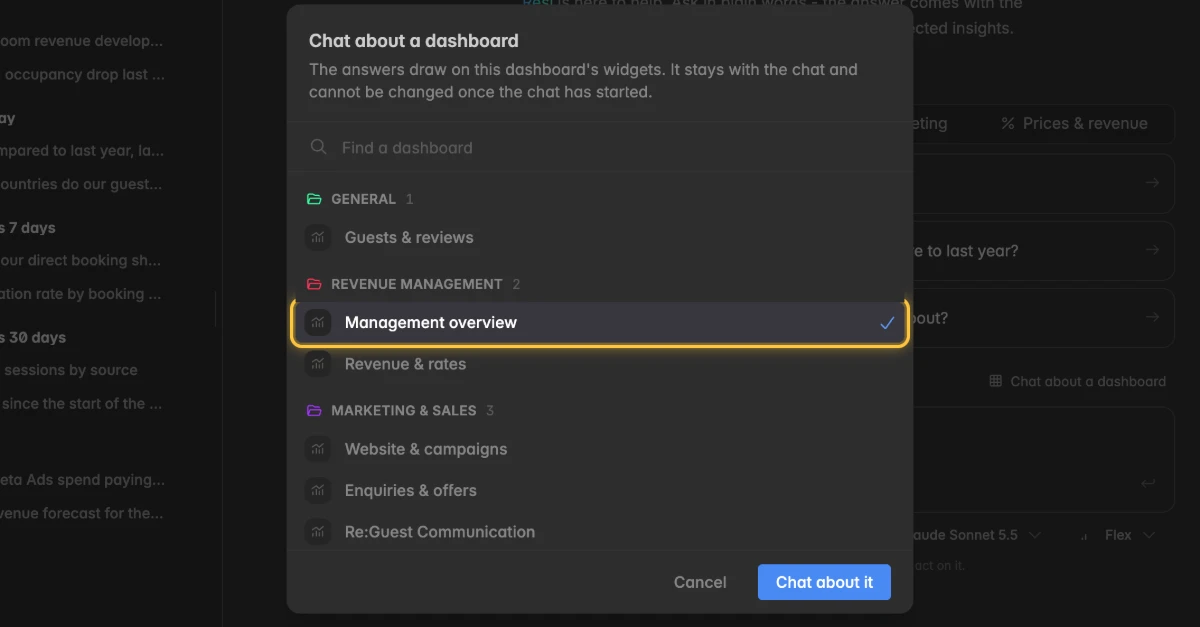
Click Chat about it.
The dashboard stays with the chat and cannot be changed once the chat has started. The chat page shows the dashboard next to the chat. In a narrow window, a switch lets you choose between Chat and Dashboard.
How do I pick the model and the effort?
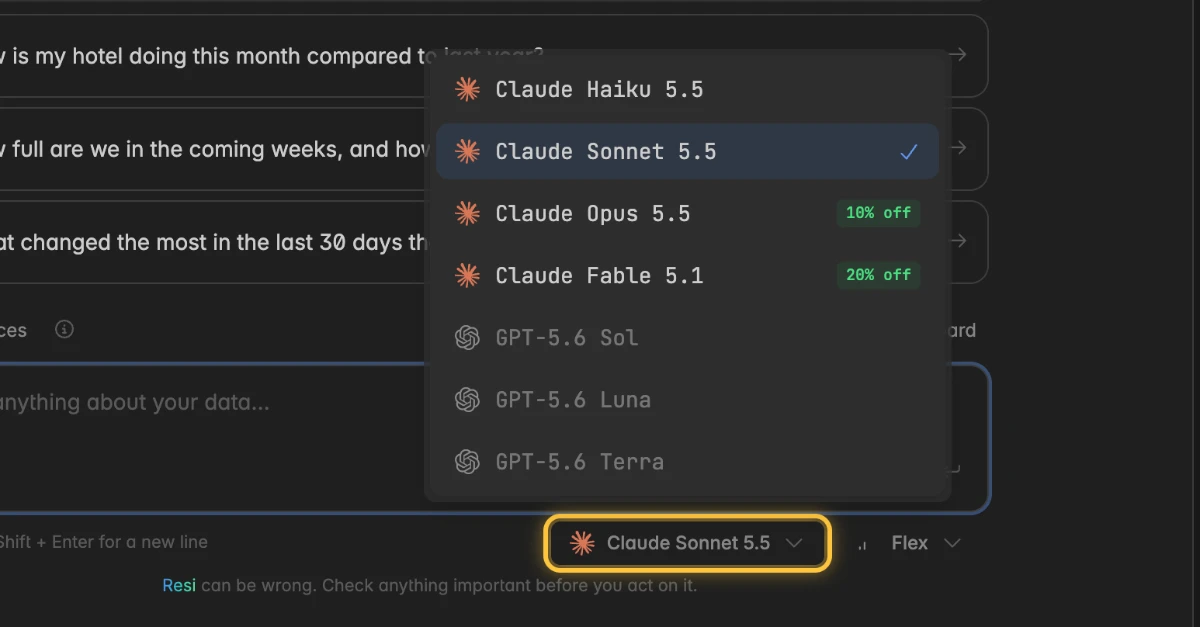
The model and the effort sit below the question field. Models that are not available in your space are greyed out.
Click the model and click another one.
Click the effort and click Mini, Flex, Pro or Max. The effort sets how hard the model thinks about your question.
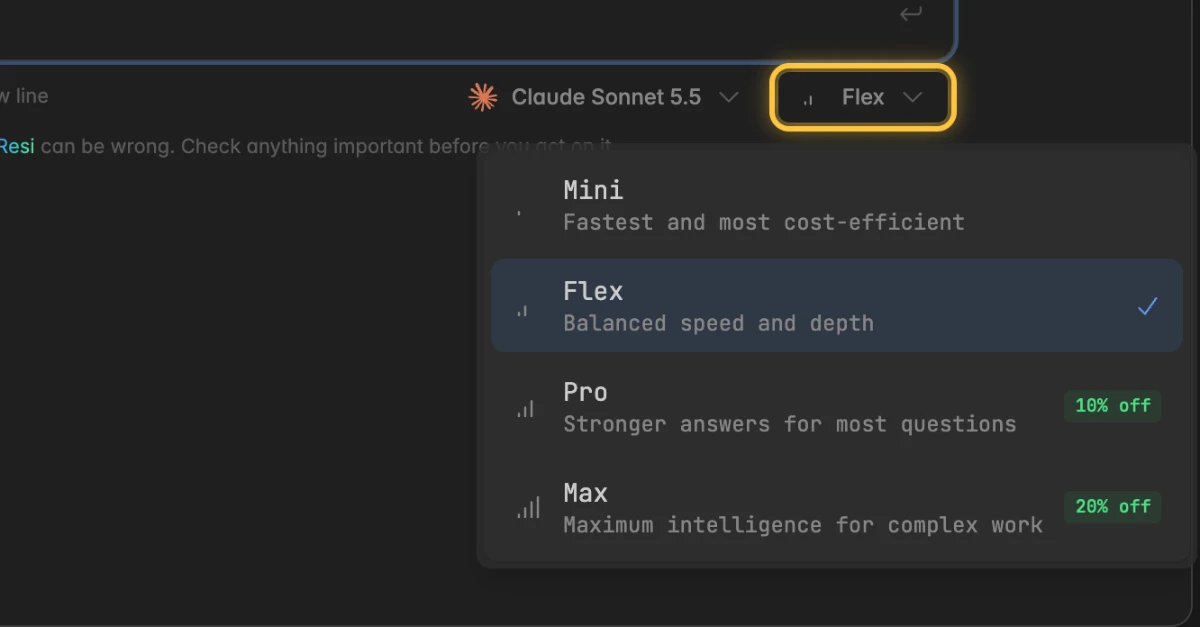
A bigger model or a higher effort gives better answers on hard questions and costs more per call. See AI usage for what your chats cost. An admin sets the default model under Settings → AI agent → Resi.
How do I rename or delete a chat?
You find both actions in the three-dot menu ⋮ of the chat. It appears when you hover over the chat in the sidebar, and it sits at the top right of an open chat. Chats are personal, so nobody else in your space sees them.
A deleted chat and its answers are gone for good.
Click the three-dot menu
⋮of the chat.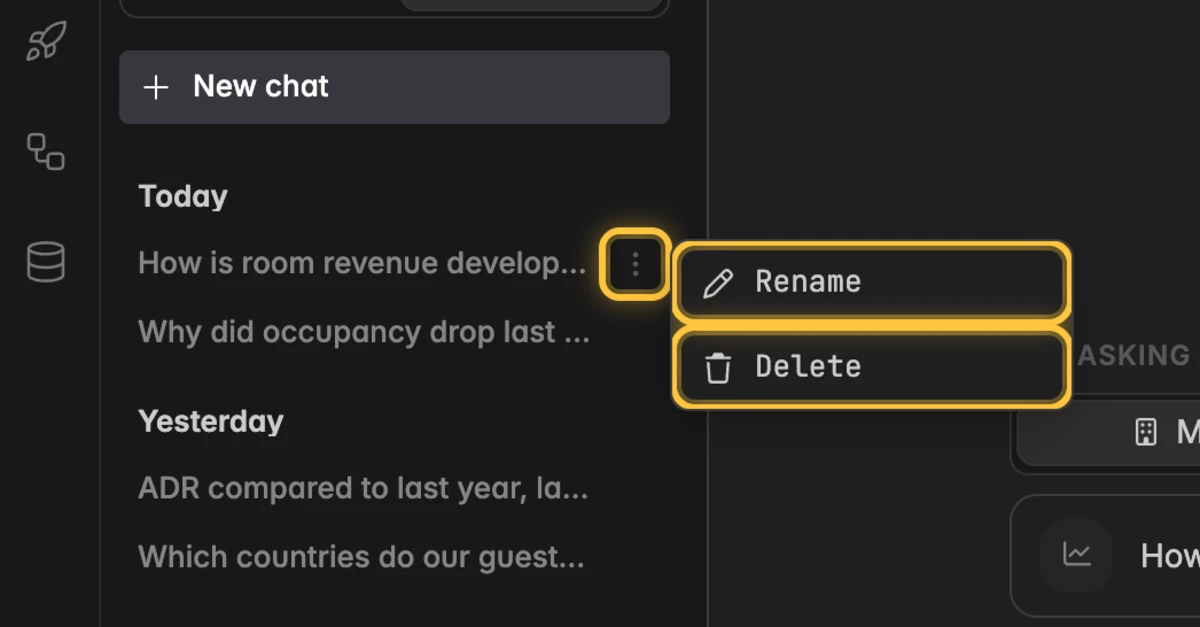
Click Rename and enter a title of your own, or click Delete and confirm.
Resi names a new chat after your first question until you give it a title of your own.
Troubleshooting
Why does the page say Resi can't talk to me yet?
Your role in the space is Reader or Guest, and Resi only chats with users and admins. The page shows Resi can't talk to you - yet, and the suggested questions and the question field are greyed out.
Ask a space admin for the User role. See Team.
Why is my question not sent?
The AI budget is spent for now: Your space has used its budget for this period. Wait for the reset or ask for a higher limit. See AI usage.
This chat is still answering: Wait for the answer, then send the next question.
Over the limit by N characters - shorten your question.: Shorten the question.
Pick sources before you ask: Your space has too many sources to send at once. Click Pick sources and tick the ones your question is about.
Why does Resi answer with the wrong numbers or the wrong source?
Click Add sources and pick the Insight your question is about. Name the period and the metric in your question.
Resi reads a metric as it is defined. If the number is off, check the metric first. See Metrics.
Why can't Resi answer a question about something else in a dashboard chat?
- Resi only sees what the picked sources or the picked dashboard hold. Start a new chat without a dashboard, or add more sources.
Can I use Resi in Claude or ChatGPT?
- No. Claude and ChatGPT connect to your data on their own, through an app or an agent token. See Connect AI assistants to your data.