
Connect Langdock to Indicate
Create an agent token under Settings → Tokens, add a remote MCP integration in Langdock, and give a Langdock agent the integration.
What this lets you do
Once Indicate is connected to Langdock, a Langdock agent can answer questions about your data in everyday language. For example:
"What was our occupancy last week?"
"Which booking channel brought the most revenue in July?"
"How did our campaigns perform last month compared to the month before?"
Langdock reads the answer from your Indicate Insights. You do not need to build a report or know any formulas.
You set this up once, it takes about five minutes and only needs copy and paste. The connection uses an agent token, which is billed as a seat, see Tokens.
Before you start
You have the Admin role in your Indicate space.
You can log in to Langdock with an account that may add integrations. If you are not sure, ask whoever manages your Langdock account.
Have both open in your browser in two tabs: Indicate in one, Langdock in the other.
Is this safe? The connection only lets Langdock read your Insights to answer questions. It changes nothing in Indicate. Treat the agent token like a password: do not share it or send it by email.
How it works
You copy two details from Indicate into Langdock, then create a Langdock agent that uses them:
| In plain words | The name on screen | What it looks like |
|---|---|---|
| The address of your data | MCP Server URL | https://industry.indicate-data.io/mcp |
| The API key | Agent token | a long string, shown once |
Step 1: Create an agent token in Indicate
Click the gear icon at the bottom of the left rail to open Settings, then under Space click Tokens. The tab Agent tokens is open.
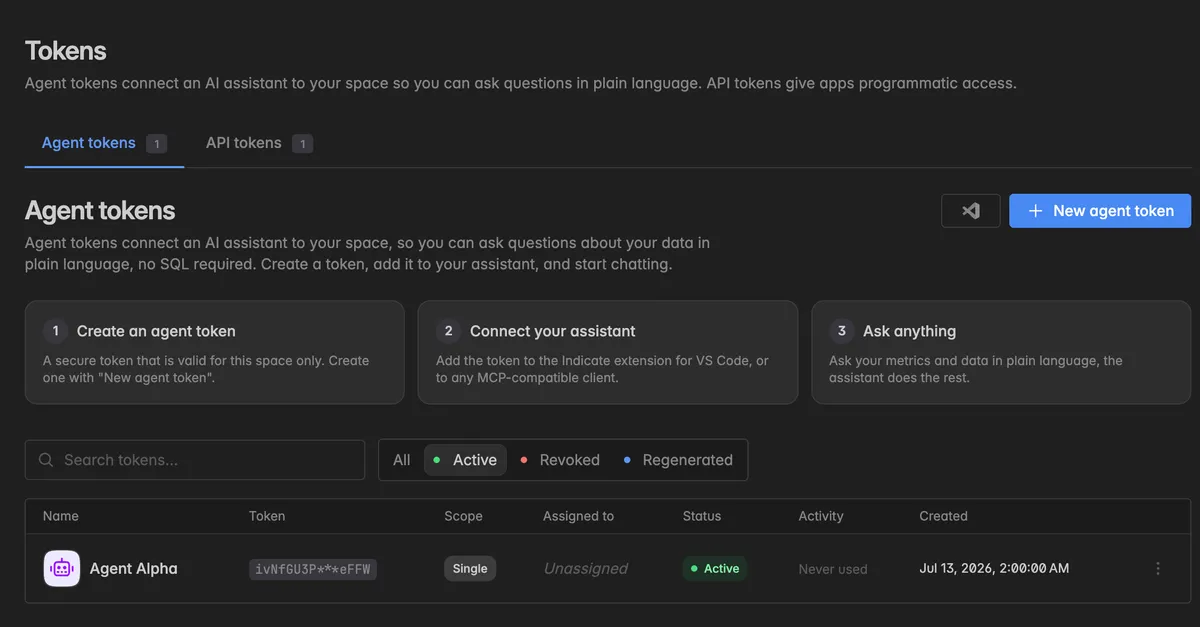
Click New agent token.
Enter a Token name you will recognise later, for example
Langdock.Under Assign to user, pick the member or service account the token belongs to. The token inherits that account's permissions. For a shared team integration, a service account is the better choice, see Service accounts.
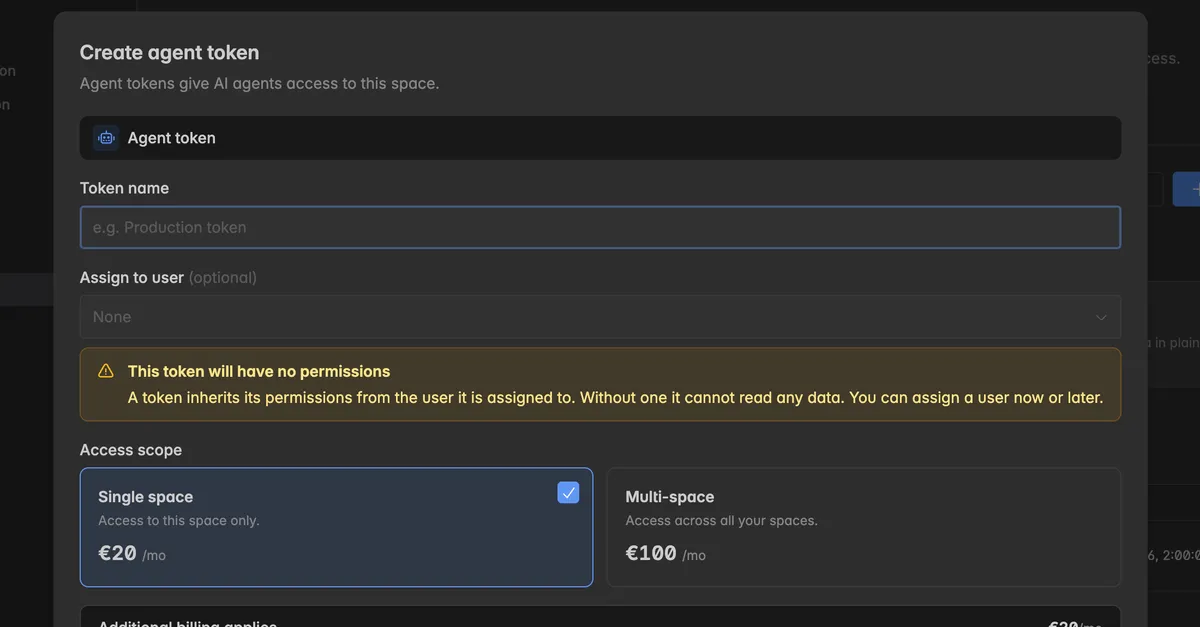
Under Access scope, pick Single space or Multi-space.
Switch on I agree to the additional billing and click Create token.
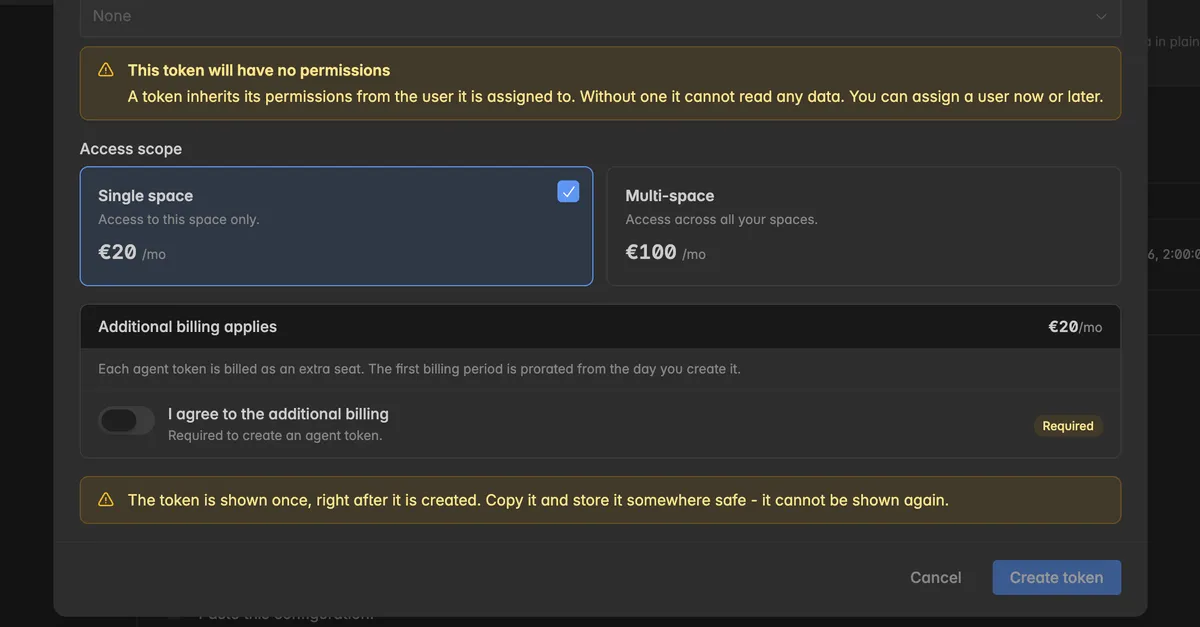
In the dialog Token created, click Copy to clipboard. This is your API key for Langdock.
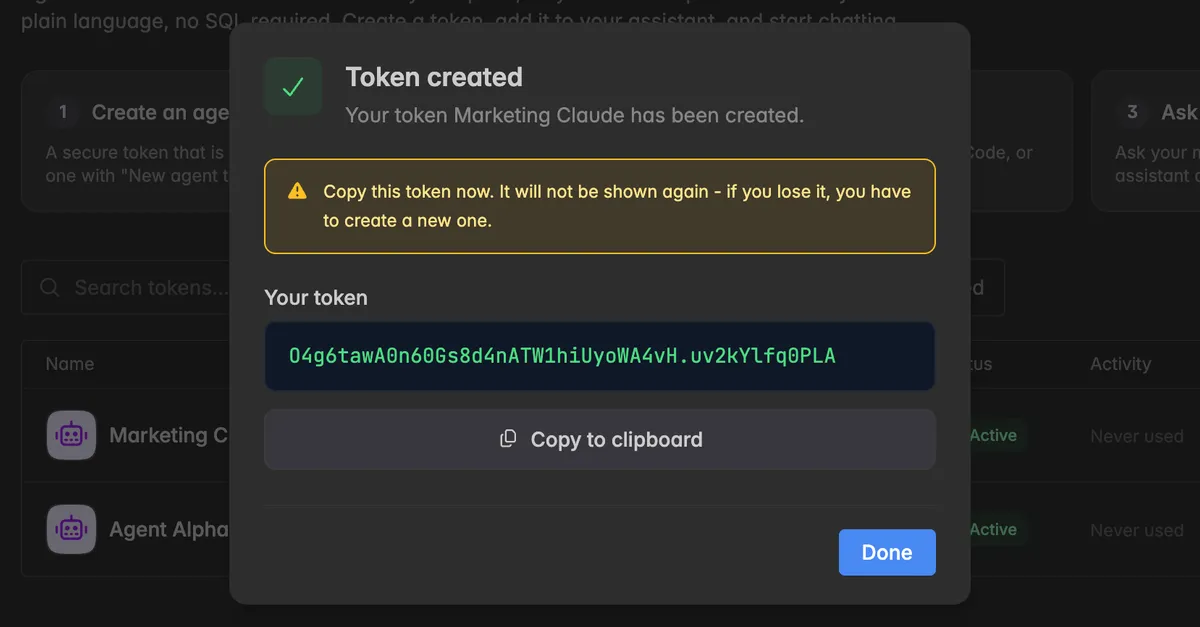
The token is shown only once. If you close the dialog without copying it, click
⋮→ Regenerate on the token to get a new value.
Step 2: Add the integration in Langdock
Switch to your Langdock tab. Langdock is not built by Indicate and can change its menus at any time, so what you see may differ slightly. The Langdock docs have the current details.
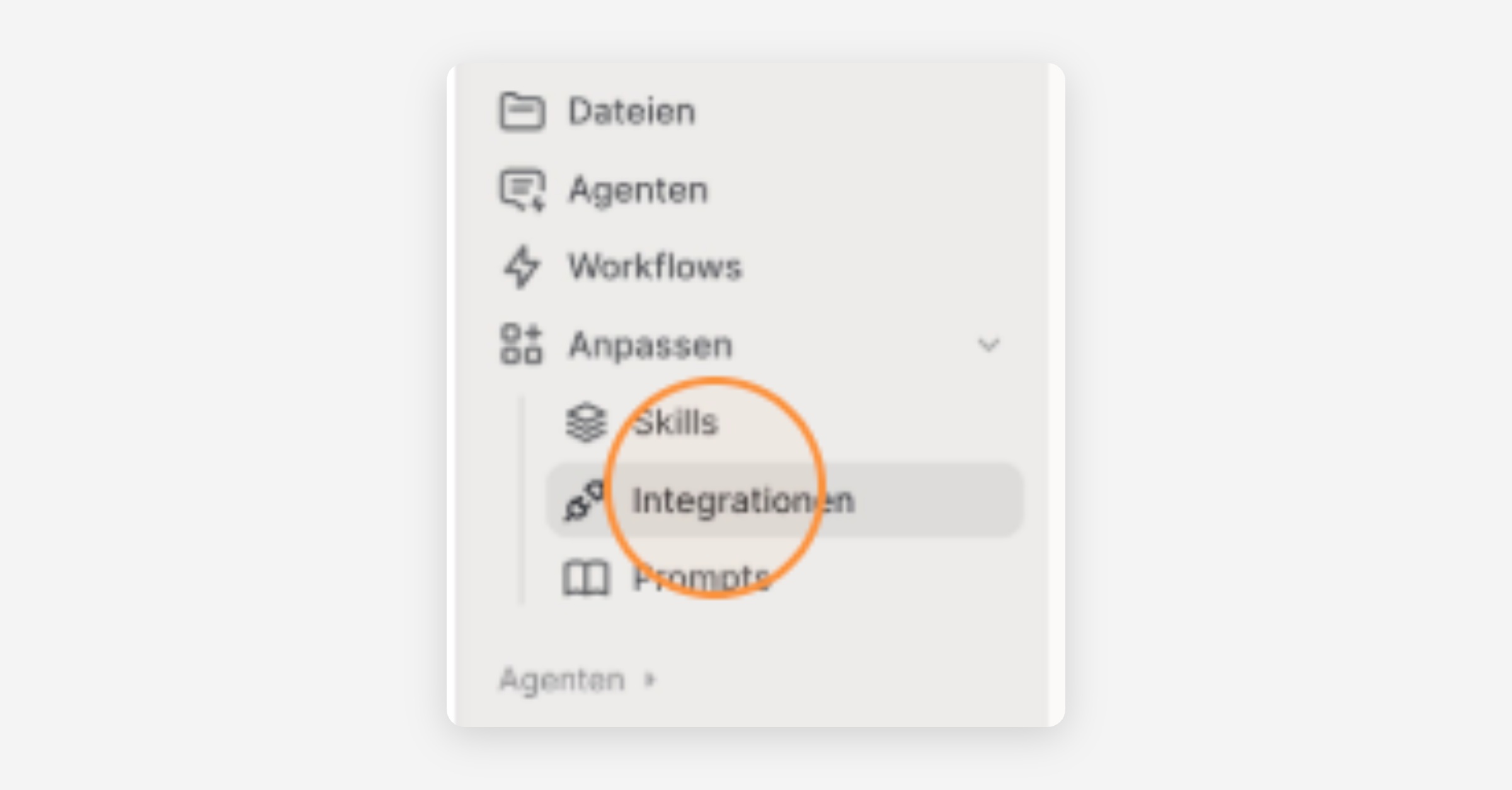
In the left sidebar, open Integrations.
At the top right, click Add integration.
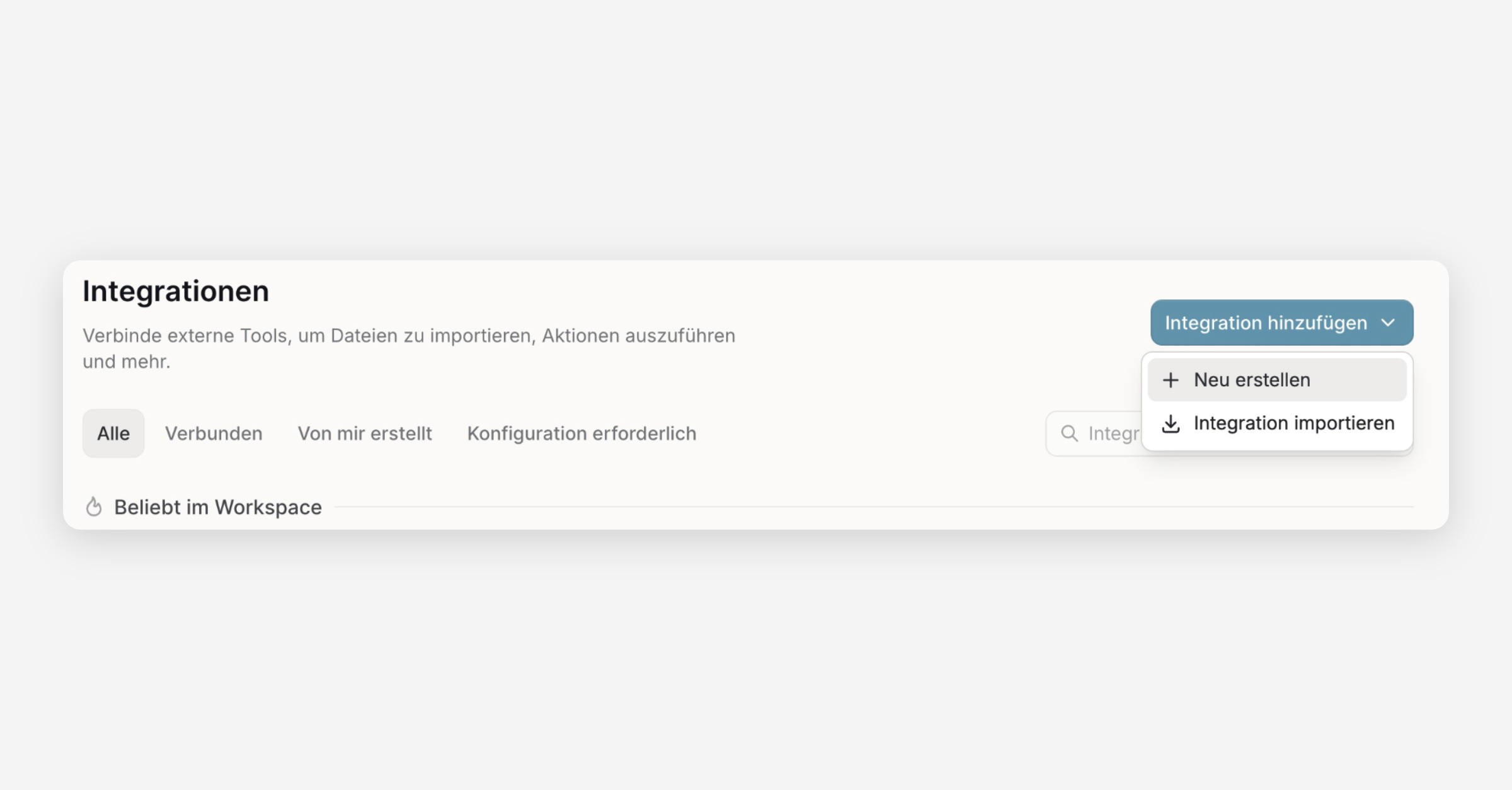
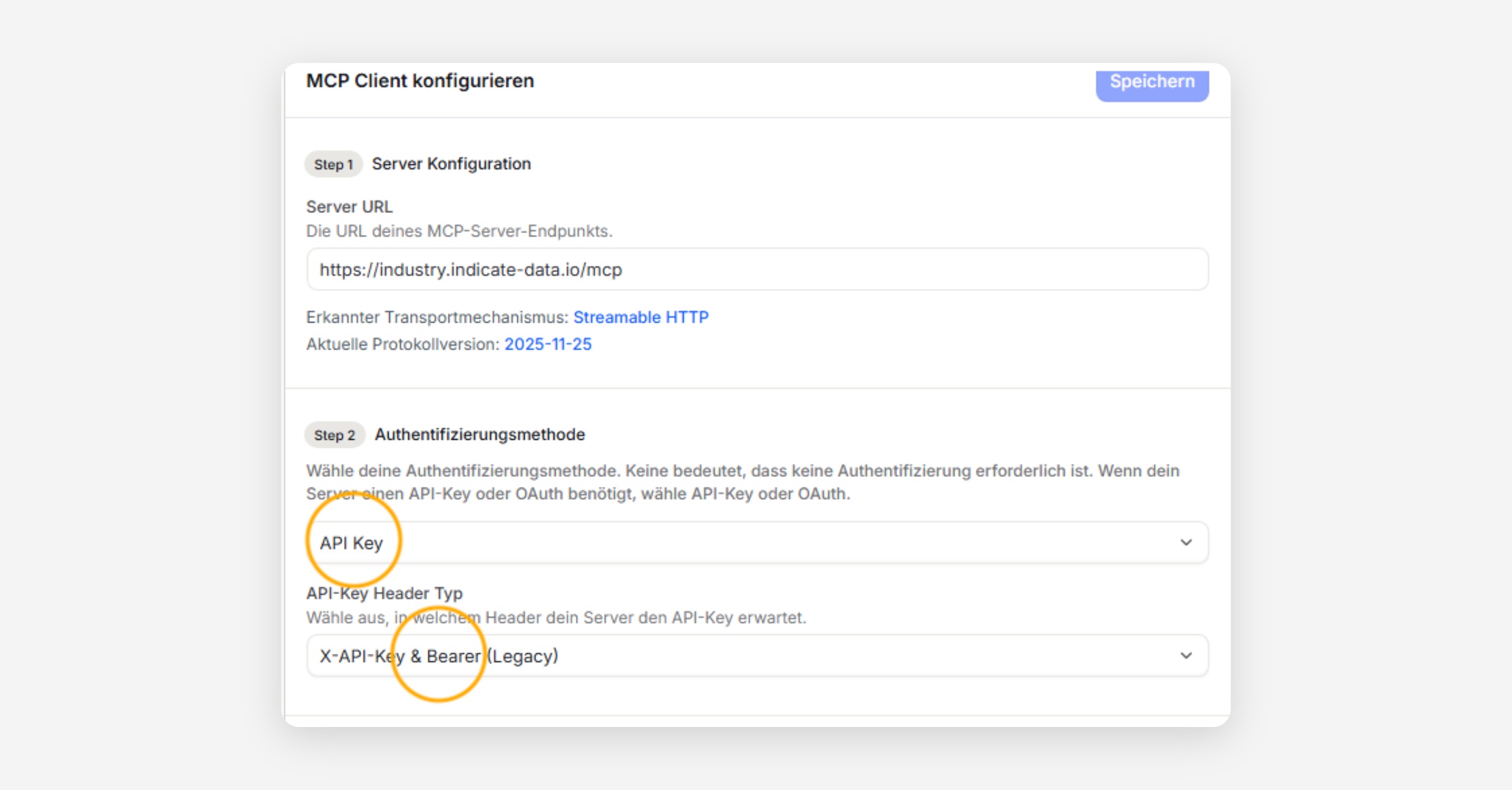
Select Connect remote MCP. Under Server URL, paste
https://industry.indicate-data.io/mcp. Under Authentication method, select API Key.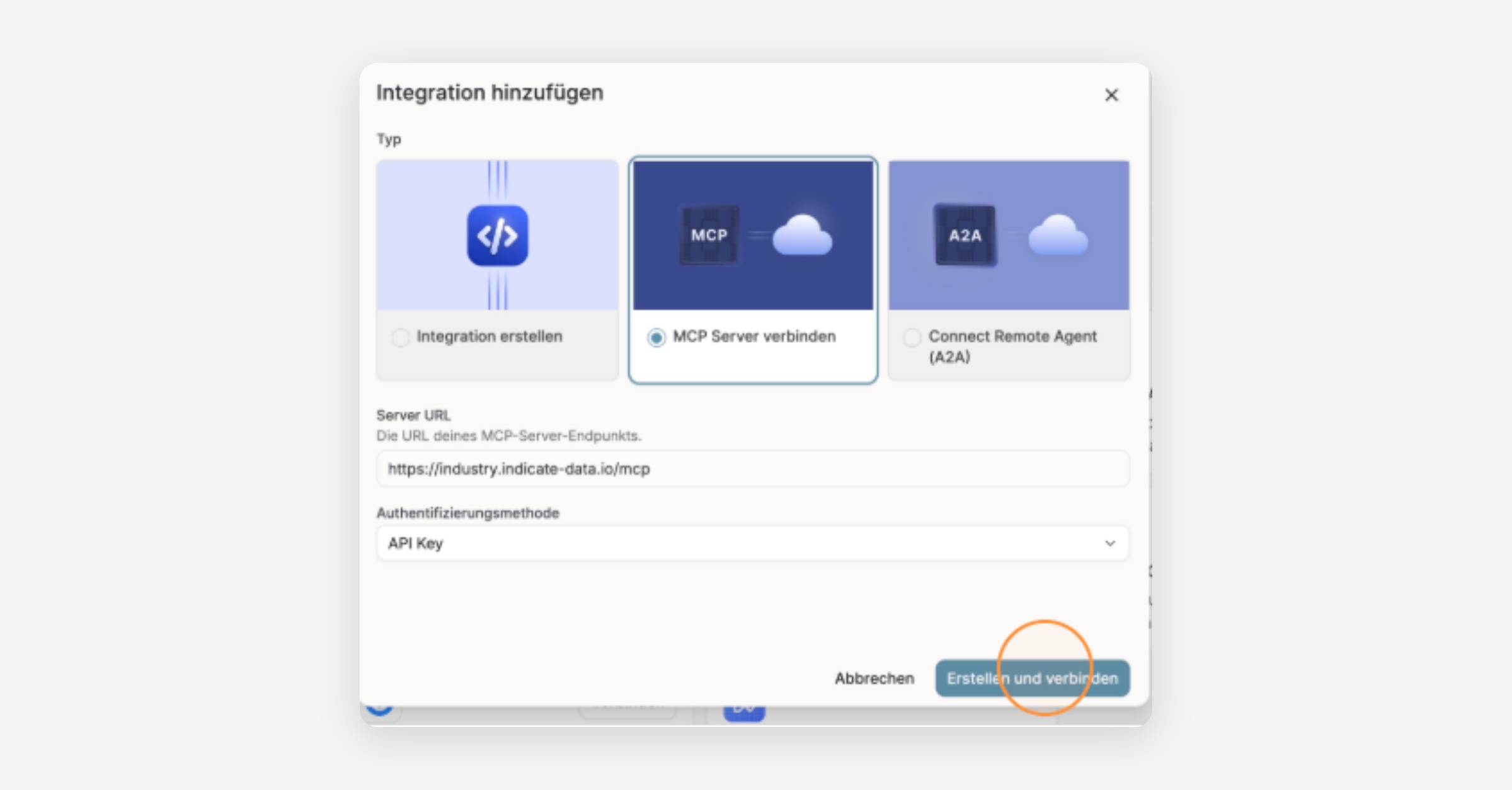
Click Create.
In the dialog Set up your New Integration connection, enter a Name, for example
Indicate, and paste the agent token under API Key. Click Save.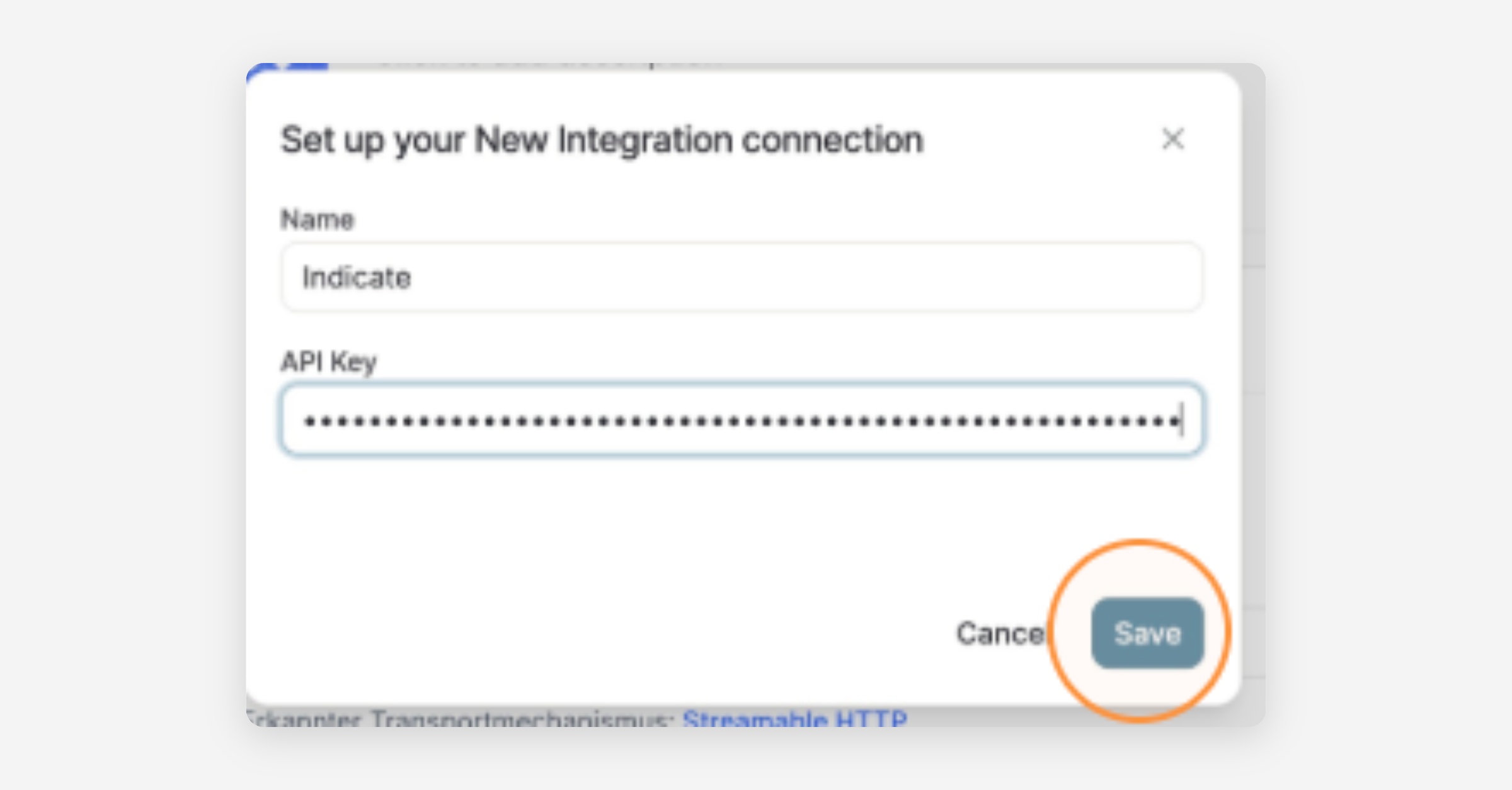
If Langdock did not pick it on its own, set the authentication method to API Key with X-API-KEY & Bearer (Legacy).
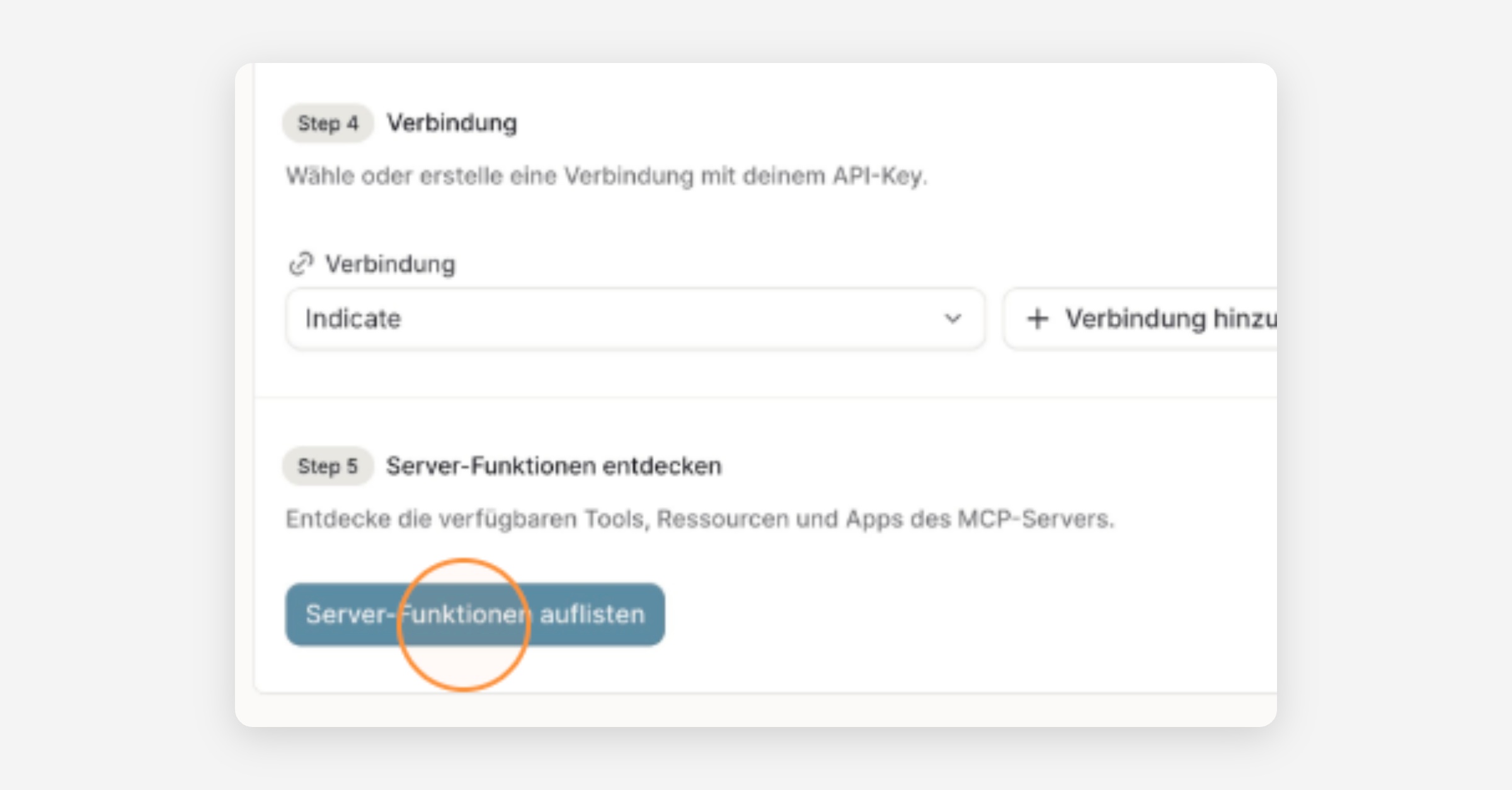
Click List Server Features. Langdock loads the actions and resources Indicate offers.
Under available actions and under MCP resources, tick Choose all. The integration is now named Indicate Metric Explorer.
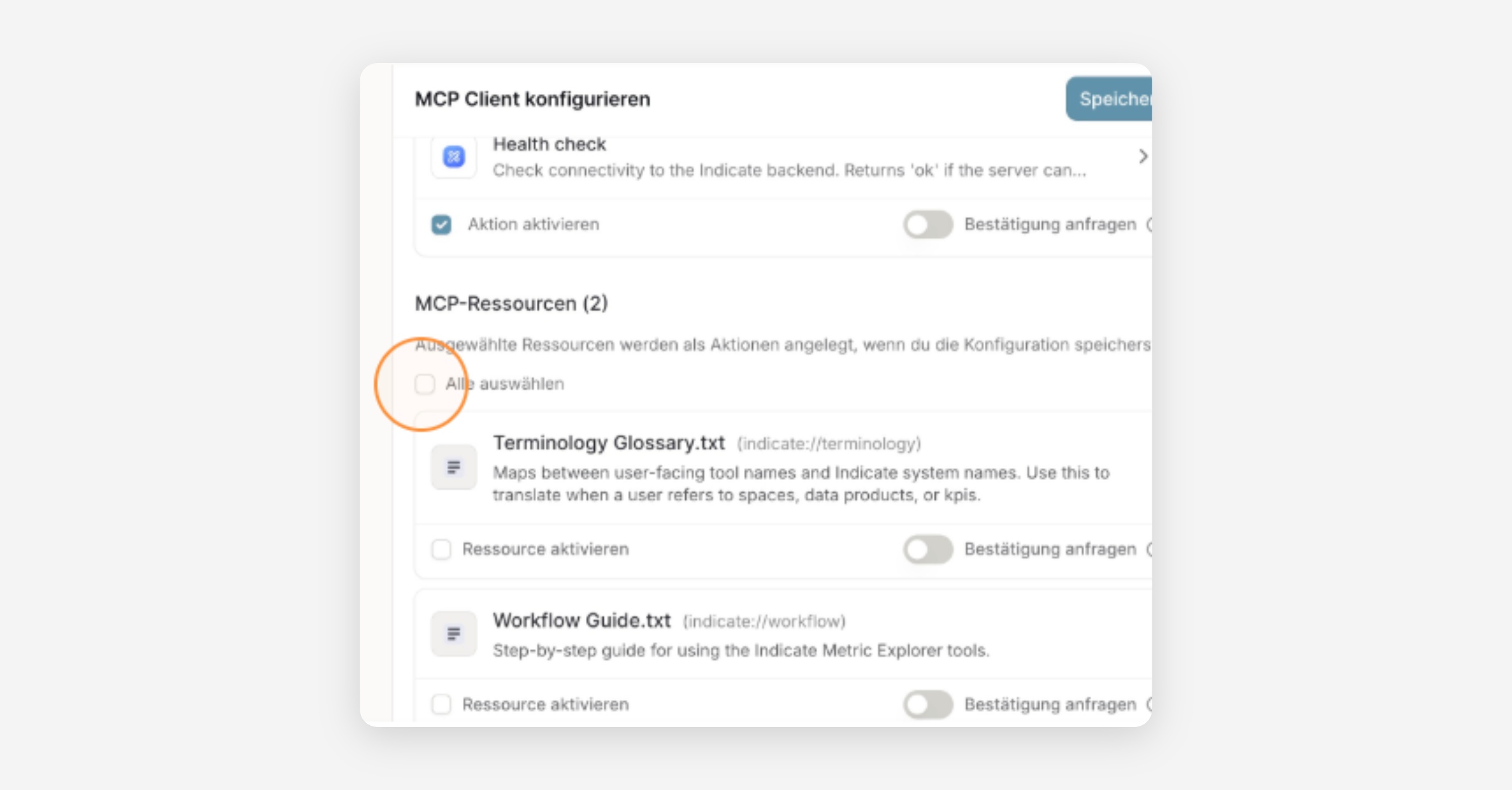
Click Save at the top right. The MCP server is now available in agents, chats, and workflows.
Step 3: Give a Langdock agent the integration
In the left sidebar, click Agents, then Create agent.
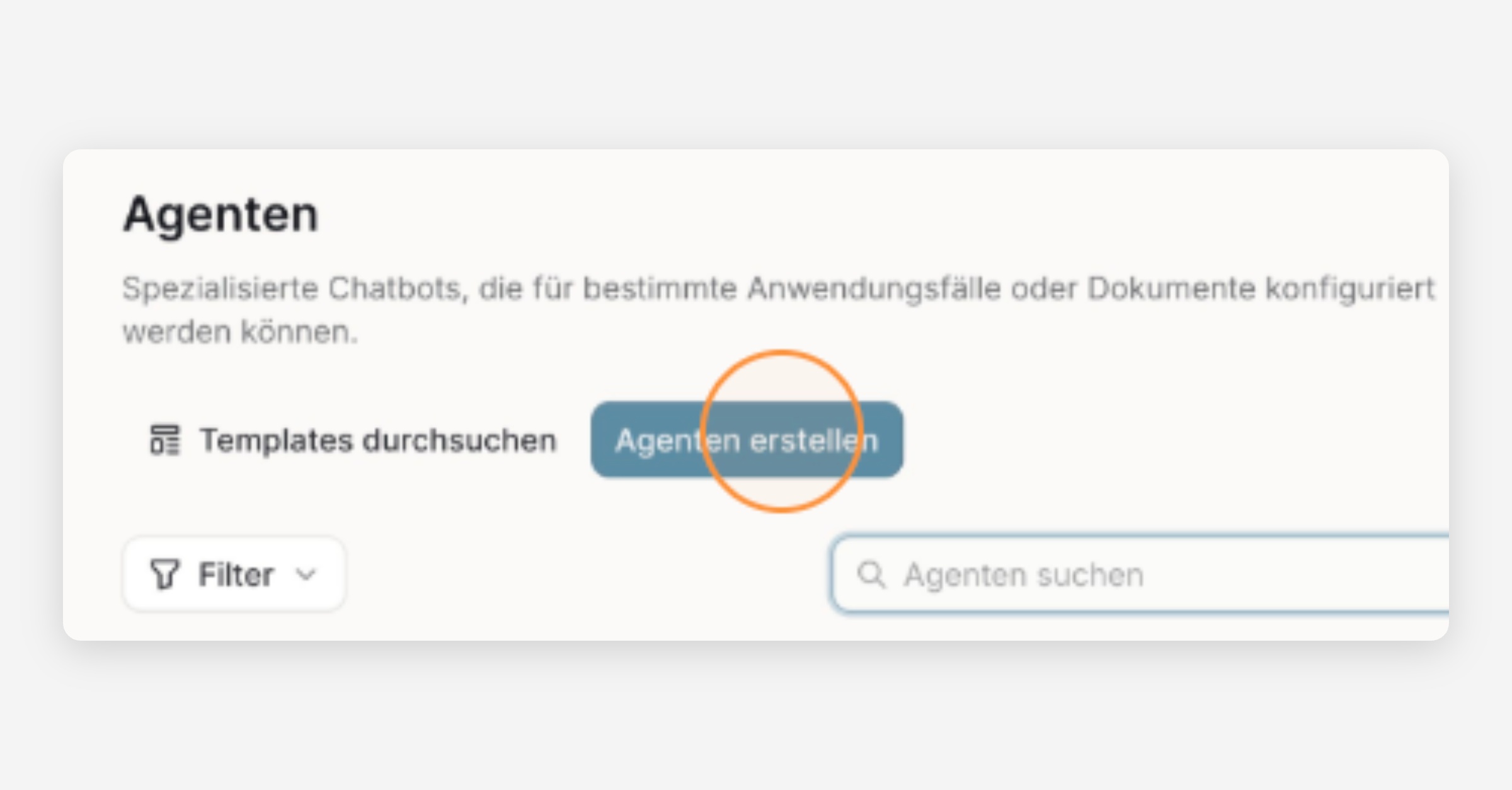
Click Go to editor to open the configuration directly.
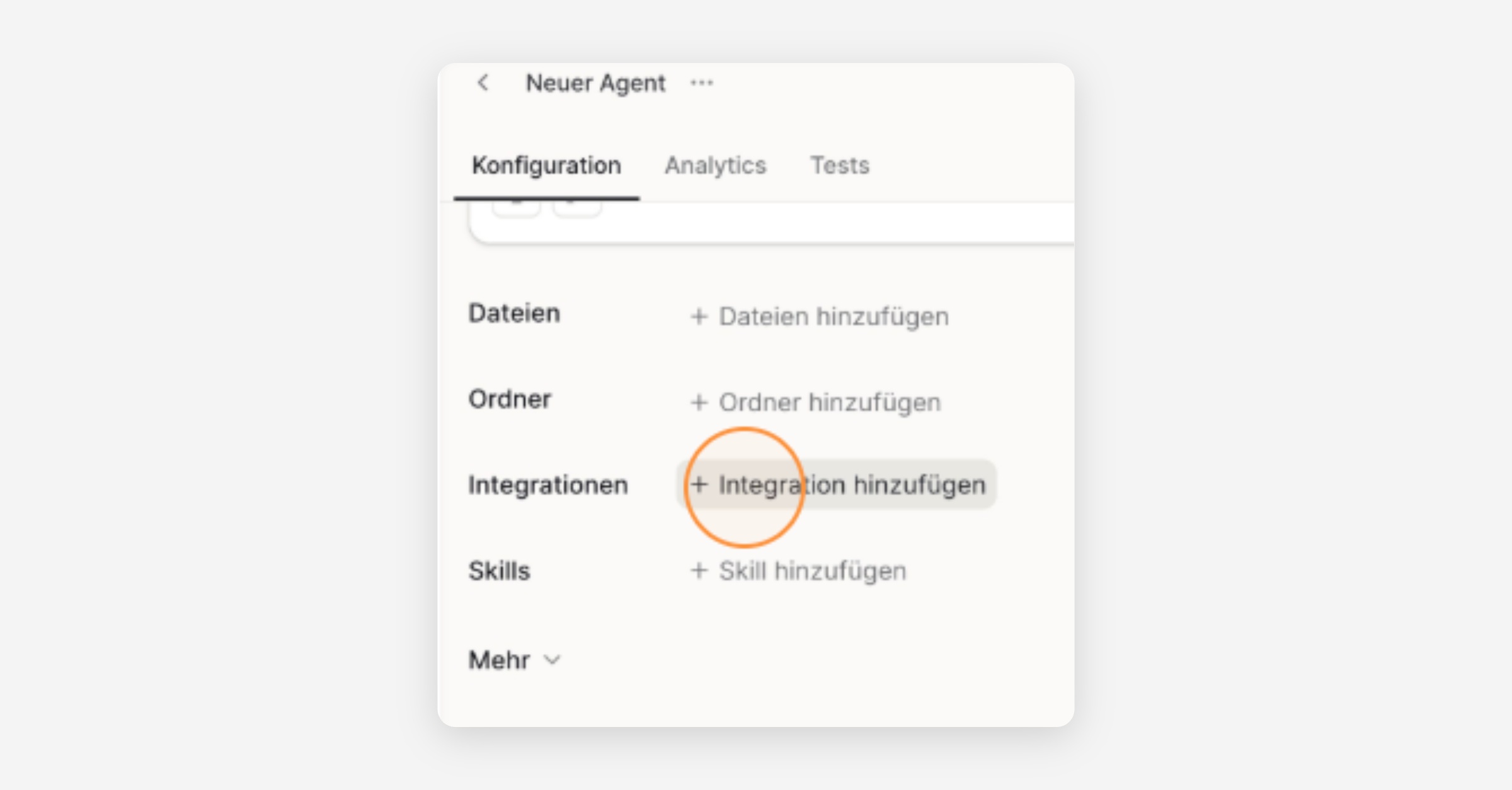
Next to Integrations, click Add integration and select Indicate Metric Explorer.
Give the agent a clear name, click Create, then Use Agent.
Ask the agent "Which Indicate space do you have access to?" It answers with the name of your space. The connection works.
Now ask a real question, for example "How many bookings did we get last month?"
Pin the agent for quick access, see pinning an agent in the Langdock docs. The more specific the question, the better the answer. Name the period and the number you care about.
Q&A
Can I connect Langdock to more than one space?
- Yes. Create the token with Multi-space access, then one integration reaches every space the assigned account belongs to. Or create one token and one integration per space, with different names.
Does this cost extra?
- Yes. Every agent token is billed as a seat. The prices are on the pricing page.
I closed the dialog and lost the token.
- Open
Settings→Tokens, click⋮on the token, and select Regenerate. Paste the new value into the Langdock integration. The old value stops working immediately.
Where do I find the MCP Server URL again?
- It is
https://industry.indicate-data.io/mcp, shown in every configuration on the Tokens page and with a Copy button on the Apps page.
How do I disconnect Langdock?
- Delete the integration in Langdock, or revoke the token in Indicate with
⋮→ Revoke on the Tokens page. The seat stays charged until the end of the current billing period.
Will Langdock change anything in my data?
- No. The connection reads Insights and answers questions.
Listing the server features shows nothing or an error.
- Check the Server URL. It must end in
/mcpand carry no space at the start or the end. Then check that the whole token was pasted.
The agent says it has no access to any space.
- The token is Unassigned, or the assigned account has no access to the space or only the Guest role. Open
⋮→ Edit on the token and pick the right account under Assigned user.
Was this helpful?