
What is the Team page?
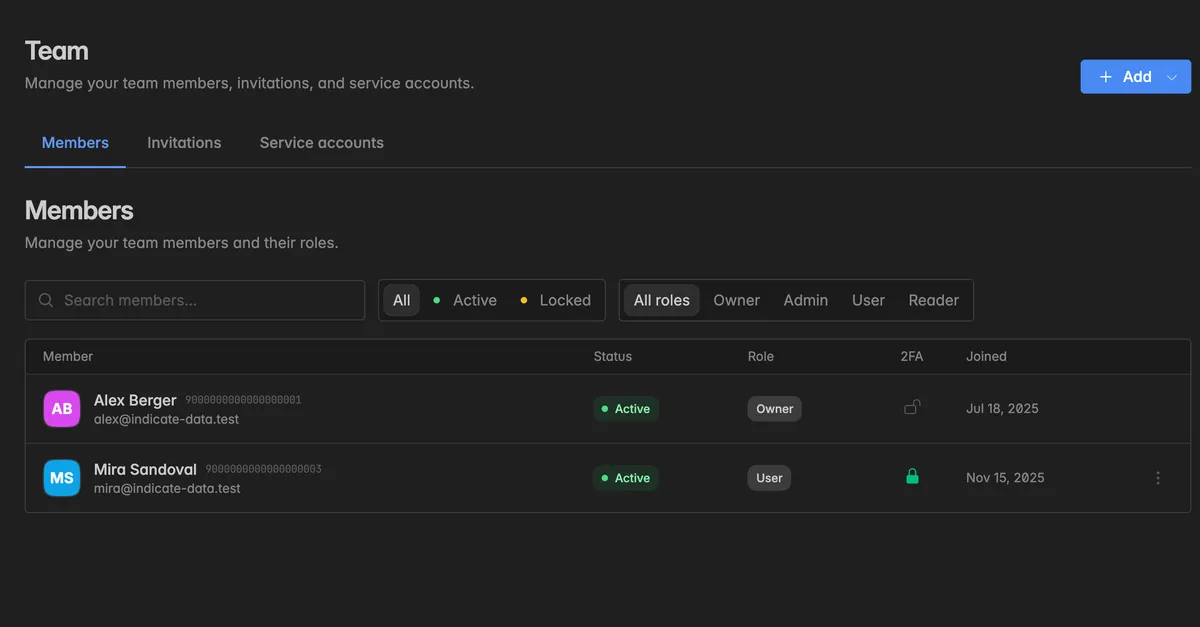
The Team page is where you manage everyone and everything that can open your space: The people, the invitations you have sent them, and the service accounts your integrations use. It lives under Settings → Team and has three tabs:
Members: The people in your space, with their role, status, and whether they use two-factor authentication.
Invitations: Pending and past invitations. See Invite a team member.
Service accounts: Virtual identities for integrations, bots, and automated jobs. See Service accounts.
The Add button at the top right opens both ways in: Invite members and Create service account.
Members and service accounts
Indicate knows two kinds of account. The kind says what it is, the role says what it may do.
Member: A real person who signs in through the web app. Members live on the Members tab.
Service account: A virtual identity for an integration. It has no login and no password. It exists so that a token can be paired with it, and so that an integration keeps working when people join or leave. Service accounts live on the Service accounts tab and are part of the Pro plan.
Both kinds can be paired with tokens: Agent tokens for AI assistants and API tokens for programs. See Tokens.
Roles
Every account has one role in the space. The role decides what it can see and change.
Role | What it can do | |
|---|---|---|
Guest | Open dashboards and widgets that are shared with them. Nothing else. | |
Reader | View projects, dashboards, and connections, and read AI summaries. Cannot create or edit anything and cannot use Resi, your AI agent. | |
User | Build and edit projects, dashboards, and widgets. Chat with Resi, your AI agent, and let her build and change dashboards and widgets. Can see the Team, Tokens, and Apps pages but not change them. | |
Admin | Everything a User can do, plus adding, resetting, and deleting connections, space settings, members, invitations, service accounts, tokens, and apps. | |
Owner | Everything. The Owner created the space. The role cannot be given to someone else in the app. (Not longer supported). |
The page Settings → Roles and permissions shows the same inside the app: One table of what a Reader, a User, and an Admin can do, with your own role marked You. Every role can open it. See Roles and permissions.
A member with the badge Indicate is a member of the Indicate team helping in your space. See Support.
Note: Space roles are separate from the roles in the organization that owns the space. Organization membership by itself grants no space access, and a space admin is not automatically an organization member. An organization admin can put organization members into this space from the organization's
Memberspage, without an invitation. Those members appear here like everyone else. See Organization and Organization space access.
Note: The roles you can give when inviting are Guest, Reader, User, and Admin. A service account can be Reader, User, or Admin.
What does the Members tab show?
Each row shows:
Member: Name, user ID, and email. Click the ID to copy it, for example for a support request.
Status: Active or Locked. A locked member cannot sign in to the space until an admin sets the status back to Active.
Role: See the table above.
2FA: A green lock when the member has two-factor authentication enabled, an open lock when not.
Joined: The date the member joined.
Use the search box and the Status and Role filters to find someone in a long list.
How do I change a member's role or status?
Only Admins and the Owner can edit members. You cannot edit yourself.
On the Members tab, hover over the member and click the
⋮icon at the right end of the row.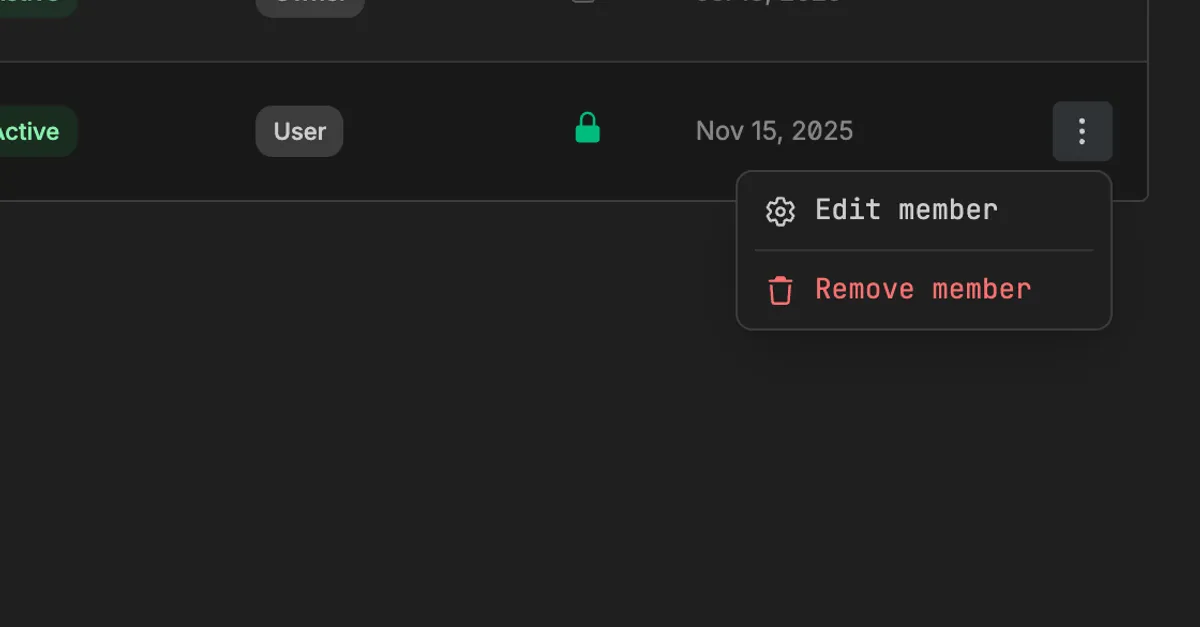
Click Edit member.
Pick a new Role or a new Status, then click Save changes.
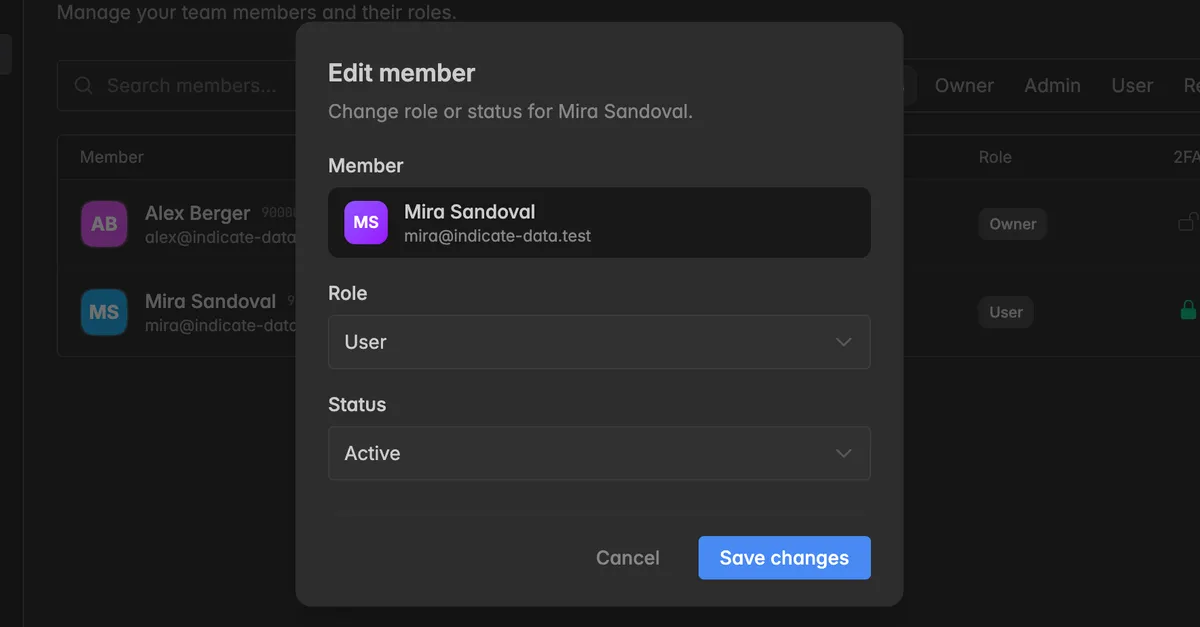
The change applies immediately and is recorded in the audit log under Users.
To take someone out of the space, see Remove a team member.
Troubleshooting
I do not see the ⋮ icon next to a member
Editing members needs the Admin role. Users see the list but cannot change it. For Readers the
Teampage is locked with the hint User role or higher.The row is your own account. You cannot change your own role or status.
A member cannot sign in
Check the Status column. A Locked member is blocked. Click
⋮→ Edit member and set the status to Active.The space requires two-factor authentication and the member has not set it up. They see a setup page when they open the space. See Security policies.
The Service accounts tab asks me to upgrade
Service accounts are part of the Pro plan. Members and invitations work on every plan.
A colleague says they were invited but they are not in the list
They have not accepted yet. Open the Invitations tab, the invitation is under Pending. See Invite a team member.