
Connect ChatGPT to Indicate
Create a ChatGPT app under Settings → Apps, add the connector in ChatGPT with the client ID and secret, and allow the connection.
What this lets you do
Once ChatGPT is connected to Indicate, you can ask about your data in everyday language and get an answer straight away. For example:
"What was our occupancy last week?"
"Which booking channel brought the most revenue in July?"
"How does this month's ADR compare to last month?"
ChatGPT reads the answer from your Indicate Insights. You do not need to build a report or know any formulas. Every colleague who connects signs in with their own Indicate account and sees what that account may see.
You set this up once, it takes about five minutes and only needs copy and paste. Every user who connects through the app is billed as a seat, see Apps.
Before you start
You have the Admin role in your Indicate space.
You can log in to ChatGPT with an account that may add connectors. If you are not sure, ask whoever manages your ChatGPT account.
Have both open in your browser in two tabs: Indicate in one, ChatGPT in the other.
Is this safe? The connection only lets ChatGPT read your Insights to answer questions. It changes nothing in Indicate. Treat the client secret like a password: do not share it or send it by email.
How it works
You copy four details from Indicate into ChatGPT:
| In plain words | The name on screen | What it looks like |
|---|---|---|
| The address of your data | MCP Server URL | https://industry.indicate-data.io/mcp |
| The connection ID | Client ID | starts with ind_ |
| The secret key | Client secret | starts with sec_, shown once |
| The sign-in addresses | OAuth 2.0 endpoints and Scope | listed under the same section |
Step 1: Create the app in Indicate
Click the gear icon at the bottom of the left rail to open Settings, then under Space click Apps.
Click Add app. The dialog Add a preset agent opens.
Under App, pick ChatGPT.
Enter a Display name you will recognise later, for example
My Hotel ChatGPT. Your team sees it on the sign-in screen.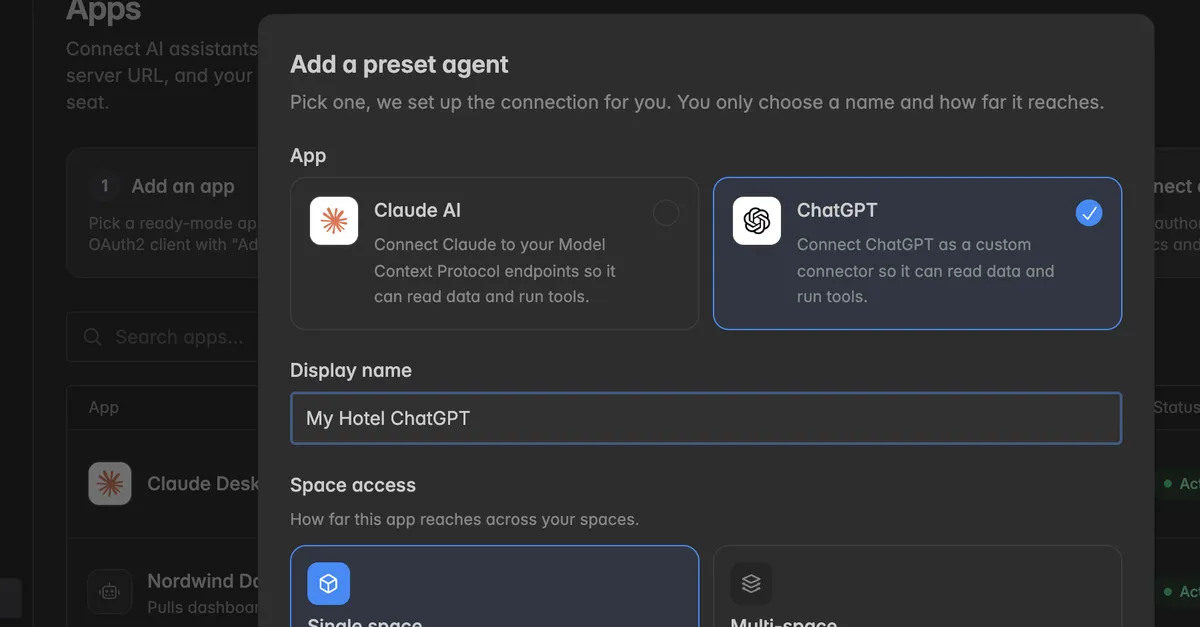
Under Space access, pick Single space for this space only, or Multi-space for every space the connecting user belongs to.
Read Per-user billing applies and switch on I acknowledge that each connecting user is billed.
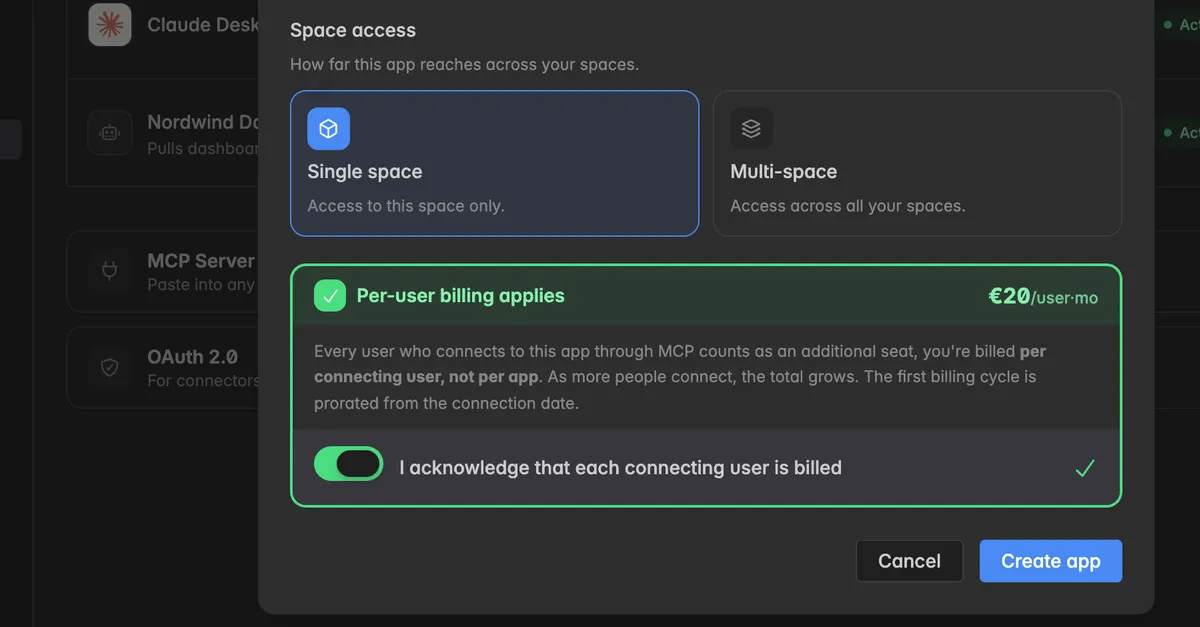
Click Create app.
The dialog App created shows the Client ID and the Client secret. Click Copy secret and keep it somewhere safe for a moment.
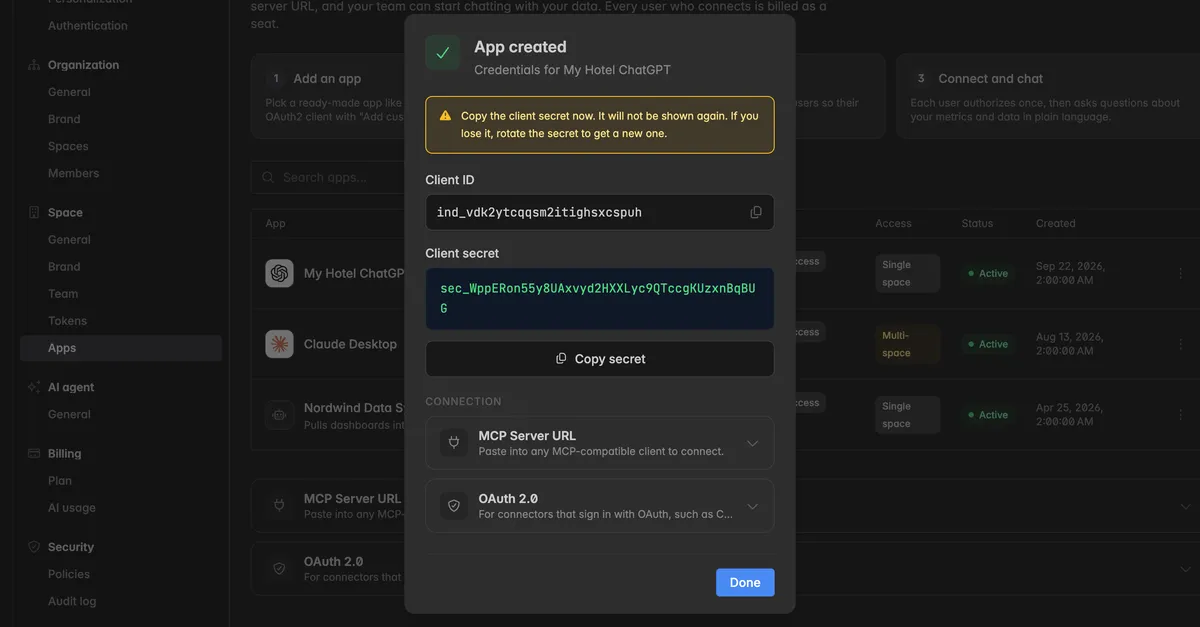
In the same dialog, expand MCP Server URL and OAuth 2.0. They hold the address of your data and the sign-in addresses, each with a Copy button.
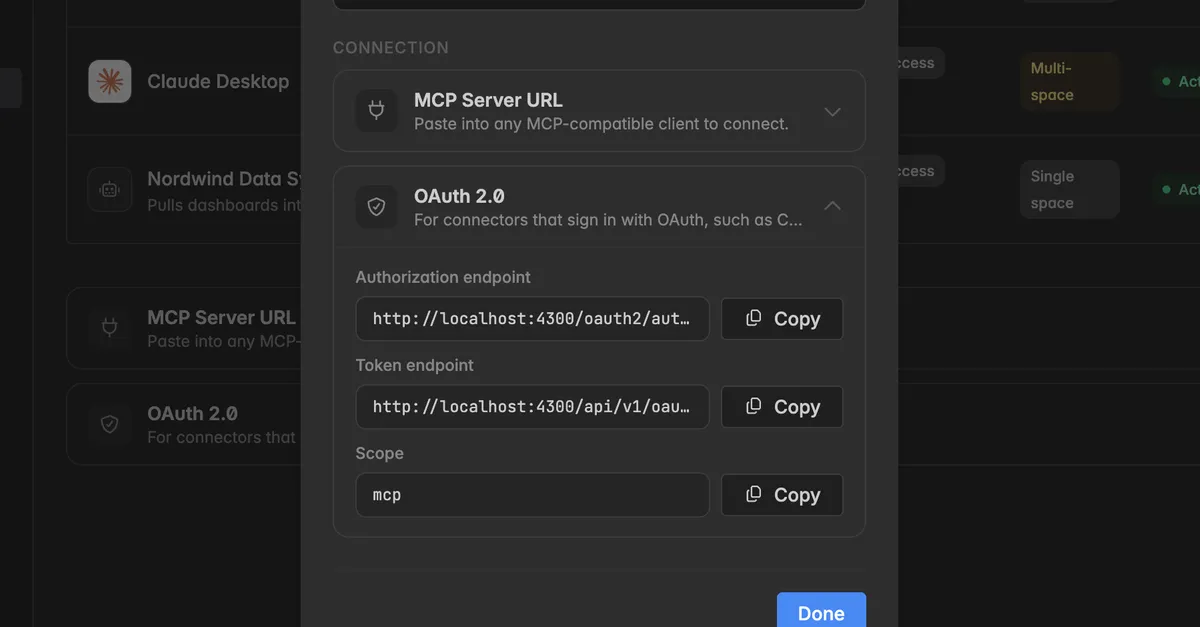
The client secret is shown only once. If you close the dialog without copying it, open the app's
⋮menu on the Apps page and click Rotate secret to get a new one.
Leave this tab open. You will copy from it in the next step.
Step 2: Add the connector in ChatGPT
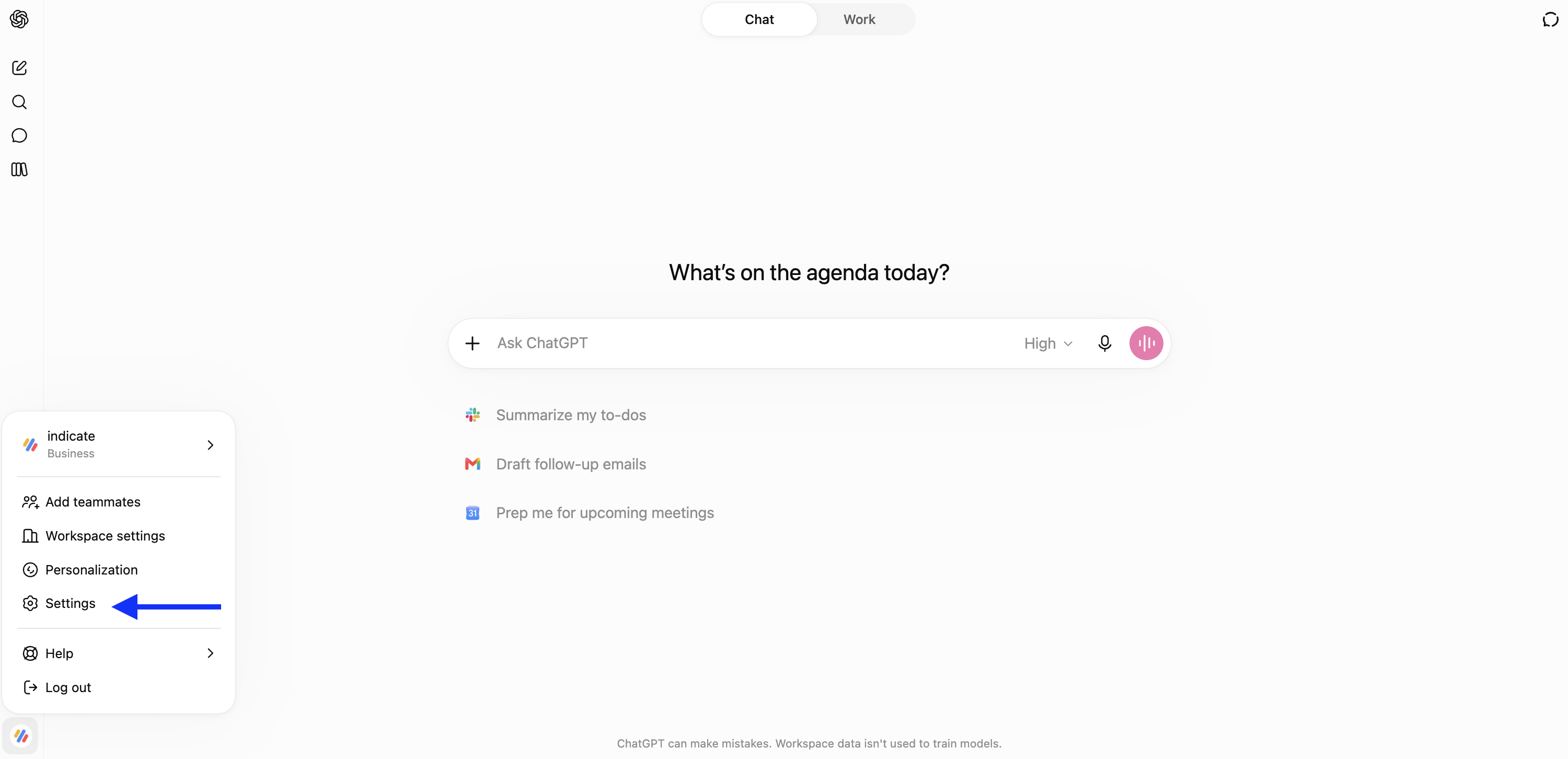
Switch to your ChatGPT tab. ChatGPT changes its menus from time to time, so the names may differ slightly from the ones below.
Open your ChatGPT workspace settings.
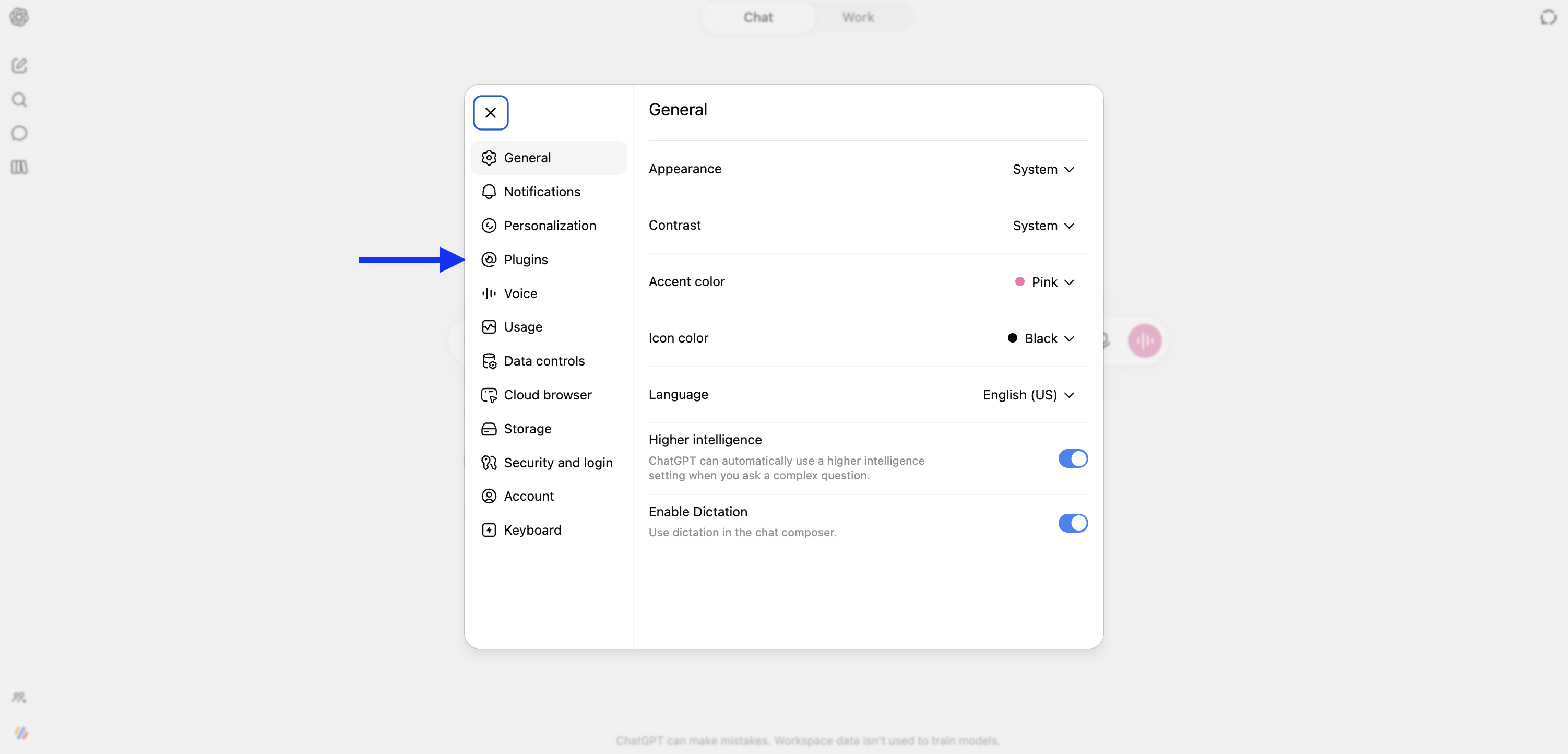
Open the section for connectors or plugins and choose to create a new one.
Fill in the form:
Name: for example
Indicate.MCP server URL: paste the MCP Server URL from Indicate,
https://industry.indicate-data.io/mcp.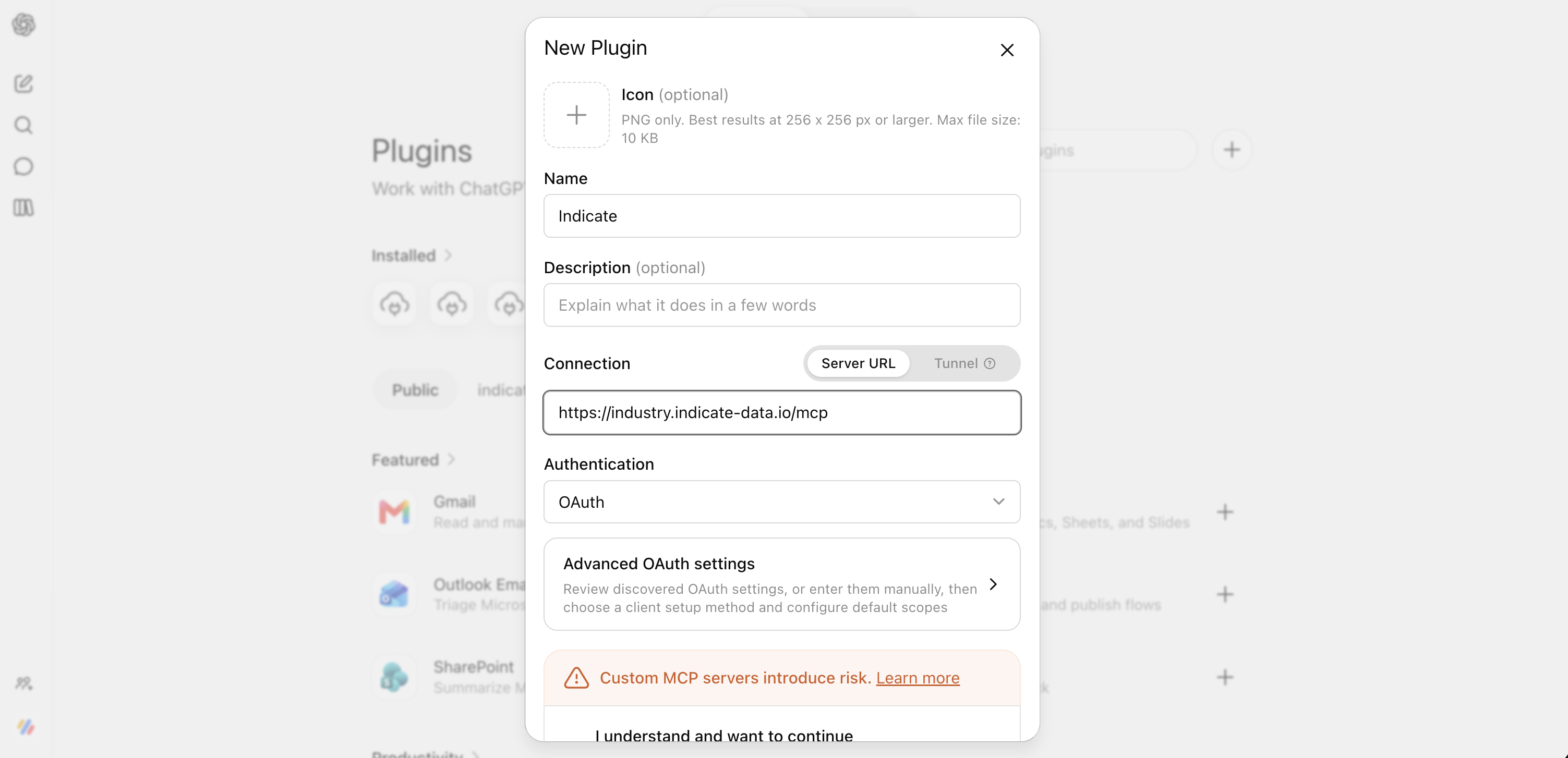
Authentication: choose OAuth.
Open the advanced OAuth settings:
Registration method: Custom OAuth client.
OAuth client ID: paste the Client ID from Indicate.
OAuth client secret: paste the Client secret from Indicate.
If ChatGPT asks for them, paste the Authorization endpoint, the Token endpoint, and the Scope
mcpfrom the OAuth 2.0 section in Indicate.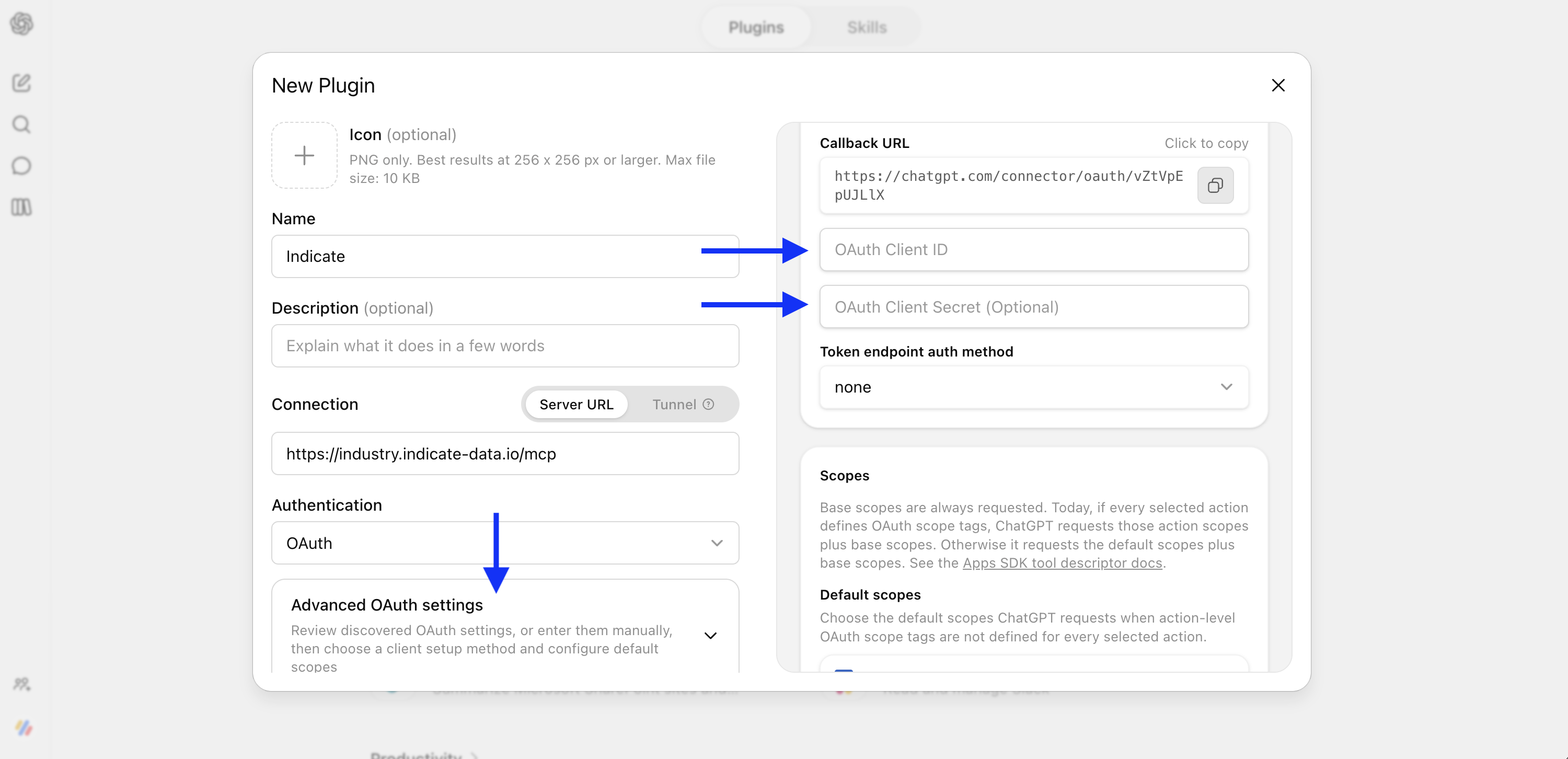
Tick the box that you understand this is a custom connector, and click Create.
Step 3: Allow the connection
ChatGPT now opens an Indicate sign-in page.
Sign in with your Indicate account if you are not signed in yet.
The page reads [Display name] wants to connect to your Indicate workspace and lists which workspaces the app may reach and what it will be able to do: Access your connected data and Stay signed in.
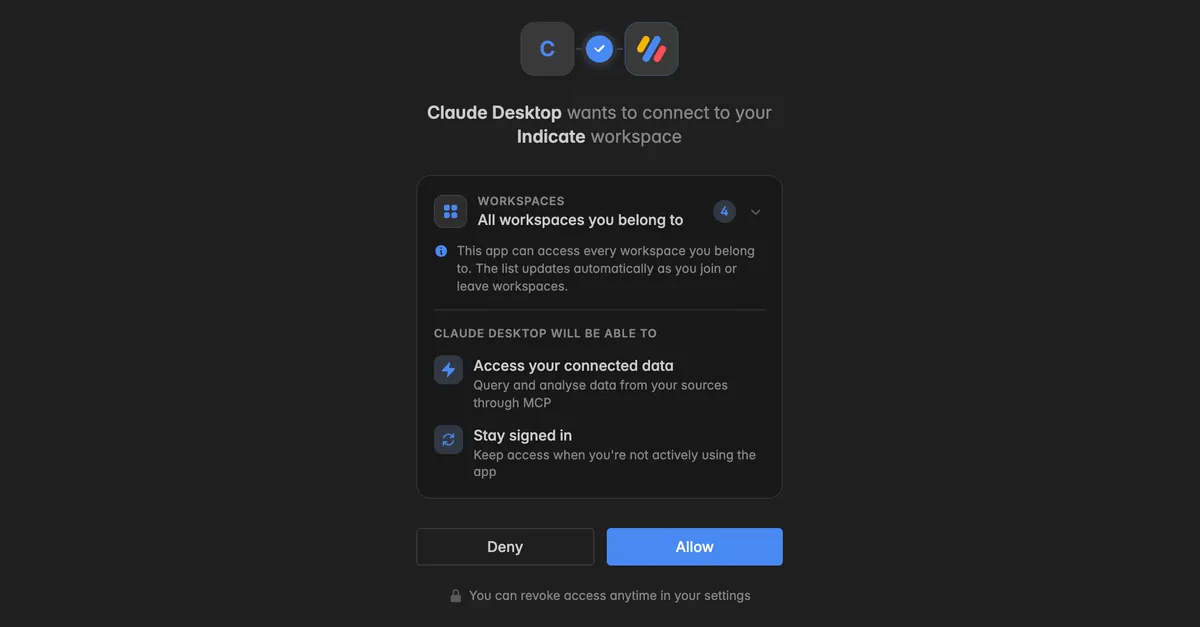
Click Allow.
You are back in ChatGPT and the connector is ready. On the Apps page in Indicate, the people badge on the app counts you as a connected user.
Step 4: Try it out
Start a new chat in ChatGPT.
Make sure the Indicate connector is switched on for the chat, usually through the + or tools button in the message box.
Ask a real question, for example "How many bookings did we get last month?"
The more specific the question, the better the answer. Name the period, "last week" or "July", and the number you care about, "occupancy", "ADR", "revenue by channel".
How do colleagues connect?
They do not need the client secret. Each colleague adds the same connector in their own ChatGPT, or uses the one shared in your ChatGPT workspace, and clicks Allow on the Indicate sign-in page with their own account. Every connecting user is a seat.
Q&A
Can I connect ChatGPT to more than one space?
- Yes. Either create the app with Multi-space access, then one connector reaches every space the user belongs to. Or create one app per space and one connector per space, with different names.
I closed the dialog and lost the client secret.
- Open
Settings→Apps, click⋮on the app, and select Rotate secret. Copy the new secret and update it in ChatGPT. The old secret stops working immediately.
Where do I find the MCP Server URL again?
- On
Settings→Apps, expand MCP Server URL at the bottom of the page, or click⋮→ Copy MCP URL on any app.
How do I disconnect ChatGPT?
- Remove the connector in ChatGPT, or delete the app in Indicate with
⋮→ Delete on the Apps page. Deleting the app disconnects every user at once.
Will ChatGPT change anything in my data?
- No. The connection reads Insights and answers questions.
I cannot find connectors in ChatGPT.
- Not every ChatGPT plan can add custom connectors. Ask whoever manages your ChatGPT account, or check the features of your plan.
ChatGPT warns that the connector is not verified.
- That appears for every custom connector. Confirm and carry on.
The sign-in fails or shows the wrong space.
- Sign in to the right Indicate account in the same browser and try again. Check that the Client ID and secret were pasted completely, without spaces.
ChatGPT says it has no access to any data.
- Your Indicate account has no access to the space, or only the Guest role. Ask a space admin. If the app is Single space, it only reaches the space it was created in.
Was this helpful?