
What is the AI budget?
The AI budget is what your space can spend on the AI features inside Indicate per period: Generating and editing dashboards and widgets, dashboard summaries, widget explanations, and the chat with Resi, your AI agent. Every call costs a few cents and is deducted from the budget. When the budget is spent, AI calls are refused until the period resets.
The budget is included in your plan. Since 1 October 2026, every space on Core plans and above gets a free AI allowance of $10 per 30 days, up from $5. Any single person can use up to $10 of AI per 30 days across all their spaces.
Note: These limits can change. Indicate may raise or withdraw the AI allowance of any space at any time. If your space needs a higher limit, ask in the help center.
Which limits apply?
There are two limits, and both have to allow a call before it goes through.
Limit | How much | Applies to | Resets |
|---|---|---|---|
Space allowance | $10 per 30 days | The space, shared by everyone in it | With the space's own period, shown under Resets |
Personal ceiling | $10 per 30 days | One person, across every space they belong to | Every 30 days |
The personal ceiling exists so that one person who belongs to several spaces cannot work through one space allowance after the other. Neither limit carries over. What you do not spend in a period is gone when the period resets.
How is this different from agent tokens and apps?
This is the most common mix-up. Three things involve AI, and they have separate limits.
What it covers | Where you manage it | |
|---|---|---|
AI budget | AI features running inside Indicate |
|
Agent tokens | Your own AI tools reading your data through MCP, billed per seat |
|
Apps | AI assistants your users sign in to with OAuth, billed per connecting user |
|
Questions you ask through Claude, ChatGPT, or VS Code do not run on the AI budget. They run on the seat of the token or app. See Tokens and Apps.
Where do I see how much is left?
You do not have to open Settings. At the bottom of the left rail, just above your avatar, sits the AI usage gauge. The ring shows how much of the budget is left.
Click it to open the popover for this space and this period:
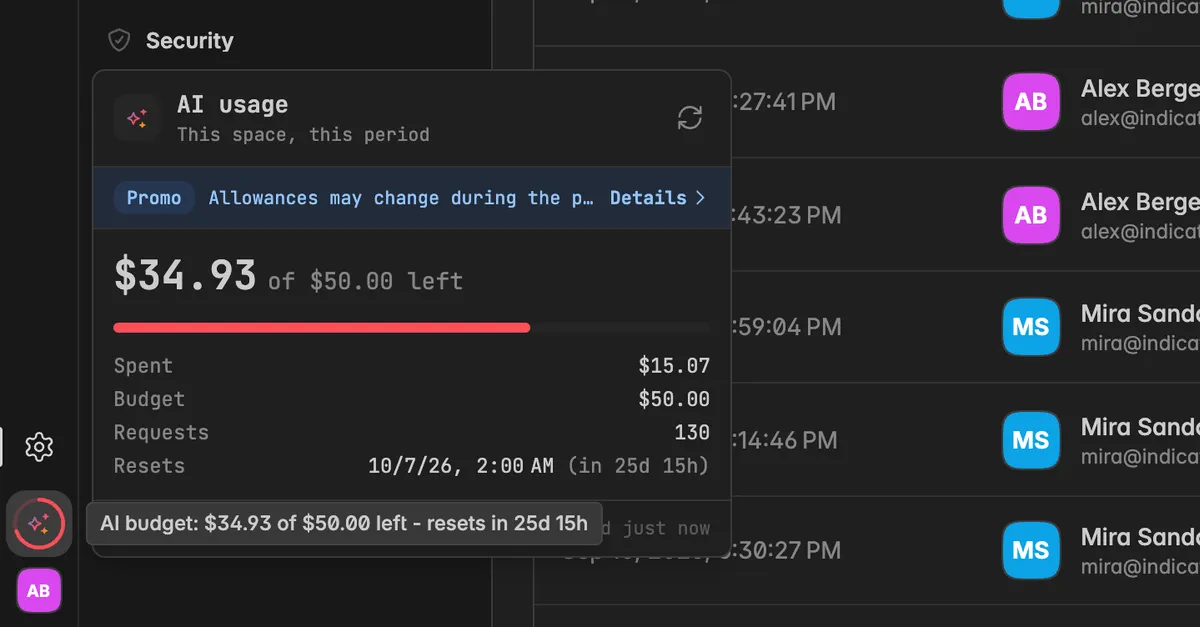
How much is left of the space allowance, with a bar.
Spent, Budget, Requests, and Resets, the same figures as on the AI usage page.
Since when the period runs, and when the figures were last checked. Click the refresh icon to pull the current numbers.
A Promo row with a Details link to the AI usage page.
When the budget is reached, an alert AI budget reached appears with a Details link.
Where do I find the full AI usage?
Click the gear icon at the bottom of the left rail to open
Settings.Under
Billing, clickAI usage.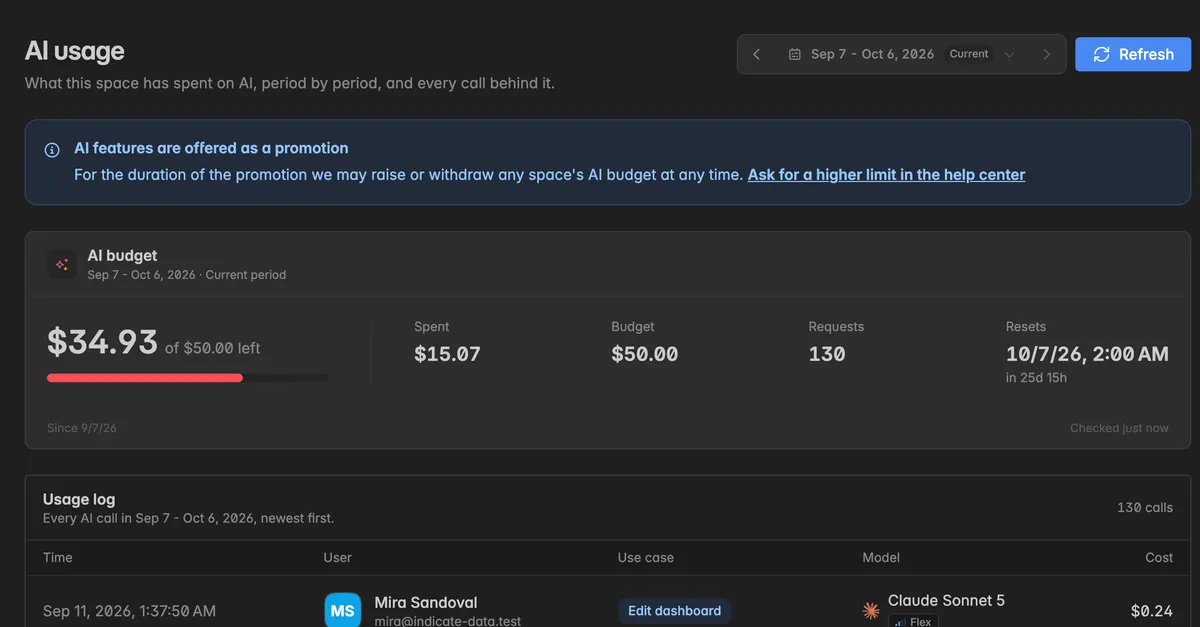
At the top, the period picker shows the current period. Click the arrows to step to earlier periods, or click the period to pick one from the list. Each entry shows what was spent and how many calls were made.
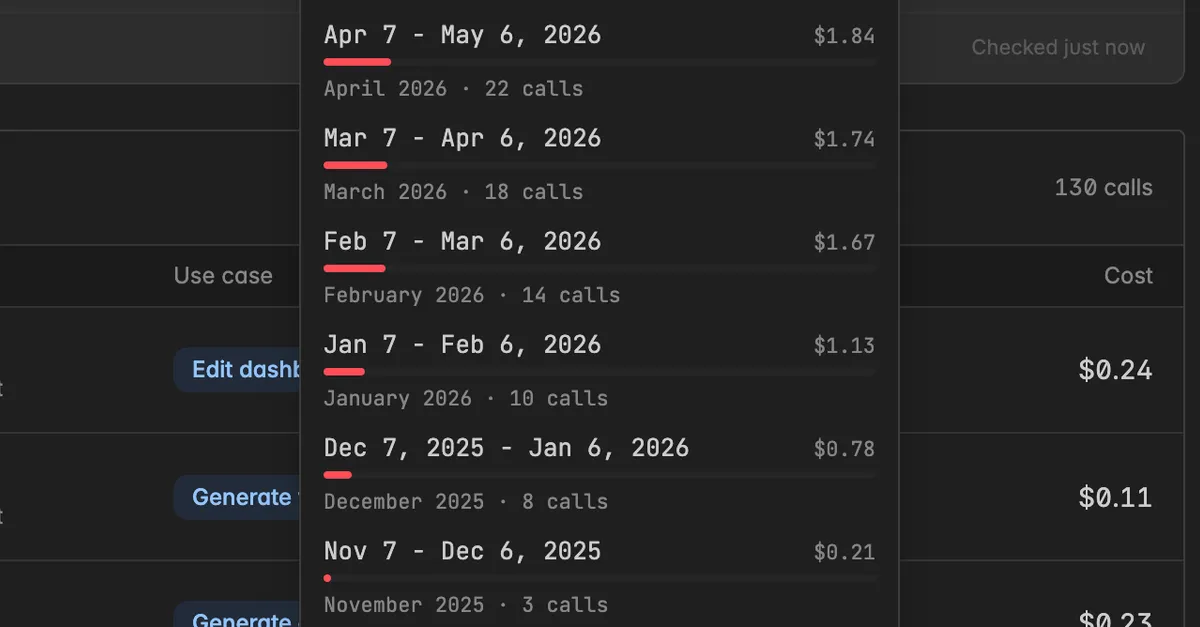
The AI budget block shows for the selected period:
Field | What it shows |
|---|---|
Spent | How much of the budget the space has used |
Budget | The budget for the period, or Unlimited |
Requests | How many AI calls were made |
Resets | When the period ends and the budget refills, with the time remaining. Ended for a closed period |
Below the block you see since when the period runs and when the figures were last checked. Click Refresh at the top right for the current numbers.
What does the usage log show?
Below the budget, the Usage log lists every AI call of the selected period, newest first:
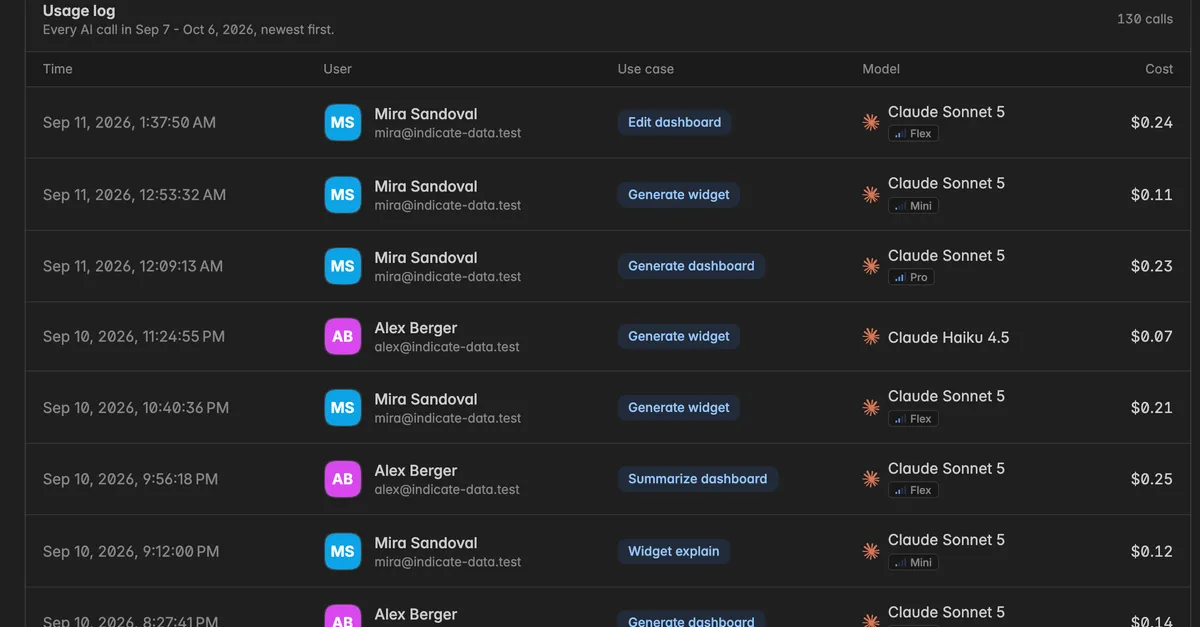
Time of the call.
User who triggered it.
Use case: Generate dashboard, Edit dashboard, Generate widget, Summarize dashboard, Widget explain, or Chat.
Model that answered, with the effort level where it applies.
Cost of the call.
For a busy period the log shows the most recent calls and says so at the bottom.
Note: The log shows that a call happened and what it cost, never what anyone typed. Prompts are not logged.
What happens when the budget is spent?
The call is refused and the message tells you which of the two limits was reached and when it comes back. If it is the space allowance, the gauge in the rail turns red and shows AI budget spent. If it is your personal ceiling, the space is not out, only you are, and your colleagues can carry on.
Wait for the reset. The date is on the gauge and on the AI usage page.
Ask for a higher limit. Click Ask for a higher limit in the help center on the AI usage page and describe what your space needs.
Neither the budget nor what is left carries over. A new period starts with the full budget.
Troubleshooting
I can no longer generate dashboards or summaries
Read which limit the message names. If it is the space allowance, everyone in the space is affected until the period resets, and the gauge shows when. If it is your personal ceiling, your colleagues can still work and yours returns after 30 days.
Colleagues can still use AI but I cannot
You have reached your personal ceiling of $10 for 30 days, across all the spaces you belong to. Wait for it to reset, or ask for a higher limit in the help center.
The gauge says "AI is not included in your plan"
Your plan does not include the AI features. See the pricing page for what each plan includes.
A teammate used up the budget
The budget belongs to the space, not to a person. The usage log shows who made which call, so you can agree inside the team how to use it.
The figures look out of date
The page shows when it last checked, for example Checked 11m ago. Click Refresh.
My Claude or ChatGPT questions do not appear in the log
They do not run on the AI budget. They run on the seat of an agent token or an app.
I want to know what a dashboard generation costs before I run it
Look at comparable rows in the usage log. Each row shows the model and the cost, which gives a realistic estimate. A smaller model under
Settings→AI agent→Resilowers the cost per call. See Resi.