
What is the Authentication page?
The Authentication page is where you manage how you sign in to Indicate. It belongs to your account and applies to every space you are a member of. The page has three sections:
Sign-in: Indicate has no passwords. Each time you sign in, Indicate emails you a sign-in link and a code. The section shows the email address they go to. See Sign in to Indicate.
Other devices: Sign out on every other computer or browser where you are still signed in.
Two-factor authentication: Add a second step to your sign-in. After the emailed link or code, Indicate also asks for a 6-digit code from an authenticator app. Examples are Google Authenticator, Authy, 1Password and Microsoft Authenticator.
We recommend turning on two-factor authentication (2FA). Without it, anyone who can read your email could sign in to your account. A space admin can also require it for everyone in a space.
How do I enable two-factor authentication?
Install an authenticator app on your phone first, for example Google Authenticator, Authy, 1Password or Microsoft Authenticator.
Click the gear icon at the bottom of the left rail and open
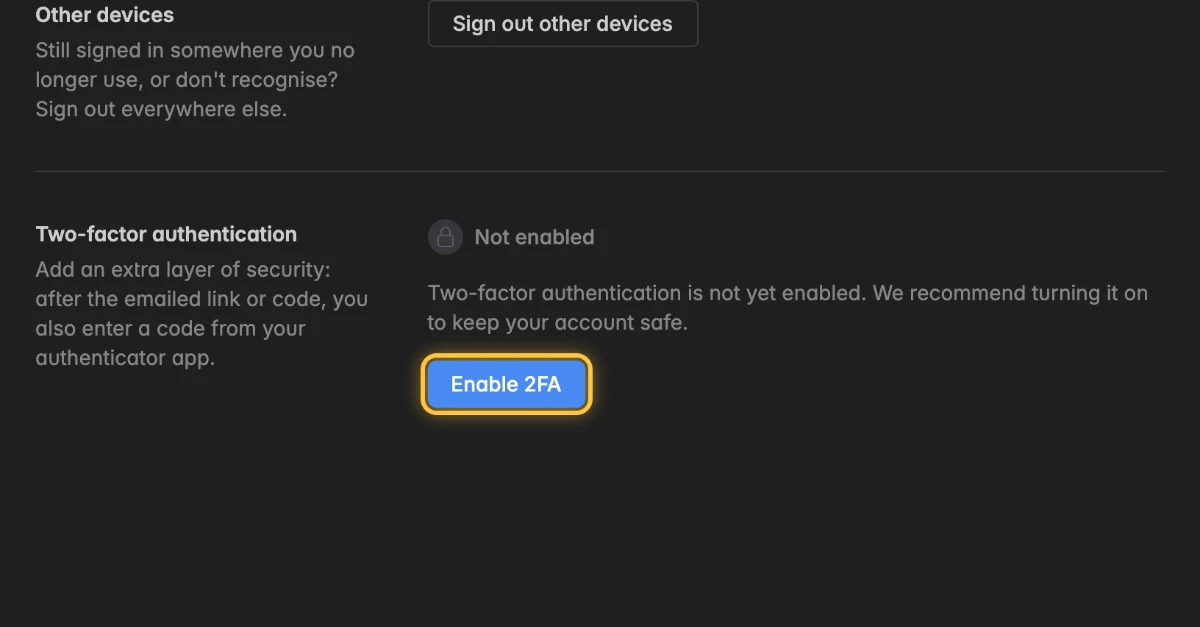
Settings→Account→Authentication.Under Two-factor authentication, click Enable 2FA. The dialog Set up two-factor authentication opens with three steps: Scan QR, Verify and Backup codes.
Scan the QR code with your authenticator app. If you cannot scan it, click Copy next to the key under Can't scan? Enter this key manually: and paste the key into your app.
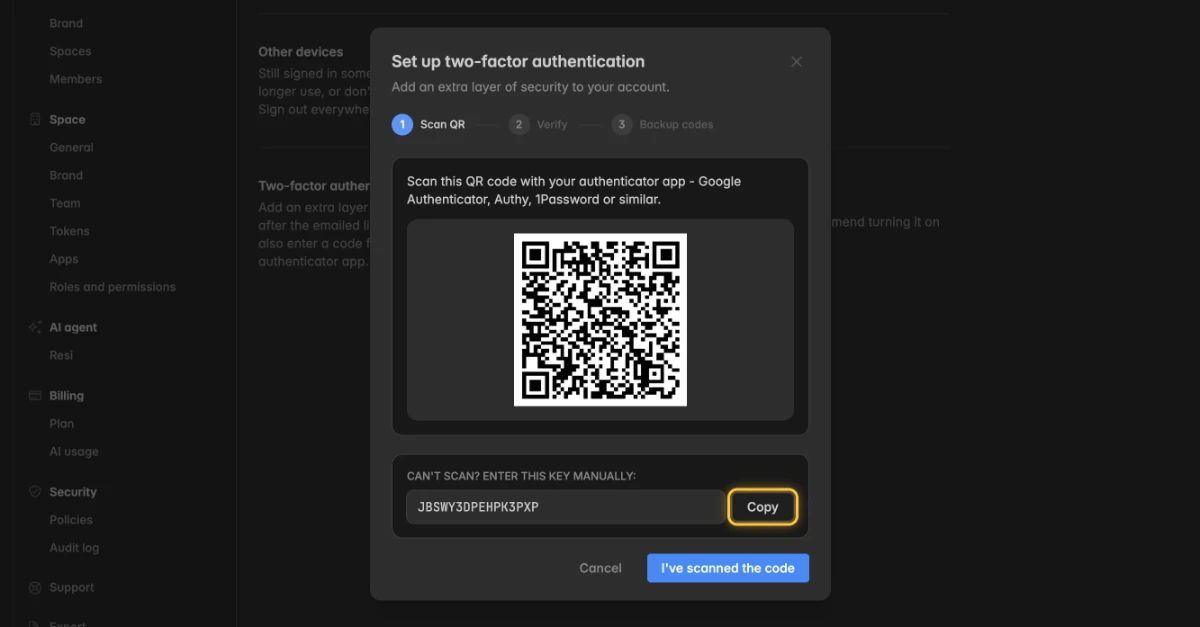
Click I've scanned the code.
Enter the 6-digit code from your app. As soon as all 6 digits are in, Indicate checks the code. You can also click Verify and activate.
Save your backup codes with Copy codes or Download .txt. Keep them in a safe place, for example in a password manager. Each code works once, and you cannot see them again later.
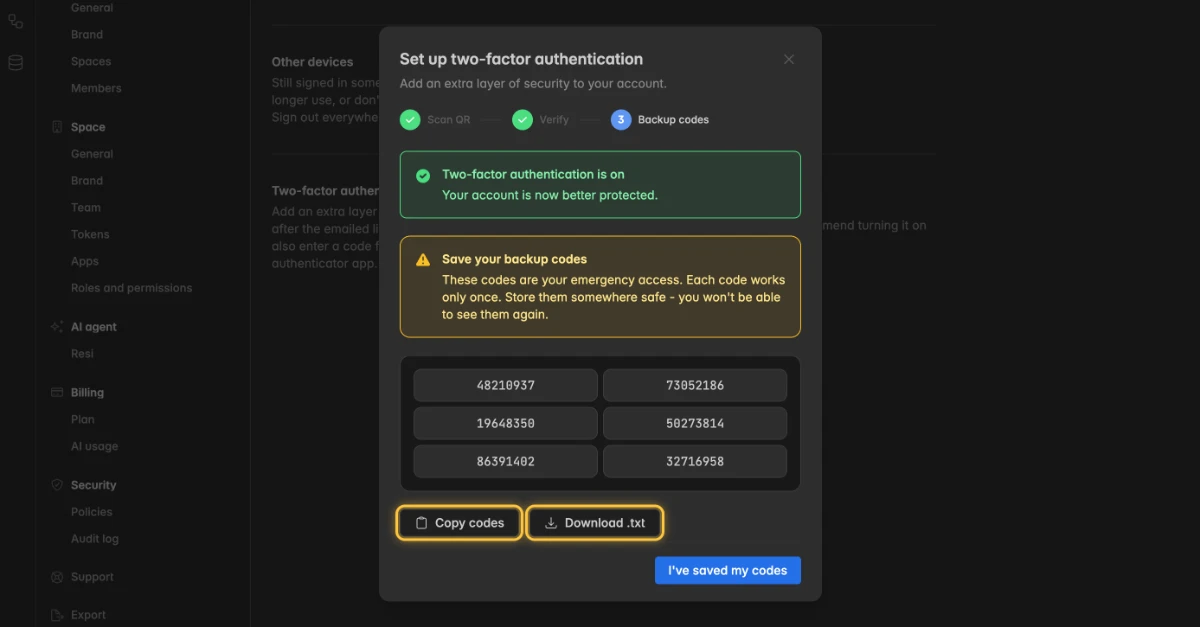
Click I've saved my codes.
The page now shows Enabled, and the member list of every space you belong to shows a lock icon next to your name. From now on, Indicate asks for a code from your app each time you sign in.
Do not skip the backup codes. If your authenticator app is lost or wiped, they are your only way back into your account without contacting support.
How do I sign out on other devices?
Use this when you are still signed in on a computer you no longer use, or on one you do not recognise.
Click the gear icon at the bottom of the left rail and open
Settings→Account→Authentication.Under Other devices, click Sign out other devices.
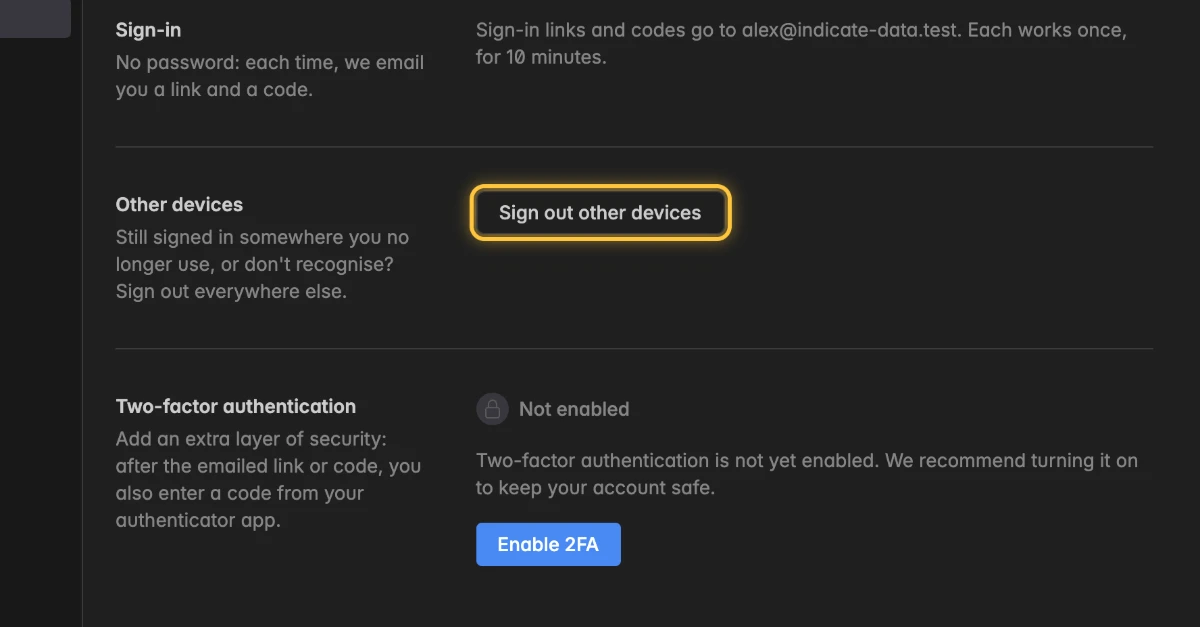
The page shows Every other device is signed out. This one stays signed in.
How do I create new backup codes?
Create a new set when you have used several codes, lost them, or think they are no longer safe. You need your authenticator app at hand.
New backup codes replace all your existing ones. The old codes stop working right away.
Click the gear icon at the bottom of the left rail and open
Settings→Account→Authentication.Under Two-factor authentication, click Regenerate backup codes.
In the dialog Regenerate backup codes, enter the 6-digit code from your authenticator app. As soon as all 6 digits are in, Indicate creates the new codes. You can also click Regenerate codes.
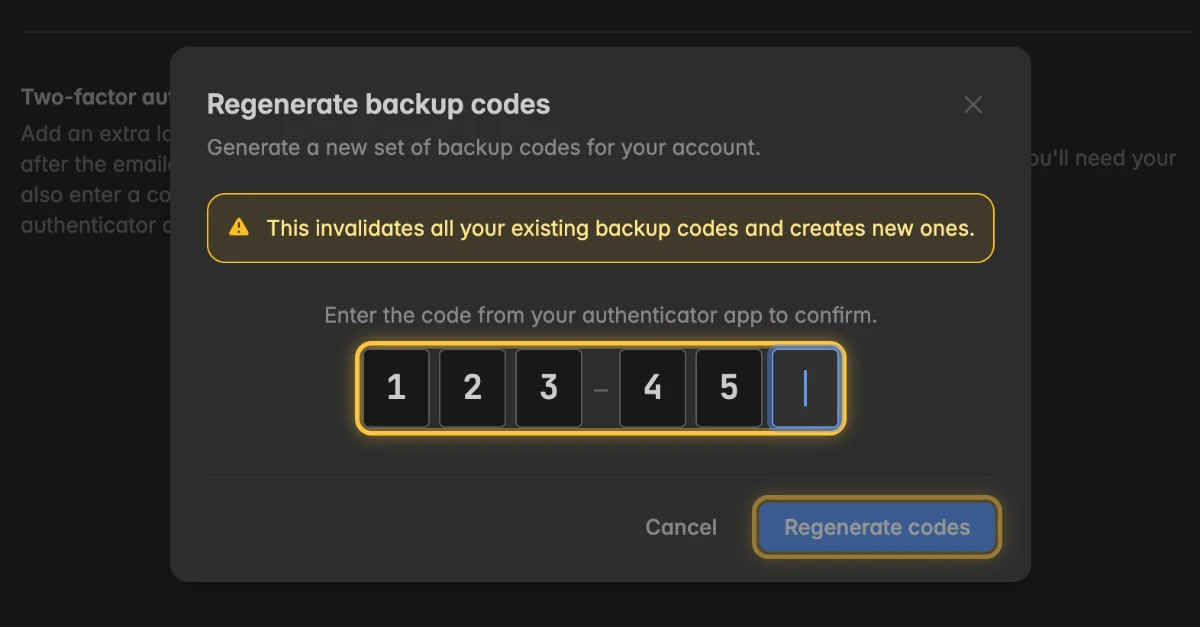
Save the new codes with Copy codes or Download .txt, then click I've saved my codes.
How do I disable two-factor authentication?
Without two-factor authentication, anyone who can read your email could sign in to your account. You can turn it on again at any time.
Click the gear icon at the bottom of the left rail and open
Settings→Account→Authentication.Under Two-factor authentication, click Disable 2FA.
In the dialog Disable two-factor authentication, enter the 6-digit code from your authenticator app. As soon as all 6 digits are in, Indicate turns two-factor authentication off. You can also click Disable 2FA.
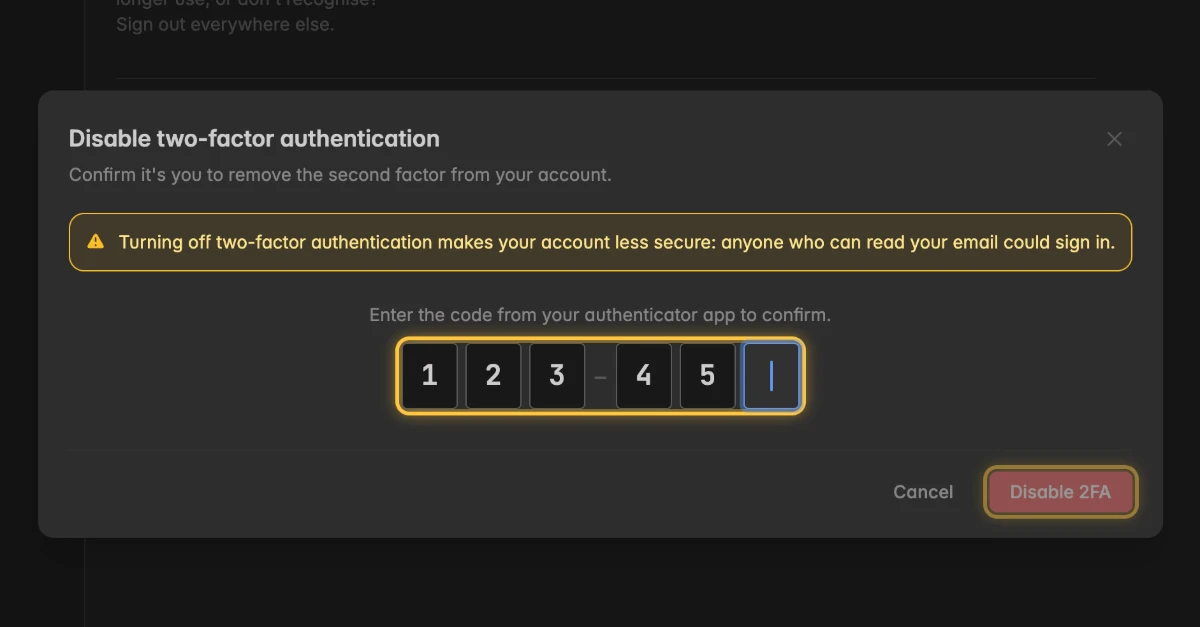
The dialog shows Two-factor authentication is off. Click Close.
From then on, the emailed link or code alone is enough to sign in. If a space requires 2FA, it sends you to the setup page the next time you open it.
Troubleshooting
Where do I change my password?
- Indicate no longer has passwords, so there is nothing to change. You sign in with the link or the code that Indicate emails you. See Sign in to Indicate.
Why is the code from my app rejected?
Codes are generated from the current time. Turn on automatic date and time on your phone: iOS Settings → General → Date & Time → Set Automatically, Android Settings → System → Date & time → Set automatically.
Use the newest code. A code expires after 30 seconds.
You may have an old or duplicate Indicate entry in your app. If none of them works, sign in with a backup code and contact support to reset 2FA on your account.
What do I do if I lost my phone?
Sign in with one of your backup codes: On the page Two-factor authentication, click Use a backup code instead.
Disable 2FA and Regenerate backup codes need a code from your authenticator app, so you cannot move 2FA to your new phone yourself. Contact support to reset 2FA on your account, then enable it again with your new phone.
If you have no backup codes either, contact support as well.
Why does a space send me to Two-factor authentication required?
- That space requires 2FA for every member. Click Set up two-factor authentication on that page, finish the setup, and you go straight back to the space.
Why don't I see Disable 2FA or Regenerate backup codes?
- Two-factor authentication is not enabled on your account. The section shows Not enabled and the button Enable 2FA.