
What is Personalization?
Personalization is where you set how Indicate looks and reads for you: The interface language and the theme. Both are personal settings. They apply to your account only, other members keep their own.
How do I change the interface language?
Click the gear icon at the bottom of the left rail to open
Settings.Under
Account, clickPersonalization.Under Language, pick the language from the list.
Click Save. The page reloads so that dates and numbers follow the new language too.
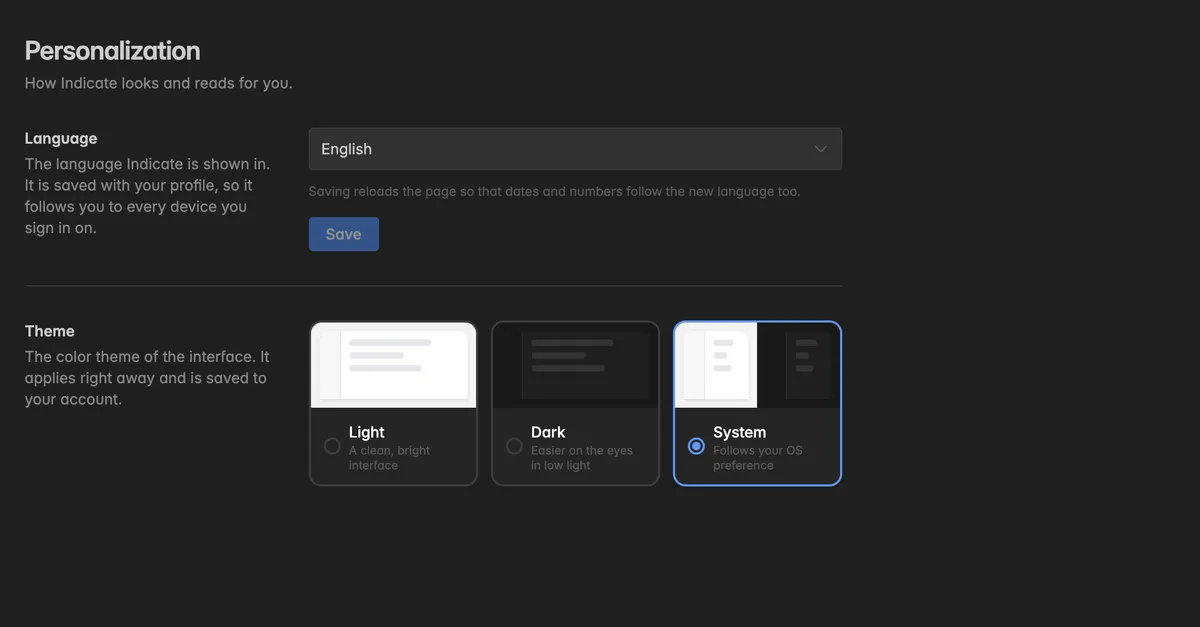
The language is saved with your profile, so it follows you to every device you sign in on.
Note: This setting changes the interface only. The language Resi, your AI agent, writes in is a space setting, see Resi.
How do I change the theme?
Under Theme, click one of the three cards:
Light: A clean, bright interface. Works well in bright rooms and on projectors.
Dark: Easier on the eyes in low light.
System: Follows your operating system and switches between Light and Dark when your OS does.
The theme applies right away, there is no Save button, and it is saved to your account.
Tip: You can also switch the theme without opening Settings. Click your avatar at the bottom of the left rail, the three icons next to Theme are Light, System, and Dark.
Troubleshooting
The date and number formats did not change
Save reloads the page for exactly this reason. If a tab was already open before you saved, reload it.
Dashboards look different for a colleague
Theme and language are personal. Your colleague has their own settings. Dashboards render correctly in every theme.
The page shows "An error occurred while saving."
The language could not be stored. Try again in a moment. The theme is not affected, it is saved separately.