
Organization brand palettes
Colour palettes defined once for the organization and offered in the widget editor of every space it owns, and how to copy a palette from a space.
What are organization brand palettes?
Organization brand palettes are colour palettes defined once for the organization and offered in the widget editor of every space it owns, next to each space's own palettes. A hotel group defines its corporate colours once, and every property's dashboards can use them.
They work like the brand palettes of a space, see Brand palettes: a palette is a named set of colours, one palette can be the Primary palette, and removing a palette never recolours existing charts.
Organization palettes come with organizations of the kind Enterprise or Partner. A Standard organization sees the note Organization palettes come with Enterprise with a Contact us link. Only organization Admins can change the palettes.
Where do I find them?
Click the gear icon at the bottom of the left rail to open Settings.
Under Organization, click Brand.
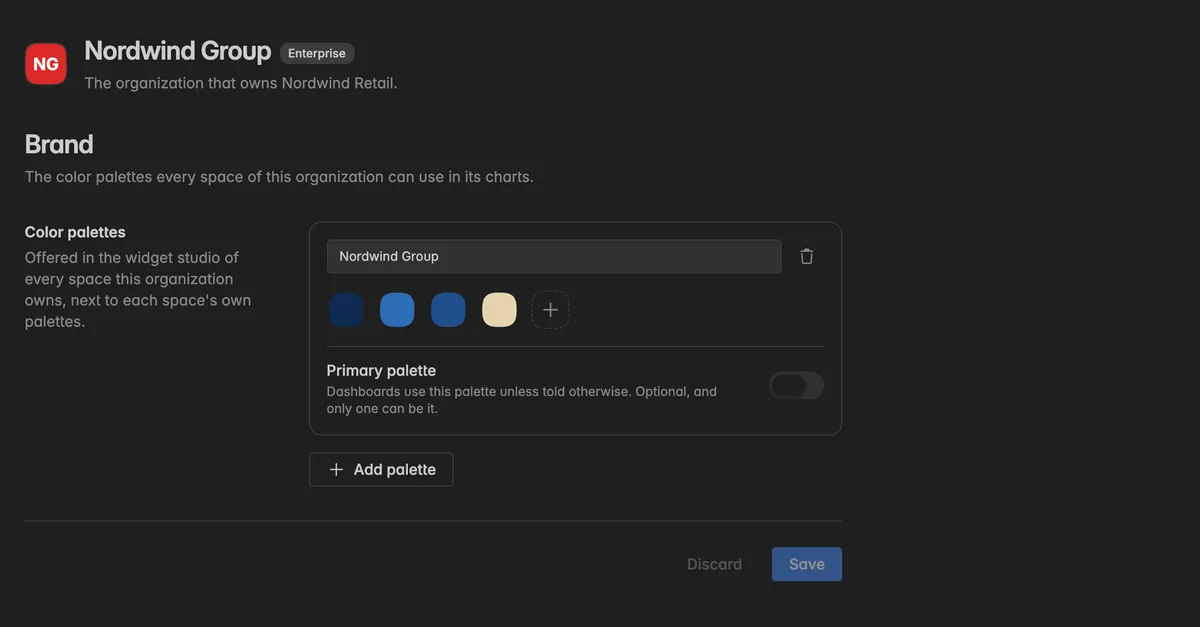
How do I create or edit a palette?
The page works exactly like the Brand page of a space:
Click Add palette and give the palette a name.
Click the
+swatch, enter a Color name and the HEX code, and click Apply. Repeat for every colour.Turn on Primary palette on the card that dashboards should use by default. Optional, and only one can be it.
Click Save. Discard throws the changes away.
The palette then appears in the colour picker of every widget in every space the organization owns, in a group named after the organization. An organization keeps up to 10 palettes.
For the details of naming, editing, and removing colours, see Brand palettes.
How do I copy a palette from a space to the organization?
If a space already has the palette you want, copy it up instead of typing it again.
In that space, open
Settings→Brandunder Space.On the palette card, click the copy icon next to the palette name. Its tooltip reads Copy to [organization].
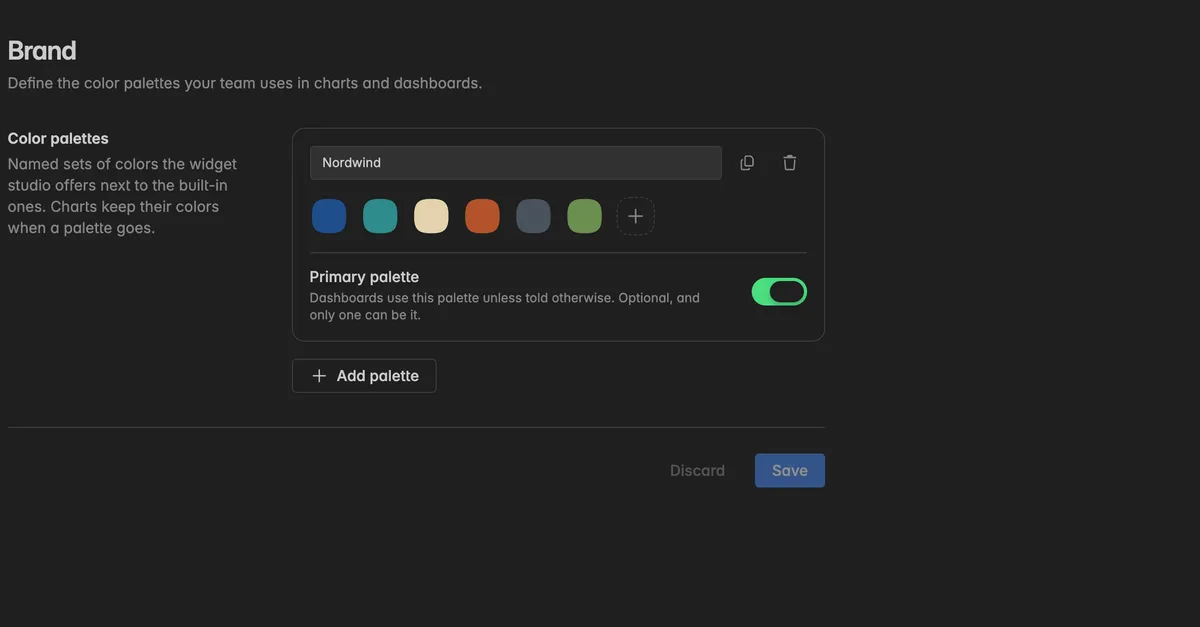
A toast confirms "[name]" is now a palette of [organization]. Every space it owns can use it.
The copy is independent. Changing the palette in the space later does not change the organization's copy. If the organization already has a palette with that name, the copy is renamed and the toast says so. Once copied, the icon turns into a link Already in [organization]. Open its palettes.
The copy icon only appears when an Enterprise or Partner organization owns the space, and it is locked when you are not an admin of that organization, when the palette has unsaved changes, or when the organization already holds 10 palettes.
Troubleshooting
Save is greyed out or the page lists a problem
- Every palette needs a name, every colour needs a name, and a palette needs at least one colour. The page names what is missing.
The palette does not show up in a space's widget editor
Click Save on the organization's Brand page. Unsaved palettes are not offered. Then reopen the widget editor.
The space is not owned by this organization. Only spaces on the organization's Spaces page get its palettes.
The Brand page says palettes come with Enterprise
- Your organization is of the kind Standard. Space palettes still work on the Pro plan, see Brand palettes.
I cannot edit the palettes
- The page reads Only organization admins can change these palettes. Ask an organization admin, or check your role on the General page.
The copy icon on the space's Brand page is missing or locked
- It only appears when an Enterprise or Partner organization owns the space. It is locked with a reason when you are not an organization admin, when the palette is not saved yet, or when the organization already has 10 palettes.
Was this helpful?