
Organization members
Add people to the organization, change their role, remove them, or leave the organization yourself.
Who are the members of an organization?
The members of an organization are the people who look after the account: they read the organization pages and, as admins, change the name, the banner, the palettes, and the member list. Membership here is separate from space membership and grants no access to any space.
Two roles:
Admin: may change everything on the organization pages and add or remove members.
Member: may read the organization pages.
An organization keeps at least one admin. The last admin cannot be removed or demoted until someone else is made admin.
Only people who already have an Indicate account can be added. People get an account by being invited into a space. See Organization for what the organization is.
Where do I find the members?
Click the gear icon at the bottom of the left rail to open Settings.
Under Organization, click Members.
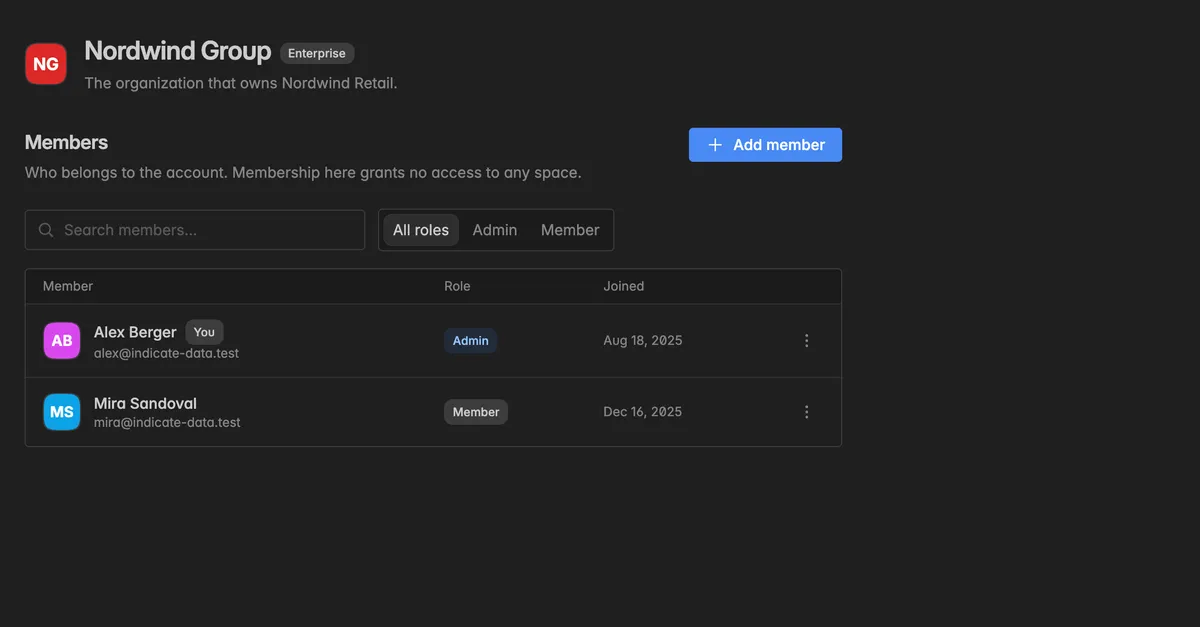
The list shows each member with their email, their Role, and when they Joined. Your own row carries the badge You. Search by name or filter by Admin and Member.
How do I add a member?
Only organization Admins see the button.
On the Members page, click Add member.
In the dialog Add a member, enter the Email address the person signs in with.
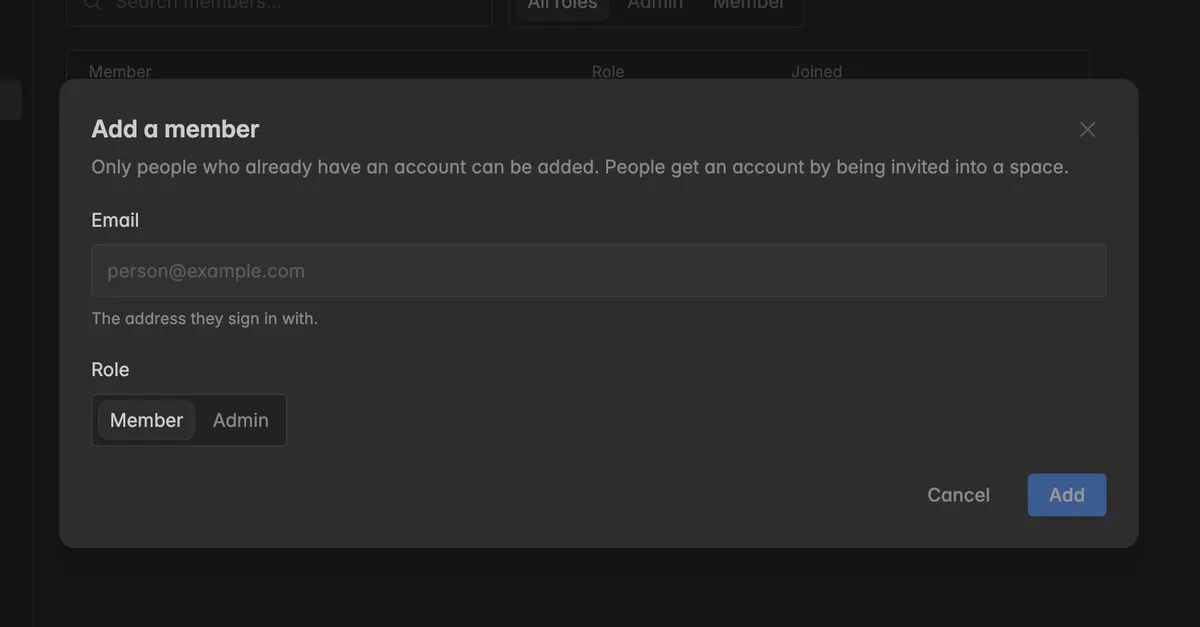
Pick the Role, Member or Admin.
Click Add.
The person appears in the list right away. No email is sent. If no account has that address, the dialog reads No account has this address. Invite them into a space first.
How do I change a member's role?
Hover over the member and click the
⋮icon at the right end of the row.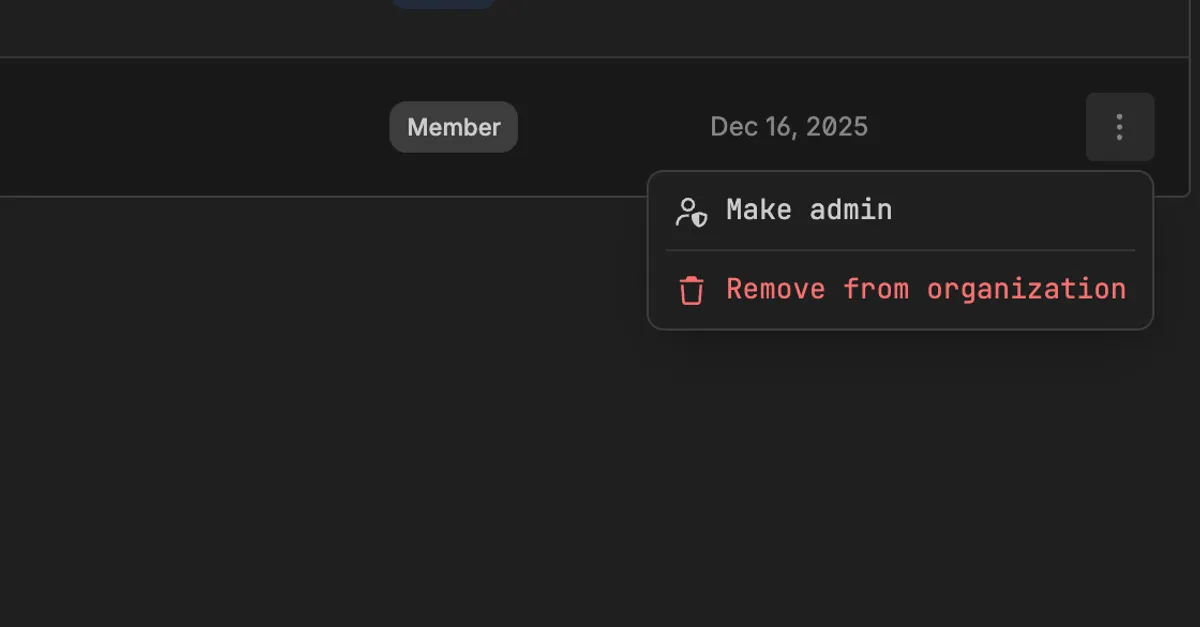
Click Make admin or Make member.
The role changes immediately. You cannot change your own role.
How do I remove a member?
Hover over the member, click
⋮, and select Remove from organization.In the dialog Remove member, click Copy next to Member name and paste the name into the confirmation field.
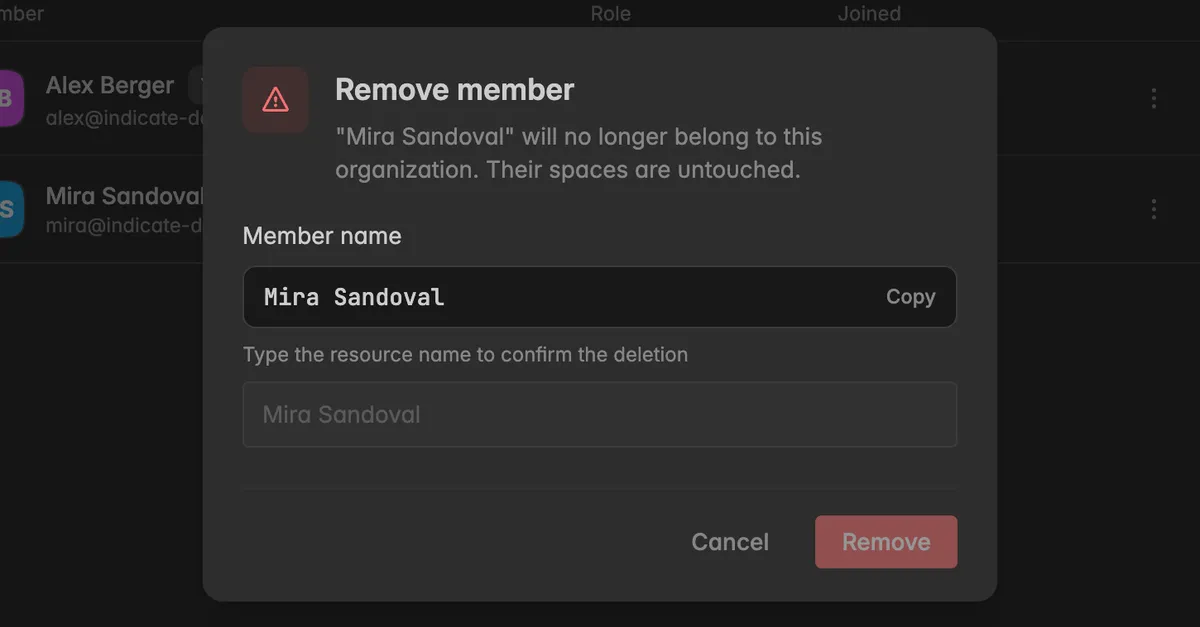
Click Remove.
The person no longer belongs to the organization. Their spaces are untouched: they keep every space membership they have. To take someone out of a space, use that space's Team page, see Remove a team member.
How do I leave an organization?
Everyone can leave, admins and members alike.
Hover over your own row, click
⋮, and select Leave organization.Confirm with Leave.
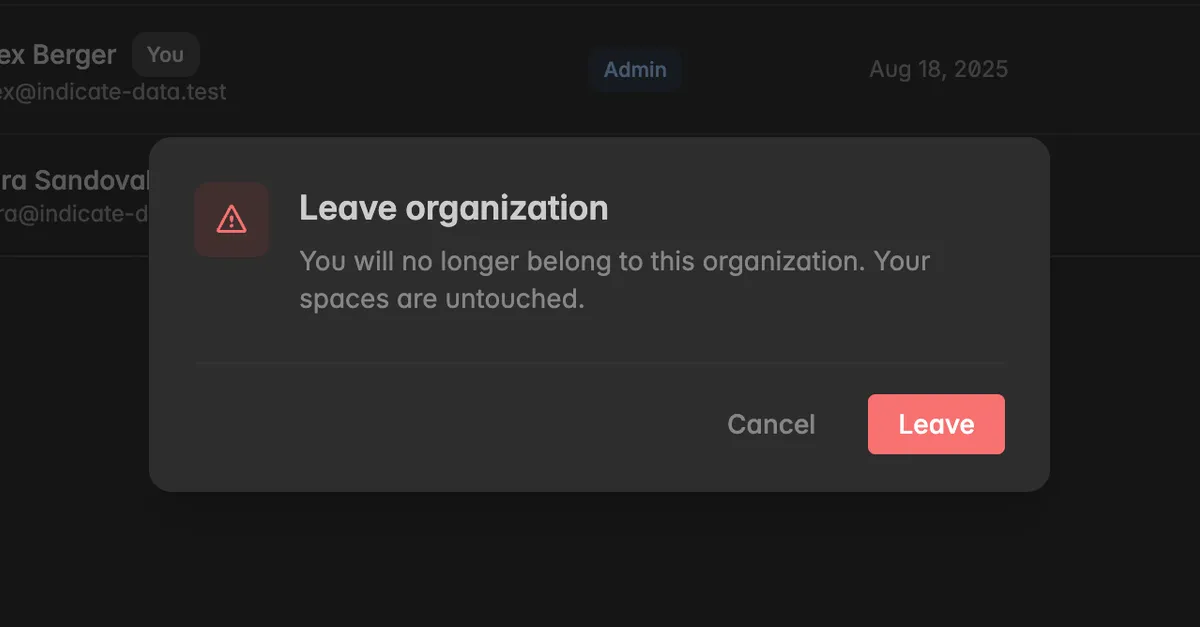
You no longer belong to the organization and the Organization group disappears from your Settings. Your spaces are untouched.
Troubleshooting
Add member is missing
- Adding members needs the Admin role in the organization. Your role is shown on the General page under Your role.
"No account has this address"
- The person has no Indicate account yet. Invite them into one of your spaces first, see Invite a team member. Once they have accepted, add them here.
"This person is already a member"
- The address is already in the list. Search for it, the filter may be set to one role.
I cannot remove or demote an admin
- An organization keeps at least one admin. Make someone else an admin first, then remove or demote this one.
I added someone but they cannot open our spaces
- That is by design. Organization membership grants no space access. Invite them into each space under
Settings→Team.
Leave organization is greyed out
- You are the last admin. Make another member an admin before you leave.
Was this helpful?