
What is a service account?
A service account is a virtual identity for an integration, a bot, or an automated job. It has no login and no password. Its only purpose is to be the account a token is paired with, so that an external system can authenticate against Indicate without borrowing a person's identity.
Use a service account instead of a member when:
The integration should outlive team changes. A token paired with a member stops working when that member leaves. A token paired with a service account keeps working.
You want to see what the integration did. Everything it does appears under the service account's name in the audit log, separate from any person.
You want the credential to be the only way in. No password to phish, no session to steal. Revoke the token and the integration is out.
Typical examples: A CRM sync, an internal ops portal that reads your metrics, a scheduled export.
Note: Service accounts are part of the Pro plan. On other plans the tab shows Service accounts are a Pro feature with an upgrade link.
How do service accounts and tokens fit together?
A service account on its own cannot do anything. It needs a token:
Agent token for an AI assistant that talks to your space through MCP.
API token for a program that reads the Indicate API.
The flow is always the same: Create the service account, create a token and assign it to the service account, paste the token into the external system. See Tokens.
Revoking a token leaves the service account in place, you can create a new token for it. Deleting the service account revokes every token paired with it.
How do I create a service account?
Only Admins and the Owner can create and delete service accounts.
Click the gear icon at the bottom of the left rail to open
Settings, then clickTeam.Open the Service accounts tab.
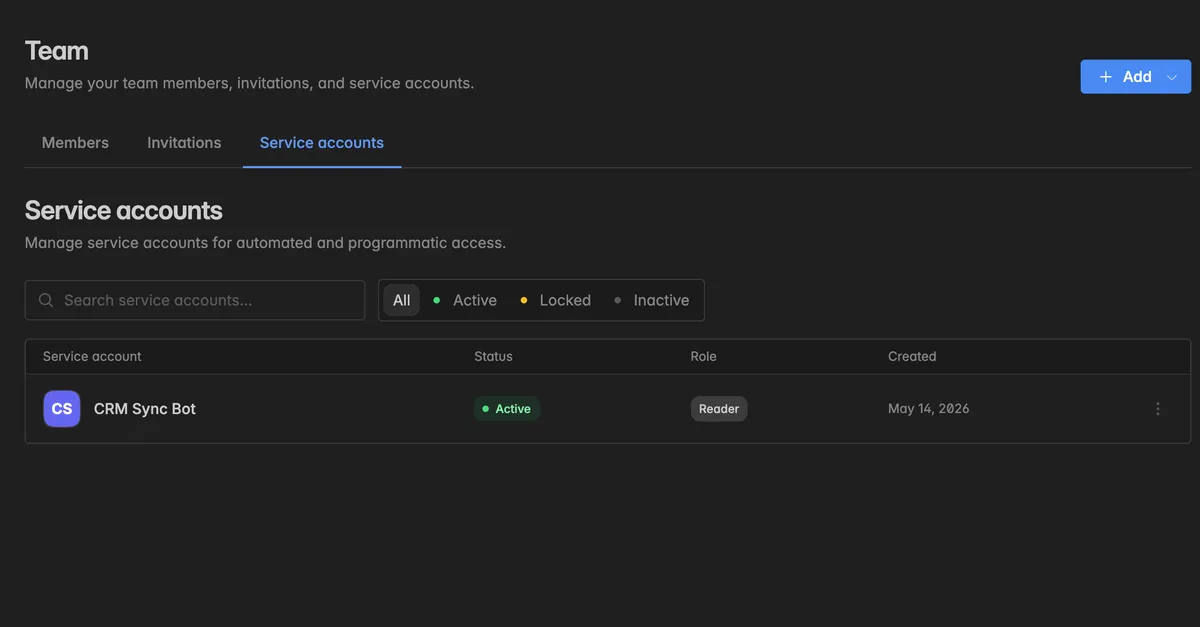
Click Add at the top right and select Create service account.
Enter a Name that tells your team what the account is for, for example CRM sync bot or Ops portal. Generic names such as bot1 make it hard to know what depends on the account later.
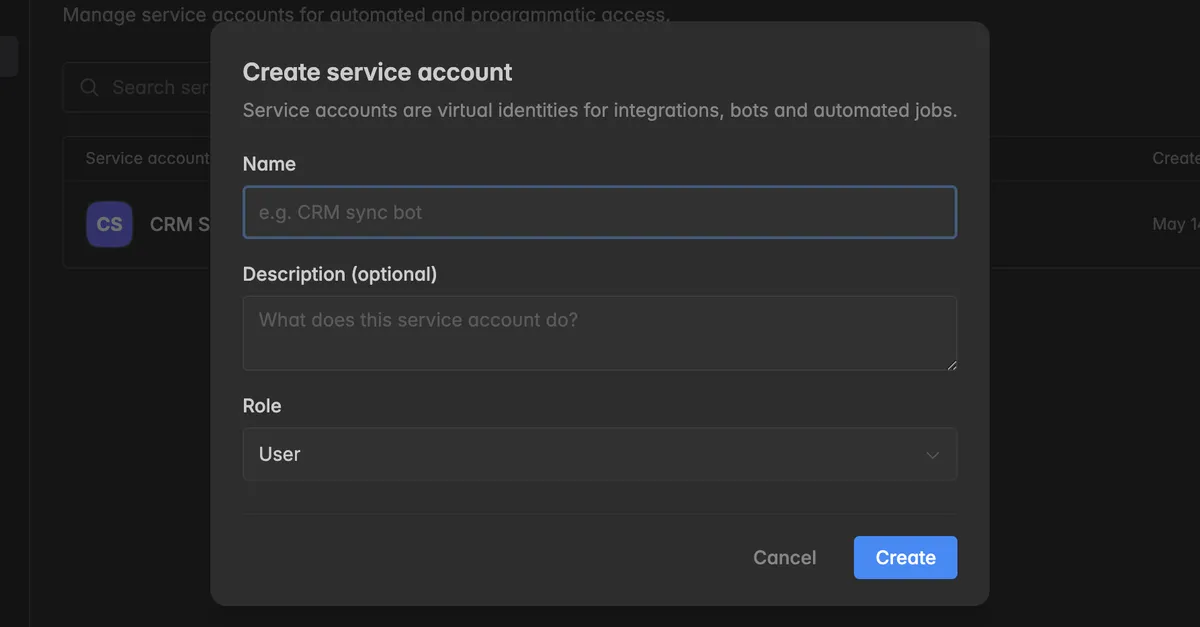
Optionally add a Description of what the account does and which system uses it.
Pick a Role: Reader, User, or Admin. The default is User.
Click Create.
The account appears in the list with the status Active. Next, create a token for it under Settings → Tokens.
Which role?
The role decides what the tokens of this account may do. For an agent token, User or Reader is enough, the assistant only reads metrics. Pick Admin only for an API integration that has to manage space resources, and guard that token carefully: Whoever holds it can change settings, invite members, and delete connections.
What does the list show?
Service account: Name and description.
Status: Active, Locked, or Inactive. A locked or inactive account's tokens do not work.
Role and Created.
Hover over a row and click the ⋮ icon to Edit the account or Remove it.
How do I delete a service account?
Deleting is permanent and breaks every integration that uses one of the account's tokens.
Before you delete
Find out what depends on it. The name and description should tell you, otherwise ask the person who created it.
Repoint or switch off the integration first, or create a replacement account and token and swap them in.
If only a token leaked, revoke that token under
Settings→Tokensinstead and keep the account.
On the Service accounts tab, hover over the account and click the
⋮icon.Click Remove.
The dialog Delete service account opens. Next to Service account name, click Copy and paste the name into the confirmation field.
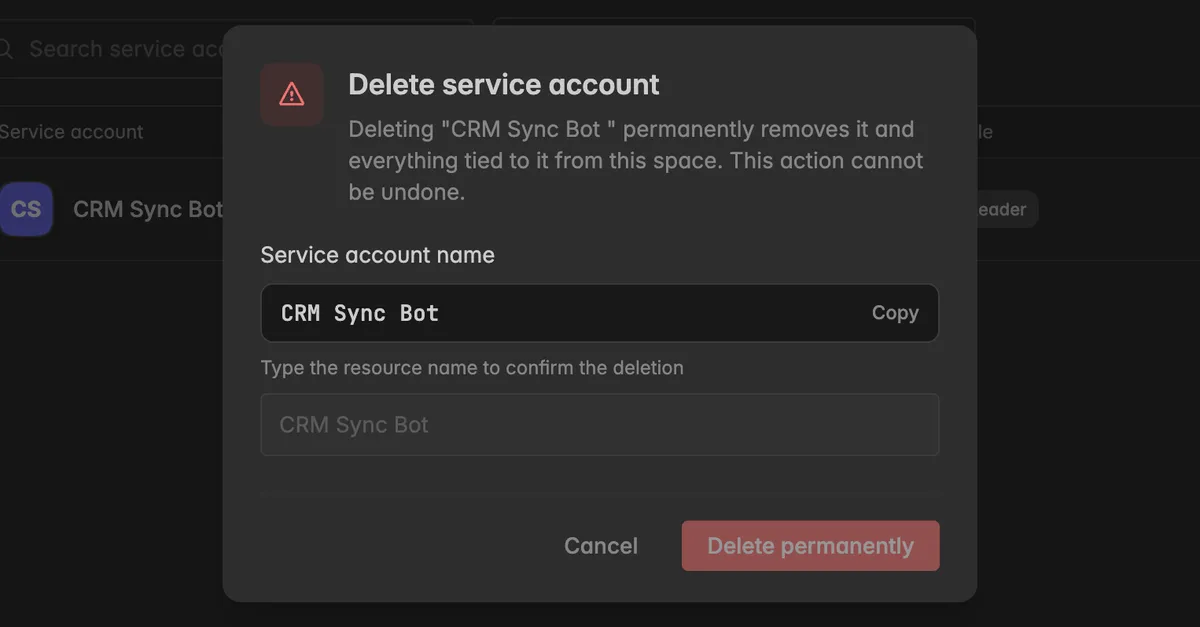
Click Delete permanently.
The account and everything tied to it are removed from the space. Every token paired with it stops working on the next request. The deletion is recorded in the audit log under Service users.
Troubleshooting
My integration gets authentication errors
Its service account was deleted or set to Locked or Inactive, or its token was revoked. Check the Service accounts tab and
Settings→Tokens. Create a new account and token if needed and update the integration.
The Service accounts tab shows an upgrade note
Service accounts need the Pro plan. Until then, pair tokens with a member.
Should I revoke the token or delete the account?
Revoke the token when the credential is compromised or should be rotated. Delete the account when the integration is gone for good.
Add is missing
Creating service accounts needs the Admin role.