
Organization space access
How an organization admin puts a member into many spaces at once, changes their role per space, takes them out again, and removes someone from the organization and all its spaces in one step.
What is space access for organization members?
Space access lets an organization admin put a member of the organization into any number of the organization's spaces in one go, with a role per space. There is no invitation and no accept step: The person is in the spaces as soon as the admin saves. The same dialog changes a member's role in a space or takes them out again.
For example, a hotel group with 80 properties onboards a new revenue manager. Instead of 80 invitations from 80 spaces, an organization admin opens the member once, selects all spaces, picks the role User, and saves.
Note: Organization membership by itself still grants no space access. Space access is given per member on the
Memberspage of the organization, by an organization admin. Space admins keep inviting people into their own space underSettings→Teamas before, see Invite a team member.
When do I use it?
Onboarding: A new colleague needs to be in many or all spaces of the organization.
Role changes: Someone moves from Reader to User across every space at once.
Offboarding: Someone leaves the company and has to be taken out of all spaces, optionally together with their organization membership.
Before you start
You need the Admin role in the organization. Your role is shown on the organization's
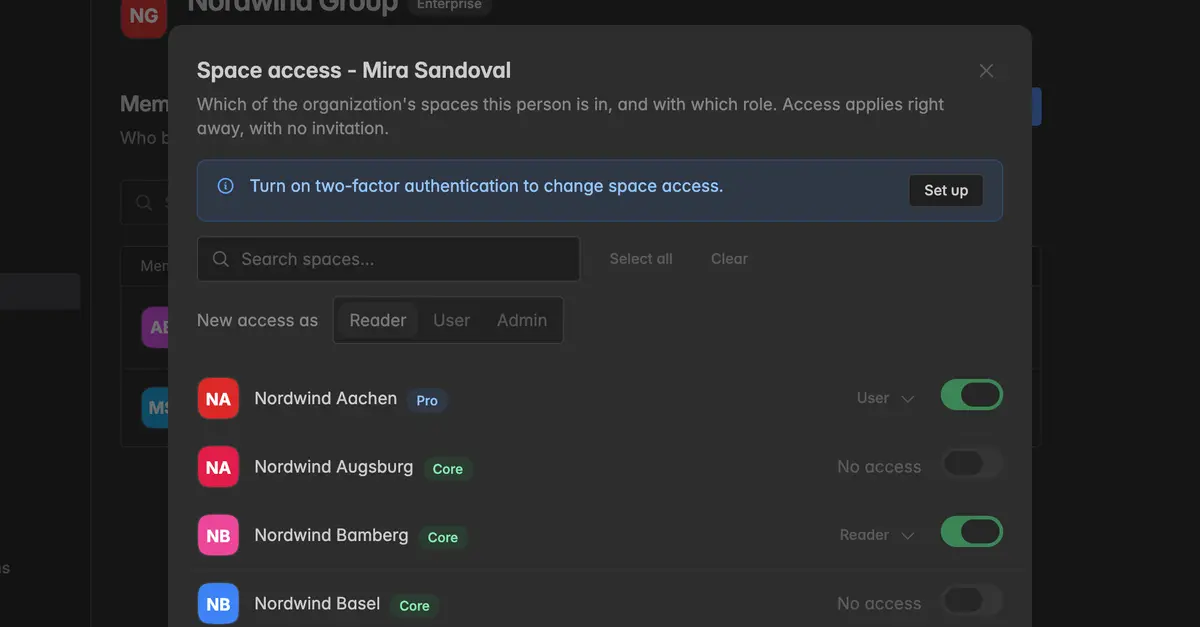
Generalpage under Your role.You need two-factor authentication turned on for your own account. Every save in the space access dialog asks for a current code from your authenticator app. Without 2FA the dialog opens read-only and shows Turn on two-factor authentication to change space access with a Set up button that takes you to Authentication.
The person must already be a member of the organization. To add someone, see Organization members. Only existing Indicate accounts can be added there.
Only spaces the organization owns are listed. Spaces that are merely shared with the organization are not.
How do I give a member access to spaces?
Click the gear icon at the bottom of the left rail to open
Settings.Under Organization, click
Members.In the Spaces column, click the count next to the member, for example 18 of 63. You can also hover over the row, click the
⋮icon, and select Manage space access.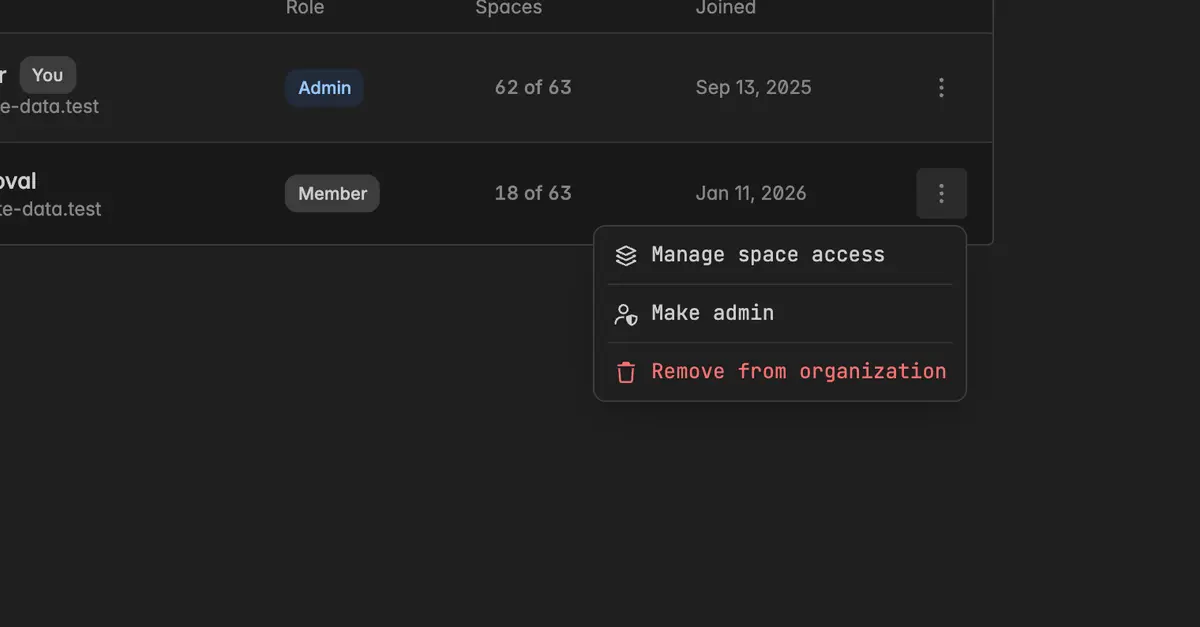
The dialog Space access - [name] opens. It lists every space the organization owns with a switch per space. Spaces the person is already in are switched on and show their current role.
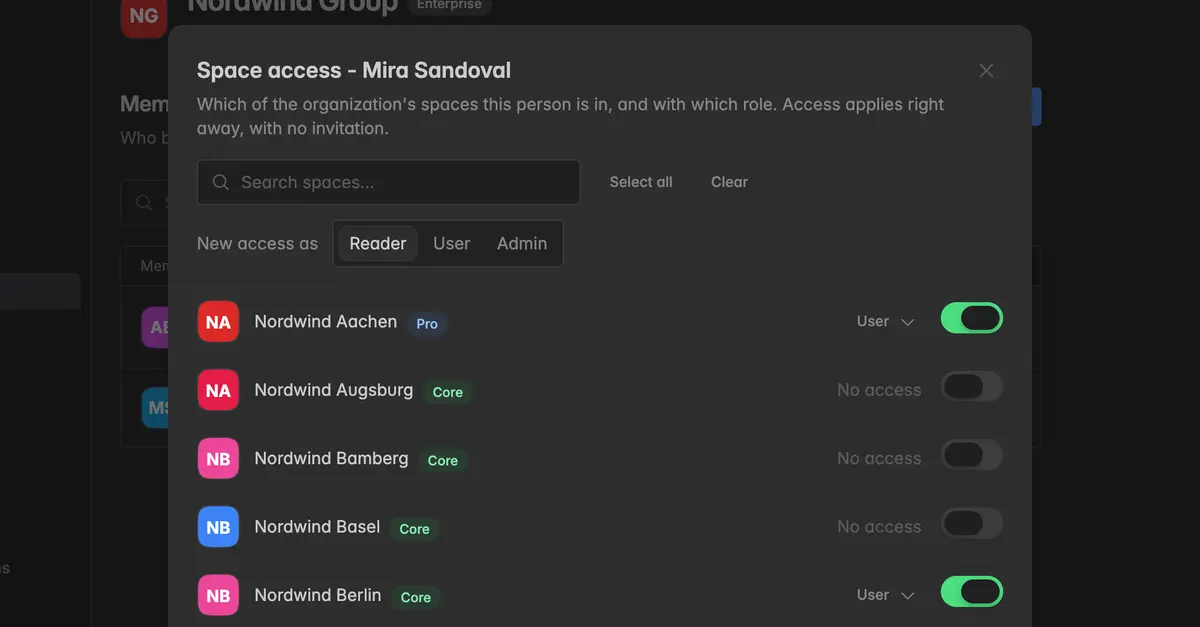
Under New access as, pick the role every newly switched-on space gets: Reader, User, or Admin. The default is Reader.
Switch on each space the person should be in. Clicking the space name toggles the switch too. To select many at once, type in Search spaces and click Select all. Clear switches off every space that matches the search.
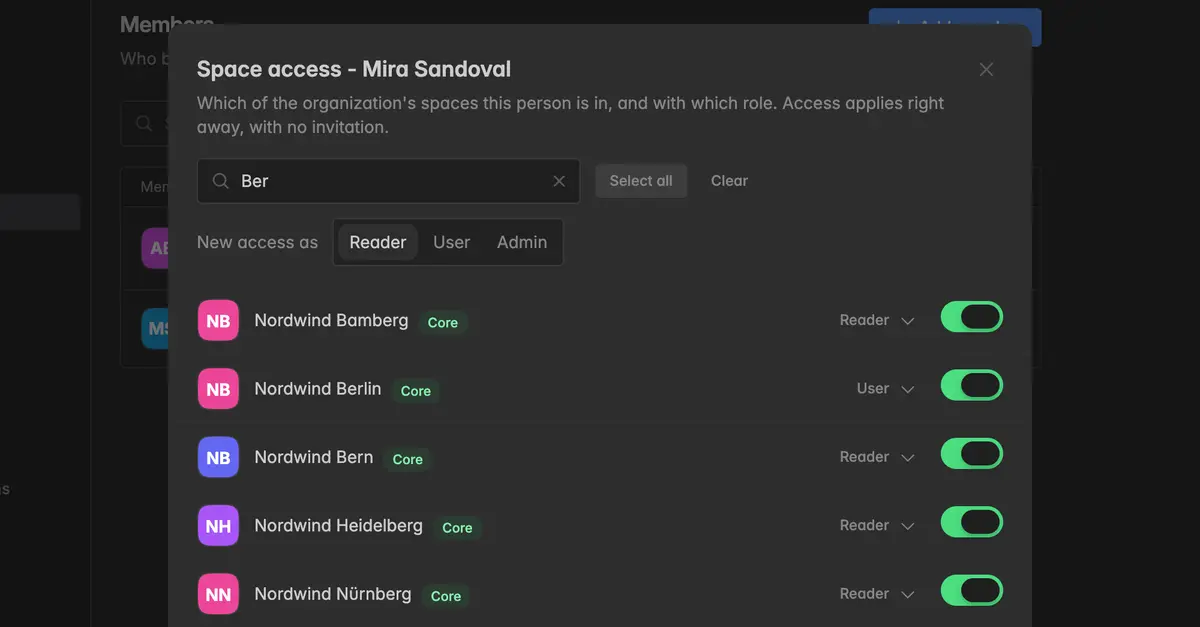
Check the footer. It sums up the pending changes: Add to 12, Remove from 1, Change 2. With no changes it reads No changes and Save stays disabled.
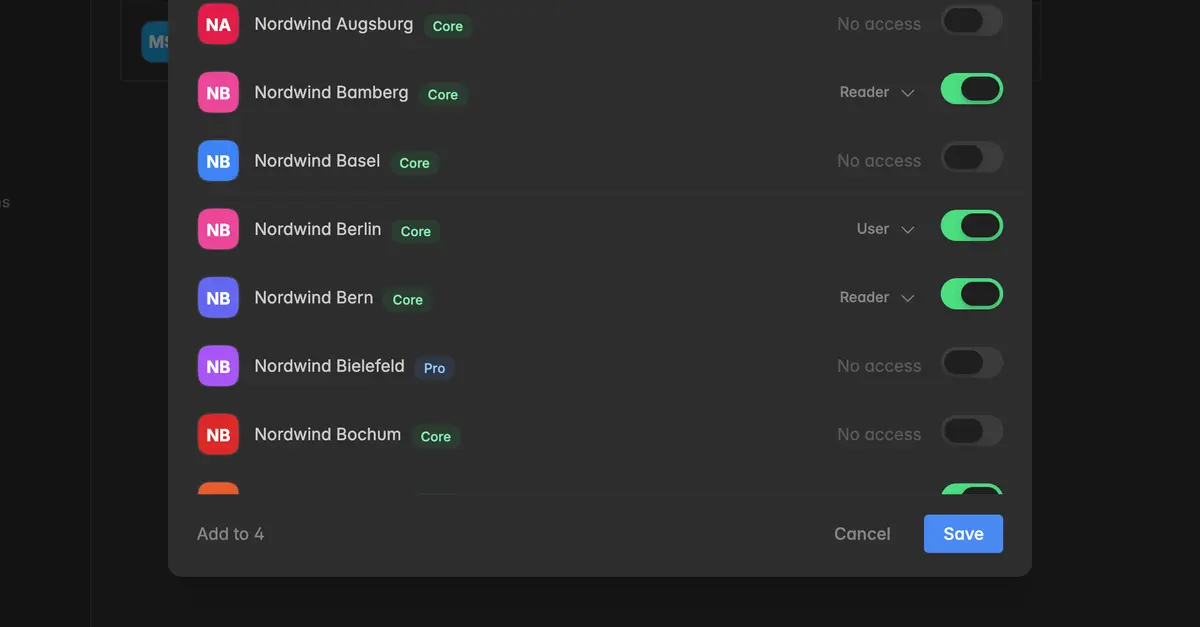
Click Save.
Enter the six-digit Code from your authenticator app and click Confirm.
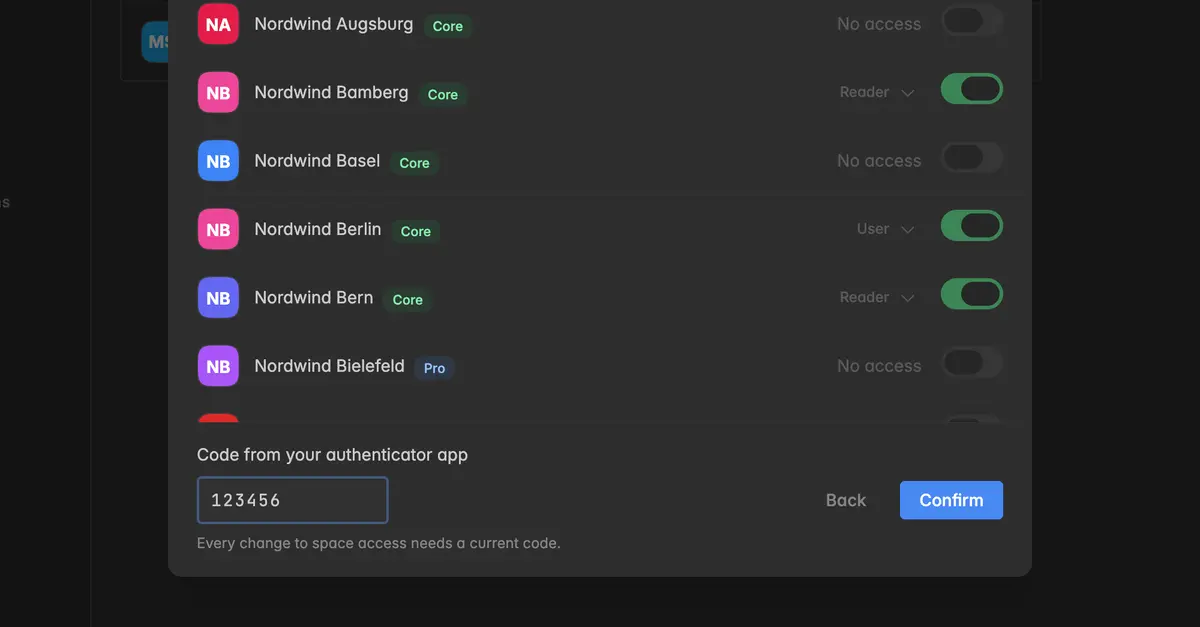
The dialog closes and the count in the Spaces column updates. The person can open the spaces right away. They do not need to accept anything.
Tip: "All but a few" takes three clicks. Click Select all, switch off the few spaces that should stay out, and click Save.
How do I change a member's role in a space?
Open the member's space access as described above.
Next to a switched-on space, click the role, for example Reader, and pick the new one from the menu: Reader, User, or Admin.
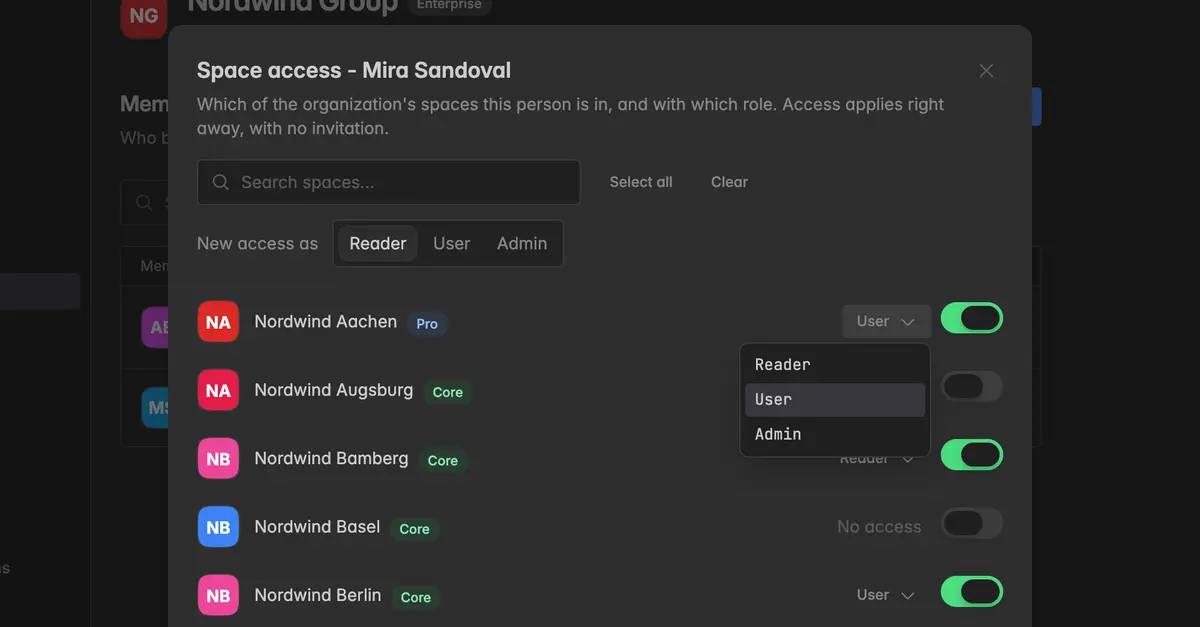
Click Save and confirm with your authenticator code.
The space roles are the same as under Settings → Team. What each role may do is described in Team and shown in the app under Roles and permissions.
Note: Promotion spaces only take the role Reader. Their role menu offers nothing else.
How do I remove a member from spaces?
Open the member's space access as described above.
Switch off every space the person should leave. The footer counts them as Remove from N.
Click Save and confirm with your authenticator code.
The person loses access to those spaces at once. If they are inside one of them at that moment, the space closes on their next page load. Their organization membership is untouched.
Note: A space always keeps at least one active admin. If the person is the last admin of a space, the save is refused for that space and nothing is saved. Make someone else admin of that space first.
How do I remove someone from the organization and all its spaces at once?
Offboarding in one step: Remove the person from the organization and from every space the organization owns.
On the
Memberspage, hover over the member, click⋮, and select Remove from organization.In the dialog Remove member, copy the Member name into the confirmation field.
Switch on Also remove from all organization spaces. The dialog now reads that the person loses access to all of the organization's spaces.
Enter the Code from your authenticator app.
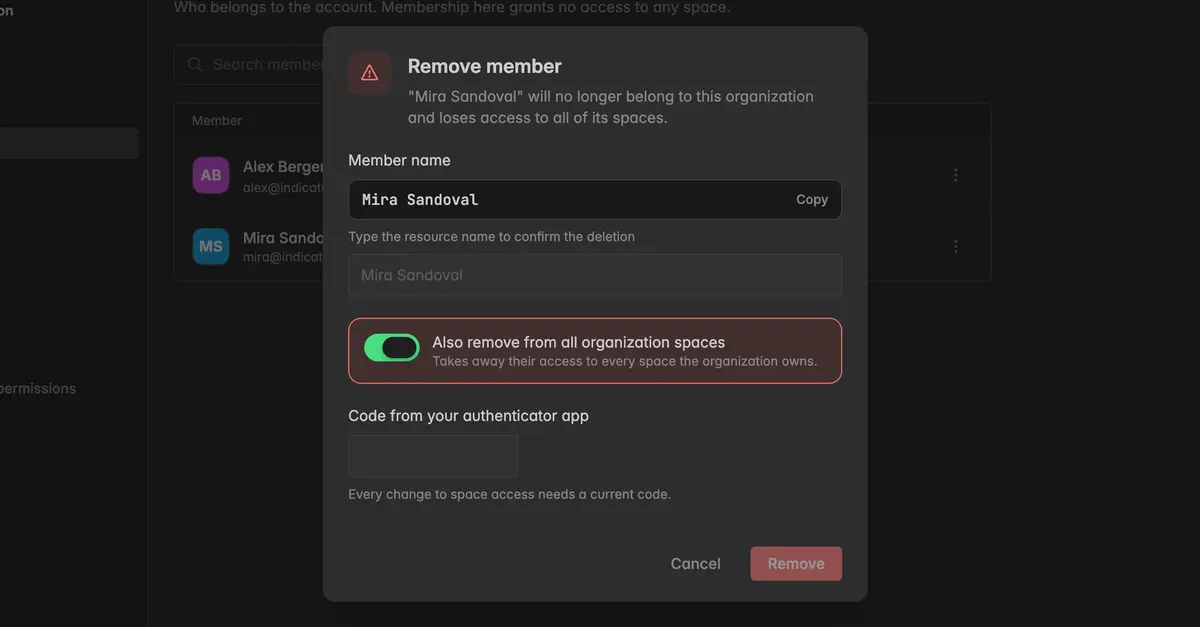
Click Remove.
With the switch off, the person leaves the organization only and keeps all their spaces, as before. The switch is only available when removing someone else. When you leave the organization yourself, your spaces are always untouched.
Note: If the person is the last admin of one of the spaces, nothing is removed, not even the organization membership. The dialog reads Nothing was removed and names the spaces. Make someone else admin there first, or remove the person and keep their spaces.
What the dialog shows
Switch and role: A switched-on space with a role means the person is in that space. No access means they are not.
Inactive - tick it to restore access: The person had access to this space before, but it was set inactive or has expired. Switching it on restores it with the role you choose.
Suspended, Closed, or Run by Indicate - access cannot change: These spaces are greyed out. Access to them cannot be changed from here. They are still listed so the picture is complete.
Tier badge: The plan of the space, next to its name.
Refused: After a failed save, every space that refused the change carries this badge and the reason is listed at the top of the dialog. Nothing was saved. Fix the named spaces or switch them back and save again.
What happens after a save?
Access applies immediately. The person sees the new spaces in their space switcher on the next load.
Pending invitations of that person into the affected spaces are withdrawn. An invitation to a space they were just added to would otherwise lead to a dead link, and one to a space they were just removed from would let them back in.
The change is written to the audit log of each affected space, marked as made through the organization. See Audit log.
The person and every organization admin receive one email that lists which spaces were added, changed, and removed.
Troubleshooting
The Spaces column is plain text and the row menu has no Manage space access
- Changing space access needs the Admin role in the organization. Members see the counts but cannot change them. Ask an organization admin.
The dialog says "Turn on two-factor authentication to change space access"
- Every change to space access needs a current authenticator code, so your account must have 2FA turned on. Click Set up, or go to
Settings→Authentication, see Authentication. Then open the dialog again.
"That code was not accepted"
- The code has expired or was typed wrong. Codes change every 30 seconds. Wait for a fresh one in your authenticator app and try again. Your draft is kept.
"Nothing was saved" with a list of spaces
- At least one space refused the change, and a save is all or nothing. The reasons are named per space: The space would be left without an admin, This space is suspended, This space is closed, or Promotion spaces only take the Reader role. Switch those spaces back to how they were, or fix the cause, and save again.
A space is missing from the list
- Only spaces the organization owns are listed. A space that is shared with the organization but owned by another one is managed in that organization. The full list of owned spaces is on the
Spacespage, see Organization spaces.
I want to add someone who is not in the organization yet
- Add them on the
Memberspage first with Add member. The space access dialog opens for them right after. If they have no Indicate account yet, invite them into one space underSettings→Teamfirst, see Invite a team member.
"This person is no longer a member of the organization"
- Another admin removed the person from the organization while you had the dialog open. Close it. To give them access again, add them back as a member first.
The person cannot see a space I added them to
- Ask them to reload the app or switch spaces. The space switcher lists the new spaces on the next load. If the space is Inactive or Suspended, it cannot be opened by anyone, see Organization spaces.