
What is on the Spaces page of an organization?
The Spaces page lists every space the organization owns, whether or not you are a member of it. For each space it shows the Status and the Plan. It is the one place to see the whole account at a glance, for example every property of a hotel group or every client of an agency.
The page is read-only. Spaces are created from the space switcher and moved between organizations by Indicate.
Where do I find it?
Click the gear icon at the bottom of the left rail to open
Settings.Under
Organization, clickSpaces.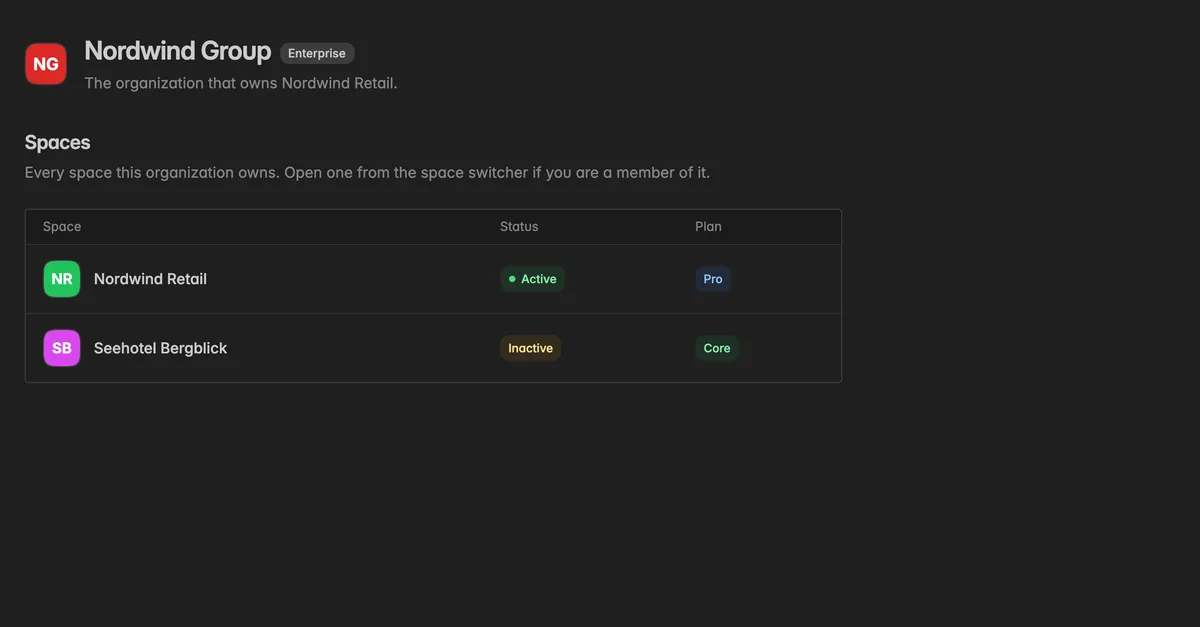
What do the columns mean?
Space: The logo and name of the space.
Status: Active for a running space, Inactive for one that is switched off, Suspended for one Indicate has suspended. Only active spaces can be opened.
Plan: The plan of the space, for example Core or Pro. Every space has its own plan and its own billing, see Billing.
How do I open one of the spaces?
The list does not link to the spaces. Open a space from the space switcher: Click the space icon at the top of the sidebar. The switcher groups all your spaces by organization, with the organization's name as the heading of each group.

You only see spaces there that you are a member of. A space that is listed on the Spaces page but missing from the switcher is one you are not in yet. Ask an organization admin to give you access, see Organization space access, or an admin of that space, see Invite a team member.
How do I add a space to the organization?
Create it from the space switcher with Create a space, see Create a new space. Which organization a new space lands in is decided by Indicate. To move an existing space into your organization, or out of it, create a request in the help center and name the Organization ID from the General page.
Note: A Standard organization owns one space. Several spaces under one account need the kind Enterprise, see Organization.
Troubleshooting
A space is on the list but not in my space switcher
You are not a member of that space. Organization membership by itself grants no space access. Ask an organization admin to put you into the space, see Organization space access, or an admin of the space to invite you.
A space shows Inactive or Suspended
The space is switched off or suspended by Indicate. It cannot be opened. Create a request in the help center if you need it back.
The page reads "This organization owns no spaces yet"
The organization has been created but no space has been moved into it. Create a request in the help center.