
Organization name and banner
Set the banner that heads the sidebars of every space in the organization, choose its background, and rename the organization.
What is on the General page of an organization?
The General page holds what everyone in the organization's spaces sees: the banner that heads their sidebars, the name of the account, and read-only facts, the Kind, Your role, and the Organization ID.
Only organization Admins can change the banner and the name. Members see the page read-only with the lock Admin only. For what an organization is and who its members are, see Organization.
Where do I find it?
Click the gear icon at the bottom of the left rail to open Settings.
Under Organization, click General.
How do I set the organization banner?
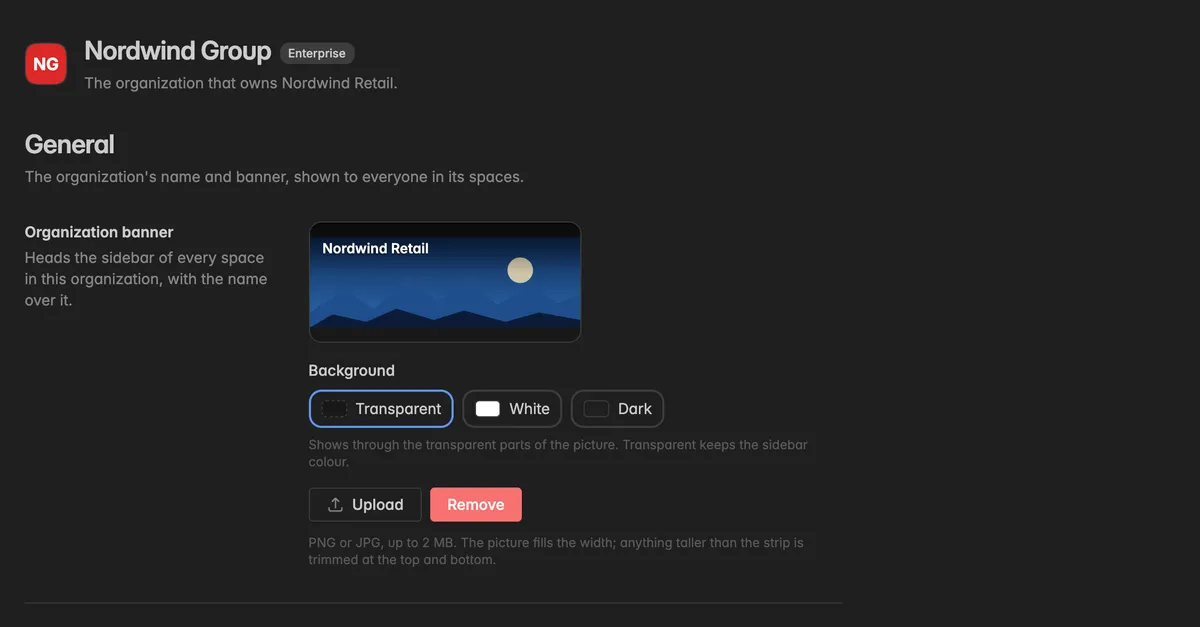
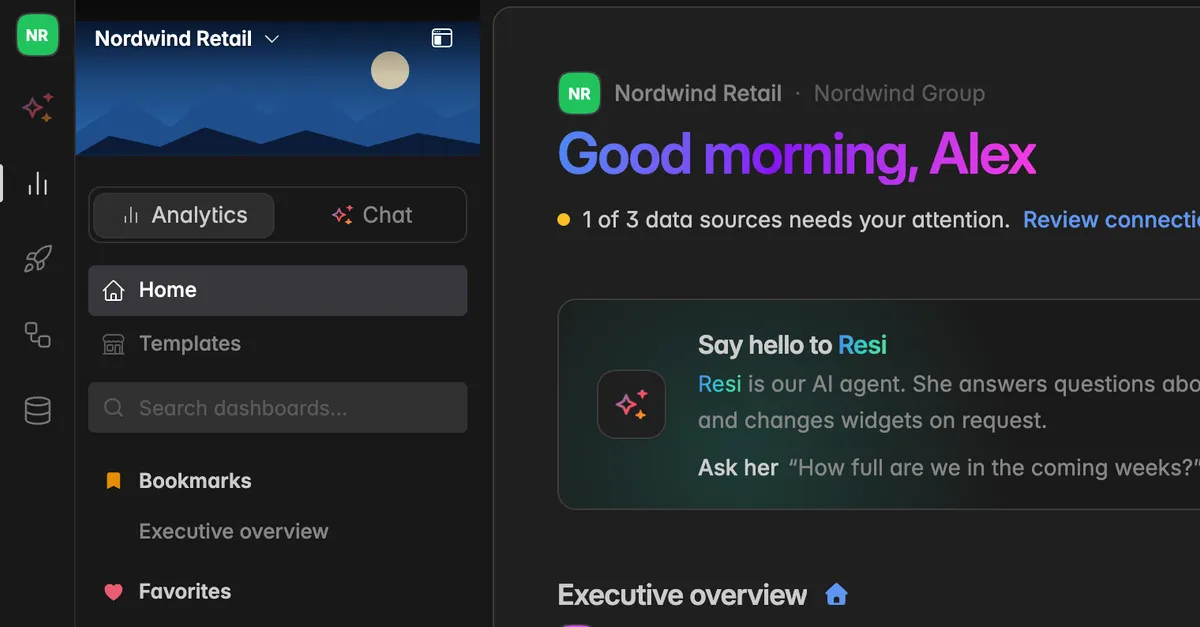
The banner is a picture that heads the sidebar of every space the organization owns, with the name of the space over it. It tells everyone whose account they are in, across all spaces.
Banners come with organizations of the kind Enterprise or Partner. A Standard organization sees the note Banners come with Enterprise with a Contact us link instead.
Under Organization banner, click Upload.
Pick a PNG or JPG of up to 2 MB. The picture fills the width of the sidebar. Anything taller than the strip is trimmed at the top and bottom, so use a wide picture, for example a logo on a landscape background.
Under Background, pick what shows through the transparent parts of the picture: Transparent keeps the sidebar colour, White and Dark are fixed colours that stay the same in the light and the dark theme. Use them for a logo made for a white or a dark ground.
The banner is saved as soon as the upload is through, and the background as soon as you click it. The preview on the page shows the result with the current space name over it. Click Remove to take the banner away, the sidebars go back to the space logo.
How do I rename the organization?
Under Organization name, edit the Name. Up to 128 characters, the counter shows how many you have used.
Click Save.
The new name shows in the space switcher, in the settings header, and in the space menu of every space the organization owns.
What are Kind, Your role, and Organization ID?
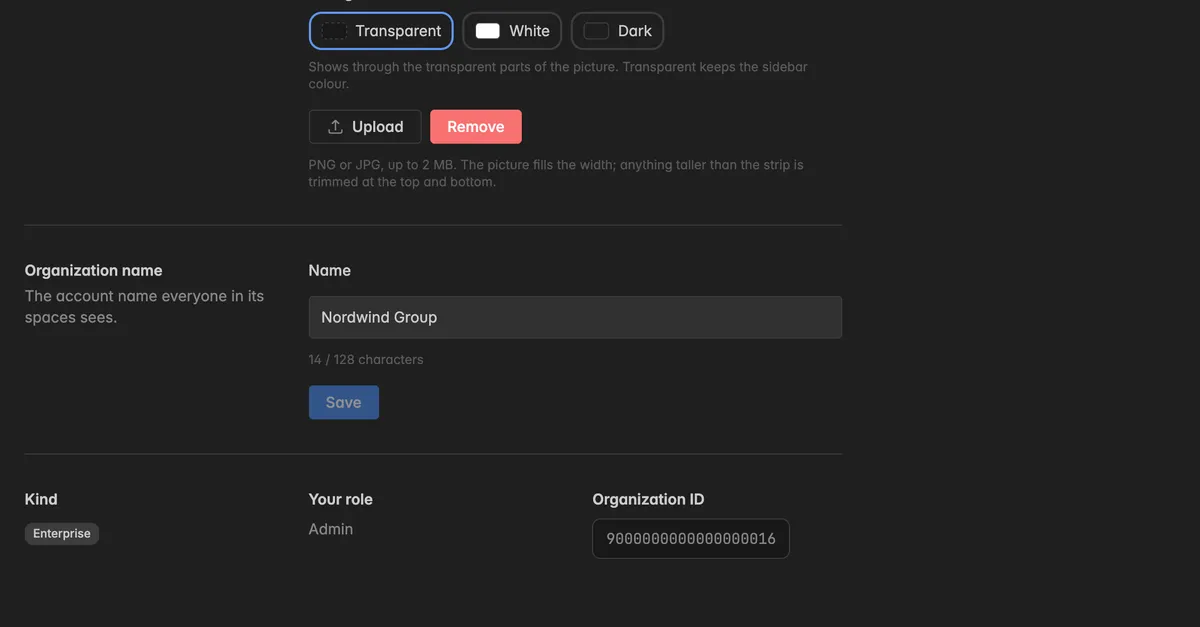
Kind: Standard, Enterprise, or Partner. Set by Indicate. See Organization for what each kind may do.
Your role: Admin or Member, your role in the organization, not in the space.
Organization ID: the identifier of the account. Name it in a support request when it is about billing or about several spaces at once.
Troubleshooting
Upload and Save are missing, the sections show "Admin only"
- Changing the banner and the name needs the Admin role in the organization. Your role is shown under Your role. Ask an organization admin.
The banner is cut off in the sidebar
- The sidebar strip is wide and low. The picture is scaled to the width, and whatever is taller is trimmed at the top and bottom. Use a landscape picture with the logo in the vertical middle.
The logo has no visible edges on the dark theme
- Set Background to White or Dark so the transparent parts of the picture get a fixed ground in both themes.
The upload fails
- The file is larger than 2 MB or not a PNG or JPG. The page says which.
The banner section says "Banners come with Enterprise"
- Your organization is of the kind Standard. Click Contact us to talk about moving to an Enterprise plan.
I renamed the organization but a space still shows the old name
- Reload the space. The name is read once per session.
Was this helpful?