
Connect your first data source
Step 1 of the setup: connect your PMS or another system, let the first sync run, and get your first Insight.
What happens in this step?
You connect the first system your hotel already uses, for example your property management system, your booking engine, or Google Analytics 4. Indicate signs in, starts syncing its data into your warehouse, and builds an Insight from it: the metrics of that system, ready for dashboards and for Resi. This is step 1 of 4 in Start here.
You need the Admin role in the space. Other roles see Connect a source greyed out.
Have the login or the API access of the source system at hand. What exactly is needed differs per system, the articles under Data Sources list it.
Done when: the Home page says Your data source is in good shape and the Insight appears under
Data sources→Insights.
Which source first?
Start with the system that holds your bookings, usually the PMS. It delivers occupancy, revenue, arrivals, and lead times, which is what most dashboards and most questions to Resi are about. Add marketing sources like Google Analytics 4 or Meta Ads afterwards.
Before you connect, open the integration in the Marketplace and read its Catalog tab. It lists every metric the integration delivers, so you know what you will get. See Marketplace.
How do I connect the source?
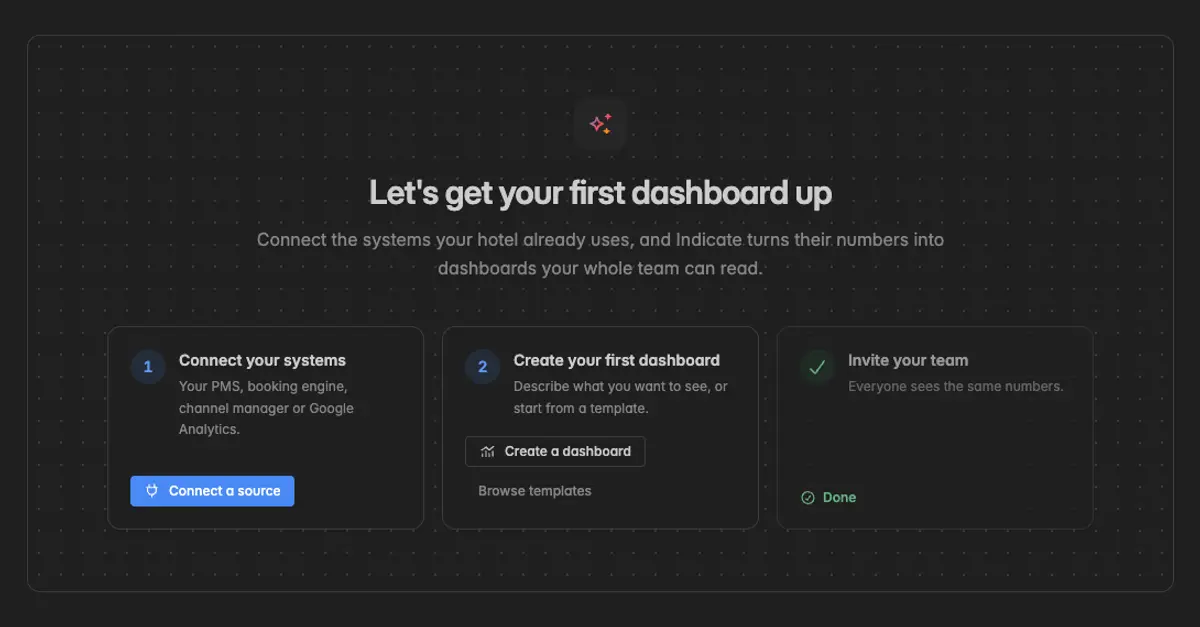
On the Home page, click Connect a source in the card Let's get your first dashboard up, or at the top right of the page.
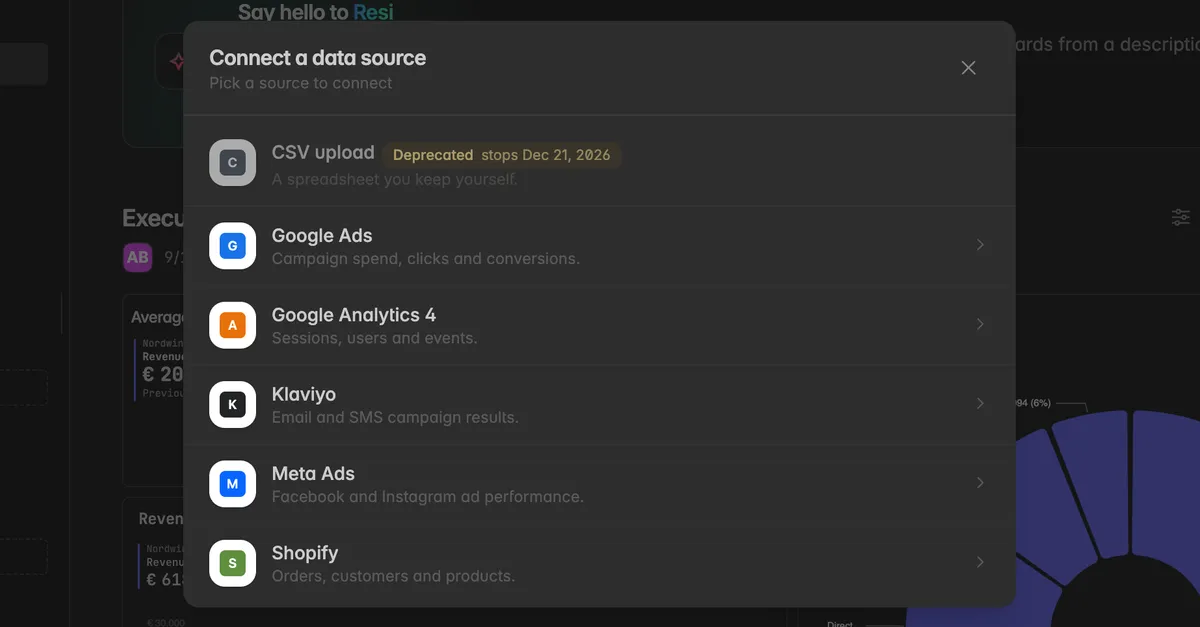
In the dialog Connect a data source, click your system.
Fill in the Connection options. Depending on the system this is a sign-in button that opens the provider, an account or property ID, or a key. Leave the PII switch off unless you need person-related fields.
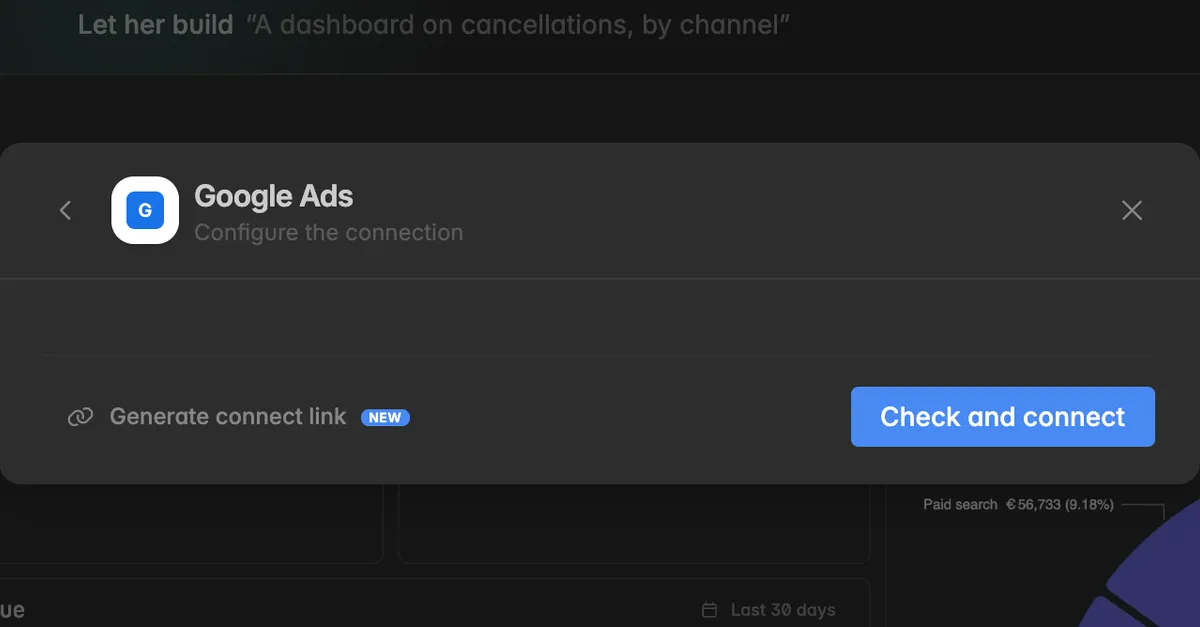
Click Check and connect. Indicate tests the access and creates the connection.
The connection opens under Connections and its first sync starts right away. The same works from Data sources → Marketplace → Connect. For every detail, including how to let someone else authorize a source with a connect link, see Add a data source.
Note: Some systems do not let you connect yourself. ASA Hotelsoftware, for example, is set up by the ASA sales partner. The article of the system under Data Sources tells you.
What happens now?
The first sync fetches the history of the system. For most sources this takes a few minutes, for systems with a lot of history up to 72 hours. You do not have to wait on the page.
The Home page shows the status line, for example 1 of 1 data sources is syncing right now, and Your data source is in good shape when it is through.
The Insight appears under
Data sources→Insightsas soon as the first data has arrived. From then on it is available in every widget and to Resi.The sync keeps running on its own schedule. You never have to refresh anything by hand. See Sync and activity.
You can go on to the next step while the sync runs. A dashboard built now fills with data as it arrives.
Next: Build your first dashboard
Troubleshooting
Check and connect fails
- The credentials are wrong or lack rights. Sign in with an account that has admin or API rights in the source system, and grant every permission the provider asks for. The article of the system under Data Sources lists what it needs.
My system is not in the list
- Click Tell us which ones you need at the bottom of the Marketplace, or use our request form. Until then, bring the data in by file, see Import.
The connection is there, but no Insight appeared
- The Insight is created once the first sync has delivered data. Open the connection under Connections, the Overview tab shows whether the sync is running. If it reads This connection isn't bringing in data yet, click Start syncing.
Connect a source is greyed out
- Connecting needs the Admin role. Ask a space admin, or ask them to send you a connect link. See Roles and permissions.
Was this helpful?