
Invite your team
Step 4 of the setup: which role for whom, how to invite colleagues and your agency, and what makes a space ready for a team.
What happens in this step?
You bring your colleagues and your agency into the space, each with the role that fits their job. Everyone then sees the same dashboards and the same numbers, and the people who should build or ask can do so. This is step 4 of 4 in Start here.
You need the Admin role. Users and Readers see Invite team greyed out.
Have the email addresses ready. Each person gets a link that is valid for 7 days.
Done when: the people show up on the Members tab of
Settings→Team.
Which role for whom?
Pick the role before you invite. You can change it later, but it is cleaner to get it right from the start.
| Role | Give it to | What they can do |
|---|---|---|
| Reader | Owners, managers, anyone who should look but not change | Open every dashboard, change time ranges and favourites for themselves, read AI summaries |
| User | Your revenue or marketing team, your agency | Everything a Reader can, plus build and edit dashboards, chat with Resi, start and pause syncs |
| Admin | The one or two people who run the space | Everything, plus connect and delete data sources, invite people, change roles, settings and billing |
Most agency staff work best as User: they build dashboards and ask Resi, but do not touch the data sources or the team. The full table is on the page Settings → Roles and permissions, see Roles and permissions.
How do I invite someone?
On the Home page, click Invite team at the top right, or open
Settings→Teamand click Add → Invite members.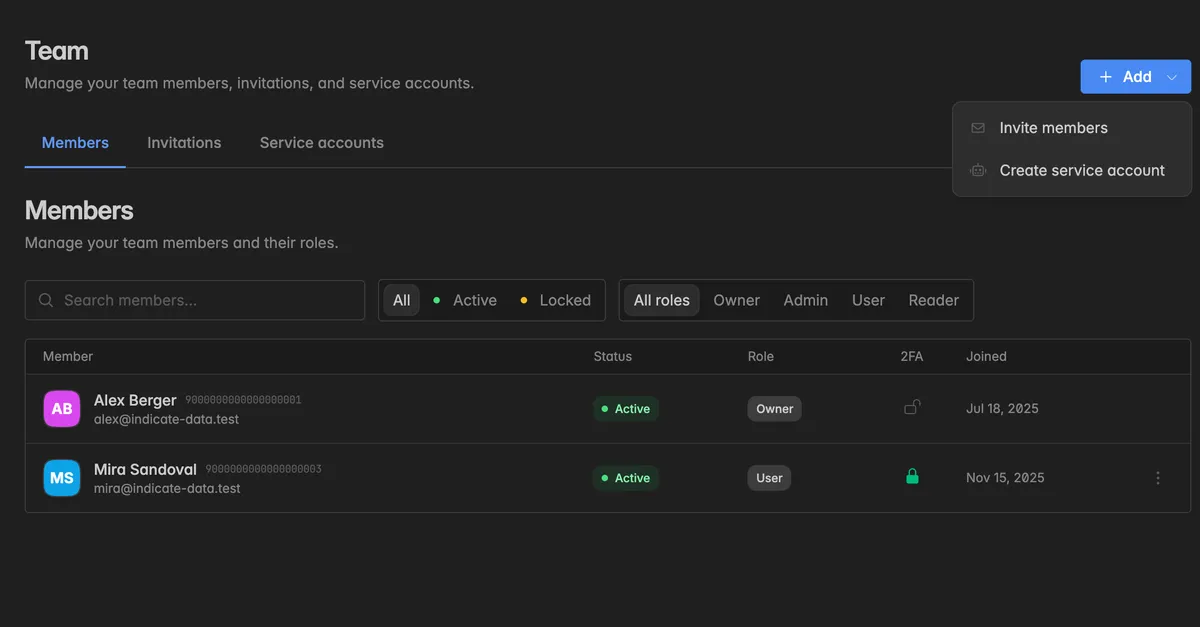
In the dialog Invite team members, enter the Email address and pick the Role. The default is Reader.
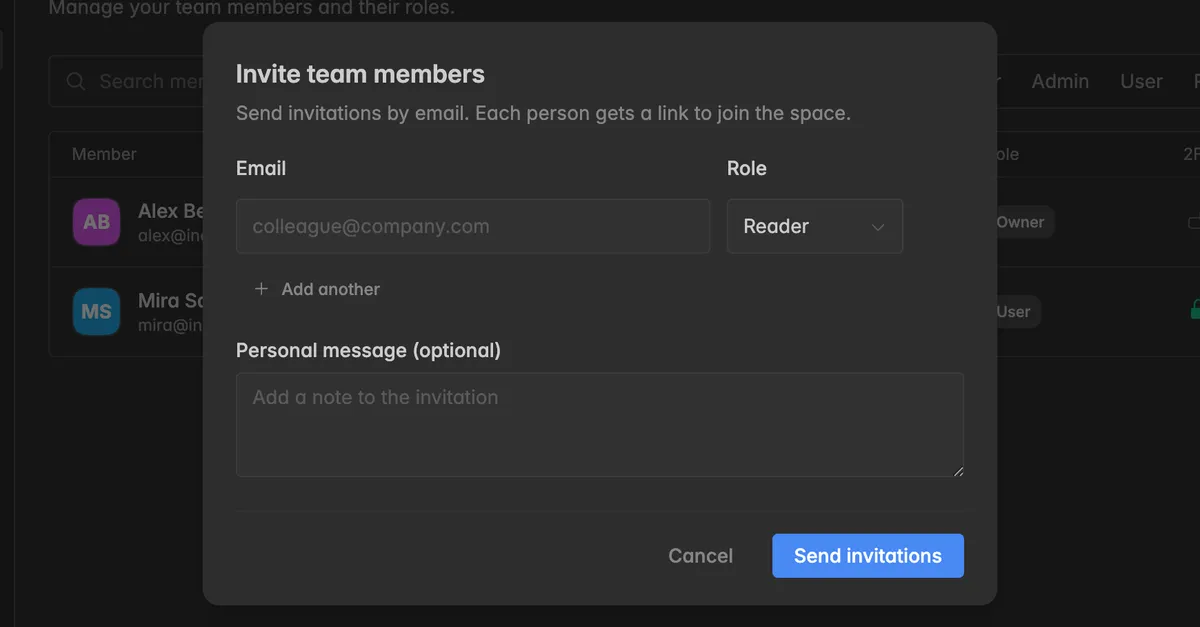
To invite more people at once, click Add another. Then click Send invitations.
The person gets an email with a link. They open it, sign in or create an account, and land in your space with the role you chose. Until then the invitation sits on the Invitations tab as Pending, where you can change its role, resend it, or revoke it. See Invite a team member for every detail.
Tip: Send the invited people the link to Your first 10 minutes as a team member. It shows them where everything is and what their role allows.
What else makes a space ready for a team?
Set a home dashboard. Everyone starts on the Home page, and the home dashboard is the first thing they see there. Open the dashboard,
⋮→ Set as home dashboard. See Home page.Send dashboards by email. A Flying KPI sends a dashboard to your team every day, week, or month, with an AI summary if you like. See Flying KPI.
Connect your AI tools. Your team can also ask questions in Claude or ChatGPT, against the same Insights. See Connect AI assistants to your data.
That is the setup done. From here on, every article in the help center starts with what a feature is and ends with troubleshooting, and the help center has a request form if you get stuck.
Troubleshooting
The person did not get the email
- Ask them to check the spam folder. On the Invitations tab,
⋮→ Resend invitation sends it again. Check the address first.
The link has expired
- Invitations are valid for 7 days. The invitation then shows Expired under Past invitations. Resend it from the Invitations tab, the link is renewed for another 7 days.
They already have an Indicate account
- That is fine. They sign in with their existing account and your space is added to it.
I invited someone with the wrong role
- Before they accept:
⋮→ Edit invitation on the Invitations tab. After:⋮→ Edit member on the Members tab. See Team.
Invite team is greyed out
- Inviting needs the Admin role. Ask a space admin.
Was this helpful?